

Search “dentist near me” on your phone right now and look at what shows up first. It isn’t a website. It’s three businesses sitting on a small map with star ratings, call buttons and photos, and most people never scroll past them. That box is called the local pack, and it runs almost entirely on Google Business Profile. If you want to know how to optimise your Google Business Profile so you land in that box, you’re in the right place, because this free listing brings in more local leads than most websites ever will.
Here’s what makes it frustrating. Plenty of owners claim their listing, add a phone number, upload one blurry photo of the shop board, and then wonder why the café down the road, with worse coffee, sits above them. The café isn’t lucky. Its owner picked a better primary category, collected 200 reviews, replies to every one of them, and updates the hours before Diwali. None of that is hard. It’s just boring, and boring work is where local rankings come from.
This guide goes through the whole thing in an order that makes sense. Setup and verification first, then the content on the listing, then photos, posts and reviews, then the website and citations that back the profile up, and finally how to measure what’s working. The examples come from small Indian businesses like clinics, salons, cafés and coaching centres, because that’s who most readers here are. Every setting is named the way it appears in the dashboard, so you can follow along with your own profile open in another tab.
One thing before we start. Nothing in here is a trick. Google has said for years that local results depend on relevance, distance and prominence, and every tactic below pushes on one of those three. Some tactics take ten minutes. Some take six months. Do the ten-minute ones today.
TL;DR
Short on time? Here’s the version you can screenshot and stick above your desk.
- Verify the profile properly, remove duplicates, and keep your name, address and phone identical everywhere.
- Choose the most specific primary category you can, then add only the secondary categories that match services you really sell.
- Fill every service, product and attribute field, and write a description that opens with what you do and where.
- Collect reviews steadily, reply to all of them, and post photos and updates every week so the profile never looks abandoned.
- Back the profile with a matching location page, consistent directory listings, and tracking so you can see which changes actually bring calls.
What You Will Learn in This Guide
This guide is long on purpose, since every step has a reason behind it and a mistake people tend to make while doing it. Here is what you’ll walk away with after reading it from top to bottom.
- How to claim, verify and clean up your profile so nothing gets suspended or split across duplicates
- How to choose a primary category, secondary categories and services that match what customers type into Google
- How to write a business description and fill attributes, links and hours without breaking Google’s guidelines
- How to use photos, videos and Google Posts to make the profile look alive and get more calls
- How to ask for reviews the right way, reply to them, and handle unfair or fake ones
- How to support your profile with a location page, schema markup, citations and local links
- How to read the Performance report, track rankings by location, and follow a simple 30-day plan
How to Optimise Your Google Business Profile: Get the Foundation Right First
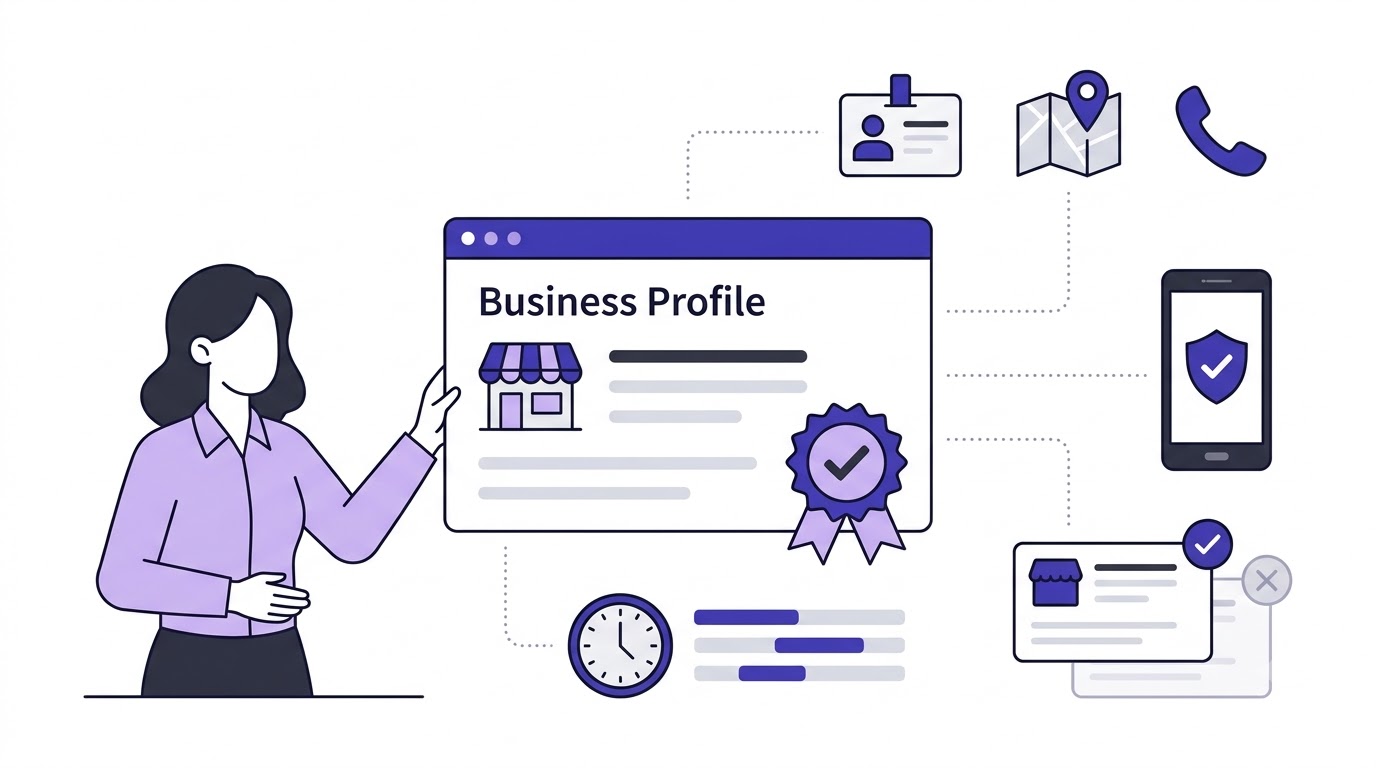
Before anything fancy, the profile has to exist, belong to you, and say the same thing everywhere. That sounds obvious, but Google’s own Business Profile help forum is full of owners who spent months tweaking photos on a listing that was never verified, or on a duplicate nobody ever sees. Foundation work isn’t exciting. It’s the reason every later step counts for something, and if you skip it you’ll end up redoing the exciting parts.
Claim and Verify Your Profile the Right Way
Search your own business name on Google while signed in, and a manage panel appears right in the results. Click it, confirm the name, choose your category and location type, and then comes verification, which is where most people get stuck. Depending on your business, Google offers a video recording, a phone call, an SMS, an email, or the old postcard with a five-digit code that takes around five days to arrive.
Video verification trips up the most people. Google asks for one continuous clip: the street outside, your shop board, the inside, and some proof that you run the place, like equipment, stock or a document with the business name on it. Don’t cut it into pieces. Don’t film from a moving auto. One unbroken take of a minute or two, with signage visible, and approval usually comes within a few days.
Use a Google account that belongs to the business, not your cousin’s Gmail. If the person who verified the listing leaves, you’re locked out, and ownership requests can drag on for weeks. Add a second owner under People and access in the profile settings, and keep the recovery email current. It takes two minutes and saves a lot of pain later.
Find and Fix Duplicate or Unclaimed Listings
Duplicates split your reviews, photos and ranking signals across two listings, and Google can filter one of them out of results entirely. They show up more often than you’d expect: an old listing left by a previous tenant, one created by a former employee, or one auto-generated from a Justdial or Sulekha data feed. Search your phone number, your old address and every spelling of your name in Google Maps, and write down anything that isn’t the profile you manage.
If a duplicate is yours, request access and then remove or merge it. If it isn’t, open it in Maps, tap Suggest an edit, choose Close or remove, and pick the reason, such as Duplicate or Business moved. When the old listing carries more reviews than the new one, ask Google Support for a merge instead of a removal, because a merge can bring those reviews across.
Look, this is tedious, and it’s also where quick wins hide. Picture a Pune physiotherapist with two listings, 40 reviews on one and 12 on the other. She’s competing against herself. Merge them and the profile starts with 52 reviews instead of two weak halves. Check again every quarter, because duplicates have a habit of coming back.
Keep Your Name, Address and Phone Boringly Accurate
Your business name on the profile has to match your signboard, your invoices and your website header. It should not be the name plus “Best Dentist in Baner Pune Painless Root Canal.” Google’s guidelines say that adding keywords, taglines or locations that aren’t part of your real name is against policy, and keyword-stuffed names are one of the fastest routes to a suspension. A clinic called Sharma Dental Care is just Sharma Dental Care.
For the address, enter it the way your website writes it, with the floor or landmark if that’s how customers find you. Don’t use a co-working desk or a virtual office unless customers can actually meet you there, since Google treats those as ineligible. For the phone, use a local number as primary, not a toll-free call-centre line, and keep the same digits on your website and in directories.
This is called NAP consistency, short for name, address and phone. Google compares your details across hundreds of sources. If one directory says “Sharma Dental Clinic, 2nd Floor” and your profile says “Sharma Dental Care, Floor 2”, that’s a small contradiction. Small contradictions pile up and weaken Google’s confidence in the data.
Set Up Service Areas, Hours and Opening Date Properly
Business type decides what you show. A salon, café or clinic where customers walk in has a visible storefront address. A plumber, electrician or home tutor who travels to customers is a service-area business and should hide the address and list areas served instead. Google lets you add up to 20 service areas, and they should be cities, pin codes or neighbourhoods you really cover, roughly within a two-hour drive, not the whole state.
Hours are the other quiet killer. Set regular hours for each day, add split shifts if you close for lunch, and use Special hours for Diwali, Eid, Christmas, election days and anything else when you’re shut. Nothing annoys a customer more than crossing the city to a closed door that Google said was open. Those people leave one-star reviews, and they don’t come back.
Also fill in the opening date. It’s a small field, but it tells Google and customers how established the business is, and for newer businesses it gives context to a short review history. Then check your hours monthly. Seasonal businesses forget this one more than any other.
How to Optimise Your Google Business Profile Categories, Services and Description
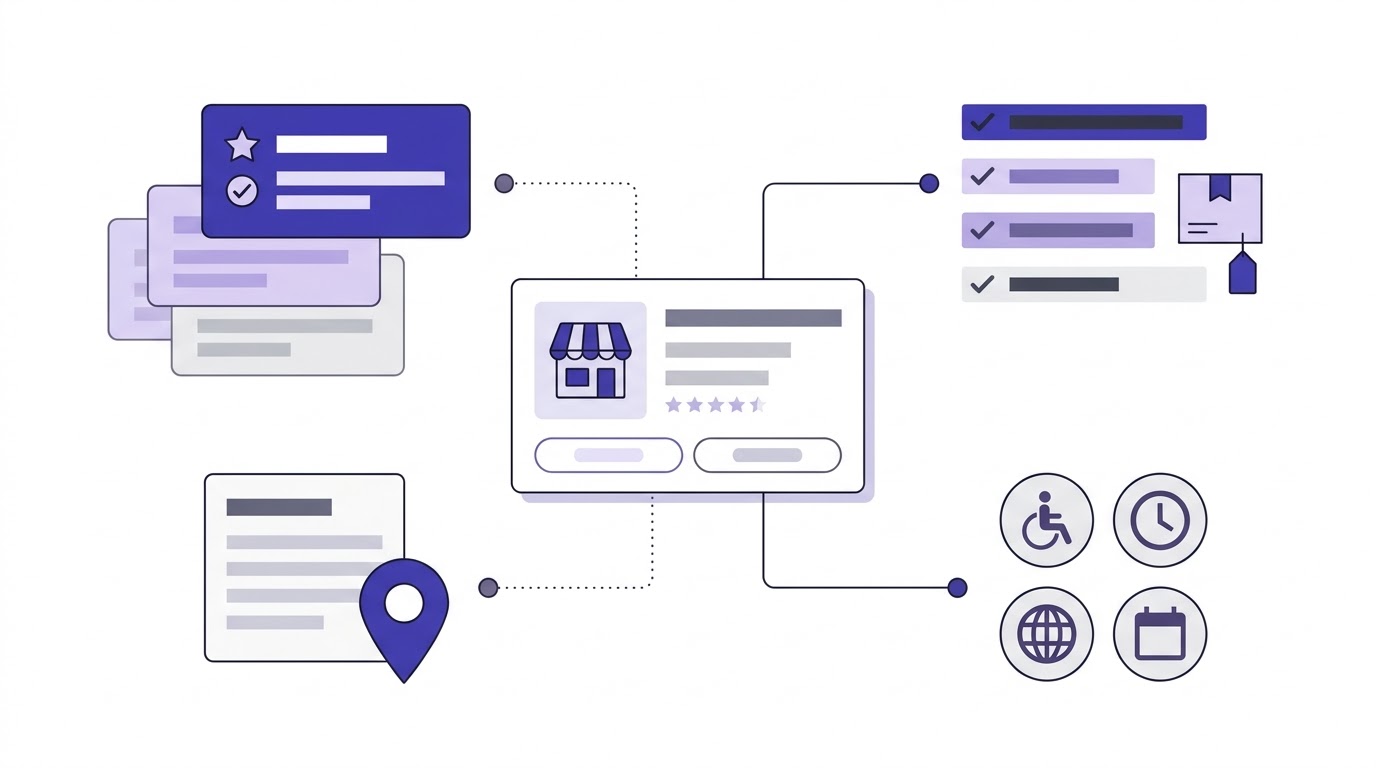
This is the part where you tell Google, in its own language, what your business is. Categories, services and the description decide which searches you’re eligible to appear for. Get them wrong and no number of reviews will rescue a profile that shows up for the wrong queries. Get them right and a modest profile can beat a bigger one for the searches that bring paying customers. Here’s how to do it field by field.
Pick the Right Primary Category
The primary category is the strongest signal you control on the profile. Whitespark’s yearly Local Search Ranking Factors survey, where local SEO specialists vote on what matters, has put it at or near the top of the Google Business Profile factors for years. It tells Google what you are first and foremost, and that decides which searches you’re eligible for.
Be specific. “Dentist” beats “Health” because it matches a real search. If your clinic only does braces, “Orthodontist” fits better than “Dentist”. For a restaurant known for dosa and filter coffee, “South Indian restaurant” beats plain “Restaurant”. Google offers a few thousand categories and the wording changes now and then, so type your service into the category box and see what’s listed before settling.
Here’s a trick that works. Search your main keyword on Google, open the top three local results, and check their categories with a free extension like GMB Everywhere or PlePer. If all three use “Physiotherapist” and you chose “Health consultant”, you know what to change. One warning: after changing a primary category, rankings can wobble for a week or two. Don’t panic and flip it back.
Add Secondary Categories Without Diluting Your Focus
You can add up to nine additional categories, ten in total with the primary. Most owners either add none or add all nine, and both are mistakes. Pick only the ones that describe services you sell today. A dental clinic might add “Cosmetic dentist”, “Dental implants periodontist” and “Emergency dental service” if those are real, bookable services, and skip “Hospital” because that’s not what it is.
Each secondary category lets you appear for related searches, and some of them open up features like booking buttons or menu options. But the more you add, the muddier the profile reads. Think of the primary as your headline and the secondary ones as supporting lines. A competitor with one focused primary and three well-chosen secondaries often beats a profile that stuffed in all ten.
After any change, give it a week or two before judging the result. Keep a simple spreadsheet with the date and the old categories so you can roll back if something drops. This is also a good habit for every other edit you make, since local ranking changes are slow and easy to misread.
Fill in Services and Products Like Mini Landing Pages
Under Edit services you list what you sell, with names and short descriptions, and under Products you add items with photos and prices. This is one of the most ignored parts of the profile. Google reads the text in these fields to decide which searches you fit, and customers read them before they call.
Write each service the way customers search. “Root canal treatment” is better than “RCT”. For a salon, “Bridal makeup”, “HD airbrush bridal makeup” and “Engagement makeup” are three separate services, each with a two-line description and a starting price if you’re comfortable showing one. Prices cut down time-wasters and raise the quality of the calls you get.
Don’t paste the same line under every service. Say what’s included, how long it takes and who it’s for. A coaching centre might write “JEE Main crash course, 90 days, small batches of 15, weekend doubt-clearing sessions at the Baner centre.” That one sentence helps a parent decide, and it carries natural keywords without trying. If you’re new to finding those phrases, these SEO guides walk through keyword research from scratch.
Write a Business Description That Reads Like a Person Wrote It
The description box allows 750 characters, and only the first 250 or so show before the fold on mobile, so the opening line carries the weight. Say what you do, where, and for whom, plainly. “Sharma Dental Care is a family dental clinic in Baner, Pune, offering root canals, braces and teeth whitening since 2012.” That’s a good first line. Nothing fancy about it.
Then add one or two sentences about what makes you different: free parking, a woman dentist on staff, Sunday appointments. Don’t write an ad. Google doesn’t allow links in the description, and shouting about discounts invites trouble. Mention your main keyword and your area once, naturally, not four times in a row.
Read it out loud. If it sounds like a brochure, rewrite it the way you’d explain your business to a new neighbour. That tone also converts better, because it sounds like somebody who actually runs the place.
Complete the Attributes, Links and Small Fields Most People Skip
Attributes are the tick-box details: wheelchair accessible entrance, free Wi-Fi, women-led, online appointments, outdoor seating. They appear on your profile and feed the filters people use when they search “cafe with wifi near me”. Tick every one that’s true and none that isn’t. A wrong attribute is a bad review waiting to happen.
Then the links. Add the website URL, an appointment link, and a menu or order link where it applies. Point the website link at a page that matches the profile, ideally your location page, not a generic homepage that makes people hunt. The appointment link should go straight to a booking form or a WhatsApp click-to-chat link, because every extra tap loses someone.
Finally, tag the website link with UTM parameters, like utm_source=google, utm_medium=organic and utm_campaign=gbp, so Google Analytics can separate profile visits from regular organic search. More on tracking later, but set this up now so you have months of data when you need it.
How to Optimise Your Google Business Profile With Photos, Posts and Reviews
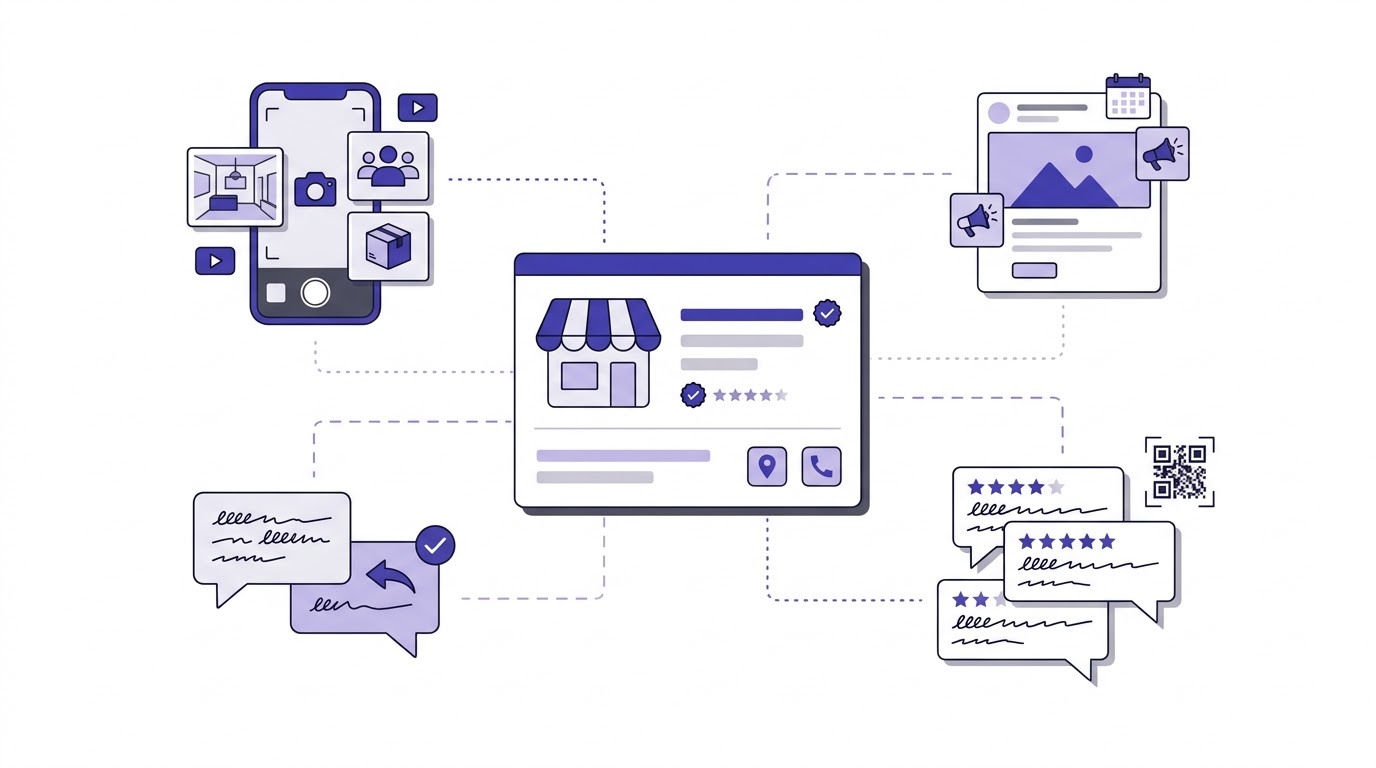
Once the information is right, the profile needs proof that your business is real and active. Photos show what it feels like to walk in. Posts show that somebody is home. Reviews show that other customers trust you. Together they feed the prominence side of Google’s ranking, and they’re also what people actually read before they pick up the phone. Skip this part and your profile looks like a ghost town.
Upload Photos That Show the Real Business
Google accepts JPG or PNG files between 10 KB and 5 MB, at least 720 by 720 pixels. Start with your logo and a cover photo, then add the categories Google asks for: exterior, interior, team, products and work. Shoot the exterior from across the road so a stranger recognises the shopfront from the street. That one photo has saved more first-time customers from wandering past than any ad.
Aim for 15 to 20 real photos at launch, then two to four more every month. A salon should show finished hairstyles and the actual chairs. A clinic should show the waiting area, the doctor and the equipment. A café should show the food on the real plates, in real light. Basic editing in Canva is fine, and these graphic design basics help if you want the images to look consistent without hiring anyone.
Skip stock photos. Customers can tell, and Google can too. Also skip the geotagging tools people keep selling. Nobody has proved that stuffing location data into a photo helps rankings, and Google has never listed it as a factor. Spend that time taking another real photo instead.
Add Videos and Keep Your Photos Fresh
Videos can be up to 30 seconds long, 75 MB in size, at 720p or better. That’s enough for a quick walk through the shop, a chef plating one dish, or a before and after reveal at a salon. Shoot vertically on your phone, keep it steady, and don’t bother with music or effects. People want to see the place, not a movie trailer.
Customers add photos too, and those count. When someone leaves a review, ask if they can share a picture of the dish or the result. Review the photo tab now and then, because an odd or unflattering customer photo can sit at the top for months. You can’t delete it, but you can flag it if it breaks the rules and push better ones up by adding your own.
Freshness matters more than most owners think. A profile whose latest photo is from 2021 looks closed. Set a monthly reminder, spend ten minutes on your phone, and upload whatever happened that month: a festival decoration, a new menu item, a team photo. It keeps the profile alive and gives people reasons to trust it.
Publish Google Posts That Earn Their Place
Posts come in three flavours: Updates, Offers and Events. Each has a text limit of 1,500 characters, an image, and an optional button such as Book, Order online, Learn more, Sign up or Call now. They show on your profile and sometimes in the search panel for your business name, so they’re mostly seen by people who already know you exist.
Honest take: posts are a minor ranking factor at best. Their real job is conversion. Someone finds you, scrolls down, sees a post about this week’s offer or a new service, and picks up the phone. So write them for that person. A clinic can post “Free dental check-up camp this Sunday, 10 to 2, Baner centre, book on WhatsApp” with a photo of the doctor and a Book button. That works.
One post a week is plenty, and a schedule matters more than volume. Don’t copy-paste Instagram captions with hashtags, and don’t put phone numbers in the text since Google strips or rejects them. Older posts drop out of the main view over time, so steady posting keeps the profile looking current. If a post gets zero views for a month, change the format, not the frequency.
Ask for Reviews the Right Way
Reviews are the part of prominence you can influence most directly. In your profile dashboard, choose Ask for reviews and Google gives you a short link and a QR code that open the review box directly. Print the QR code on your counter, your bill book and your invoice. Send the link on WhatsApp right after a happy customer says thanks. The best moment to ask is the moment someone is smiling.
A simple message works. “Hi Priya, thanks for visiting Sharma Dental Care today. If you have a minute, a Google review helps other patients find us: [link]. Thank you!” Short, personal, no pressure. A steady four to eight new reviews a month beats 50 in one week followed by silence, because sudden spikes look odd and can get reviews filtered.
Google has rules here. Don’t offer discounts or gifts in exchange for reviews. Don’t ask only happy customers and quietly skip the unhappy ones, since this review gating is against policy. And don’t write reviews for your own business or have staff do it from the office Wi-Fi. Those habits are how profiles get reviews removed, or worse, get suspended.
Reply to Every Review, Good and Bad
Reply to every review within a day or two. Not with a copy-pasted “Thank you for your feedback”, but with a line that shows a person read it. “Thanks, Priya. Glad the root canal was painless, and see you at the six-month check-up.” That reply also naturally repeats the service the customer mentioned, which helps Google connect the review to what you do. Don’t cram keywords in, since it’s obvious and reads like spam.
Negative reviews are where owners panic. Don’t argue, don’t blame the customer, and don’t reveal private details. Apologise for the experience, say what you’ll do about it, and invite them to call you directly. Other people read these replies more closely than the complaint itself. A calm, fair response to a bad review often builds more trust than ten polite five-star ones.
For fake or abusive reviews, open the review in your dashboard and use Report review. Be specific about which policy it breaks, such as spam, conflict of interest or offensive content. Removal isn’t guaranteed and can take days. While you wait, keep collecting honest reviews. A single bad one gets buried fast under a steady stream of real ones.
How to Optimise Your Google Business Profile by Backing It Up With Your Website and Citations
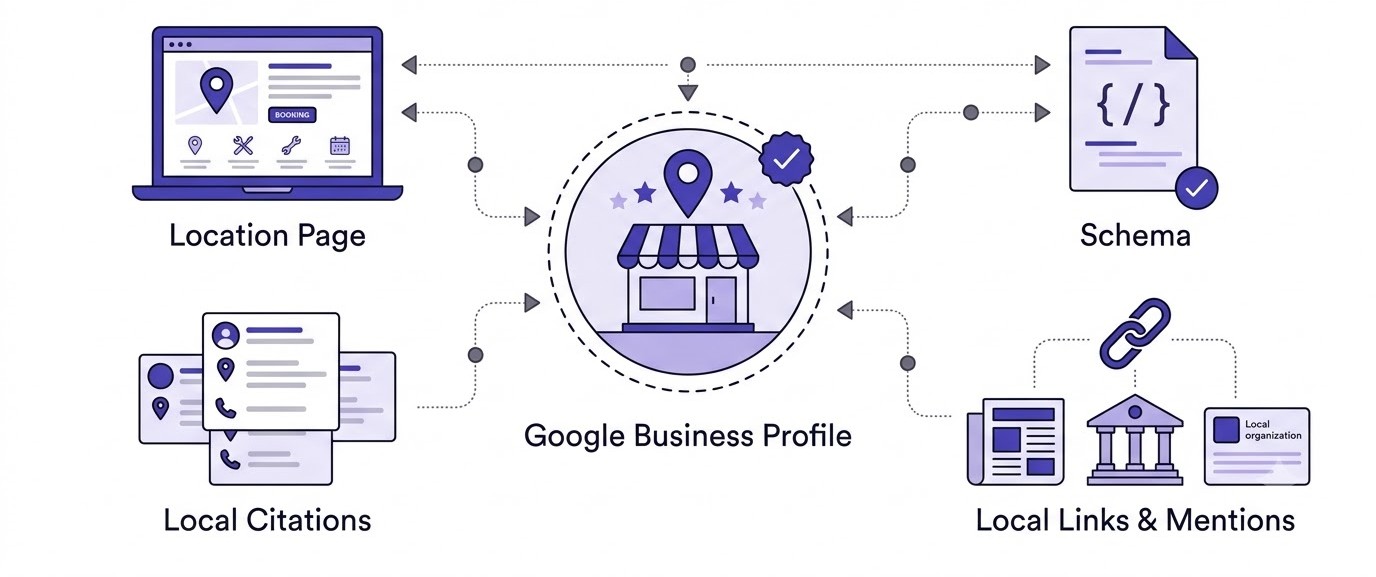
The profile doesn’t live alone. Google looks at your website, other directories and what the web says about you to decide whether your business details can be trusted. This is the part where small businesses often fall behind, because it happens outside the dashboard. The good news is that you only need to do most of it once, and the work pays off long after the profile edits are done.
Build a Location Page That Matches Your Profile
If the website link on your profile points to a generic homepage, you’re wasting the click. Create a dedicated page for each location, like yoursite.com/pune-baner, that carries the same name, address and phone as the profile, your opening hours, directions with a landmark, an embedded Google Map, and a short section on each major service. The page should feel like the profile’s longer, more detailed twin.
Write it for customers first. Include a few real photos, a couple of testimonials, and a clear booking button or WhatsApp link above the fold. Put the neighbourhood and city in the title tag and the main heading once each, for example “Dental Clinic in Baner, Pune | Sharma Dental Care”. That’s all the keyword work the page needs.
Businesses with more than one branch should make a separate page for each branch and link them from a locations page, never one page listing five addresses. Each branch profile should then point to its own page. That setup helps Google match the right branch to the right searcher, and it helps customers find the nearest one without guessing.
Add LocalBusiness Schema Markup
Schema markup is a block of structured data, usually JSON-LD, that tells search engines in a machine-readable way who you are. For local businesses it uses types like LocalBusiness or something more specific such as Dentist, Restaurant or HairSalon. Fields include name, address, telephone, geo coordinates, opening hours, price range and a link to your profile, which creates a clear connection between website and listing.
On WordPress, plugins like Rank Math or Yoast can generate it from a form. On a custom site, paste the JSON-LD into the head of your location page. Then check it with Google’s Rich Results Test and fix any warnings. If you’re comfortable with HTML, this is a perfect first project, and the web development guides explain the basics of editing a site’s head section safely.
Be realistic about what schema does. It doesn’t push you up the map pack on its own. What it does is remove ambiguity, so the details on your page match the details in your profile exactly. Think of it as a tidy envelope: it doesn’t change the letter, but it makes sure the letter gets read as intended.
Clean Up and Build Citations
A citation is any mention of your business name, address and phone number on another site, even without a link. Directories, maps, apps and social profiles all count. For Indian businesses the usual suspects are Justdial, Sulekha, IndiaMART, Bing Places, Apple Business Connect, Facebook, Instagram, and sector sites like Practo for doctors or Zomato for restaurants.
Start with an audit rather than new listings. Search your phone number and business name, list every place you appear, and mark the ones with an old address, a wrong phone number or a former name. Fix those first. Wrong data does more harm than missing data. A tool like BrightLocal or Whitespark can scan hundreds of directories, but a simple spreadsheet does the job for most small businesses.
Then add new ones, but only where real customers look. Twenty relevant, accurate listings beat 200 junk ones from a mass-submission service. Use the exact same name, address format and phone number every time, including how you write “Road” or “Rd”. Boring consistency is the whole game here.
Earn Local Links and Mentions
Links from local sites tell Google your business is a real part of the community. Think of a college placement cell that lists your coaching centre, a local newspaper that quotes your doctor, a neighbourhood blog that reviews your café, or an event you sponsor that links to you from its page. These carry more weight for local search than a random directory link.
Start with the people you already know. Suppliers, landlords, trade associations, local chambers of commerce, schools and charities you work with often have a partners page where you can be listed. Offer something useful: a free workshop, a discount for members, a guest tip for their newsletter. Keep the pitch short and personal, since mass emails get ignored.
Don’t buy links. Don’t join link exchanges either. A handful of genuine local mentions each quarter is a healthy pace, and it’s something your competitors almost never bother with. That gap is exactly why it works.
How to Optimise Your Google Business Profile Over Time: Track Results and Avoid Mistakes
A profile isn’t a one-weekend project. Rankings shift as competitors add reviews, as Google changes the dashboard, and as your own business changes. The owners who stay on top treat the profile like a shop window: they check it, tidy it and learn from the numbers. This section covers what to measure, how to see where you really rank, what gets profiles into trouble, and a plan for your first 30 days.
Read the Performance Report Properly
Open your profile on Google Search and tap Performance. You’ll see how many people called you, asked for directions, clicked your website, booked or messaged, plus how many viewed the profile on Search and on Maps. The list of search terms shows the queries people used to find you, and it refreshes monthly. That list is a free keyword research tool, so read it.
Look at the pattern, not one month’s number. If directions are high but calls are low, you’re probably a walk-in business and that’s healthy. If views are high but website clicks are tiny, the website link or the page behind it needs work. If your own brand name dominates the search terms, most of your traffic is people who already know you, and you’re not winning new customers yet.
Tie the profile to Google Analytics using the UTM tags set up earlier. In GA4, filter traffic by campaign name “gbp” and look at how those visitors behave: which pages they open, how long they stay, whether they submit the form. If profile visitors leave after five seconds, the landing page isn’t matching what the profile promised. Fix that and calls often rise without touching the profile at all.
Track Rankings With a Geo-Grid
Here’s the thing most owners don’t realise. Local ranking is personal and physical. Google weighs relevance (how well you match the search), distance (how close you are to the searcher) and prominence (how well known and trusted you are). Two people searching for the same thing from different streets see different results. So checking “where do I rank?” from your own phone tells you almost nothing.
A geo-grid tool such as Local Falcon, BrightLocal or Places Scout fixes this. It places a grid of points over your area, say 7 by 7 points spaced one kilometre apart, runs your keyword from each point, and shows your rank as a coloured map. A typical result is a strong green circle near the shop that fades to red two or three kilometres out. That fade is distance at work, and no amount of tweaking will fully remove it.
Use the grid to set honest goals. Instead of aiming for rank 1 across the whole city, aim to expand the green area one kilometre at a time. Run the same grid monthly with the same keywords, write down what changed in the profile between scans, and you’ll start to see which actions moved the needle. Most small businesses will never track this, which is why it’s such an edge.
Avoid the Mistakes That Get Profiles Suspended or Buried
Most suspensions come from a short list of habits. Keyword-stuffed business names. Virtual offices or shared desks listed as storefronts. Several listings at one address for the same business. Fake reviews or review swaps with friends. Changing the name, address or category over and over. Each of these tells Google that the profile can’t be trusted, and the penalty is a hidden listing, removed reviews or full suspension.
Burying is quieter and just as expensive. Wrong categories, empty services, no photos, unanswered reviews and out-of-date hours won’t trigger a penalty, they just let competitors walk past you. If you’re asking “why am I not showing?”, check these basics before blaming the algorithm. In most audits, the cause is one of them.
If a suspension does happen, don’t create a new listing. Read the notice in the dashboard, fix whatever it names, and file the reinstatement request with evidence: photos of the shopfront, a utility bill or licence with your business name and address, and a short note explaining the fix. Be patient. Responses can take several days, and resubmitting repeatedly slows things down.
Follow a Realistic 30-Day Plan
Here’s how a dental clinic in Baner, Pune, could work through everything in a month. This is a typical walkthrough with illustrative numbers, not a promise of results. Week one: verify the profile, remove two duplicates, correct the name, and set Diwali hours. Week two: change the primary category to Dentist, add three real secondary categories, fill 12 services with prices, and rewrite the description around the clinic’s root canal and braces work.
Week three: upload 20 real photos and one short video, publish the first post, print a QR code for the reception desk, and start sending the review link to every patient. Week four: build a Baner location page with schema, fix wrong listings on Justdial and Practo, and run the first geo-grid for “dentist in Baner” and “root canal Pune”. Write down every score so month two has something to compare against.
Expect slow, steady movement rather than a jump. Small changes in categories can show in a week or two, while reviews and links take months to compound. If you want to see how this kind of work plays out on real projects, the case studies section shows before and after results from growth work. Keep a log, repeat the scan monthly, and keep doing the boring things.
Conclusion
The short version of how to optimise your Google Business Profile is this: get the facts right, tell Google exactly what you do, prove it with photos and reviews, support it with a matching website, and measure the result. Nothing here needs a big budget. It needs a few hours of setup and ten minutes of attention each week.
Your next step is small. Open your profile today, check the primary category and the hours, and send the review link to your last five happy customers. Then bookmark the free learning hub for the next piece of the puzzle, whether that’s keyword research, content or analytics. Local SEO rewards the person who keeps showing up.
Frequently Asked Questions
What is a Google Business Profile?
A Google Business Profile is a free listing that shows your business on Google Search and Google Maps. It displays your name, address, phone number, hours, photos, reviews and website link. Customers use it to find you, call you and get directions. It was previously called Google My Business, and you manage it directly from Search or Maps.
How long does it take to see results after optimising a Google Business Profile?
Small changes like fixing hours, categories and services can show an effect within one to three weeks. Reviews, photos and local links build more slowly, usually over two to six months. Rankings also depend on competition in your area. A quiet neighbourhood moves faster than a crowded city centre, so track results monthly instead of daily.
Is Google Business Profile free to use?
Yes, creating and managing a Google Business Profile costs nothing. There are no fees to be listed, to add photos, to post updates or to reply to reviews. You only pay if you choose to run Google Ads on top of it, which is separate. Be careful of anyone charging to “guarantee” a profile ranking.
How many categories can I add to my Google Business Profile?
You can add one primary category and up to nine additional ones, ten in total. The primary category matters most because it tells Google what your business mainly is. Add secondary categories only when they match services you actually offer, since irrelevant ones can dilute your focus and confuse both customers and Google.
Do Google reviews affect local rankings?
Yes. Review quantity, quality, recency and the words customers use all influence prominence and how well you match a search. A steady flow of recent, genuine reviews with a good rating tends to help. Reviews also affect whether people click on you, so even if they didn’t help rankings, they’d still win you more customers.
Can I rank on Google Maps without a website?
Yes, you can appear in the map pack without a website, because the profile itself is the main ranking asset. But a website gives Google extra signals about who you are and gives customers somewhere to learn more. For competitive searches, a simple location page with matching details usually makes a visible difference.
How often should I post on my Google Business Profile?
One post a week is a good target. The goal is a profile that looks active, not a high volume of content. Share offers, events, new services or seasonal updates with a clear photo and a button. If weekly is too much, post twice a month and stay consistent instead of posting five times and then stopping.
Why was my Google Business Profile suspended and how do I fix it?
Common causes are keyword-stuffed names, ineligible or virtual addresses, duplicate listings and fake reviews. Open the notice in your dashboard to see the reason, fix the issue, and submit a reinstatement request with proof such as photos of your shopfront and a licence or utility bill. Don’t create a new listing, as that often makes things worse.
Can I hide my address on Google Business Profile?
Yes, but only if you’re a service-area business that goes to customers, like a plumber or home tutor. In the profile settings you can hide the address and list the areas you serve, up to 20. If customers visit your location, such as a salon or clinic, you should show the address.
How do I remove a fake or unfair review?
Open the review in your dashboard and select Report review, then choose the policy it breaks, such as spam, fake engagement or offensive content. Google decides whether to remove it, and that can take several days. Reviews that are merely negative but genuine usually stay, so reply politely and keep collecting honest feedback.
What is NAP consistency and why does it matter?
NAP stands for name, address and phone number. Consistency means these details are written the same way on your profile, website and every directory listing. Google cross-checks them to confirm your business is real and where you say it is. Mismatches lower its confidence in the data and can hold back your ranking.
How do I rank for “near me” searches?
There’s no separate “near me” setting. Google decides using the searcher’s location, so the closer you are, the better your chances. Focus on the right primary category, accurate address and hours, strong reviews and a complete profile. Then you’ll appear whenever someone nearby searches for what you do.
What is the difference between Google Business Profile and website SEO?
Google Business Profile controls how you appear in the map pack and local panel, while website SEO controls how your pages rank in regular organic results. They work best together. The profile gets calls and visits from local searches, and the website supports it with detail, schema and links. Doing one without the other leaves leads on the table.
Can I change my business name on Google Business Profile?
Yes, but only to reflect a real change to your business name, such as a rebrand updated on your signboard and documents. Don’t add keywords or locations to the name. After a legitimate change, update your website, directories and social profiles too. Repeated name changes can trigger a review and put the profile at risk.