
Picture a Tuesday at 4:45 pm. A client messages you for three Instagram posts, a LinkedIn banner and a Meta ad in two sizes, all due before their 10 am call tomorrow. There’s no designer on the team, and barely a budget for one. Ten years ago that message meant panic, a Photoshop licence and a very long night. Now it means opening a browser tab.
That tab is Canva, and Canva for Digital Marketers has quietly become the skill that separates people who ship campaigns from people who wait on someone else’s file. Nobody is asking you to become a graphic designer. Clients and bosses just want posts that look clean, match the brand and go live on time. Canva gets you there, as long as you know which parts of it matter and which parts are clutter.
Here’s the catch. Most beginners open Canva, scroll through fifty templates, swap the text and hit post. The result looks like every other page on the feed. Or it looks like five different brands run by five different people. The tool isn’t the problem. The missing system is. A brand kit, a folder structure, a handful of memorised sizes and a few basic design rules will do more for your work than any template pack ever will.
So this guide walks through the whole thing, from account setup to AI tools, bulk creation and a 30 day practice plan. You’ll see exact pixel sizes, real feature names, the spots where the free plan runs out, and the mistakes that make beginner work look like beginner work. Everything is written for someone who has never designed anything professionally. If you can build a slide in PowerPoint, you can follow along.
What You Will Learn in This Guide
- What Canva actually is and where it fits. You’ll see how it compares with Photoshop, Figma and Adobe Express, what the free plan covers, and the specific jobs where you should still hire a designer.
- How to set up your account like a pro. This covers the Brand Kit, folder names, and sharing rules so a whole team can work without breaking the brand every Friday afternoon.
- The design basics beginners skip. Visual hierarchy, contrast, spacing and font pairing get explained in plain language with examples you can copy the same day.
- How to design for each channel. Social posts, carousels, ads, email headers, blog images and lead magnets each get their own sizes, safe zones and export settings.
- How to work faster with AI and automation. Magic Studio tools, Bulk Create, shortcuts and template systems turn a two hour job into a twenty minute one.
- The mistakes that make work look amateur. You’ll get the common traps plus a 30 day practice plan so the skills stick instead of fading after one weekend.
What Is Canva for Digital Marketers and Is It Worth Learning?
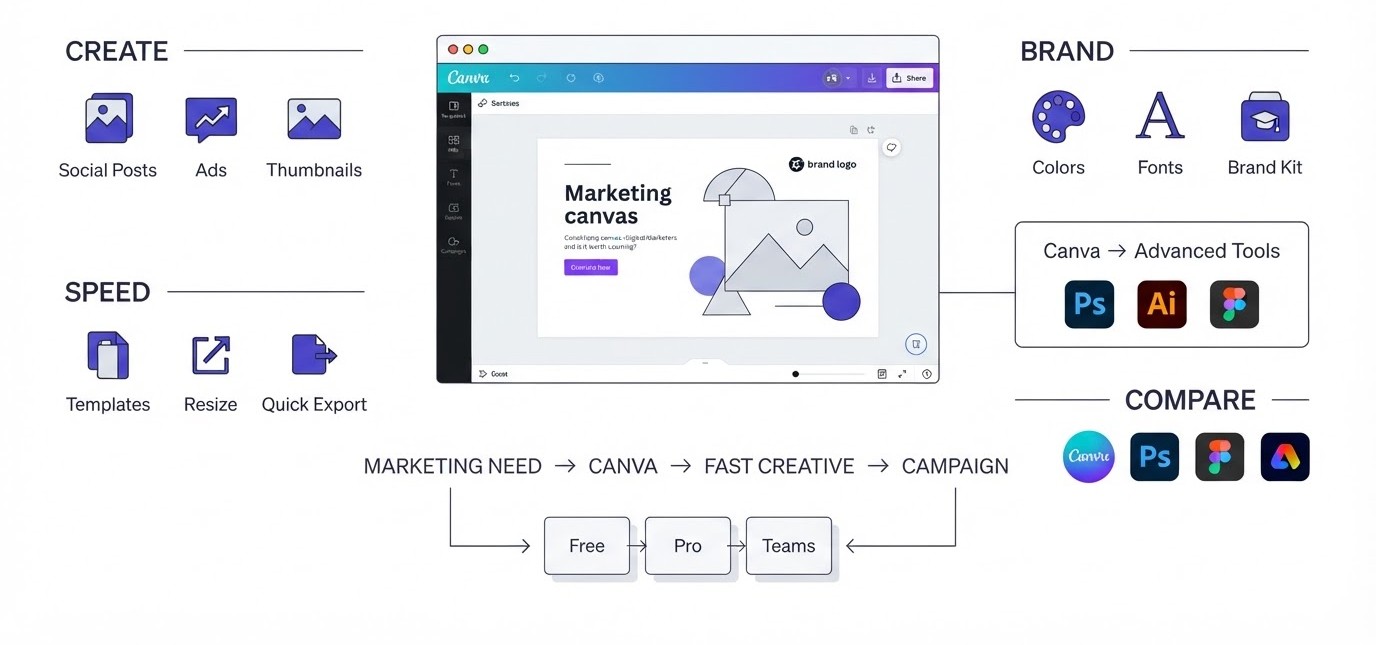
Canva for Digital Marketers means using Canva’s drag-and-drop editor to produce campaign visuals quickly, on brand, and without a professional design background. It’s worth learning because nearly every marketing job now expects it, and the people who know it well finish creative work in minutes instead of days.
The Short Answer: What Canva Actually Is
Canva is an online design platform that runs in your browser and as a mobile app. You pick a size, drag in text, photos, shapes and icons, and export a file. That’s the whole idea. Over 200 million people use it every month, which tells you it isn’t a niche tool anymore.
What makes it useful for marketers is the size presets. Type “Instagram post” or “Facebook ad” into the search bar and the canvas opens at the right dimensions. Nobody has to remember that a LinkedIn banner is 1584 x 396 or a YouTube thumbnail is 1280 x 720. That single feature removes a surprising amount of daily friction.
Underneath the templates, Canva also does presentations, documents, whiteboards, simple websites, short videos and spreadsheets. Most marketers only touch about a fifth of it. That’s fine. Start with the parts that produce posts and ads, then grow outward.
Where Canva Fits Next to Photoshop, Figma and Adobe Express
People love arguing about this one, so here’s the plain version. Photoshop is for editing and compositing photos at a pixel level. Figma is for designing apps and websites with developers. Canva is for producing marketing assets fast. They solve different problems, and picking the wrong one just makes your week harder.
Adobe Express is the closest rival. It has templates, a Brand Kit equivalent and AI features, and if your company already pays for Creative Cloud, it’s a fair choice. But Canva’s template library, team folders and app marketplace are deeper, and far more marketers already know it. That matters when you hand files to a freelancer or a client.
Honestly, if you’re starting from zero and working in marketing, Canva is the better first tool. You can add Photoshop or Figma later if your role demands it. Most marketing roles never do.
Free vs Pro vs Teams: What You Actually Get
The free plan is generous enough to learn on. You get thousands of templates, basic photos and elements, PNG and JPG export, and enough storage to practise. Where it stops is the stuff marketers use daily. A full Brand Kit, one-click background removal, Resize & Magic Switch, and the larger premium stock library sit behind Canva Pro.
For a solo freelancer, Pro usually pays for itself in the first week. Resizing a single post into six formats by hand takes around 25 minutes. With Resize & Magic Switch it takes about two. Do that a few times a month and the subscription cost disappears.
Canva Teams (now sold under Canva’s business plans) adds shared brand controls, approval workflows and locked templates. Agencies and in-house teams with three or more designers and non-designers touching the same brand need that. Prices and limits change often, so check Canva’s pricing page before you commit.
When Canva Is Not Enough
Canva isn’t the answer to everything, and pretending otherwise gets people into trouble. Complex logo design, detailed illustration, print packaging, heavy photo retouching and anything that needs precise vector control are better handled in Illustrator, Affinity or Photoshop. Same goes for large brand identity projects where a designer needs full typographic control.
The sign you’ve hit Canva’s limit is usually frustration. You’re fighting the editor, nudging things by single pixels, and it still looks off. That’s the moment to bring in a professional, or to simplify what you’re asking the tool to do.
For everyday marketing though, Canva covers roughly 90 percent of the visuals a small team ever needs. Learn the graphic design fundamentals behind it and that percentage feels even higher, because good decisions matter more than fancy software.
Setting Up Canva for Digital Marketers: Account, Brand Kit and Folders
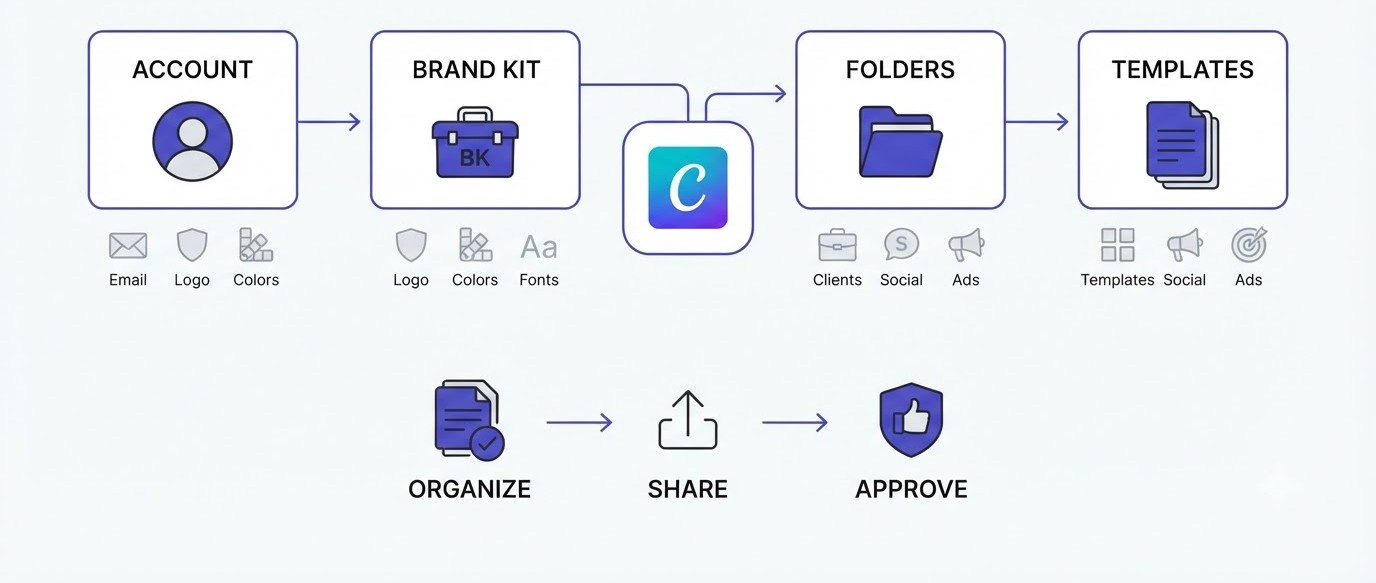
A clean setup is the difference between a team that produces consistent work and one that reinvents the look every week. Spend an hour on it once, and every design after that gets faster, cleaner and easier to hand over to someone else.
Create the Account and Pick the Right Plan
Go to canva.com and sign up with your work email, not a personal Gmail. That sounds small, but it matters. Files, templates and Brand Kits tie to the account, and moving them later is annoying. If you freelance, create one account and use separate teams or folders for each client.
Start on the free plan for the first week. Make ten or twelve designs, see which features you keep reaching for, and then decide on Pro. Canva often offers a 30 day free trial of Pro, so use that window properly: build your Brand Kit, test Background Remover, and try Resize & Magic Switch on real work.
One tip most guides skip. Turn on two-step verification in Account Settings. Marketing accounts get shared around, passwords get pasted into Slack, and a hijacked Canva account with your client’s brand assets in it is a bad afternoon.
Build a Brand Kit That Actually Gets Used
The Brand Kit is the single most useful feature for a working marketer. Open it from the left sidebar under Brand, and you’ll find sections for logos, colours, fonts, photos, graphics, icons and brand voice. Pro lets you create multiple kits, which is perfect if you handle several clients.
Keep it small. Two primary colours, one accent colour, and two fonts (one for headings, one for body text). That’s it. When a client sends you a twelve-colour palette, pick the three that appear most on their website and ignore the rest until there’s a real reason to use them.
Upload the logo in at least two versions: a full-colour one and a white or black one for busy backgrounds. Add hex codes exactly. Type them, don’t eyeball them with the colour picker. And set the fonts to your brand’s actual typefaces, not “close enough” ones, because mismatched type is the first thing a brand manager notices.
Folder Structure and Naming Rules
Canva’s Projects area gets messy fast. Three weeks in, you’ll have 140 files called “Untitled Design” and no idea which one is live. Fix it now with a simple folder system: one folder per client or brand, then subfolders by channel, such as Social, Ads, Email and Blog.
Naming matters more than most people admit. Use something like “ClientName_Channel_Topic_Size_Date”, for example “Zenfit_IG_Carousel_ProteinMyths_1080x1350_2026-03”. Yeah, it feels fussy. But when a client says “can we reuse the protein one from March?”, you find it in ten seconds instead of ten minutes.
Star your core templates so they show up at the top of Projects. Keep one “Templates” folder per brand with only approved layouts inside. When new files start from those, the brand stays consistent without anyone policing it.
Templates, Sharing and Team Permissions
Once your Brand Kit exists, build five or six master templates: a feed post, a carousel cover, a carousel inner slide, a Story, a quote card and an ad. Lock the logo and background elements if you’re on a plan that allows locking, so nobody nudges them by accident.
When sharing, use the “Can edit” permission carefully. Give team members “Can use template” access to master files when you can, since that creates a copy instead of changing the original. Clients usually only need “Can comment,” and giving them full edit access is how logos end up in Comic Sans.
Set up a simple approval habit too. Designer or marketer finishes the file, shares a view link, the client comments directly on the design, and changes happen in one place. Beats screenshots in WhatsApp every time.
Design Basics Every Beginner Using Canva for Digital Marketers Should Know
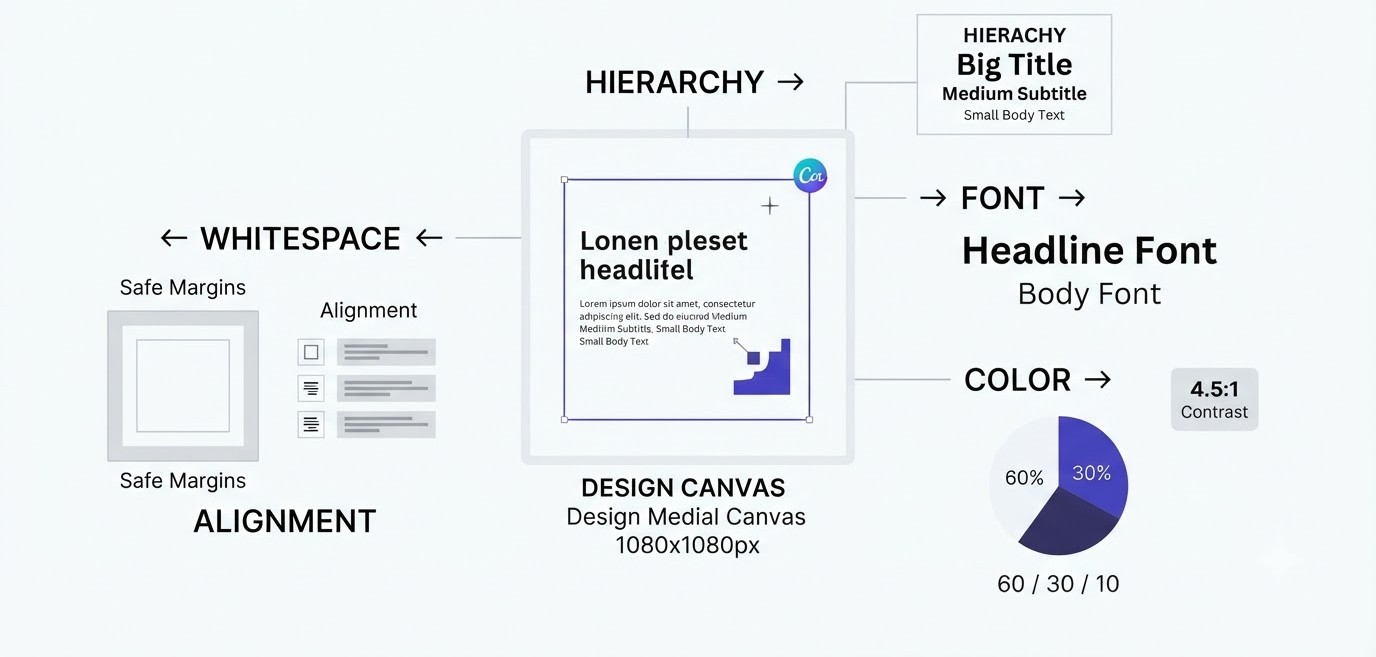
Templates only get you halfway. The other half is a handful of design principles that decide whether a post looks professional or thrown together. None of them is hard, and once you spot them you’ll notice them everywhere.
Visual Hierarchy: Tell the Eye Where to Go
Visual hierarchy just means the most important thing on the design is the biggest or boldest thing, and everything else steps down from there. When beginners skip this, every element shouts at the same volume and viewers scroll past in half a second.
Try this test. Squint at your design until the details blur. What’s the first thing you see? If it’s the wrong thing, like the logo instead of the offer, resize it. A good post has one clear headline, a smaller supporting line and maybe a small call to action. Three levels, no more.
In Canva, do this with size contrast. Make the headline at least twice the size of the body text. On a 1080 wide canvas, a headline around 90 to 120 and body text around 40 to 50 usually works nicely. Check on your phone before exporting, because a design that looks fine on a laptop can be unreadable on a six inch screen.
Font Pairing Without the Guesswork
Use two fonts. Three at the absolute maximum, and that’s already pushing it. One font for headlines, one for body text. That’s the whole rule, and it fixes about 70 percent of the ugly posts marketers make.
Pair a bold display or serif font with a clean sans serif. Something like Playfair Display for headlines and Inter or Open Sans for text is a safe combination. Montserrat with Lora works too. Canva even suggests font combinations in the Styles tab, and they’re a decent starting point if you’re stuck.
Avoid script fonts for anything longer than three words. They look elegant in a template preview and turn into a mess at phone size. Also avoid mixing two similar fonts, like Helvetica and Arial. The tiny difference looks like a mistake, not a choice.
Colour and Contrast You Can Actually Read
Contrast is where a lot of beginner work quietly fails. Light grey text on a white background looks stylish on your monitor and disappears on someone’s phone in sunlight. The accessibility standard (WCAG) asks for a contrast ratio of at least 4.5 to 1 for normal text, and it’s a good rule even if nobody is auditing you.
Use the 60-30-10 rule for colour. About 60 percent of the design is your dominant colour (usually the background), 30 percent a secondary colour, and 10 percent an accent for buttons, highlights or key words. It keeps things balanced without needing a colour theory course.
When text sits on a photo, don’t just hope it’s readable. Add a semi-transparent dark overlay, put text on a solid shape, or use Canva’s Adjust tools to darken the image slightly. Fast fix, big difference. Free tools like WebAIM’s contrast checker will confirm your hex codes if you’re unsure.
Whitespace, Alignment and Margins
Beginners hate empty space. There’s a strong urge to fill every corner with an icon, a badge or another line of text. Resist it. Whitespace is what makes the important part readable, and crowded designs look cheap almost every time.
Leave a margin of at least 60 to 80 pixels on all sides of a 1080 wide canvas. Instagram crops the grid view differently from the feed, so anything close to the edge risks getting chopped. Keep your key text and logo well inside that safe area.
Alignment is the other quiet fixer. Pick left alignment or centre alignment for a design and stick with it. Mixed alignment is the most common reason a post feels “off” without anyone being able to say why. Use Canva’s smart guides (the pink lines that appear while dragging) and the Position tab to line things up exactly.
How to Use Canva for Digital Marketers Across Social, Ads, Email and Blogs
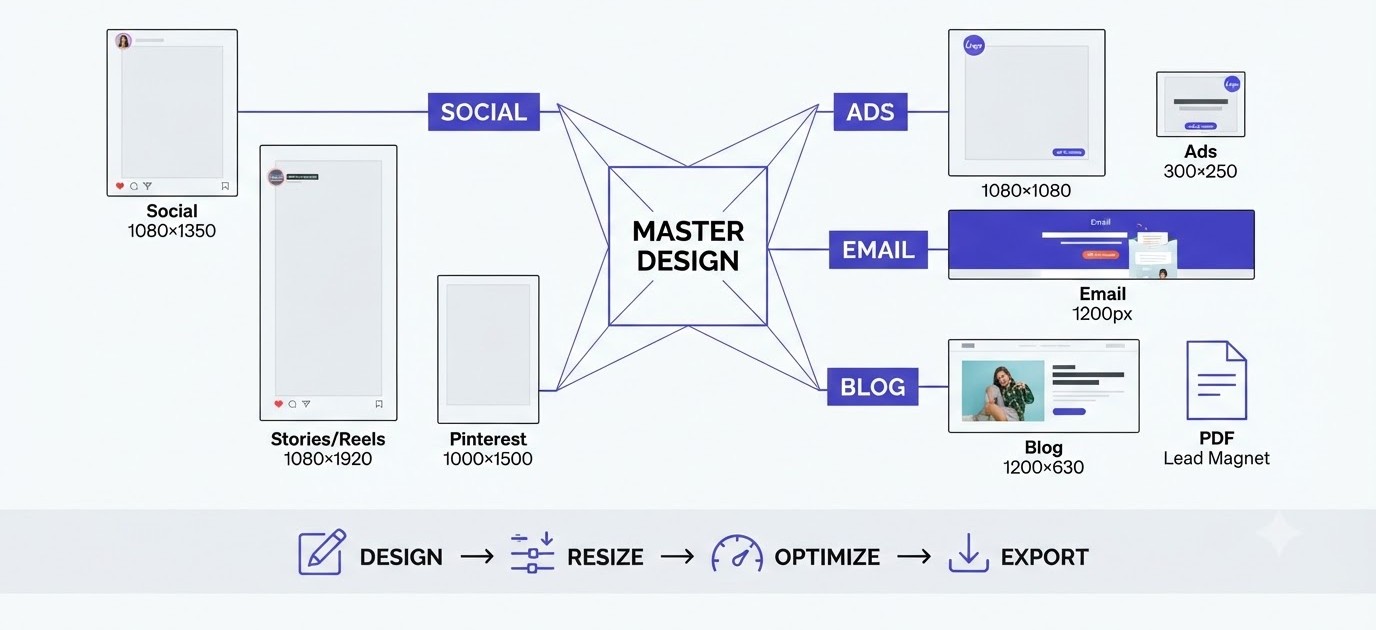
Different channels have different sizes, different safe zones and different habits. This section covers the ones you’ll design for most, with real dimensions and the specific things that trip people up on each one.
Social Media Posts and Carousels That Get Saved
For Instagram feed posts, 1080 x 1350 (a 4:5 portrait) takes up more screen space than a square, so it usually earns more attention. Since Instagram changed the profile grid to a taller crop, keep your key content in the centre and don’t rely on the edges. LinkedIn carousels work well at 1080 x 1350 too, exported as a PDF and uploaded as a document post.
A good carousel has a simple structure. Slide one is the hook, a bold claim or a problem the audience recognises. Slides two through eight deliver one idea each. The last slide asks for one action, like “save this” or “follow for part two.” Keep to six to ten slides, since anything longer loses people around slide seven.
Use one template for all slides, with a consistent number or progress marker in the same corner. Body text below roughly 36 on a 1080 canvas is hard to read on a phone. And if you’re planning content weekly, a proper social media content calendar will stop you designing on impulse at 11 pm.
Stories, Reels Covers and Short Video
Stories and Reels live at 1080 x 1920, a 9:16 vertical frame. The big trap is the interface. Platforms cover the top and bottom of the screen with profile names, captions and buttons, so leave roughly the top 14 percent and bottom 20 percent free of anything important.
Canva’s video editor handles basic short-form work: trimming clips, adding text, dropping in music and using transitions. Beat Sync can line clips up with a track automatically. It won’t replace CapCut for heavy editing, but for a 15 second product teaser or an animated quote, it’s quick.
For Reels covers, design a separate cover at 1080 x 1920 and place the title inside the centre 1080 x 1080 square. That way it looks right in the feed grid and in the Reels tab. Reuse one cover template so your profile looks like a set instead of a random pile.
Ad Creatives for Meta and Google Display
For Meta ads, the safe sizes are 1080 x 1080 for square, 1080 x 1350 for feed portrait and 1080 x 1920 for Stories and Reels placements. Keep text short. Meta stopped penalising text-heavy images with the old 20 percent rule, but short copy still performs better, and it reads faster on a phone.
For Google Display, the sizes people run most are 300 x 250, 336 x 280, 728 x 90, 300 x 600 and 320 x 50. Responsive display ads also want a 1200 x 628 landscape image and a 1200 x 1200 square. Design the biggest version first, then use Resize & Magic Switch to spin out the rest, and check each one manually because automatic resizing sometimes crops a headline.
Make three versions of every ad with only one thing changed, such as the headline, image or button colour. That’s the only way to learn what works. A quick look at free marketing tools can also help you track which creative wins.
Email Headers, Banners and Blog Images
Email designs are usually 600 pixels wide because that’s the safe width across email clients. Design at 1200 pixels wide and export at that size so images stay sharp on retina screens, and keep the file under about 200 KB. Big images slow loading and can land you in the promotions tab.
Here’s a rule most people learn painfully. Never put your whole message inside an image. Many email clients block images by default, so the subscriber sees an empty box. Put the headline and offer in real text, and use Canva for the header graphic and banner only. Add alt text every time, too. If you’re building sequences, the basics in email marketing explain the rest.
For blog featured images, 1200 x 630 is the standard size for link previews on Facebook and LinkedIn. Pinterest prefers 1000 x 1500. Canva exports PNG and JPG, so run finished images through a free compressor like Squoosh to convert to WebP and cut file size without visible loss.
Lead Magnets, Checklists and PDFs
Lead magnets are where Canva quietly saves the most money. A one page checklist, a five page mini guide or a swipe file of ad examples can all be built in Canva Docs or a standard A4 or US Letter design. Building one usually takes an afternoon, not a week.
Keep the first version short. A one page checklist that solves one specific problem converts better than a thirty page ebook nobody finishes. Use your Brand Kit fonts, add your logo and a link on the last page back to your site or a booking page. Hyperlinks work inside Canva PDFs, which many people don’t realise.
When exporting, choose PDF Standard for anything people will read on screen, since it keeps the file small. PDF Print is only for actual printing. And test the download link on your phone before you send it to a single subscriber.
Speed, AI and Mistakes: Getting More From Canva for Digital Marketers
Once the basics are in place, the next gains come from speed. AI tools, bulk creation, shortcuts and a few good habits cut hours off weekly work. This section also covers the mistakes that hold beginners back, plus a plan to practise.
Magic Studio: The AI Tools Worth Trying
Canva’s AI features live under the Magic Studio banner. The ones marketers reach for most are Magic Write (drafts captions, headlines and short copy), Magic Media (generates images or short clips from a prompt), Magic Design (builds layouts from your uploaded photo or text) and Magic Edit, Magic Eraser and Grab Text for photo fixes.
Use them as a first draft, not a finished product. Magic Write produces average copy, and average copy is what everyone else posts. Feed it real details, like the product, audience and offer, then rewrite the result in your own voice. The same goes for generated images: they can look slightly off, so check hands, text and logos carefully.
Where AI earns its keep is the boring stuff. Removing a photo background in one click, extending an image to fit a new size, or turning a rough idea into five layout options takes seconds. Save your time for choices that need judgment.
Bulk Create and Resize & Magic Switch
Bulk Create is the feature that makes Canva feel like automation. Say you need 40 quote cards, or 25 product promos with different names and prices. Build one template, open Apps, choose Bulk Create, and upload a spreadsheet or CSV. Then right-click each text box in your design, choose Connect Data, and pick the matching column.
Click Generate and Canva builds a page for every row. A job that takes half a day by hand finishes in minutes. Just proofread every page afterward, because a long name that overflows the box will be sitting there on page 31 waiting to embarrass you.
Resize & Magic Switch handles multiple formats. Design a feed post, then convert it into a Story, a LinkedIn banner and a Pinterest pin in one go. Many tutorials still call it Magic Resize. It’s a Pro feature, and worth it for that alone. Check every output, since automatic layouts sometimes push text out of position.
Shortcuts and Small Habits That Save Hours
A few keyboard shortcuts pay you back daily. Press T to add a text box, R for a rectangle, L for a line and C for a circle. Ctrl+D (Cmd+D on Mac) duplicates whatever you’ve selected, and Ctrl+G groups elements. Use Ctrl+Alt+C and Ctrl+Alt+V to copy and paste style, which is handy when matching fonts and colours.
Habits matter as much as shortcuts. Start every design from a saved template instead of a blank page. Keep a folder of your best-performing posts as references. Use the search bar with the “/” key to jump straight to elements. And use the Position panel to align items exactly, instead of nudging with the mouse.
Another quiet time saver: favourite your go-to elements and photos so they appear first. Canva lets you star assets, and after a month you’ll wonder how you ever scrolled through thousands of icons to find the same three arrows.
The Mistakes That Make Beginner Work Look Beginner
The biggest one is using a template untouched. If you can spot the same template on five other accounts, your audience can too. Change colours, fonts, layout and imagery until it feels like your brand. Second is inconsistency: logo top left on Monday, bottom right on Wednesday, different fonts on Friday.
Then there’s tiny text, low contrast and cramming too much into one design. Also common are ignoring safe zones so captions cover the headline, exporting the wrong format, and skipping alt text. One more that people miss is licensing. Canva’s Content License doesn’t let you trademark a logo built from its stock elements, so read it before designing a logo for a brand.
The fix for most of these is boring but effective: use your Brand Kit, work from approved templates, and have someone else look at the design before it goes live. A second pair of eyes catches typos and awkward crops in about ten seconds.
A 30 Day Plan to Get Good Fast
Week one is about setup and basics. Build your Brand Kit, create the folder structure, and recreate five posts from brands you admire, copying the layout but using your own colours. Week two is social. Design one carousel, one Story and one Reels cover, and post them.
Week three moves to ads and email. Make three versions of a Meta ad with one variable changed, and design one email header at 1200 pixels wide. Week four is about systems: build six master templates, try Bulk Create on a real batch, and time yourself on a full weekly content set.
Track your time. If a feed post took 40 minutes in week one and 12 in week four, that’s your proof it’s working. Keep a swipe file of designs you like, and by the end of the month you’ll have a portfolio, a template library and a workflow you can show a hiring manager.
Conclusion
Canva for Digital Marketers isn’t about becoming a designer. It’s about building a small, repeatable system: a tight Brand Kit, clean folders, a few design rules and templates you trust. Do that, and the rest of the tool becomes a speed boost instead of a distraction.
Start today with one job. Set up your Brand Kit with two colours, one accent and two fonts, then build a single carousel template and use it for a week. If you want a full structured path beyond design, the Alpha Marketer Foundation Program covers the wider marketing skills that Canva work plugs into.
Frequently Asked Questions
Below are the questions beginners ask most often about using Canva in marketing work. Each answer stands on its own, so you can jump straight to whatever is holding you up right now.
What is Canva for Digital Marketers?
Canva for Digital Marketers means using Canva’s online editor to create campaign visuals like social posts, ads, email headers, thumbnails and PDFs without formal design training. It offers ready-made templates, preset sizes and brand controls. Marketers use it to produce consistent creative quickly, often without waiting on a designer.
Is Canva free for digital marketing?
Yes, Canva has a free plan that covers templates, basic elements, and PNG or JPG export, which is enough to learn and post regularly. Features marketers use heavily, like Brand Kit, Background Remover and Resize & Magic Switch, need Canva Pro. Many people start free and upgrade once these limits slow them down.
Is Canva Pro worth it for marketers?
For most working marketers and freelancers, yes. Pro adds the full Brand Kit, one-click background removal, Resize & Magic Switch, more stock content and extra storage. If you resize designs across platforms or manage several brands, the time saved usually covers the subscription within the first few weeks.
What are the best Canva sizes for social media?
Common sizes are 1080 x 1350 for Instagram and LinkedIn feed posts, 1080 x 1920 for Stories and Reels, 1200 x 627 for LinkedIn link images, 1280 x 720 for YouTube thumbnails and 1000 x 1500 for Pinterest pins. Platforms update specs sometimes, so double-check before starting a big batch.
Can Canva replace a graphic designer?
Canva can replace a designer for everyday marketing tasks like social posts, simple ads, presentations and lead magnets. It can’t fully replace one for logo design, brand identity, detailed illustration, packaging or complex print work. Many teams use Canva daily and hire a designer for the bigger, riskier projects.
How do I keep my Canva designs on brand?
Set up a Brand Kit with your logos, exact hex colours and two brand fonts, then build locked master templates for each channel. Store them in a shared folder and give teammates permission to use, not edit, those templates. This keeps everyone’s work consistent without constant checking.
Can I use Canva designs commercially?
Yes, Canva’s Content License allows commercial use of designs for things like ads, social posts and websites. There are limits: you can’t sell unmodified templates, and you can’t trademark logos built from Canva elements. Always read the current Content License for anything unusual, like merchandise or resale.
How do I create multiple sizes from one Canva design?
Use Resize & Magic Switch, available on Canva Pro. Open your design, choose Resize, select the formats you need such as Story, LinkedIn banner and Pinterest pin, and Canva builds copies of each. Always check every version afterward, because automatic layouts can crop text or shift elements awkwardly.
What is Canva Bulk Create?
Bulk Create is a Canva app that generates many designs from one template and a spreadsheet. You connect text boxes or images to spreadsheet columns, click Generate, and Canva builds one page per row. It suits quote cards, product promos, certificates and event badges, and it saves hours on repetitive work.
Can I schedule social media posts directly from Canva?
Yes. Canva’s Content Planner lets you connect accounts such as Instagram, Facebook, LinkedIn and Pinterest, then schedule designs to publish at a set date and time. Some networks need a business account, and plan limits apply. For advanced analytics or larger teams, many marketers still use a dedicated scheduling tool.
How long does it take to learn Canva?
Most beginners get comfortable with the basics in a weekend and produce decent posts within a week. Getting fast, consistent and on brand usually takes about a month of regular practice. A structured routine, like designing one real piece of content daily, speeds this up considerably.
Is Canva good for beginners with no design experience?
Yes, it’s built for people without design training. Templates, drag-and-drop editing, size presets and suggested font pairings remove most of the technical barriers. Learning a few principles like hierarchy, contrast and whitespace will lift your results well beyond what templates alone can do.