

Open Google Analytics 4 on a Monday morning and look at your traffic acquisition report. If a huge slice of your sessions is sitting under “Direct” or “Unassigned”, you already know the feeling. Someone spent ₹40,000 on Instagram ads last week. Someone else sent a newsletter to 12,000 subscribers. A third person posted a reel that got forwarded into forty WhatsApp groups. And Analytics just shrugs and says: direct. Nobody can tell what worked. That’s the problem, and it’s the reason so many people end up typing “what is UTM tracking” into Google at 11 pm.
Here’s the short version. UTM tracking means adding small labels to the end of a link, so your analytics tool can see where each click came from, which campaign it belongs to, and sometimes even which exact ad or button got the tap. Those labels are called UTM parameters. They cost nothing, they take about thirty seconds to add, and they turn a blurry traffic report into something you can actually make budget decisions from.
This guide walks through the whole thing the way it plays out in real work. What the five parameters mean, how to build tagged links without breaking them, how to use them in email, Meta ads, Google Ads, WhatsApp and QR codes, and how to read the results inside GA4. We’ll also spend real time on mistakes, because a messy UTM setup can be worse than none. Sounds odd, but a report where “Facebook”, “facebook”, “fb” and “FB_ads” show up as four separate sources is more confusing than an honest shrug. By the end you’ll have a naming system, a link-building habit, and a way to check results that you can start using today.
What You Will Learn in This Guide
This guide is built so a total beginner can follow it from top to bottom, and a working marketer can skip to the part they need. Here’s what is covered, in the order it appears, so you know what’s coming before you start reading.
- What UTM tracking actually is and the specific reporting problems it fixes, including why so much of your traffic shows up as “Direct” when it clearly came from somewhere else.
- The five standard UTM parameters, what each one means, and real examples of how to fill them in without guessing or copying something random from a template.
- A step-by-step way to build tagged links using Google’s Campaign URL Builder, by hand, and with a spreadsheet, plus how to shorten and test them before they go live.
- How to set up UTM tags for email newsletters, Meta ads, Google Ads, Instagram bio links, WhatsApp shares, influencer posts, QR codes, and affiliate partners.
- How to find your UTM data in GA4, build a simple campaign report, connect it to key events, and fix the dreaded “Unassigned” channel problem.
- The most common UTM mistakes people make, the best practices that prevent them, and answers to twelve questions people ask about this topic all the time.
What Is UTM Tracking and Why Does It Matter?
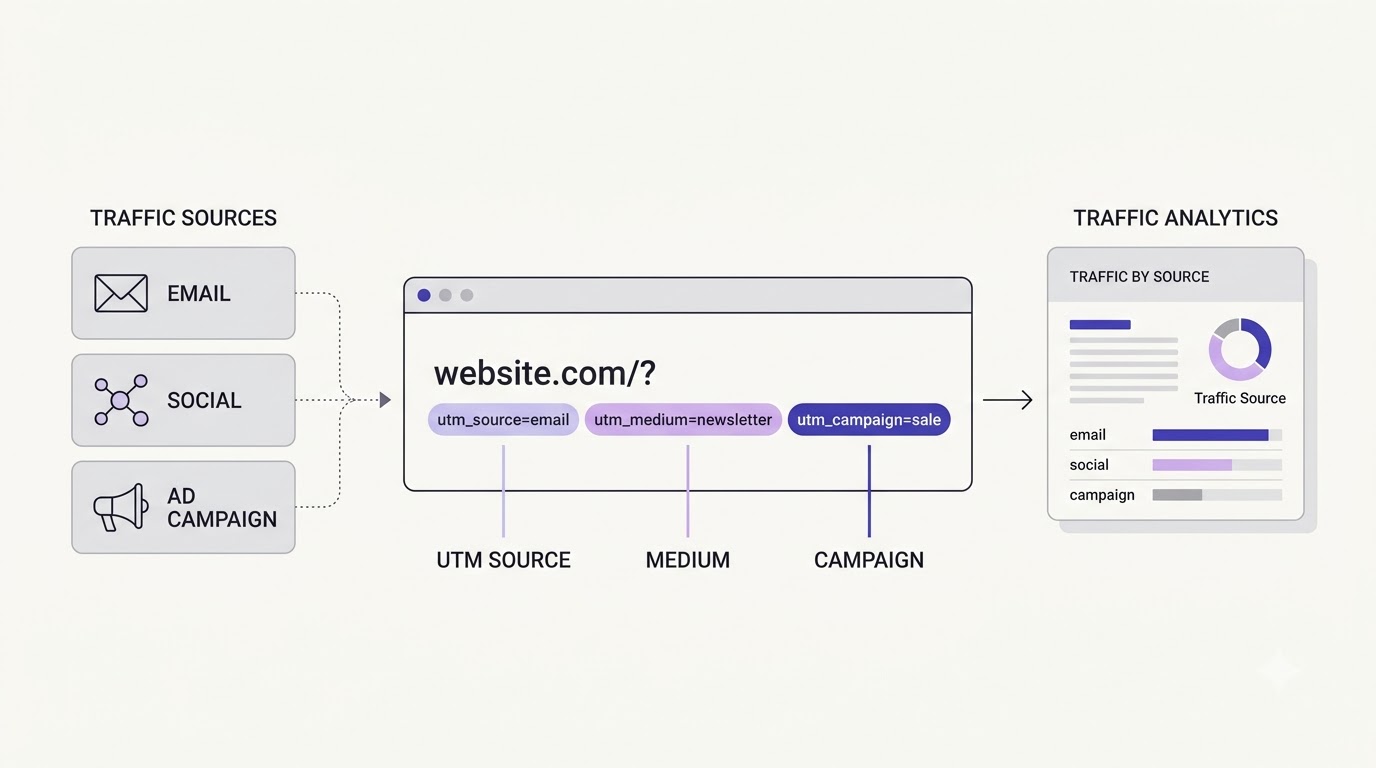
UTM tracking is a method of tagging the links you share so your analytics software can record exactly where a visitor came from. The tags sit at the end of the URL, and when someone clicks, tools like Google Analytics read them and file the visit under the right source, medium, and campaign. Without tags, a lot of that information gets lost or guessed.
The Plain-English Definition
Take a normal link, like yoursite.com/pricing. Now add a few extra words to the end, such as ?utm_source=newsletter&utm_medium=email&utm_campaign=diwali-sale. The page the visitor sees is exactly the same. Nothing looks different on screen. But when your analytics tool loads, it reads those extra words and learns that this visit came from your newsletter, via email, as part of the Diwali sale. That’s all UTM tracking is. You’re writing a little note on each link so the data arrives with a label attached instead of arriving anonymous.
Where the Name “UTM” Comes From
UTM stands for Urchin Tracking Module. Urchin was a web analytics company whose software tracked website visits long before Google Analytics existed. Google bought Urchin in 2005 and turned it into what we now know as Google Analytics. The tagging method came along with the purchase, and the name stuck even though most people using it today have never heard of Urchin. Nearly every analytics and marketing tool now reads UTM parameters, including Adobe Analytics, Matomo, HubSpot, Mixpanel, and most CRMs, so the habit travels with you across tools.
The Problem UTM Tags Fix
Here’s what really happens without them. Analytics tools work out the source of a visit by looking at the referrer, which is the website the person came from. That works fine for a Google search or a link on a blog. It falls apart for email apps, WhatsApp, Telegram, Instagram stories, PDFs, and a lot of mobile apps, because those often don’t pass a referrer. The visit lands in “Direct” even though the person never typed your address. This is sometimes called dark social. UTM tags fix it because the label travels inside the link itself, so it doesn’t depend on any referrer being passed.
There’s a second problem too. Even when the referrer does come through, it’s too vague. “Facebook” as a source doesn’t tell you whether the visit came from a paid ad, an organic post, or your founder’s personal profile. UTM tags let you separate those three things cleanly.
What a Tagged Link Looks Like
Let’s look at a real-style example. A skincare brand in Pune sends a Diwali email and puts this link behind the button: https://glowlab.example/serums?utm_source=klaviyo&utm_medium=email&utm_campaign=diwali-2026&utm_content=hero-button. The question mark starts the tags. Each tag is a name, an equals sign, and a value. Tags are joined with an ampersand. So you have four tags here: source is klaviyo, medium is email, campaign is diwali-2026, and content is hero-button. Once you can read that string, you can read any UTM link on the internet.
What UTM Tracking Cannot Do
UTMs are useful, but they aren’t magic, and it’s worth being honest about the limits. They only track clicks on links you tag yourself, so they say nothing about organic Google search, which you can’t and shouldn’t tag. They can’t follow someone who sees your ad, doesn’t click, and types your brand into Google two days later. They don’t capture offline sales on their own. And they depend on people tagging links carefully, which humans are bad at. Think of UTM tracking as a reliable label maker, not a crystal ball. It tells you where clicks came from, and that alone is more than most small teams currently know.
If you’re newer to this whole field and want the bigger picture of how campaigns, funnels and channels fit together, the digital marketing section on Academy Of Digital Marketing covers the basics in plain language.
The Five UTM Parameters Explained
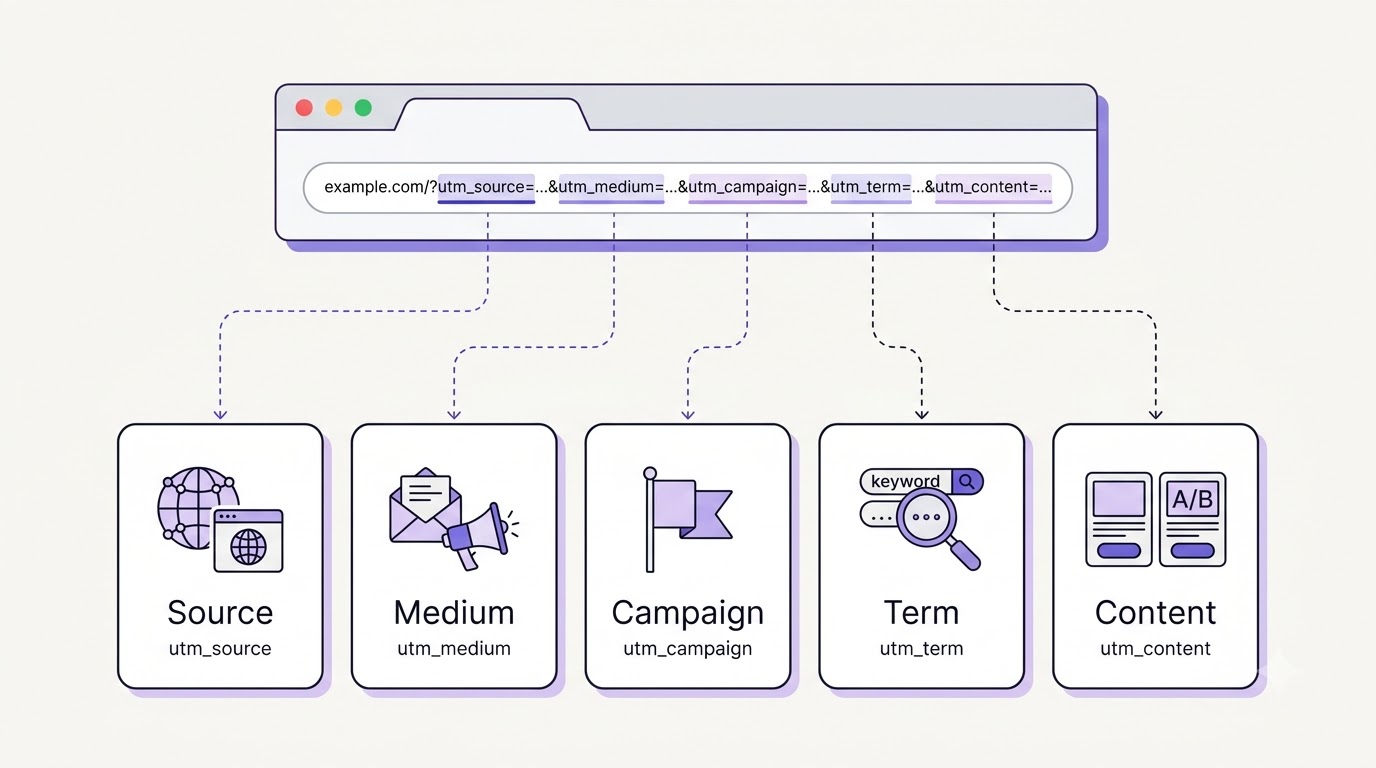
There are five standard UTM parameters: utm_source, utm_medium, utm_campaign, utm_term, and utm_content. Source, medium, and campaign are the core three that GA4 expects. Term and content are optional. Knowing what each one is for, and what to put in it, is the whole skill.
utm_source: Who Sent the Visitor
The source tells you the specific place the click came from. Think of it as the name of the sender. Good values are things like google, facebook, instagram, newsletter, linkedin, whatsapp, or the name of a partner site such as moneycontrol. It should be a name, not a description. So “facebook” is right, and “paid social traffic from facebook” is wrong. A nice test: if you can imagine seeing that exact word in a list of 20 senders, it’s a source. Keep it short, lowercase, and consistent across every campaign you ever run.
utm_medium: The Type of Channel
Medium describes how the visitor reached you, the category of channel. Common values are email, cpc, paid-social, social, referral, affiliate, display, and qr. This one matters more than people realise, because GA4 uses the medium (along with the source) to decide which default channel group your traffic lands in. If you write utm_medium=email, GA4 files it under Email. If you invent something like utm_medium=mailer, it may land in Unassigned. So use mediums GA4 already understands, and don’t get creative.
utm_campaign: The Name of the Push
Campaign is the label for the specific effort, sale, launch, or promotion you’re running. Examples: diwali-sale, webinar-oct, spring-launch, black-friday-retargeting. When you look at reports later, this is the column you’ll scan most, so make it readable by someone who wasn’t in the planning meeting. Include a month or a version number if you run similar campaigns repeatedly, otherwise your October webinar and your next October webinar will blur together. Skip anything with spaces. Hyphens keep names clean and easy to read.
utm_term: The Keyword (Mostly for Paid Search)
Term was built for paid search keywords. If you run a Google Ads campaign targeting “best running shoes under 3000”, utm_term would carry that phrase so you can see which keywords drove visits. In practice, Google Ads handles this on its own with auto-tagging, so many marketers never touch it. It’s still handy if you run ads on platforms like Microsoft Advertising, or if you want to reuse the field for something else, like an audience name in a retargeting campaign. Just stay consistent with whatever you decide it means.
utm_content: Telling Similar Links Apart
Content separates multiple links or creatives inside the same campaign. Say your email has two buttons that both point to the same product page, one near the top and one at the bottom. Without utm_content, they look identical in reports. Tag them hero-button and footer-button, and now you know which one people actually tap. The same trick works for ad creatives: video-ad-a versus carousel-ad-b. This is the parameter that turns UTM tracking from “which channel works” into “which version of the message works”.
GA4’s Extra Parameters: utm_id and Friends
GA4 also reads a few newer parameters. The main one is utm_id, which carries a campaign ID, and it’s what lets GA4 connect your data to imported cost data from ad platforms. There are others too, like utm_source_platform, utm_creative_format, and utm_marketing_tactic, which add extra labels about the platform, the ad format, and the intent of the campaign. Most small teams can ignore all of these for now. Master the first three, add content when you need it, and come back to the extras once your basics are tidy.
How to Use UTM Tracking: Building Tagged Links Step by Step
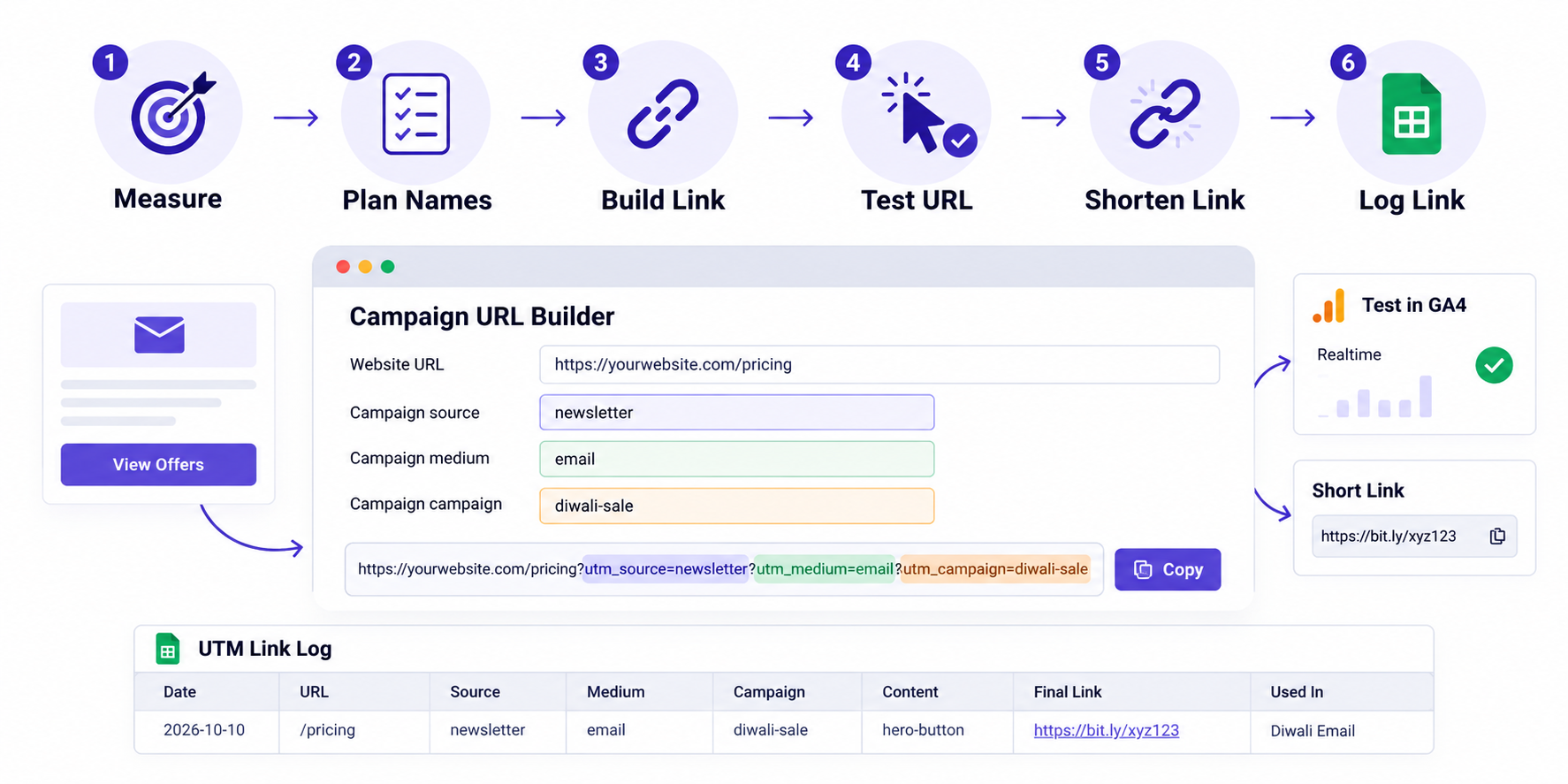
Building a UTM link is simple once you’ve decided what you’re measuring and how you’ll name things. The order matters: plan first, name second, build third, test last. Skip the planning and you’ll end up rebuilding fifty links later. Here’s the process in six steps, with the mistakes people make at each one.
Step 1: Decide What You Are Trying to Measure
Before touching a link builder, write one sentence: “I want to know which ___ brings the most ___.” For example, which Instagram ad creative brings the most signups, or which newsletter button brings the most orders. That sentence tells you which parameters you need. If the question is about channels, source and medium are enough. If it’s about messages, add content. Most people tag everything and then never look at it. Tag with a question in mind, and the data will actually get used instead of just piling up.
Step 2: Set a Naming Convention Before You Tag Anything
This is the step most guides rush past, and it’s where UTM projects live or die. A naming convention is just a short list of rules everyone follows. Mine, if you want a starting point: everything lowercase, hyphens instead of spaces, no special characters, and a fixed list of allowed sources and mediums. Campaign names follow a pattern like theme-month, for example diwali-oct or webinar-nov. Write it in a shared sheet and make the team stick to it, because UTM values are case sensitive and Email, email, and EMAIL are three different things to GA4.
Step 3: Build the Link With Google’s Campaign URL Builder
The easiest way to start is Google’s free Campaign URL Builder for GA4. You paste in your page address, fill the source, medium, and campaign fields, add term or content if needed, and the tool prints the finished link at the bottom. Copy it, and you’re done. If you want more free options, the free marketing tools on tools.admeducation.com are worth a look too. The one habit to build here: always paste the full destination URL starting with https://, otherwise the final link can end up broken.
Step 4: Build It by Hand When You Need To
You don’t actually need a tool. A UTM link is just text, so you can type it yourself in ten seconds once you know the pattern. Start with the clean URL, add a question mark, then write each tag as name=value, joining them with ampersands. If the URL already has a question mark in it (like a product page with filters), use an ampersand to add your tags instead of a second question mark. Spaces in values are the other trap. Avoid them completely, or the link gets %20 stuffed in and looks ugly in reports.
Step 5: Shorten and Test Before Anything Goes Live
Long UTM links look messy in tweets, SMS, and printed material, so people often shorten them using Bitly, Rebrandly, or a custom short domain. That’s fine, as long as the shortener passes the tags through to the final page. Always test: click the finished link yourself, then open GA4’s Realtime report and check that your visit shows up with the right source and campaign. It takes less than two minutes. Skipping this step is how people discover a week after launch that a typo has swallowed all their data.
Step 6: Log Every Link in a Spreadsheet
Keep a simple Google Sheet with one row per link. Columns: date created, destination URL, source, medium, campaign, content, final tagged link, who created it, and where it was used. This feels like admin, and honestly it is. But it saves you every single time someone asks “which link did we use for that LinkedIn post?” three months later. It also lets you spot problems quickly, like two different people using “fb” and “facebook” for the same thing. A messy log is still better than no log at all.
And if you ever need to check that Google Analytics is installed properly before tagging a single link, the web development section has walkthroughs on analytics setup and common implementation fixes.
UTM Tracking for Every Channel: Email, Ads, Social, and Offline
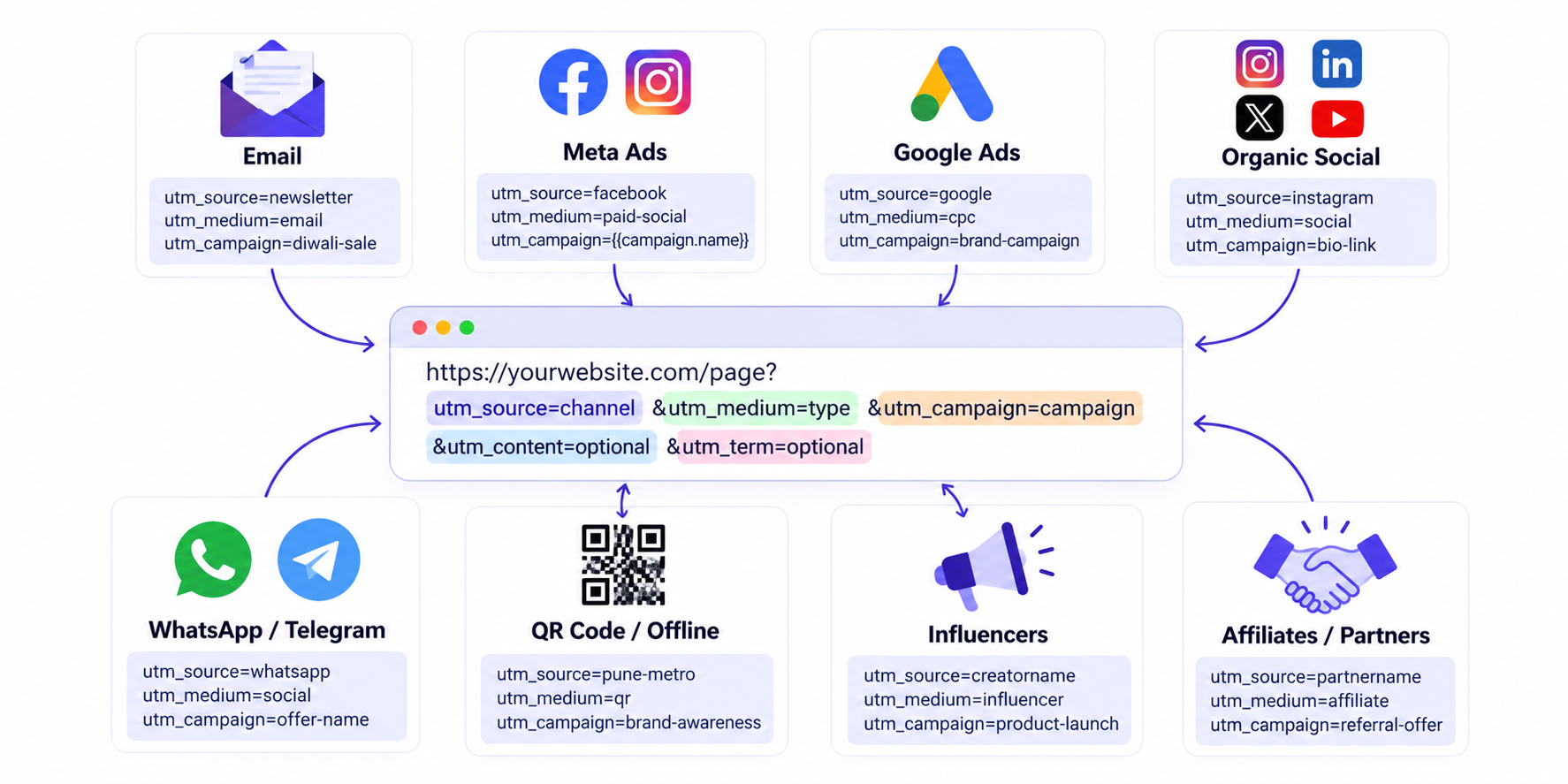
The parameters stay the same everywhere, but each channel has its own quirks about where the tags go and what to watch out for. Here’s how UTM tracking works in the places most marketers actually spend time, with the exact values to use and the traps to avoid.
Email Newsletters and Automated Flows
Email is where UTM tags matter most, because email clients rarely pass referrers, so untagged clicks often land in Direct. Use utm_source for the list or tool (newsletter, klaviyo, mailchimp), utm_medium=email, and utm_campaign for the specific send. Add utm_content to tell buttons and text links apart. Many email tools can add tags automatically, and some, like Klaviyo, do it by default, while others, like Mailchimp, have a Google Analytics link tracking checkbox in campaign settings. Check what your tool is doing before adding your own, otherwise you’ll create duplicates. For more on building and running lists, see the email marketing guides.
Meta Ads on Facebook and Instagram
Meta lets you fill in UTM tags once and use them everywhere through dynamic parameters. At the ad level, find the URL parameters field and paste something like: utm_source=facebook&utm_medium=paid-social&utm_campaign={{campaign.name}}&utm_content={{ad.name}}. Meta then swaps the curly-bracket placeholders with the real campaign and ad names when someone clicks. This saves loads of time, but it has a catch: your campaign and ad names inside Ads Manager now show up in reports, so name them cleanly from the start, with no spaces, no emojis, and no random numbers.
Google Ads and Auto-Tagging
Google Ads works differently. It uses auto-tagging, which adds a gclid parameter to your links and sends rich data straight into GA4 when the two accounts are linked. For most advertisers, that’s all you need and manual UTMs are unnecessary. The danger is mixing the two. If you add UTM tags on top of auto-tagging, they can conflict and give you messy source data, so leave auto-tagging on and avoid manual UTMs on Google Ads links unless you have a specific reason, like using a platform that doesn’t support gclid.
Organic Social and the Instagram Bio Link
Your Instagram bio has one clickable link, and by default every click from it looks like generic Instagram traffic. Tag it: utm_source=instagram&utm_medium=social&utm_campaign=bio-link. When you change the link for a launch, change the campaign too, such as bio-launch-oct. For LinkedIn posts, X posts, and YouTube descriptions, use the same pattern with the right source name. Remember that medium=social is for unpaid posts. Paid posts should use paid-social, otherwise your organic and paid numbers get mixed together and the report stops meaning anything.
WhatsApp, Telegram, and Influencer Posts
These are the channels where UTMs earn their keep in India especially, because so much sharing happens in private chats where no referrer exists. For a WhatsApp broadcast, use utm_source=whatsapp&utm_medium=social&utm_campaign=your-campaign-name. For influencers, give each person a unique link, using utm_source for the creator’s handle and utm_medium=influencer, so you can see who really drives visits rather than who just posts the loudest. Honestly, this one habit has settled more arguments about influencer ROI than any spreadsheet.
QR Codes and Offline Campaigns
A QR code on a poster, packaging, or a hoarding is just a link in a different outfit, so it can carry UTM tags. Build the tagged URL, then generate the QR from that link. Use utm_medium=qr and a source describing where it was placed, like utm_source=pune-metro-poster or utm_source=box-insert. Keep the link short, because long URLs make dense QR codes that are hard to scan. A shortened tagged link works well here. Print a test copy and scan it before sending anything to the press.
Affiliates and Partner Links
When another site or person promotes you, give them their own tagged link. Use utm_medium=affiliate or referral, utm_source set to the partner’s name, and a utm_campaign for the offer. This helps in two ways: you can see exactly which partner sends the most valuable visitors, and you have clean evidence when it’s time to pay commissions. Some affiliate platforms add their own tracking parameters too, so check whether yours already does. Don’t stack two tracking systems on one link without testing, because they sometimes break each other.
How to Read UTM Tracking Data in Google Analytics 4
Tagging links only helps if you go and look at the results. GA4 stores your UTM data in a few predictable places, and once you know where they are, a five-minute weekly check will tell you more than most dashboards. Here’s where to look, what to click, and how to avoid the common confusion.
Start With the Traffic Acquisition Report
In GA4, open Reports, then Acquisition, then Traffic acquisition. By default the table is grouped by Session default channel group, which shows broad buckets like Email, Paid Social, and Organic Social. Click the dropdown above the first column and switch it to Session source / medium. Now you’ll see rows like newsletter / email and facebook / paid-social. This is the quickest check that your tags are landing correctly. If rows look wrong or oddly spelled, you’ve just found a naming problem early.
Switch the Dimension to Session Campaign
Use the same dropdown and pick Session campaign. Now each row is one of your utm_campaign values, with sessions, engaged sessions, engagement rate, and key events beside it. This is the view you’ll use to compare campaigns against each other. Keep in mind that a high session count doesn’t automatically mean a good campaign. Look at engagement rate and key events too. A campaign sending 5,000 visits that all leave in three seconds is worse than one sending 400 who buy.
Connect UTM Data to Key Events
Key events are what GA4 now calls conversions: purchases, form submissions, signups, whatever you’ve marked as important. In the Traffic acquisition table, scroll right and you’ll find key event counts per row. That’s where the real answer sits. Compare each source and campaign by how many key events they produced, then divide your spend by that number to get a cost per result. If you haven’t marked any events as key yet, do that first, because without them UTM data only tells you who showed up, not who did something useful.
Build a Simple Custom Report in Explorations
For deeper checks, open Explore and create a Free form exploration. Add Session source, Session medium, Session campaign, and Session manual ad content as dimensions, then add sessions, key events, and purchase revenue as metrics. Drag them into rows and columns. You can now see, for example, which utm_content version of a Diwali email produced the most orders. Save the exploration so you can reopen it next week without rebuilding it. It’s slower to set up than the standard report, but it answers sharper questions.
Share Results in Looker Studio
If other people need to see this, don’t send screenshots every Monday. Looker Studio is Google’s free reporting tool, and it connects to GA4 in a few clicks. Build a simple page with a table of campaigns, a trend line of sessions, and a scorecard for key events. Add filters for source and medium. Teams and clients love this because it updates by itself. Keep it plain, though. Three charts that people read beat twelve that nobody opens.
Why Your Traffic Shows Up as Unassigned
If you see a row labelled Unassigned, it usually means GA4 couldn’t match your source and medium to any default channel group. The most common cause is a made-up medium value, such as utm_medium=mailer or utm_medium=fb-ad. GA4 only recognises certain mediums: email goes to Email, cpc or ppc goes to Paid Search, mediums starting with paid go to Paid Social when the source is a social network, and social goes to Organic Social. Fix the medium in your future links, and use a custom channel group only if you truly need a new bucket.
UTM Tracking Mistakes and Best Practices
Most UTM problems aren’t technical. They’re habits: someone in a hurry, a different spelling, a link nobody wrote down. The mistakes below show up in almost every account that has been running for a year or more, and each one has a simple fix. Fixing them is mostly about discipline, not clever tools.
Mixing Upper and Lowercase Values
GA4 treats Facebook and facebook as two separate sources. So one person writing utm_source=Facebook and another writing utm_source=facebook will split your data across two rows, and nobody will notice until the quarterly review. The fix costs nothing: make lowercase a hard rule. Many teams also use a spreadsheet formula that forces lowercase on every value before building the link, which removes the problem entirely and saves arguing about it.
Putting UTM Tags on Internal Links
This one is a classic. Someone adds a UTM link to a banner on your own homepage that points to a product page. When a visitor clicks it, GA4 reads the tags and replaces the real source of that visit, say Google search, with your internal banner label. Now every banner click looks like it came from your banner, and the original channel gets no credit. UTM tags are for links coming into your site from outside. For internal clicks, use GA4 events instead.
Tagging Organic Search or Auto-Tagged Ads
You can’t tag organic Google results, because you don’t control the link people click. Don’t try to tag your Google Business Profile in a way that hides organic traffic either. And as covered earlier, don’t add manual UTMs to Google Ads links that already use auto-tagging unless you know exactly why. In all these cases, the platform already passes useful information, and your extra tags add confusion instead of clarity. When unsure, test with one link and compare it against the untouched version.
Putting Personal Data in the URL
UTM links are visible in browsers, history, and analytics reports, and Google’s terms don’t allow sending personally identifiable information into Analytics. So never put an email address, a phone number, or a customer name inside a tag, even when it feels handy for personalising a campaign. Use an anonymous ID or a segment name instead. For example, utm_content=segment-high-spenders is safe, and utm_content=rahul@gmail.com is not. This is both a privacy issue and a data policy issue, so it’s worth being strict about.
Over-Tagging and Never Documenting
Some teams create thirty-character campaign names stuffed with dates, initials, and codes, then wonder why nobody can read their reports. Keep tags short and meaningful. The opposite problem is just as common: tagging links well but never writing down what each value means. Six months later, nobody remembers what “q3-prm-v2” was. A one-page naming guide and a shared link log solve both problems. If a new team member can understand your tags without asking, you’ve done it right.
Best Practices That Actually Stick
A few habits make the whole system last. Keep a fixed list of approved sources and mediums. Use a shared builder sheet rather than letting everyone craft links by hand. Test every new link before it goes live. Review your Traffic acquisition report weekly so errors are caught early. And clean up as you go: if you spot a bad tag, fix the naming guide, not only the link. Boring, yes. But these habits are exactly what separates teams whose reports they can trust from teams who shrug at their own data.
Conclusion
So, what is UTM tracking really giving you? A clear answer to the question “where did this visit come from?” and a way to connect every click to a campaign, a message, and eventually a result. The setup is tiny: three parameters, one naming sheet, one weekly report check. Start today with your next newsletter or ad, tag it properly, and look at the results in GA4 seven days later.
Frequently Asked Questions
What is UTM tracking in simple words?
UTM tracking means adding small text labels to the end of a web link so your analytics tool knows where each click came from. The labels record the source, the medium, and the campaign. When someone clicks the tagged link, tools like Google Analytics read those labels and file the visit under the right campaign instead of marking it as unknown Direct traffic.
What does UTM stand for?
UTM stands for Urchin Tracking Module. Urchin was a web analytics company that Google bought in 2005, and its software became Google Analytics. The tagging method came along with it. Even though most marketers have never used Urchin, the name stuck, and almost every analytics tool today still reads UTM parameters.
How many UTM parameters are there?
There are five standard UTM parameters: utm_source, utm_medium, utm_campaign, utm_term, and utm_content. GA4 requires the first three, while term and content are optional. GA4 also reads extra parameters like utm_id, utm_source_platform, utm_creative_format, and utm_marketing_tactic for more advanced reporting and cost data imports.
Which UTM parameters are required?
In GA4, source, medium, and campaign are the core parameters you should always include. Without them, your data can end up incomplete or grouped in the wrong channel. The utm_term parameter is mostly for paid search keywords, and utm_content is useful when you want to compare different links or ad creatives inside one campaign.
How do I create a UTM link?
The easiest way is Google’s free Campaign URL Builder. Enter your page URL, then fill in source, medium, and campaign, plus any optional fields, and copy the generated link. You can also build one by hand by adding a question mark to the URL, followed by each parameter written as name=value and joined with ampersands.
Are UTM parameters case sensitive?
Yes. GA4 treats utm_source=Facebook and utm_source=facebook as two different sources, so your data splits across separate rows. The simplest fix is to use lowercase for every value and write that rule into a shared naming guide. Consistency matters much more than which style you choose.
Do UTM parameters affect SEO?
UTM parameters don’t directly harm rankings, but they do create extra URL versions of the same page. Search engines usually handle this well, especially when your pages carry a canonical tag pointing to the clean URL. The bigger SEO risk is using UTM tags on internal links, which damages your analytics rather than your rankings.
Can I use UTM tags on internal links?
No, you shouldn’t. When a visitor clicks an internal link with UTM tags, GA4 treats it as a new traffic source and can overwrite the original one, such as Google search or an email campaign. This makes your reports misleading. For tracking clicks inside your own site, use GA4 events instead of UTM parameters.
Should I use UTM tags with Google Ads?
Usually not. Google Ads has auto-tagging, which adds a gclid parameter and passes detailed campaign data into GA4 when your accounts are linked. Adding manual UTMs on top can create conflicts or messy source data. Use manual tags only for non-Google ad platforms or when you have a specific reporting reason.
What is the difference between utm_source and utm_medium?
Source is the specific sender of the traffic, such as facebook, newsletter, or google. Medium is the type of channel, such as email, cpc, paid-social, or referral. Source answers “who”, and medium answers “how”. GA4 uses both together to place a visit into the right default channel group.
Why is my UTM traffic showing as Unassigned in GA4?
Unassigned usually means the source and medium combination doesn’t match any default channel group rule. The most common cause is a custom medium name like mailer or fb-ad. Switch to standard values such as email, cpc, paid-social, social, or referral, and your future traffic should land in the correct channel group.
Can I track WhatsApp or offline campaigns with UTM links?
Yes. WhatsApp shares often arrive as Direct traffic because no referrer is passed, so a tagged link is the only way to separate them. For offline campaigns like posters or packaging, create a tagged link and turn it into a QR code, using a medium such as qr and a source describing where it was placed.
How long should a UTM campaign name be?
Keep it short and readable, ideally two to four words joined by hyphens, like diwali-sale or webinar-oct. Long, code-filled names are hard to scan in reports and tend to get mistyped. Include a month or version when you repeat similar campaigns, so results from different runs don’t blur together.