

Here’s a story that happens far more often than it should. A business owner spends ₹60,000 a month on Google Ads and Meta ads, opens Google Analytics 4 to see what’s working, and finds zero conversions. Not low. Zero. The ads are sending people to the site, the contact form is getting filled, WhatsApp is buzzing, and GA4 shows a flat line because nobody ever told it what a “conversion” means for this business.
That’s the gap this guide closes. How to set up goals and conversions in GA4 is the question almost everybody runs into after the Universal Analytics shutdown in July 2023, because the old Goals screen simply doesn’t exist anymore. GA4 runs on events. Google also renamed “conversions” to “key events” in March 2024, which confused people for months. Honestly, once the logic clicks, the new system is simpler than the old one, and a lot more flexible.
By the end of this guide, you’ll know how to go from an empty property to working key events, tested in DebugView, visible in reports and sent to Google Ads. We’ll cover thank you pages, form submissions, button clicks, WhatsApp taps, scroll depth and purchases, plus the mistakes that quietly wreck your data. Every term gets a plain explanation the first time it shows up, so even if this is your first week with analytics, you can follow along.
What You Will Learn in This Guide
This section tells you exactly what’s coming so you can jump to the part you need. The guide moves in the order you’d actually work: understanding the system, preparing your property, building each type of key event, testing it, and then pushing the data into advertising tools.
- What changed between Universal Analytics goals and GA4 key events, and why the change matters
- How the GA4 event model works, including parameters and the four event types
- How to plan your business goals before touching a single setting
- How to mark events as key events and build custom ones with Create event
- How to track form submissions, button clicks, calls and WhatsApp taps with Google Tag Manager
- How to set up scroll depth, time based engagement and ecommerce purchase tracking
- How to test with DebugView and read your key events in reports and Explorations
- How to import GA4 key events into Google Ads and fix the most common mistakes
How to Set Up Goals and Conversions in GA4: What Changed From Universal Analytics
Before any clicking, it helps to understand what you’re actually setting up. GA4 handles goals in a completely different way from Universal Analytics, and trying to recreate the old system leads to confusion. This section explains the new vocabulary, the logic behind events, and how to decide what deserves tracking.
Why Goals Disappeared and Key Events Took Over
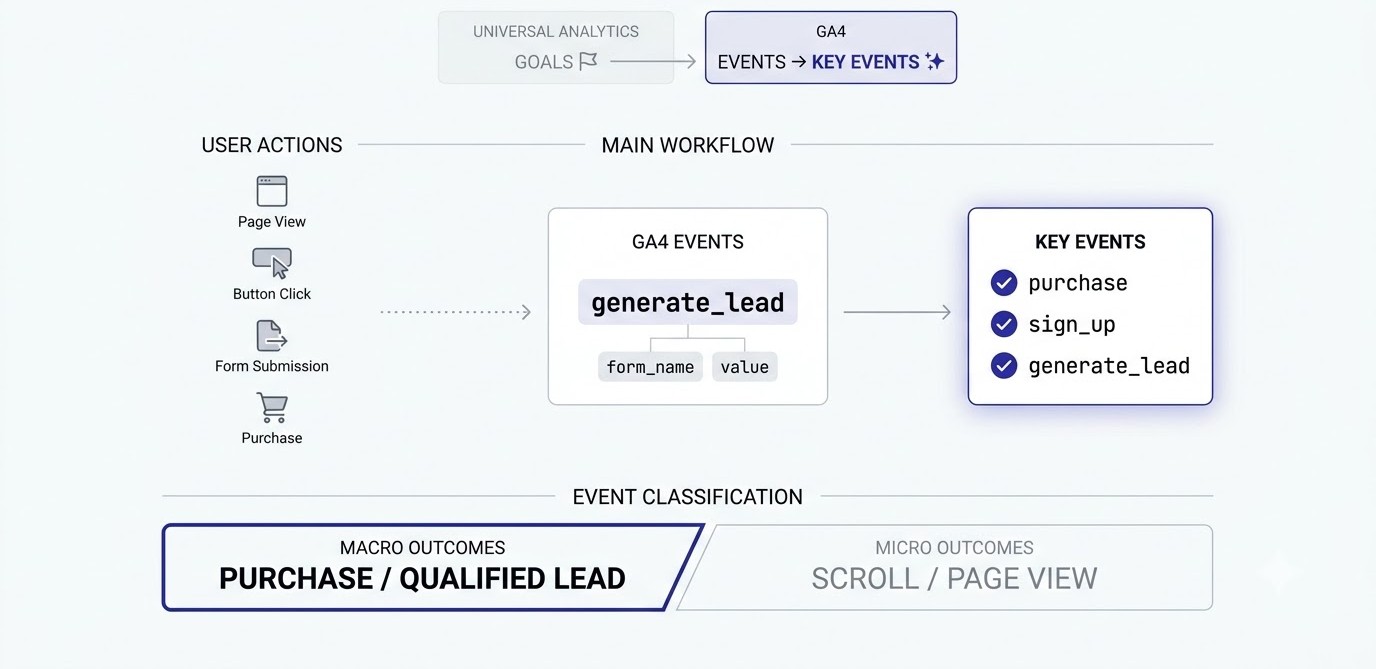
In Universal Analytics, a goal was a separate object. You went to Admin, clicked Goals, picked a type like Destination or Duration, and filled in a form. Each view allowed 20 goals. That system stopped processing data on July 1, 2023, and GA4 replaced it with something much simpler: everything is an event, and you flag the important ones.
Here’s the thing most beginners miss. A “goal” in GA4 isn’t a thing you build from scratch. It’s an ordinary event that you decide matters, then mark as a key event. Page views, button clicks, form submissions and purchases all start life as the same kind of object. The only difference is a toggle that tells GA4 to treat that event as a business outcome.
This change also means goals no longer carry their own rules. In Universal Analytics, a destination goal watched URLs for you. In GA4, you either use an event that already fires (like purchase) or you create one that fires when your condition is met. That’s why a thank you page goal now involves a “Create event” step, which we’ll walk through in detail later.
What Counts as a Conversion in GA4 Today
For about a year, GA4 used the word “conversion” for events you marked as important. In March 2024, Google changed that label to “key event” inside Analytics, and kept the word “conversion” for Google Ads. So if someone says “conversion” in an Analytics context, they usually mean a key event. If they’re talking about Ads, a conversion is something the ad platform counts and bids on.
This matters because old tutorials, YouTube videos and forum answers still say “mark as conversion.” The toggle you’re looking for now says “Mark as key event.” Same function, new name. If you read an older guide and the button doesn’t match, that’s the reason, and nothing is broken.
There’s one more wrinkle. A key event in GA4 doesn’t automatically become a conversion in Google Ads. You have to link the two products and import the key events you want to bid on. Plenty of advertisers assume the link is automatic, then wonder why their Smart Bidding has no signal. We’ll fix that in the last major section.
How the GA4 Event Model Works
Every interaction GA4 records is an event, and every event can carry extra details called parameters. Take a form submission. The event might be named generate_lead, and its parameters might include form_name, page_location and value. Think of the event as the “what happened” and the parameters as the “details of what happened.”
GA4 sorts events into four groups. Automatically collected events like first_visit and session_start need no setup. Enhanced measurement events, which you switch on per data stream, include scroll, outbound click, file download, site search, video engagement and form interactions. Recommended events are names Google suggests, like purchase, sign_up and generate_lead. Custom events are anything you invent yourself.
Why bother with recommended names? Because GA4’s reports, audiences and Google Ads integrations recognize them. If you call a purchase “order_done,” GA4 treats it as a random custom event with no ecommerce reporting. Call it purchase with the right parameters, and revenue reports light up on their own. When a recommended name fits your action, use it. Save custom names for things Google hasn’t covered.
Choosing Which Actions Deserve to Be Key Events
Standard GA4 properties allow 30 key events, and honestly, nobody should be near that number. The more you mark, the noisier your reports get, and the harder it becomes to see what’s driving money. A good rule: mark an action as a key event only if you’d be happy to pay for another one of them.
Think in two layers. Macro conversions are the outcomes that pay the bills: a purchase, a demo booking, a qualified lead form, a course enrollment. Micro conversions are steps that suggest intent, like an add to cart, a pricing page visit or a brochure download. Mark macro conversions as key events. Track micro conversions as plain events, and only promote them if you have a clear reason.
One mistake shows up constantly: marking page_view or scroll as a key event “just to see numbers.” Those fire thousands of times and drown out the real signal. If a key event count looks suspiciously huge compared to your sessions, an everyday event has probably been promoted by accident. Keep the list short, specific and tied to revenue.
Prepare Your Property Before You Set Up Goals and Conversions in GA4
Most broken conversion tracking isn’t a technical failure. It’s a planning failure. People jump into settings with a vague idea, create four overlapping events, and end up with numbers nobody trusts. This section covers the groundwork: defining goals, building a plan, checking your data stream and cleaning your data.
Write Down Your Business Goals First
Open a notebook or a Google Sheet before you open GA4. Write one line: “This website exists to get people to ___.” For a coaching institute it might be “fill the admission enquiry form.” For an online store, “complete a checkout.” For a SaaS, “start a free trial.” That single sentence is your primary conversion, and everything else supports it.
Then list two or three secondary actions that signal interest without being the main outcome. A coaching institute might count brochure downloads, WhatsApp taps and visits to the fees page. These become supporting events. They help you understand the path to the main goal, and they give you something to optimize when the main goal happens rarely.
Skipping this step produces the classic mess: eleven key events, no hierarchy, and a team arguing about which number is “the real one.” Ten minutes of writing saves hours of cleanup later. If you run a business with several services, repeat the exercise per service, because a plumber’s AC repair enquiry and installation enquiry might need separate tracking.
Build a Simple Measurement Plan
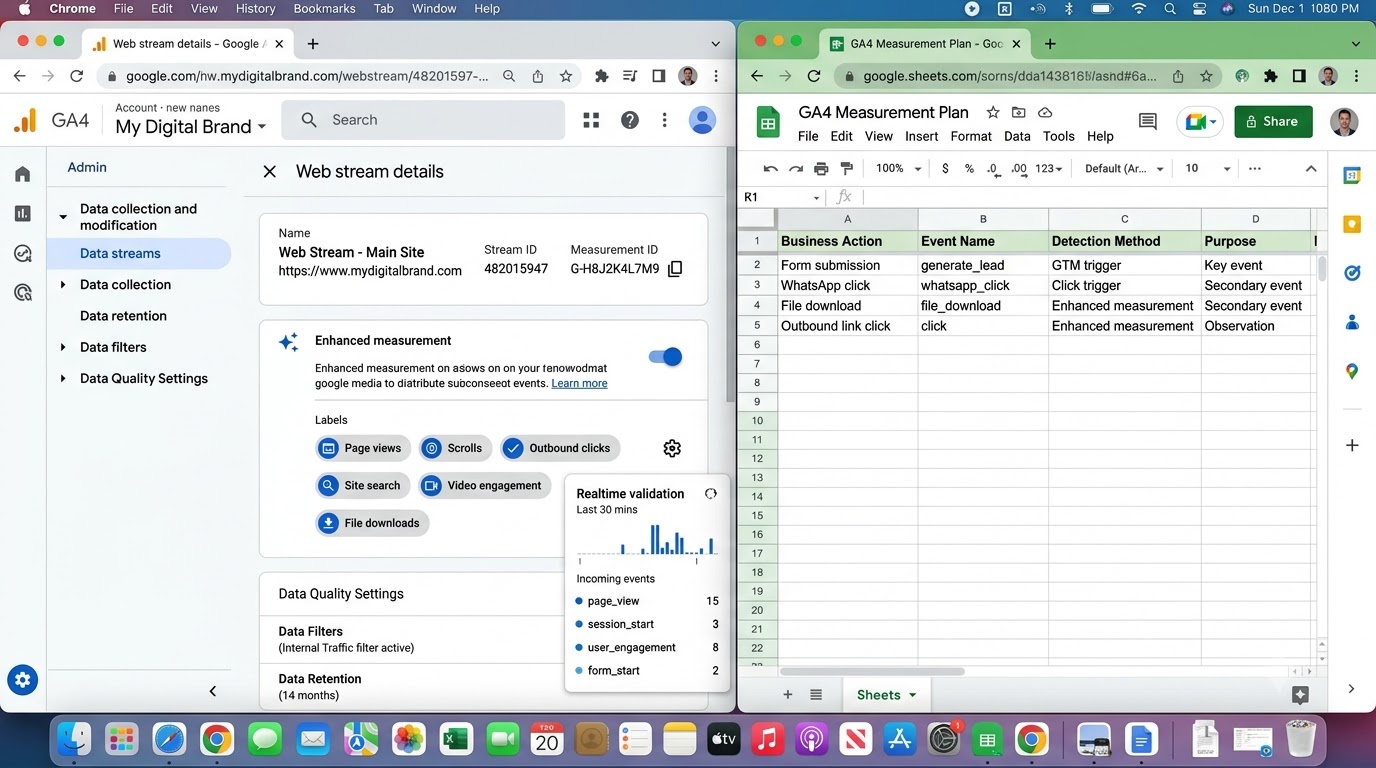
A measurement plan is just a table with four columns: the action, the event name, how it will be detected, and where it should be used. Nothing fancy. For example: “Admission form submitted | generate_lead | GTM form submission trigger | Key event and Google Ads import.” Another row: “WhatsApp button tapped | whatsapp_click | GTM click trigger on wa.me links | Secondary event.”
Writing this down forces useful decisions. You’ll notice that two actions might share an event name when they shouldn’t, or that something you wanted to track has no obvious trigger. Spotting that on paper is far cheaper than discovering it after a month of broken data. It also gives your developer or agency a clear brief instead of a vague “please track conversions.”
Keep the plan alive. Whenever somebody adds a new landing page, a new form or a new payment flow, the plan gets a new row. Teams that do this rarely end up with the “why is conversion tracking broken again?” panic after a website redesign, because the redesign checklist includes “check the measurement plan.”
Check Your Data Stream and Enhanced Measurement
Go to Admin > Data collection and modification > Data streams, and click your web stream. You’ll see your Measurement ID, which starts with G-, and a toggle called Enhanced measurement. Make sure it’s on, then click the gear icon to see which interactions are included: page views, scrolls, outbound clicks, site search, video engagement, file downloads and form interactions.
Enhanced measurement gives you free events with zero code, and several of them make useful goals. File downloads can track brochure or syllabus PDFs. Outbound clicks can catch people leaving to a booking tool. Be aware of the limits though. The scroll event only fires when someone reaches 90% of the page, and the form interaction events are unreliable on forms that submit through JavaScript without reloading.
Also confirm the tag is actually firing. Visit your site, open Reports > Realtime in GA4 and look for yourself in the user count. If nothing shows, your tag is missing or blocked. For WordPress, the Site Kit plugin by Google is the easy route. For anything more custom, Google Analytics setup and technical implementation is worth learning properly, because every conversion you build sits on top of that tag.
Filter Internal Traffic and Fix Data Retention
Your own clicks pollute your numbers, and during testing you’ll generate plenty of fake conversions. Under your data stream, choose Configure tag settings, then Define internal traffic, and add the IP address of your office or home. Then go to Admin > Data collection and modification > Data filters, find the Internal Traffic filter, and change it from Testing to Active once you’ve confirmed it works.
While you’re in Admin, open Data retention and change event data retention from the default 2 months to 14 months. This setting only affects Explorations, not the standard reports, but it decides whether you can build a funnel on data older than two months. Many people discover this limit the day they need a year over year comparison, and by then the data is gone.
One honest warning: IP filtering doesn’t help if you work from a phone on mobile data, where the address changes constantly. In that case, use the GTM preview mode or DebugView for testing, which keeps test traffic flagged separately. The goal isn’t perfection. It’s keeping the obvious junk out so the numbers mean something when you read them.
Name Events the Way GA4 Expects
Event names in GA4 are case sensitive, limited to 40 characters, and can’t contain spaces. So “Form Submit,” “form submit” and “form_submit” are three different things, and only the last one is clean. Stick to lowercase with underscores, which is what Google’s own recommended events use.
Pick a pattern and never break it. Something like verb_object works well: submit_form, click_whatsapp, download_brochure. Or follow Google’s recommended names where they exist: generate_lead, sign_up, purchase. The pattern matters less than the consistency. A property with “formSubmit,” “Form_Submit” and “form-submit” all doing the same job is a nightmare to report on.
Put the naming rule at the top of your measurement plan so everybody uses it. That includes the freelancer who adds a tag in six months and has never seen your documentation. Messy naming also creates a practical problem: GA4 limits how many distinct events a property can hold, and duplicate variants eat into that allowance for no reason.
Step by Step: How to Set Up Goals and Conversions in GA4 With Key Events
This is the hands-on core of the guide. Here’s the quick version first, so you can see the shape of the process, and then each step gets full detail below.
- Mark an event that already exists as a key event.
- Build a thank you page goal with Create event.
- Track form submissions through Google Tag Manager.
- Track clicks on buttons, calls and WhatsApp links.
- Set up scroll depth and time based engagement events.
- Send purchase events for ecommerce.
- Add values and choose the counting method.
Step 1: Mark an Existing Event as a Key Event
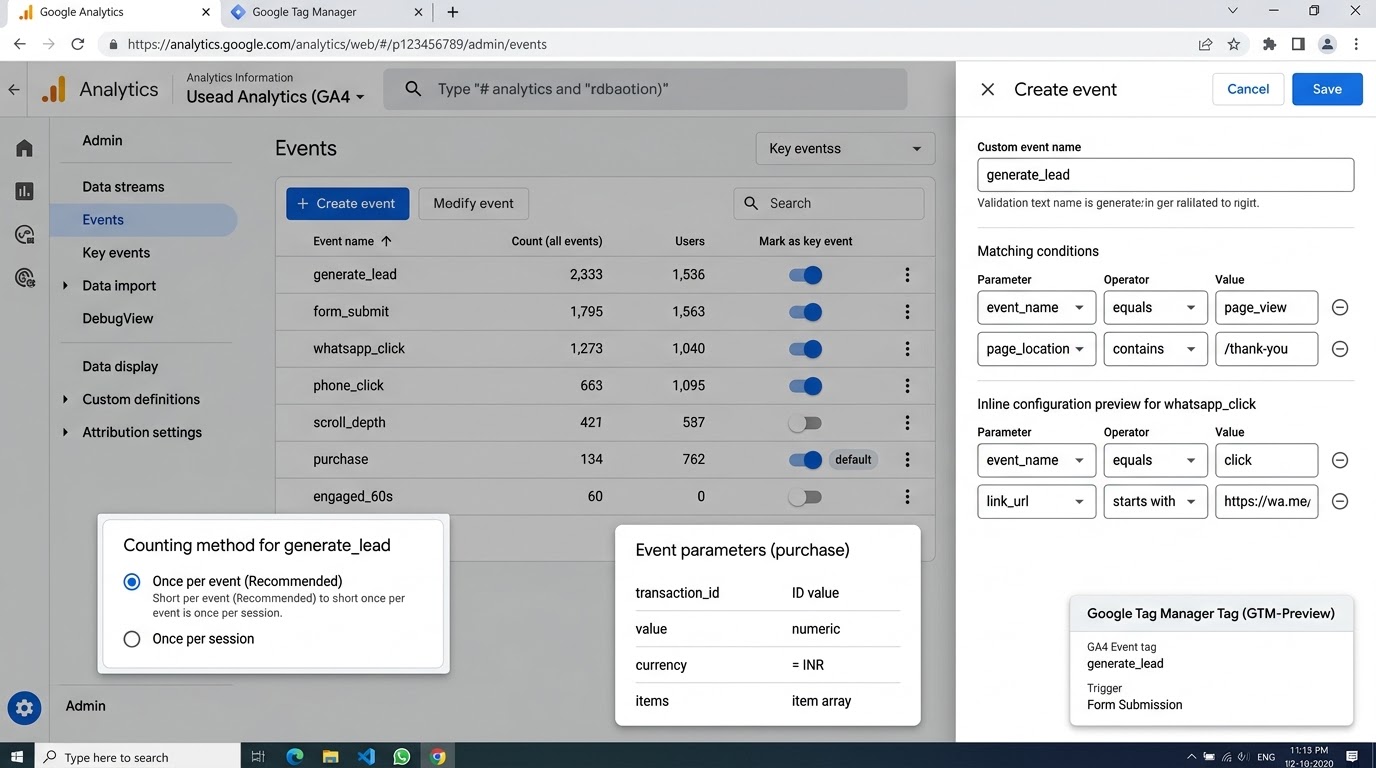
This is the fastest win in the whole process. Open Admin > Data display > Events. You’ll see a table of every event GA4 has received. Find the one you want, like purchase or file_download, and flip the Mark as key event toggle. That’s it. GA4 starts treating it as a key event immediately for future data.
Note the phrase “future data.” Marking an event as a key event doesn’t rewrite history, so past occurrences won’t suddenly show up as conversions. This surprises people who set things up late and expect their last three months to appear. Mark events as early as possible, and don’t panic about older reports.
An event only appears in that table after GA4 has received it at least once. If you’re planning a brand new event, there’s another route: go to Admin > Data display > Key events, click New key event, and type the exact event name. GA4 will start counting as soon as that event arrives. The name must match perfectly, including case, or the key event will sit there empty forever.
Step 2: Build a Thank You Page Goal With Create Event
Many sites send people to a page like /thank-you after a form, booking or payment. That page view is a perfect trigger, but GA4 only knows page_view as a generic event. The fix is to create a new event that fires only when page_view happens on that specific URL, then mark the new event as a key event.
Go to Admin > Data display > Events and click Create event, then Create. Name it something like generate_lead. Under matching conditions, set the first row to parameter event_name, operator equals, value page_view. Add a second row with parameter page_location, operator contains, value /thank-you. Keep “Copy parameters from the source event” ticked so you retain useful context. Save it.
Now trigger the page yourself and wait a minute. Once generate_lead appears in the Events table, mark it as a key event. One caution: use “contains” rather than “equals” for the URL, since query strings like ?utm_source=google would break an exact match. Also make sure the thank you page isn’t reachable by a direct URL from Google, or random visitors will count as leads. Noindex it, or protect it with a redirect check.
Step 3: Track Form Submissions Through Google Tag Manager
Not every form redirects to a thank you page. Plenty just show a message on the same page, which means there’s no URL change to detect. For those, Google Tag Manager (GTM), a free tool that lets you add tracking without editing site code, is the standard solution. Create a GA4 Event tag, add your Measurement ID, and set the event name to generate_lead.
For the trigger, start with the Form Submission trigger type. Tick “Check Validation” so the tag only fires when the form passes its own error checks. Then add a condition such as Form ID equals your form’s ID, so it doesn’t fire on the newsletter box in the footer. If your form submits through AJAX (no page reload, very common with Contact Form 7, Elementor and Typeform embeds), the built-in trigger often fails. In that case, use a Custom Event trigger that listens for the success event your form plugin pushes to the data layer.
Always use Preview mode before publishing. Fill in the real form, and check that the tag fired exactly once, and that it did not fire on a failed submission. Then publish, wait for the event to appear in GA4 and mark it as a key event. If the form builder pushes extra data like form_name or service_selected, pass those as event parameters, because they let you split leads by service later.
Step 4: Track Button Clicks, Calls and WhatsApp Taps
For many Indian small businesses, the real lead isn’t a form. It’s a phone call or a WhatsApp message. GA4 can’t see those unless you tell it, so build click events. In GTM, create a Click trigger set to “Just Links,” then add a condition: Click URL starts with https://wa.me for WhatsApp, or Click URL starts with tel: for calls.
Before this works, go to Variables > Configure in GTM and turn on the built-in Click URL, Click Text and Click Classes variables. Skipping this is the single most common reason click tracking silently fails. Then create a GA4 Event tag named whatsapp_click or phone_click and attach the trigger. Preview, tap the button, and confirm the tag fires.
Here’s the honest limitation. A click on a WhatsApp link only proves someone tapped, not that a real conversation started. Treat it as a strong intent signal, and check it against your actual inbox. If 120 WhatsApp clicks produce only 30 messages, you’ve learned something useful about the page experience. Mark the event as a key event only if the business really values those taps as leads.
Step 5: Set Up Scroll Depth and Time Based Engagement Events
Sometimes the goal is engagement, not a form. A publisher, a course platform or a content site might care that someone read most of a post. GA4’s default scroll event only fires at 90%, which is too late to be useful for most pages. A better setup uses a GTM Scroll Depth trigger with vertical depths of 25, 50, 75 and 90 percent.
Create the trigger, then a GA4 Event tag named scroll_depth with an event parameter percent_scrolled set to the built-in Scroll Depth Threshold variable. Now you can see how many visitors reach the halfway point versus the bottom. Mark one threshold as a key event only if it truly correlates with outcomes. For most sites, scroll depth works better as a diagnostic event than as a conversion.
For time based goals, which replace the old Universal Analytics Duration goal, use the GTM Timer trigger. Set the interval to 60000 milliseconds, limit to 1, and fire a GA4 event called engaged_60s. Keep in mind that a timer counts clock time, not necessarily attention, since someone might leave the tab open and walk away. Combine it with a scroll condition if you want a stronger signal.
Step 6: Set Up Ecommerce Purchase Tracking
For online stores, the purchase event is the most important one in the property. It needs specific parameters: transaction_id, value, currency and an items array describing what was bought. Without them, GA4 can count a purchase but can’t report revenue, product performance or conversion value to Google Ads.
Most platforms handle this for you. Shopify’s Google & YouTube app sends purchase data to GA4 automatically. WooCommerce works well with Google Site Kit or the GTM4WP plugin. Custom sites need a developer to push the data to the data layer after a successful order. Whichever route you take, confirm that currency is “INR” or whatever you actually charge in, because a missing currency is a classic reason revenue shows as zero.
The transaction_id deserves its own mention. It’s a unique order number, and GA4 uses it to avoid counting the same order twice if someone refreshes the confirmation page. Without it, a customer who bookmarks the thank you page and revisits it three times can inflate your sales. Test with a real low value order or a test payment, then compare GA4’s number to your store admin.
Step 7: Add Values and Choose the Counting Method
A key event with no value tells you how many, but not how much. If you can estimate what a lead is worth, send it. For a coaching institute where 1 in 10 leads enrolls and a course sells for ₹40,000, a lead is worth roughly ₹4,000 in expected revenue. Pass that as the value parameter and currency as INR in your GA4 Event tag.
Estimates don’t need to be perfect. They need to be consistent, so that comparing campaigns tells you something real. If Google Ads campaign A generates leads worth ₹80,000 on a ₹20,000 spend and campaign B generates ₹30,000 on the same spend, you’ve got a clear decision regardless of small inaccuracies in the lead value.
Then check the counting method. Open the key event’s settings on the Key events page and choose between Once per event and Once per session. Once per event counts every occurrence, which suits purchases. Once per session counts a maximum of one per visit, which suits leads and sign ups, since one visitor submitting the same form twice shouldn’t count as two leads. Picking the wrong method is a quiet source of inflated numbers.
Test and Read Your GA4 Goals and Conversions Reports
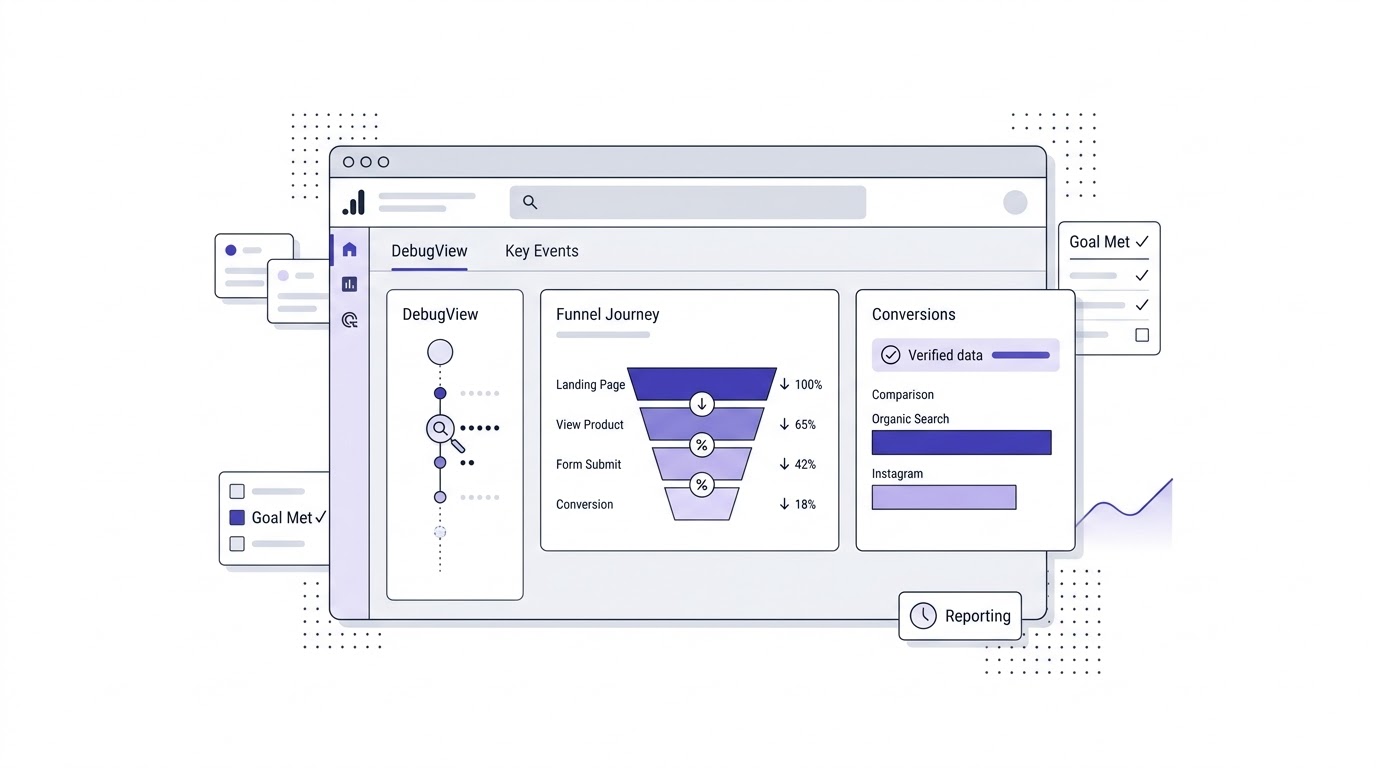
Setting things up is half the job. The other half is proving it works and knowing where to find the results. This section covers testing with DebugView, finding key events in standard reports, building funnels in Explore, and understanding the delays that make people think tracking is broken.
Test With DebugView and Realtime Reports
DebugView, found at Admin > Data display > DebugView, shows events from a single device as they arrive, with every parameter attached. It’s the best way to confirm that an event fires once, carries the right values, and doesn’t fire when it shouldn’t. To feed it, use GTM Preview mode, the Google Analytics Debugger extension for Chrome, or add the debug_mode parameter to your tag.
Run your own test like a visitor would. Submit the form, tap the WhatsApp button, complete a test checkout. Watch the timeline on the left. You should see the event appear within seconds, with a small flag icon next to anything marked as a key event. If the event appears twice, you probably have a duplicate tag. If it doesn’t appear, check your trigger conditions.
The Realtime report under Reports > Realtime is a lighter check. It shows event counts for the last 30 minutes, and key events appear in their own card. It’s less precise than DebugView, but it confirms that real visitor traffic is reaching GA4. Use DebugView to inspect details, and Realtime to confirm the live picture.
Find Your Key Events in the Standard Reports
Once data flows, go to Reports > Engagement > Key events. This report lists every key event with its count, total users and event value. In Reports > Engagement > Events, you’ll also see a Key event column that shows which events carry the flag. And in Reports > Acquisition > Traffic acquisition, a Key events column splits conversions by channel.
That last report answers the question most business owners actually ask: “Which channel gives me leads?” Switch the dimension to Session source / medium and compare. A channel like Organic Search might send 4,000 sessions and 40 leads, while Instagram sends 1,500 sessions and 3 leads. That kind of comparison tells you where to put your next ₹10,000, and it’s why SEO and organic traffic work only makes sense when conversions are measured properly.
Look at the columns too. GA4 offers Key event rate (the share of sessions or users that triggered a key event) alongside raw counts. A page with 10,000 visitors and a 0.2% rate is a bigger problem than a page with 500 visitors and a 6% rate. Raw counts flatter big channels. Rates show which traffic actually behaves well.
Build a Funnel in Explore
Standard reports show the outcome. Explorations show the path. Open Explore from the left menu, choose Funnel exploration, and define steps. For a lead funnel, steps might be: page_view on the landing page, scroll at 50%, form_start, generate_lead. GA4 then shows how many users drop at each step.
Funnels expose problems you can’t see in a single number. Maybe 70% of visitors scroll, 12% start the form, and only 3% finish. That gap between starting and finishing points to a form problem, perhaps too many fields or a broken mobile layout. A single conversion count would never tell you that.
Switch the funnel to “open” if users can enter at any step, or keep it “closed” for strict sequences. Segment by device, since mobile funnels in India often look very different from desktop. Remember that Explorations depend on your data retention setting, so if you left it at 2 months, you’ll only see 2 months of history.
Understand Attribution and Key Event Rates
Attribution decides which channel gets credit for a key event. GA4’s default is data-driven attribution, which uses machine learning to distribute credit across touchpoints rather than giving it all to the last click. You can check or change this at Admin > Property settings > Attribution settings, where you’ll also see lookback windows: 30 days for acquisition key events by default, and 90 days for other key events.
Why does this matter? Because the same conversion can appear in different places with different credit. A user who first found you through Instagram, returned through a Google search, and filled the form after clicking an email might be credited fully to email in a last click model, but shared across all three in data-driven. Neither is “wrong,” they answer different questions.
Don’t obsess over perfect attribution. The most useful habit is consistency: pick a model, stick with it, and compare periods under the same rules. If you flip models every month, trends become impossible to interpret. For deeper analysis, the Advertising section’s Attribution reports show conversion paths and how many touches typically precede a lead.
Why Your Numbers Look Different or Late
GA4 isn’t instant outside Realtime and DebugView. Standard reports can take 24 to 48 hours to fully process, so a conversion that happened this morning might not appear in Reports until tomorrow. Checking the Traffic acquisition report an hour after launch and concluding “it’s broken” is probably the most common false alarm in analytics.
Then there are data thresholds. When Google Signals is on and a report slices data into small groups, GA4 may hide some rows to protect user privacy, which is why a low volume site can see missing numbers or a “thresholding applied” icon. Turning off Google Signals in Admin > Data collection and modification, or changing the reporting identity, often fixes it.
Finally, GA4 will never match your CRM or Google Ads exactly. Ad blockers, cookie consent choices, different attribution rules and time zone settings all create gaps. A 5 to 15% difference is normal. A 50% difference means something is genuinely wrong, like duplicate tags or a missing transaction_id. Learn what “normal gap” looks like for your site so you can spot real trouble.
GA4 Conversion Tracking Beyond the Basics: Google Ads, Mistakes and a Real Walkthrough
With your key events working, the next step is making them useful. That means feeding them into advertising platforms, handling checkouts that leave your domain, avoiding common errors, and seeing how it all fits together in a practical example. This section ties everything into a working system.
Link Google Ads and Import Key Events
Go to Admin > Product links > Google Ads links, and link your account. Then, in Google Ads, open Goals > Conversions > Summary, click New conversion action, choose Import, then Google Analytics 4 properties, then Web. Pick your key events from the list and import them. They appear as conversion actions that Smart Bidding can optimize against.
Next comes a decision: primary or secondary. Primary actions are the ones campaigns bid on. Secondary actions are tracked but don’t influence bidding. Set your actual leads and purchases as primary. Set softer signals like WhatsApp clicks or brochure downloads as secondary, unless your business can’t get enough primary volume to feed the bidding system.
That last point matters. Bidding algorithms learn faster with at least a few dozen conversions per month, and a small advertiser with only 8 leads a month might be better off optimizing for a higher volume micro conversion. It’s a trade off, and nobody gets it perfect. The key is making the choice deliberately, rather than letting every imported event bid at the same time and confusing the system. For wider digital marketing strategy and ad platform basics, this is where measurement and spend finally meet.
Set Up Cross-Domain Tracking for Checkouts and Booking Tools
Here’s a mistake that destroys attribution without a single visible error. Your site sends people to a payment gateway or booking tool on a different domain, such as a hosted checkout or a Calendly style scheduler. When the user returns, GA4 may treat them as a brand new session coming from that external domain, so the conversion gets credited to “referral” instead of the Google Ad that earned it.
The fix lives in Admin > Data streams > your stream > Configure tag settings > Configure your domains. Add every domain involved in the journey, using match conditions like “contains.” GA4 then passes a linker parameter between the domains so the session stays intact. Also check the List unwanted referrals setting for payment providers, so they don’t hijack attribution.
Test it by walking through the full path yourself with DebugView open. Watch the session id across the jump. If the ID changes, the link isn’t working. This one setting is behind a huge share of “direct traffic” and “referral from payment gateway” complaints, and fixing it often changes channel reports noticeably.
Common Mistakes That Break Conversion Data
Some errors show up again and again. Marking too many events as key events, which dilutes the signal. Using different event names for the same action across pages. Forgetting to exclude internal traffic. Creating a thank you page event with an exact URL match that breaks on query strings. Leaving test conversions in the data and never separating them.
Here’s another one the guides skip: duplicate tags. A site with a hardcoded GA4 snippet in the theme, plus a Site Kit plugin, plus a GTM tag, can fire three page views for every visit. That makes bounce rates look odd, inflates events and gives conversions that are two or three times too high. Check with the Tag Assistant Chrome extension. If you see the same Measurement ID loading more than once, remove the extras.
And then there’s consent. If your site serves visitors in the EU or UK, Consent Mode and a cookie banner affect how much data GA4 collects. Without them configured correctly, you may lose a large chunk of conversions, or break compliance. Even for India focused sites, consent preferences will matter more as privacy rules develop. Set it up deliberately rather than as a panic fix.
A Real Walkthrough: Setting Up an Enquiry Funnel for a Coaching Institute
Picture a Pune coaching institute running Google Ads and Instagram ads with a monthly budget of ₹80,000. Their site has three conversion points: an admission enquiry form, a WhatsApp chat button, and a downloadable course brochure. Right now GA4 shows nothing but page views and sessions.
Step one is the measurement plan. The primary key event is generate_lead from the enquiry form, worth an estimated ₹4,000 per lead. Secondary events are whatsapp_click and file_download for the brochure. In GTM, they build a Form Submission trigger with validation checking, a Click trigger on wa.me links, and rely on enhanced measurement for the PDF download.
After testing in DebugView, they mark generate_lead as a key event with Once per session counting, and mark whatsapp_click as a key event too. They link Google Ads, import generate_lead as a primary conversion, and import whatsapp_click as secondary. Within 30 days, the Traffic acquisition report shows Google Ads bringing 60 leads at ₹700 each, while Instagram brings 12 leads at ₹2,900 each. That’s a budget decision made in minutes instead of guesswork, and the kind of before and after story you’ll find in real case studies of tracking work.
Keeping Your Setup Clean Over Time
A tracking setup isn’t a one time project. Websites change, plugins update, developers swap form builders, and conversion tags break quietly. Schedule a quarterly audit: open DebugView, run through each key event, confirm that counts roughly match your CRM or inbox, and check that no stray events have crept into the key events list.
Keep documentation simple. A shared sheet with each event name, what triggers it, who created it, and when it was last tested is enough. When someone leaves the team or an agency changes, that sheet is what stops a rebuilt site from silently losing all its conversion tracking. Many businesses only discover broken tracking after weeks of lost data, which is exactly why a routine check beats a reaction.
Finally, set up a basic alert. In GA4’s Insights or a custom Looker Studio dashboard, watch for a sudden drop in generate_lead. If daily leads fall from 12 to zero overnight, that’s much more likely a broken tag than a sudden lack of interest. Catching it in a day instead of a month can save thousands of rupees in wasted ad spend.
Conclusion
Learning how to set up goals and conversions in GA4 comes down to a small number of habits: decide what matters before touching settings, use clean event names, mark only the actions tied to real outcomes as key events, test everything in DebugView, and send the right events to your ad platforms. The interface changes names every year or so, but this logic holds.
Start small. Pick the single most valuable action on your site this week, build it properly, test it, and watch it appear in your reports.
Frequently Asked Questions
What is the difference between goals and key events in GA4?
Universal Analytics had a separate Goals feature with its own setup screen. GA4 has no goals at all. Instead, every interaction is an event, and the important ones get marked as key events. A key event is simply a normal event with a flag that tells GA4 to count it as a business outcome, such as a purchase or lead.
Did Google really rename conversions to key events?
Yes. In March 2024, Google changed the term inside Google Analytics from “conversion” to “key event.” The word “conversion” now refers to actions counted in Google Ads. The function is identical, so any older tutorial that says “mark as conversion” is describing the same toggle you now see as “Mark as key event.”
How many key events can I create in GA4?
Standard GA4 properties allow up to 30 key events, and GA4 360 properties allow more. In practice, you should use far fewer. Mark only the actions that connect to revenue or qualified leads, and keep softer signals as regular events so your reports stay readable and your ad platforms receive clean signals.
How do I track a thank you page as a goal in GA4?
Go to Admin > Data display > Events, click Create event, and set conditions where event_name equals page_view and page_location contains your thank you URL, such as /thank-you. Give the new event a name like generate_lead, save it, and once it appears in your events list, mark it as a key event.
Do I need Google Tag Manager to set up conversions in GA4?
Not always. Enhanced measurement and the Create event feature cover downloads, outbound clicks and thank you pages without GTM. But for form submissions that don’t redirect, button clicks, WhatsApp taps, custom scroll depths and timers, Google Tag Manager is the practical tool. It’s free and lets you add tracking without editing your site code.
Why are my GA4 key events not showing up?
The usual causes are a mismatched event name (GA4 is case sensitive), a trigger that never fires, a missing Measurement ID, or simply waiting too little. Standard reports can lag 24 to 48 hours. Check DebugView first to see whether the event arrives at all, then check whether it’s marked as a key event.
Can I see past data after marking an event as a key event?
No. Marking an event as a key event applies going forward only. Earlier occurrences of that event won’t be retroactively counted as key events in standard reports. The event data itself still exists, so you can analyze it in Explorations, but the key event flag begins from the moment you switch it on.
What is the difference between Once per event and Once per session counting?
Once per event counts every time the event fires, which suits purchases where a customer might buy twice in a session. Once per session counts at most one occurrence per visit, which suits leads and sign ups where one person submitting twice shouldn’t inflate numbers. You can change this in the key event settings.
How do I import GA4 key events into Google Ads?
Link your Google Ads account under Admin > Product links in GA4. Then, in Google Ads, go to Goals > Conversions > Summary, click New conversion action, choose Import, select Google Analytics 4 properties, and pick the key events you want. Set your main outcomes as primary actions and softer signals as secondary.
How do I test if my GA4 conversion tracking works?
Use DebugView under Admin > Data display, fed by GTM Preview mode, the Google Analytics Debugger extension, or the debug_mode parameter. Perform the real action yourself, such as submitting the form, and watch the event appear with its parameters. A flag icon marks key events. Confirm it fires exactly once and doesn’t fire on failed attempts.
Why do GA4 conversions not match Google Ads conversions?
The two systems use different attribution rules, lookback windows and counting methods. Google Ads credits conversions to the click date, while GA4 uses the conversion date. Ad blockers and consent settings also remove some data from one system but not the other. A gap of 5 to 15% is normal. Much larger gaps suggest duplicate tags or setup errors.
Can I track phone calls and WhatsApp clicks as GA4 conversions?
Yes. In Google Tag Manager, create a Click trigger that fires when the Click URL starts with tel: for calls or https://wa.me for WhatsApp, then attach a GA4 Event tag with a name like phone_click or whatsapp_click. Remember that this records a tap, not a completed conversation, so compare it against actual inquiries.
Do I need to set a value for GA4 key events?
It isn’t required, but it’s very helpful. A key event without value tells you how many conversions occurred, not how much they’re worth. Pass value and currency parameters with each event, using an estimated worth for leads or the actual order amount for purchases, so you can compare campaigns by return rather than just volume.