

Most people running ads or managing a website find out the hard way that spending money without conversion tracking is just guessing with extra steps. A campaign can get 40,000 clicks and look like a smash hit on the surface, and still be losing money every single day, because nobody set up the one thing that actually tells you what those clicks did after they landed. Conversion tracking is that missing piece. It is the difference between “our ads are getting traffic” and “our ads made 214 sales worth ₹6.8 lakh last week, and here is exactly which keyword and which ad brought them in.”
This guide is written for someone who has heard the term thrown around in meetings, maybe clicked into Google Ads or GA4 once and felt lost, and now wants a real, working understanding of conversion tracking without the jargon-heavy explanations that assume you already know what a pixel is. Conversion tracking touches every part of digital marketing: SEO, paid ads, email, social, even offline sales in some setups. Get it wrong, and every decision built on top of it is wrong too. Get it right, and suddenly you know exactly which channel, campaign, and even which single ad creative is making the business money.
By the end of this guide, you will know what conversion tracking actually is, how it works behind the scenes, how to set it up in the tools most businesses actually use, which conversions are worth tracking and which ones are noise, the mistakes that quietly wreck people’s data, and how to turn that data into decisions instead of just staring at a dashboard.
What You Will Learn in This Guide
- What conversion tracking is, in plain language, and why “just look at traffic” is not enough
- How tracking actually works under the hood: pixels, tags, cookies, and attribution
- Step-by-step setup in Google Analytics 4, Google Ads, and Meta, including server-side tracking
- The difference between macro and micro conversions, and why tracking only one of them costs you insight
- The most common conversion tracking mistakes that quietly corrupt your data
- A practical list of tools worth using, and which ones overlap
- How to turn conversion data into real decisions instead of a dashboard nobody checks
What Is Conversion Tracking
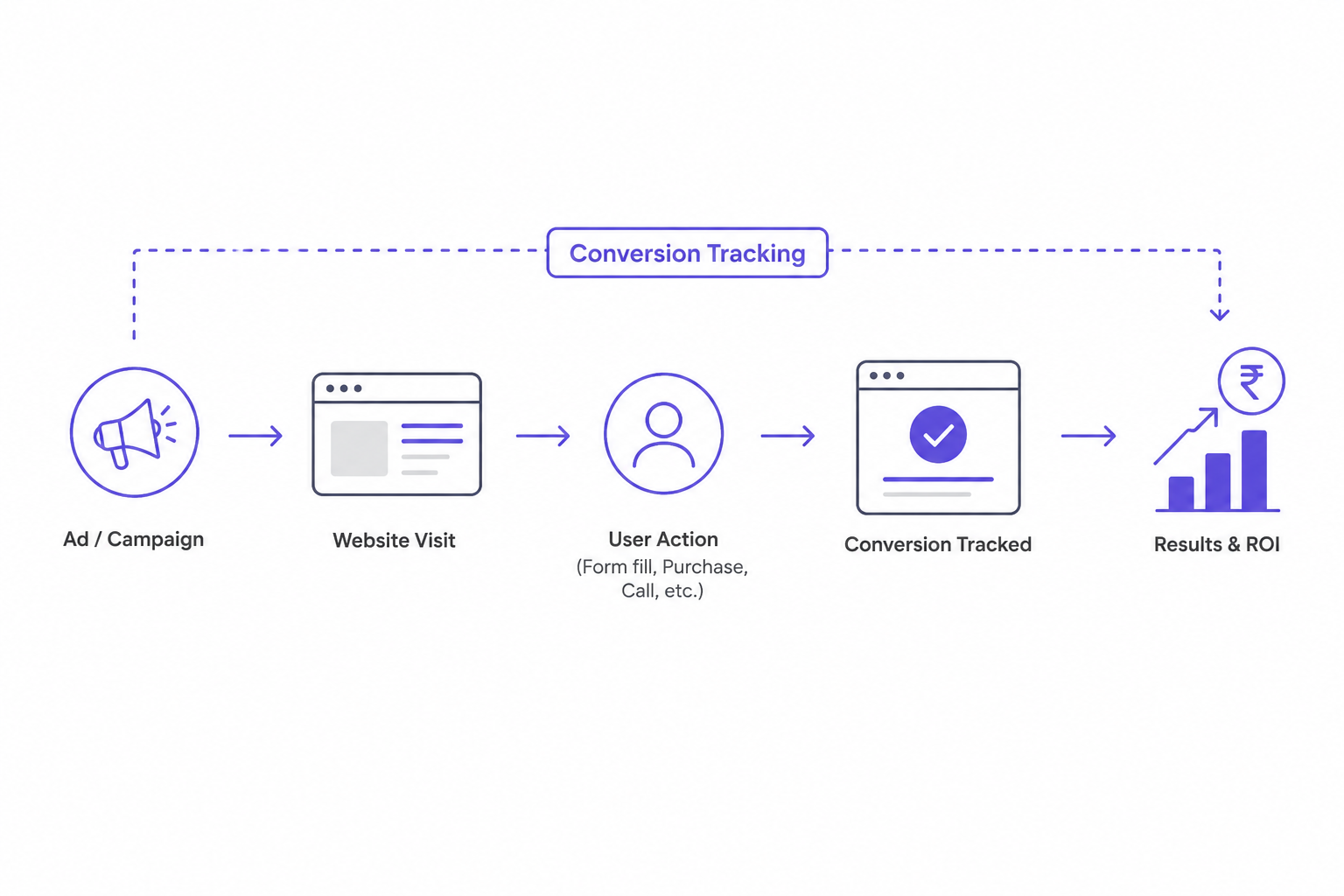
Conversion tracking is the process of recording when someone completes a specific action you care about after interacting with your marketing, whether that is a purchase, a form fill, a phone call, an app install, or a demo booking. In plain terms: it is how you find out what actually happened after someone clicked your ad, opened your email, or landed on your page from a search result.
Without conversion tracking, marketing data stops at the click. You know someone visited. You do not know if they bought anything, filled out a form, or bounced within four seconds. That gap is where budgets get wasted. A campaign can drive thousands of visits and still be a complete failure if none of those visits turn into revenue, and there is no way to know that without a system in place to record the outcome, not just the click.
Here is the thing most beginners get wrong: they think conversion tracking is one tool or one setting you turn on. It is not. It is a layer that sits across your website, your ad platforms, and your analytics tool, connecting a specific user action (submitting a form, reaching a “thank you” page, clicking “buy now”) back to the specific ad, keyword, email, or post that brought that person to your site in the first place. That connection is what makes the data useful. A conversion number with no source attached is just a count. A conversion number tied to “Google Ads, Campaign: Winter Sale, Keyword: running shoes for flat feet” is a decision you can act on.
This matters even more once you’re spending real money on ads. A ₹500 daily budget on Google Ads without conversion tracking is a coin flip. The same ₹500 with proper conversion tracking tells you, within a week, exactly which ad group is profitable and which one is quietly burning cash. That is the entire reason platforms like Google Ads, Meta Ads, and LinkedIn Ads all build conversion tracking directly into their systems: they know advertisers will keep spending only if they can prove it worked.
Think about what a business actually knows without conversion tracking in place. It knows sessions, pageviews, maybe average time on site. None of that pays the bills. A bounce rate of 60 percent sounds bad until you realize the visitors who stayed were the ones who bought, and the 60 percent who left were never a fit for the product in the first place. Traffic metrics describe behavior. Conversion metrics describe outcomes. Businesses that only watch traffic metrics end up chasing vanity numbers, celebrating a spike in visitors that never translated into a single rupee of revenue.
Conversion tracking also changes what “success” looks like across a team. A content writer optimizing purely for pageviews will naturally gravitate toward clickbait headlines and broad topics that pull in traffic but attract the wrong audience. The same writer, working against a conversion-tracked goal like “newsletter signups from blog traffic,” starts writing for intent instead of volume, because that is what the number in front of them actually rewards. Tracking doesn’t just measure results, it quietly shapes behavior toward the outcome that gets measured, which is exactly why picking the right conversion to track in the first place matters so much.
How Conversion Tracking Actually Works Under the Hood
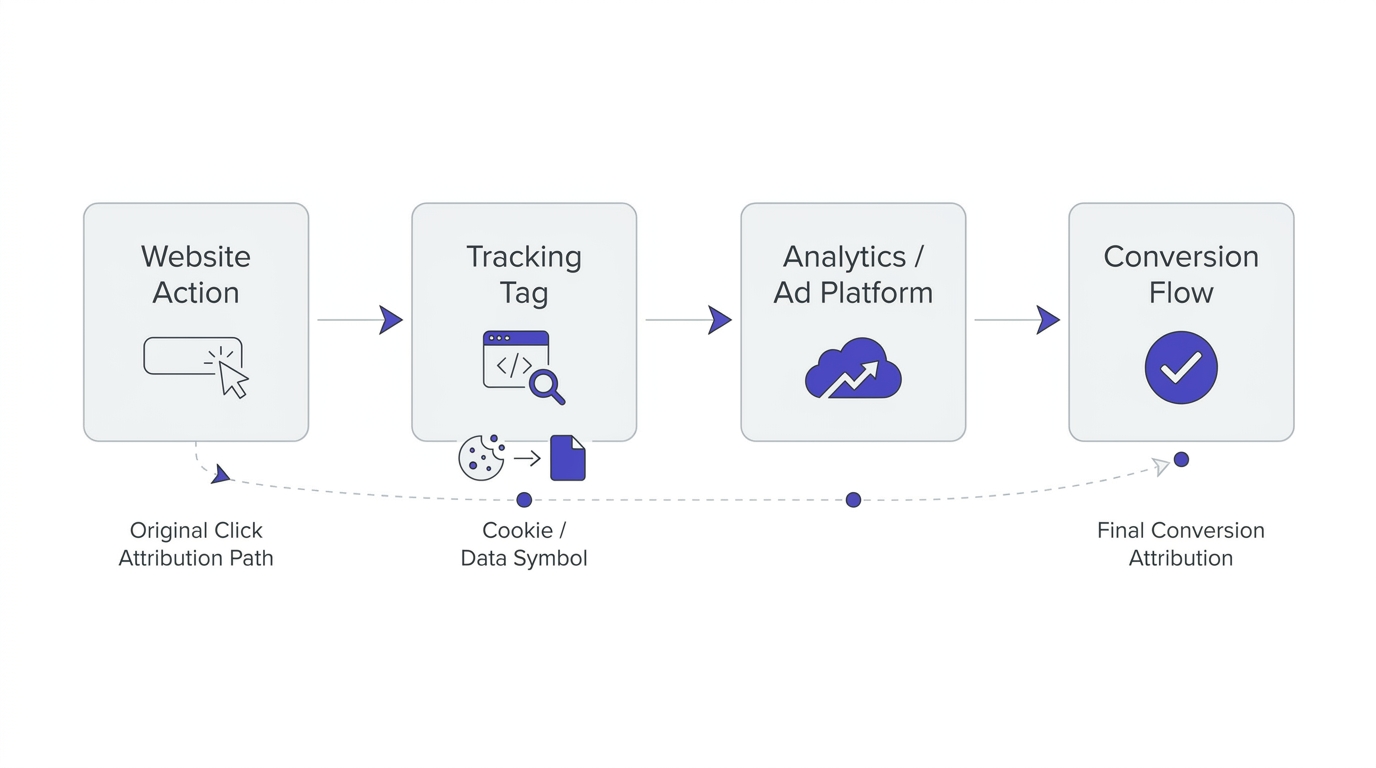
Conversion tracking sounds like magic until you see the mechanics, and then it is honestly pretty simple. A small piece of code fires when a specific action happens on your site, that code sends a signal to an ad platform or analytics tool, and that signal gets matched back to the click or impression that originally brought the visitor in. Three things make this possible: tags, cookies (or their replacements), and attribution logic. Understanding each one changes how you troubleshoot tracking problems later.
Tags, Pixels, and Event Snippets
A tag is a small snippet of JavaScript code placed on your website that fires when a certain page loads or a certain action happens, like a button click or form submission. Google calls its version a “tag,” Meta calls its version a “pixel,” and functionally, they do the same job: they watch for an event and report it back to the platform that owns the code.
Most businesses do not paste these snippets directly into every page anymore. Instead, they use Google Tag Manager, a free tool that acts as a container for every tracking tag on the site. You install one master snippet from Tag Manager once, and then every other tag, whether it is the GA4 base tag, a Google Ads conversion tag, or the Meta Pixel, gets added and managed inside Tag Manager without touching the site’s code again. This is the standard setup used across most agencies and in-house marketing teams, because it means a marketer can add or edit a tracking tag without needing a developer every single time.
The event snippet is the specific piece that fires on the exact action you’re tracking, separate from the base tag that loads on every page. If someone lands on your “Thank You for Your Order” page, that page load itself can be the trigger, or a button click on “Submit” can be the trigger, depending on how the conversion is set up. Getting this trigger wrong, for example firing on the checkout page instead of the confirmation page, is one of the most common reasons beginners end up with conversion numbers that do not match actual sales.
Inside Google Tag Manager, every tag needs three things to actually work: the tag itself (what code fires, like the GA4 event tag), a trigger (the condition that decides when it fires, like “page URL contains /thank-you”), and a variable (a piece of dynamic data the tag pulls in, like a transaction value or an order ID). Beginners usually get the tag and trigger part fine and skip the variable setup entirely, which means the conversion fires correctly but reports zero value every time, because nothing was configured to actually read the purchase amount off the page and pass it along.
Preview mode inside Tag Manager is the one feature that saves the most debugging time, and it is criminally underused. Before publishing any tag live, Preview mode lets you browse the actual site in a connected debug session and see exactly which tags fired, which ones didn’t, and why, in real time. Skipping preview mode and publishing tags directly is how broken tracking makes it to a live site and sits there silently for weeks before anyone notices the numbers look off.
First-Party Data vs Third-Party Cookies
For years, conversion tracking leaned almost entirely on third-party cookies, small files dropped by an ad platform’s domain that followed a user across different websites so the platform could later say “this person who bought something on your site is the same person who clicked our ad three days ago on a different site.” Browsers have been killing this method off. Safari and Firefox already block third-party cookies by default, and Chrome has been phasing out support for them, which means relying purely on old-style pixel tracking now misses a growing share of conversions.
First-party data is the replacement, and it is exactly what it sounds like: data collected directly by your own website or app, stored under your own domain, not a third-party ad platform’s domain. First-party cookies, login data, and hashed customer information (like an encrypted version of an email address) are far more reliable now because they don’t depend on cross-site tracking that browsers are actively blocking. This is also why “Enhanced Conversions” in Google Ads and “Advanced Matching” in Meta both exist: they let you securely send hashed customer data (email, phone number) alongside a conversion event, so the platform can match a conversion even when a cookie gets blocked.
What most people get wrong here is assuming tracking loss from cookie blocking is a small, marginal issue. It is not marginal anymore. Depending on the audience and browser mix, businesses can be under-reporting conversions by 15 to 30 percent purely from cookie restrictions, which directly skews cost-per-conversion numbers and makes profitable campaigns look worse than they actually are.
Attribution Models and Why They Change the Story
Attribution is the set of rules that decide which touchpoint gets credit for a conversion when a customer interacted with multiple ads or channels before converting. A person might see a Facebook ad on Monday, search your brand name on Google on Wednesday, and finally buy after clicking an email link on Friday. Attribution decides who gets the “credit” for that sale.
Last-click attribution gives 100 percent of the credit to the final touchpoint before conversion, in this case, the email. First-click gives all the credit to the very first interaction, the Facebook ad. Linear attribution splits the credit evenly across every touchpoint. Data-driven attribution, which GA4 and Google Ads now use by default, uses machine learning to distribute credit based on how much each touchpoint actually influenced the outcome, learned from real conversion patterns in your account.
The part most guides skip is explaining why this actually matters day to day: if you’re using last-click attribution and judging your Facebook ads purely on direct conversions, you will almost always conclude Facebook “doesn’t work,” because Facebook frequently plays a first-touch or middle-touch role rather than the final click. Switch to a data-driven or even a linear model, and the exact same campaign can look completely different. Choosing the wrong attribution model is one of the fastest ways to defund a channel that was actually doing useful work.
Attribution windows add another layer that trips people up. This is the time period during which a click or view is allowed to get credit for a later conversion. Google Ads defaults to a 30-day click window and a 1-day view window for most campaigns, meaning a conversion happening 29 days after a click still counts, but one happening on day 31 does not. Meta defaults to a 7-day click and 1-day view window unless changed manually. A business with a long sales cycle, like enterprise software with a 60-day average decision time, will chronically undercount conversions if the attribution window is left at platform defaults built for impulse-buy products.
None of this means attribution modeling needs to be perfect before anything else gets done. It means the model choice should be a deliberate decision, checked periodically, not an ignored default setting buried three menus deep that nobody on the team has ever opened.
How to Set Up Conversion Tracking Step by Step
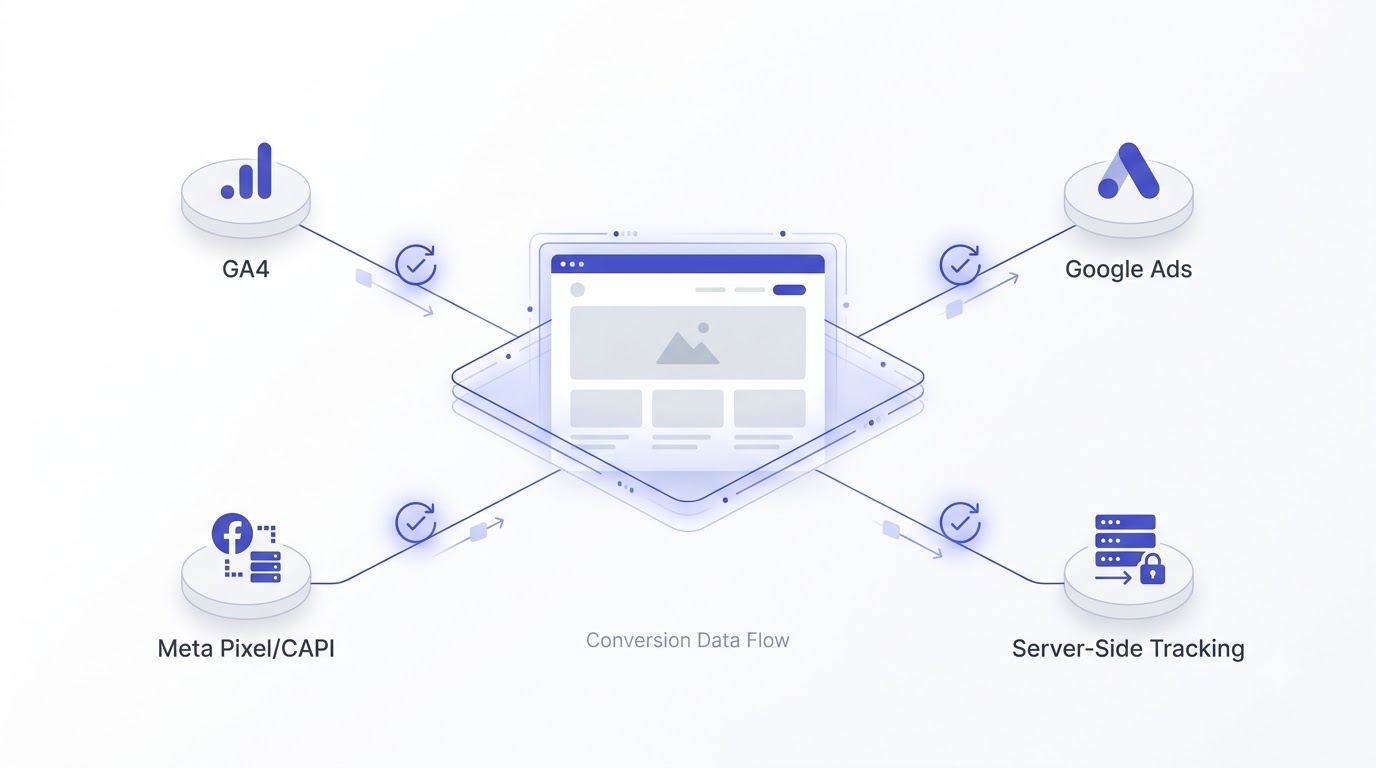
Reading about conversion tracking and actually setting it up are two different skills. This section walks through the real setup process across the four places most businesses need it: GA4, Google Ads, Meta, and server-side tracking for anyone dealing with heavier privacy restrictions or ad blockers.
Setting Up Conversion Tracking in Google Analytics 4
GA4 replaced Universal Analytics, and it changed how conversions work at a structural level. Instead of “Goals,” GA4 uses “Key Events,” and it is built around an event-based data model, which means everything, including a page view, is technically an event, and any event can be marked as a conversion.
Start inside GA4 under Admin, then Events. GA4 automatically tracks some events already, like page_view, scroll, and click, without any extra setup, thanks to Enhanced Measurement. For something specific, like a form submission or a “Buy Now” click, you either need that event to fire automatically (many form tools like Elementor Forms or HubSpot forms send their own events) or you create a custom event using Google Tag Manager, based on a trigger like a button click or a URL matching a “thank you” page.
Once the event shows up in GA4’s Events report with real data flowing in, go to Admin, then Events again, and toggle “Mark as key event” next to it. That single toggle is what turns a regular tracked event into an official conversion inside GA4, which then flows into reports, into Google Ads if the accounts are linked, and into any other tool pulling from GA4 data.
The mistake most beginners make here is marking too many events as key events immediately, things like “scroll depth” or “video play,” which inflates the conversion count and makes it impossible to tell which numbers actually represent revenue-driving actions versus soft engagement signals. Keep key events tied to genuine business outcomes: purchases, leads, sign-ups, calls, not passive engagement.
For e-commerce sites, GA4’s Enhanced Ecommerce setup is worth the extra effort, because it captures far more than a single “purchase” event. Configured properly through Google Tag Manager’s data layer, it records view_item, add_to_cart, begin_checkout, add_shipping_info, add_payment_info, and purchase as a connected sequence, each carrying product-level data like price, quantity, and item category. This is what lets a store owner open GA4’s Purchase Journey report and see, in exact numbers, that 1,200 people viewed a product, 340 added it to cart, 190 started checkout, and only 95 completed the purchase, which pinpoints the checkout step as the leak rather than leaving it as a mystery.
Debugging a broken GA4 setup usually starts in the same place: DebugView, under Admin, which shows events firing in near real time as you browse the site yourself with the GA4 Debugger Chrome extension active. If an event that should be firing on a form submission never shows up in DebugView, the trigger in Tag Manager is misconfigured, full stop, and no amount of waiting will fix it since nothing is actually broken on a delay, it’s broken at the source.
Setting Up Conversion Tracking in Google Ads
Google Ads conversion tracking can either be imported directly from GA4 (the more common approach now) or set up independently inside the Ads platform itself.
To import from GA4, go to Google Ads, then Goals, then Conversions, then Summary, and select “New conversion action,” then choose “Import,” then “Google Analytics 4 properties.” Any key events already set up in GA4 will show up here, ready to import as Google Ads conversion actions. This is the fastest, most reliable route because it avoids duplicate tagging and keeps GA4 as the single source of truth for what counts as a conversion.
To set one up independently, choose “Website” as the conversion source instead, name the conversion action, assign a category (Purchase, Lead, Sign-up, and so on), and either install the Google tag directly or, more commonly, deploy it through Google Tag Manager. Set the “Count” setting carefully: “One” per click session counts a single conversion no matter how many times someone submits the form or completes the purchase confirmation reload, which matters a lot for lead-gen forms that sometimes get double-submitted, and “Every” counts each instance, which fits e-commerce where a customer might genuinely make multiple separate purchases.
Enhanced Conversions deserves separate attention, because skipping it is one of the biggest silent leaks in Google Ads accounts right now. Under the conversion action’s settings, turn on Enhanced Conversions and connect it either through Google Tag Manager’s built-in variable or through the Google Ads API for server-side setups. This sends hashed first-party data (email, phone, name, address) alongside the standard conversion signal, which recovers conversions that would otherwise be lost to cookie blocking, particularly on Safari and iOS traffic, which can be a huge share of mobile users depending on the market.
“Primary” versus “Secondary” conversion actions is another setting people gloss over and then wonder why Smart Bidding behaves strangely. Primary conversions are the ones Google Ads actively optimizes bidding toward, they show up in the main “Conversions” column and feed automated bidding strategies like Target CPA or Maximize Conversions. Secondary conversions get tracked and reported but do not influence bidding at all. A common setup mistake is leaving a micro conversion like “newsletter signup” marked as Primary alongside “Purchase,” which splits the bidding algorithm’s attention and often drags down purchase volume because the system is now chasing two different goals with one budget. Keep exactly one revenue-driving action as Primary per campaign type, and demote everything else to Secondary.
Conversion value rules are worth setting up once volume justifies it, letting you adjust the reported value of a conversion based on factors like location, device, or audience list, without touching the base tracking code. A lead from a high-intent geographic area can be valued higher than a lead from a low-converting region, which lets Smart Bidding chase the leads actually worth chasing rather than treating every conversion as financially identical.
Setting Up the Meta Pixel and Conversions API
Meta’s tracking setup runs on two parallel systems now, not one: the Meta Pixel (browser-side, cookie-dependent) and the Conversions API, often shortened to CAPI (server-side, not dependent on browser cookies). Relying only on the Pixel in 2026 means missing a meaningful chunk of conversions, especially from iOS users who have App Tracking Transparency turned on, which blocks a large share of pixel-based tracking by default.
To set up the Pixel, go to Meta Events Manager, create a new data source, choose “Web,” and either install the base pixel code directly on the site or, again, deploy it through Google Tag Manager using the Meta Pixel tag template. Standard events like Purchase, Lead, and CompleteRegistration need to fire at the right trigger points, matching the same logic used for GA4 and Google Ads: purchase confirmation pages, form submission triggers, and so on.
Conversions API setup is more technical, and this is genuinely where most small businesses either bring in a developer or use a platform-native integration. If the site runs on Shopify, WooCommerce, or a similar platform, Meta usually offers a built-in CAPI integration inside the app or plugin marketplace that requires no custom code, just connecting the store to the Meta Business account. For custom-built sites, CAPI requires sending event data directly from the server to Meta’s API using an access token, which is a developer task, not a marketer task.
The real value of running Pixel and CAPI together is event deduplication: Meta matches events sent from both sources using a shared event ID, so the same purchase does not get counted twice, while still recovering conversions the Pixel alone would have missed. Businesses that switch from Pixel-only to Pixel-plus-CAPI commonly see reported conversions increase by 15 to 25 percent, not because more people are actually converting, but because tracking is finally catching events it was blind to before.
Meta’s Event Match Quality score, visible directly inside Events Manager next to each event, is the single most useful diagnostic beginners ignore. It scores each incoming event out of 10 based on how much matchable customer data (email, phone, external ID, browser info) accompanies it, and a low score directly correlates with poor ad optimization, because Meta simply cannot match enough conversions back to the right users to learn from them. A jump from a match quality score of 3 to a score of 7, usually achieved by adding hashed email and phone data through Advanced Matching, routinely improves reported conversion volume without spending a single extra rupee on ads.
The Test Events tool inside Events Manager works the same way GA4’s DebugView does: it shows Pixel and CAPI events firing live as you browse the site, flagging missing parameters or events that never fire at all. Skipping this check before launching a campaign is how businesses discover, three weeks and a full ad budget later, that the Purchase event never actually fired because of a JavaScript conflict introduced by a site redesign.
Setting Up Server-Side Conversion Tracking
Server-side tracking, sometimes called a server-side container, moves the tracking process off the visitor’s browser and onto a server you control. Instead of the browser sending data directly to Google or Meta (which ad blockers, browser privacy settings, and cookie restrictions can interfere with), the browser sends data to your own server first, and your server forwards it to the ad platforms.
Google Tag Manager offers a server-side container option specifically for this, hosted on Google Cloud. It works alongside the regular client-side (browser) container: the client-side container still runs on the page, but instead of firing tags directly to Google Ads, Meta, and GA4, it sends data to the server container first, and the server container forwards it, adding a layer that ad blockers generally cannot intercept because it is not making a direct browser-to-third-party request anymore.
This setup is not necessary for every small business starting out, and honestly, it adds real cost, since the server container runs on paid cloud infrastructure. But once a business is spending a meaningful ad budget, say beyond ₹1 to 2 lakh a month, and depends heavily on iOS or privacy-conscious traffic, the tracking recovery from going server-side usually pays for the infrastructure cost multiple times over through better-optimized ad spend.
A structured path through the fundamentals of digital marketing is genuinely the fastest way to get comfortable with all of this, because conversion tracking setup touches analytics, ad platforms, and basic tag management all at once, and trying to learn each piece in isolation from scattered blog posts takes far longer than learning them as one connected system.
The Different Types of Conversion Tracking You Need to Know
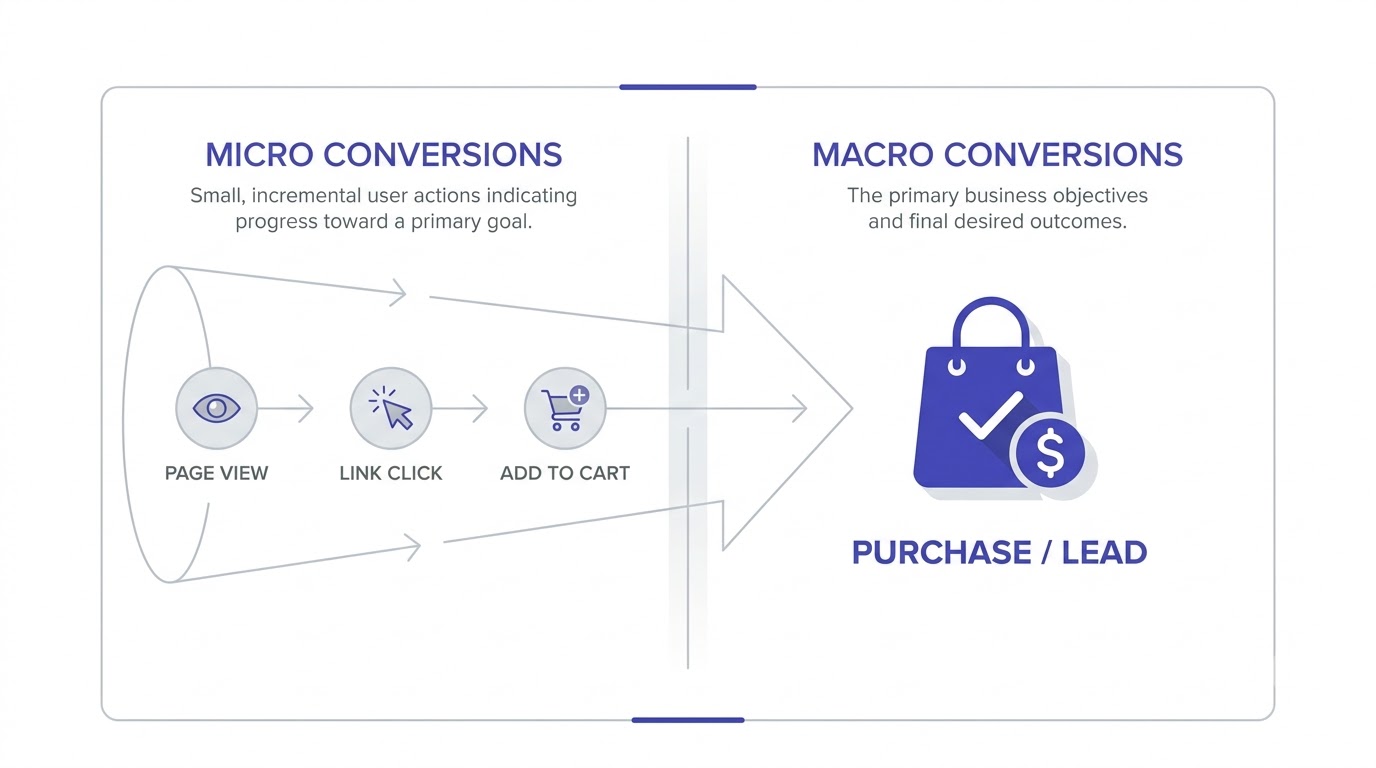
Not every conversion deserves equal weight, and treating them all the same is one of the fastest ways to make bad decisions from good data. Two distinctions matter most here: macro versus micro conversions, and the different tracking needs of e-commerce versus lead-generation businesses.
Macro Conversions vs Micro Conversions
A macro conversion is the primary business outcome you actually care about: a completed purchase, a signed contract, a booked demo call. A micro conversion is a smaller step along the way that signals intent but isn’t the final goal: adding an item to a cart, starting a checkout, downloading a guide, watching 75 percent of a product video, or spending more than three minutes on a pricing page.
Tracking only macro conversions leaves you blind to where the funnel is actually breaking. If a store has plenty of “add to cart” events but very few completed purchases, that gap tells you the problem is in checkout, not in product interest, and that is an entirely different fix than a traffic or ad-creative problem. Without micro conversions tracked separately, all a business sees is “conversion rate is low,” with zero clue about which stage is actually leaking.
The mistake to avoid here is the opposite extreme: tracking every micro-interaction as if it were equally important, then optimizing campaigns toward cheap micro conversions (like button clicks) instead of the outcomes that actually make money. Google Ads and Meta will both happily optimize toward whatever conversion you tell them to prioritize, so if “add to cart” is marked as the primary conversion, the algorithm will find you a flood of cheap add-to-carts and very few actual sales, because that is literally what you asked it to do.
A useful rule for deciding what counts as which: if the action alone can be handed to a sales or fulfillment team as a real lead or order, it’s macro. If it’s a signal that someone is moving closer to that outcome but nothing can be done with it on its own, it’s micro. A phone number submitted through a contact form is macro. A visitor spending four minutes on a pricing page is micro. Blurring that line, treating page engagement as equivalent to a lead, is how marketing reports end up disconnected from what sales teams actually experience day to day.
New accounts with low conversion volume often need to lean on micro conversions temporarily, not because they matter more, but because Smart Bidding algorithms need enough conversion events per week (Google generally recommends at least 30 conversions in a 30-day window) to optimize reliably. A brand-new store with two sales a week can bootstrap bidding using “add to cart” as a temporary optimization target while purchase volume builds up, then switch the primary goal back to purchases once volume supports it.
Conversion Tracking for E-commerce vs Lead Generation
E-commerce conversion tracking centers on transaction value, not just conversion count. Google Ads and GA4 both support “Purchase” events that pass back not just the fact that a sale happened, but the actual revenue amount, product IDs, and even quantity, through parameters like value and currency. This is what unlocks Return on Ad Spend (ROAS) reporting, which is a far more useful metric than raw conversion count, because a campaign with 50 conversions worth ₹5,000 each is a completely different story from one with 50 conversions worth ₹200 each, even though the conversion count looks identical.
Lead-generation tracking works differently because the “conversion” (a form submission or a call) is not the actual revenue event, it is a proxy for a sale that might happen weeks or months later, after a sales team follows up. This is where offline conversion tracking becomes essential: businesses need a way to send data back into Google Ads or Meta after the fact, saying “this specific lead, identified by email or a click ID called GCLID, actually became a paying customer worth ₹40,000.” Google Ads supports this through offline conversion imports, usually via a spreadsheet upload or a CRM integration like HubSpot or Salesforce. Without this loop closed, lead-gen advertisers are stuck optimizing purely toward “form fills,” which rewards quantity of leads over quality, and quietly fills the sales pipeline with junk leads that never close.
A real example of this pattern shows up constantly in B2B accounts: a campaign gets marked as the top performer because it generates leads at a low cost, while a different campaign gets paused for expensive leads, and six months later it turns out the “cheap” campaign’s leads almost never closed, while the “expensive” one had a 40 percent close rate. That flip only becomes visible once offline conversion data gets fed back into the ad platform, closing the loop between the lead event and the actual sale.
Setting up offline conversion imports in Google Ads requires a GCLID, the click identifier attached to every Google Ads click, captured and stored (usually in a hidden form field or the CRM record) at the moment a lead comes in. Weeks later, when that lead becomes a customer, the GCLID gets matched back up alongside the deal value and uploaded, either through a manual CSV template inside Google Ads or automatically through a CRM connector. Skip capturing the GCLID at lead time, and the offline conversion loop becomes impossible to close later, because there is nothing left to match the eventual sale back to the original ad click.
Subscription and SaaS businesses add one more layer worth tracking separately: the difference between a “trial start” conversion and a “paid conversion” once the trial ends. Optimizing purely toward trial signups without eventually feeding back which trials convert to paid plans rewards volume over quality in exactly the same way lead-gen does, filling the funnel with trial users who were never going to pay in the first place.
Conversion Tracking Mistakes That Wreck Your Data
Bad conversion tracking data is worse than no data at all, because it feels trustworthy while quietly steering every budget decision in the wrong direction. These are the mistakes that show up constantly in real accounts.
Counting the Same Conversion Twice
Duplicate tracking happens more often than most beginners expect, usually because a conversion tag is set to fire on every page load of a “thank you” page instead of once per transaction, or because both GA4’s imported conversions and a manually built Google Ads conversion action are both active and counting the same purchase separately. This inflates conversion numbers, makes cost-per-conversion look artificially cheap, and leads to budget getting pushed toward a campaign that isn’t actually performing as well as the dashboard suggests.
The fix is a regular audit: check that a purchase confirmation page only fires the conversion tag once, even if a customer refreshes the page, usually solved by checking for a unique transaction ID before firing the tag again. And check inside Google Ads under Goals, Conversions, whether the same real-world action is being tracked by two separate conversion actions simultaneously, one imported from GA4 and one built manually, both marked as “Primary,” both counting toward totals.
A quick sanity check that catches this fast: pull actual order counts from the store’s backend (Shopify’s order dashboard, WooCommerce’s order list, whatever the real source of truth is) for a given week, then compare that number against the total conversions reported in Google Ads and GA4 for the same week. If Google Ads shows 340 purchases and the store only processed 210 real orders, something is duplicating, and it needs fixing before another rupee of budget gets allocated based on that inflated number.
Ignoring Cross-Device and Cross-Browser Journeys
A huge share of buying journeys now start on one device and finish on another: someone browses products on a phone during a commute, then completes the purchase later on a laptop at home. Cookie-based tracking on its own cannot connect these two sessions, because a cookie set on a phone’s browser has no way of knowing that the same human later opened a laptop. Without account-based identifiers, like a logged-in user ID or hashed email through Enhanced Conversions, that entire journey looks like two separate, disconnected visitors, one of whom “did nothing” and one who converted with zero visible ad interaction attached.
This is exactly why signed-in, first-party data matters so much now. If a visitor logs into an account or provides an email at any point (even in a newsletter signup before the eventual purchase), that identifier lets the tracking system stitch the cross-device journey back together, assuming Enhanced Conversions or an equivalent matching system is active. Skipping this step means chronically undercounting how well upper-funnel channels like social ads or content actually perform, because their contribution on the “first device” never gets connected to the eventual sale on a different device.
GA4 handles part of this natively through its identity resolution setting, called “Blended,” which stitches together device data, Google signals (for logged-in Google account users who’ve consented to ads personalization), and modeled data when neither is available. Switching this setting to “Observed” strips out the modeled portion and only counts what was directly measured, which usually shows a noticeably lower, more conservative user count, useful for anyone who wants to see the raw measured baseline before any statistical estimation gets layered on top.
Getting Sloppy With Privacy Rules
GDPR in Europe, CCPA in California, and India’s Digital Personal Data Protection Act all place real requirements on how tracking data can be collected, and getting this wrong isn’t just an ethics problem, it’s a tracking accuracy problem too. A cookie consent banner that blocks all tracking tags until a user actively clicks “accept” will, correctly, cause a chunk of visitors to never get tracked at all, since a meaningful percentage of users simply close the banner without clicking accept or decline.
Consent Mode, Google’s framework for this, lets tracking tags adjust their behavior based on what a user consented to rather than an all-or-nothing block, and it also enables “conversion modeling,” where Google statistically estimates the conversions that were likely lost due to denied consent, based on patterns from users who did consent, and adds a modeled estimate back into reporting. Skipping Consent Mode setup entirely, which still happens on a lot of small business sites, usually means silently losing a real chunk of EU and privacy-conscious traffic from conversion reports with zero indication that anything is missing, because the reported numbers simply look complete even when they aren’t.
The Best Conversion Tracking Tools to Use Right Now
The tool stack for conversion tracking overlaps more than people expect, and picking the right combination depends heavily on business type, budget, and technical comfort.
Google Tag Manager sits at the center of almost every serious setup, free, and it is the tool that manages every other tag without touching site code repeatedly. GA4 is the analytics layer that records events and marks key events, also free, and it feeds data both into its own reports and into Google Ads. Google Ads’ own conversion tracking, whether imported from GA4 or built independently, is what actually lets the ad platform optimize bidding toward real outcomes. Meta Events Manager and the Conversions API cover Facebook and Instagram advertising specifically, and neither GA4 nor Google Tag Manager replaces the need for this separate setup, since Meta’s ad algorithm only optimizes against its own tracked events.
For businesses running on Shopify, WooCommerce, or similar e-commerce platforms, native app integrations for Meta’s Conversions API and Google’s Enhanced Conversions usually exist as plug-and-play options inside the platform’s app store, requiring no custom code, which is worth checking before assuming a developer is needed.
For anyone managing offline conversion imports and CRM-based lead tracking, HubSpot and Salesforce both offer native integrations with Google Ads, letting deal-stage changes (like “lead became customer”) flow back automatically as offline conversions, rather than manual spreadsheet uploads, which get skipped constantly once the initial setup excitement wears off.
Server-side tagging through Google Tag Manager’s server container, hosted on Google Cloud, or a managed alternative like Stape, is worth it once ad spend and privacy-sensitive traffic justify the added cost and setup complexity. It is not a beginner’s first step, but it is the direction almost every serious advertiser eventually moves toward as browser tracking restrictions keep tightening.
A quick way to think about which tools actually do what, since the overlap confuses almost everyone starting out:
- Google Tag Manager: manages every tracking tag on the site, free, the control center.
- GA4: records events and reports on conversions (key events) across all traffic sources, free.
- Google Ads Conversion Tracking: tells the Ads algorithm what to optimize bidding toward, imported from GA4 or built separately.
- Meta Events Manager + Conversions API: the equivalent system for Facebook and Instagram ads, tracked entirely separately from Google’s ecosystem.
- HubSpot / Salesforce: closes the loop for lead-gen businesses by feeding offline conversions (deals that actually closed) back into ad platforms.
- Server-side container (GTM Server / Stape): recovers tracking lost to ad blockers and browser privacy restrictions, worth it once ad spend justifies the added infrastructure cost.
None of these tools replace each other. A business running both Google and Meta ads needs tracking set up separately in both ecosystems, since a conversion recorded in GA4 does not automatically inform Meta’s ad algorithm, and vice versa. Anyone comparing these platforms directly, feature by feature, before committing time to a setup will get more out of checking a side-by-side breakdown of marketing tools than guessing based on marketing pages, since most platform comparison pages are written by the vendors themselves and skip the actual limitations.
How to Actually Use Conversion Tracking Data to Grow
Collecting conversion data and actually using it are two very different habits, and most accounts do the first without ever doing the second. This is the part that separates someone who “has tracking set up” from someone who is actually running a data-driven operation.
Start with cost per conversion by campaign, not account-wide averages. Account-wide numbers hide the fact that one campaign is wildly profitable while another is quietly draining budget, and averaging them together makes both look “fine.” Break spend and conversions down by campaign, then by ad group, then by individual ad or keyword, and the picture usually looks completely different from the top-line summary.
Use conversion value, not just conversion count, wherever revenue data is available. Two campaigns with identical conversion counts can have wildly different ROAS if one is driving ₹500 average order value and the other is driving ₹5,000. Optimizing purely toward “more conversions” without value attached routinely pushes budget toward the wrong campaign.
Watch conversion rate by device and by landing page separately, not just by campaign. A campaign can look mediocre overall while actually performing great on desktop and terribly on mobile, a split that is completely invisible until it’s checked directly, and one that usually points to a page speed or mobile UX problem rather than an ad targeting problem.
Set up automated alerts or a weekly review habit rather than checking dashboards only when something feels off. Conversion tracking that only gets reviewed during a crisis misses the slow bleed: a tag silently breaking after a website update, a landing page redesign that accidentally removed the conversion trigger, a tracking pixel that stopped firing three weeks ago and nobody noticed because overall traffic still looked normal.
Segment conversion data by new versus returning visitors wherever the volume supports it. A campaign that looks mediocre blended together can actually be excellent at driving first-time buyers while underperforming on retargeting existing customers, or the reverse, and lumping both groups into one number hides which half of the strategy needs fixing. This split also exposes a common budget mistake: spending heavily on retargeting campaigns that show great conversion rates purely because they’re reaching people who were already going to buy anyway, inflating a channel’s apparent performance without it actually driving incremental revenue.
Businesses that build this habit consistently tend to show up in real case studies with actual before-and-after numbers, and reviewing a few of those real conversion tracking case studies is a genuinely useful way to see what a properly optimized account looks like versus one that’s just collecting data without acting on it.
For anyone starting from zero and wanting a structured, guided path through analytics, ad platforms, and conversion tracking together rather than piecing it together from scattered articles, the Alpha Marketer Foundation Program covers this as part of a full digital marketing curriculum, walking through the setup hands-on rather than just in theory.
Conclusion
Conversion tracking is not an optional add-on to marketing, it is the layer that turns marketing from a guessing game into something you can actually manage and improve. Every dashboard, every optimization decision, every “this campaign is working” or “this campaign is dead” call depends entirely on whether the underlying conversion tracking is accurate, complete, and set up to reflect real business outcomes instead of vanity engagement events.
Getting it right does not require perfection on day one. Start with the basics: a clean GA4 setup with key events tied to real outcomes, conversion tracking imported into Google Ads, and the Meta Pixel paired with the Conversions API if social ads are part of the mix. Layer in Enhanced Conversions, offline conversion imports, and server-side tracking as spend and complexity grow. The businesses that treat conversion tracking as an ongoing discipline, not a one-time setup task, are the ones whose ad budgets actually compound into growth instead of quietly leaking away.
Frequently Asked Questions
What is conversion tracking in simple terms?
Conversion tracking is a system that records when a website visitor completes a specific action you care about, like a purchase, form submission, or phone call, and connects that action back to the ad, keyword, or channel that brought them there. It turns raw traffic numbers into actual business outcomes you can measure and act on.
Is conversion tracking the same as Google Analytics?
No. Google Analytics (GA4) is one tool that can record and report conversions, called “key events,” but conversion tracking as a whole also includes separate systems inside Google Ads, Meta, and other ad platforms. GA4 is one piece of a larger conversion tracking setup, not the entire thing.
How long does it take for conversion tracking to start showing accurate data?
Basic tracking can start recording data within minutes of correct setup, but Google Ads and Meta both need a data collection period, usually 7 to 14 days with enough conversion volume, before their bidding algorithms can optimize reliably using that data. Accounts with very low conversion volume can take even longer to stabilize.
Why do my conversion numbers not match my actual sales?
This usually happens from duplicate tracking (a tag firing more than once per purchase), a tracking tag placed on the wrong page, or attribution differences between platforms, since GA4, Google Ads, and Meta each use different default attribution windows and models and rarely show identical numbers for the same real-world sales.
What is the difference between a macro conversion and a micro conversion?
A macro conversion is the primary business goal, like a completed sale or signed contract. A micro conversion is a smaller step that signals intent along the way, like an add-to-cart or a guide download. Tracking both separately shows exactly where a funnel is leaking, rather than just showing a low overall conversion rate with no explanation why.
Do I need conversion tracking if I’m not running paid ads?
Yes. Conversion tracking is just as useful for organic traffic, email campaigns, and SEO, since it shows which content, pages, and channels are actually generating leads or sales rather than just visits. Businesses running zero paid ads still need it to know which blog posts or organic keywords are driving revenue.
What is Enhanced Conversions in Google Ads?
Enhanced Conversions is a feature that sends securely hashed first-party customer data, like an email address or phone number, alongside a standard conversion signal to recover conversions that browser cookie restrictions would otherwise block. It typically increases reported conversions by a noticeable margin on accounts with significant Safari or iOS traffic.
Can conversion tracking work without cookies?
Yes, through server-side tracking and first-party data methods like Enhanced Conversions and Meta’s Conversions API, both of which rely on data sent directly from your server or matched through hashed customer information rather than depending entirely on browser cookies that can be blocked or deleted.
What is offline conversion tracking and who needs it?
Offline conversion tracking lets a business send data back into an ad platform after a sale closes outside the website, such as a phone call lead that becomes a paying customer weeks later. It matters most for B2B and lead-generation businesses where the tracked “conversion” is only a proxy for revenue that happens later through a sales process.
Which is better, Google Ads conversion tracking or GA4 key events?
They serve different purposes and work best together rather than as a choice between one or the other. GA4 gives a fuller picture of user behavior across all traffic sources, while Google Ads conversion tracking (often imported directly from GA4) is what the ad platform actually uses to optimize bidding and targeting.
How do I know if my conversion tracking is set up correctly?
Run a test conversion yourself, then check that it appears correctly in GA4’s real-time report, in Google Ads under Conversions with the correct value, and in Meta’s Test Events tool if the Pixel or CAPI is involved. Cross-checking across all three catches most setup errors before they distort real campaign data.
What happens if my conversion tracking breaks and nobody notices?
Ad platforms lose the signal needed to optimize bidding, often defaulting to broader, less efficient targeting, while reported performance metrics quietly become unreliable. This is why regular audits and alerts for sudden conversion drops matter as much as the initial setup itself.
How many conversions does an ad account need before automated bidding works well?
Google generally recommends at least 30 conversions within a rolling 30-day window per campaign before Smart Bidding strategies like Target CPA have enough data to optimize reliably. Accounts below that threshold often see inconsistent performance until either volume grows or a broader micro conversion is used temporarily to feed the algorithm enough signal.
Should small businesses set up server-side conversion tracking right away?
Not usually. Server-side tracking adds real infrastructure cost and setup complexity that rarely pays off until a business is spending a meaningful ad budget and dealing with significant privacy-restricted traffic like iOS users. Starting with a solid client-side setup, Enhanced Conversions, and the Conversions API covers most needs early on.