


A site gets redesigned. New theme, cleaner URLs, everyone’s happy at launch. Then three weeks later somebody opens Google Search Console and the blog post that used to bring in a few hundred visits a week is just… gone. Not deleted. It’s still there, sitting at a shiny new address. The problem is nobody told Google, or the forty websites linking to the old address, where it went. So every one of those links now lands on a 404 page, and the rankings that took two years to build slide away quietly.
This happens constantly. And honestly, it’s one of the most avoidable SEO losses out there, because the fix has existed since the early days of the web. When you move a page for good, you tell the server to send everyone who asks for the old address straight to the new one. That’s what a 301 redirect does. It’s a tiny instruction with a big job: it keeps your visitors, your backlinks, and your search visibility attached to the page even after the URL changes.
The tricky part isn’t the concept. It’s the judgment. Which redirect do you pick? When should you not redirect at all? What happens when redirects pile up on top of each other? By the end of this guide you’ll understand redirects from scratch, know exactly which type to use in which situation, be able to set one up on pretty much any platform, and know how to spot the mistakes that quietly cost sites their rankings.
Key Takeaways
- A 301 redirect tells browsers and search engines that a page has moved permanently, and that the new URL should replace the old one.
- Use it when the old URL is never coming back: slug changes, domain moves, HTTPS switches, content merges, site restructures.
- Don’t use it for temporary moves, and don’t dump every deleted page onto your homepage. Google can treat that as a soft 404.
- The most common mistake is the redirect chain: old URL to another old URL to the final page. Always point straight to the final destination.
What Is a Redirect? (The Basics Every Beginner Needs)
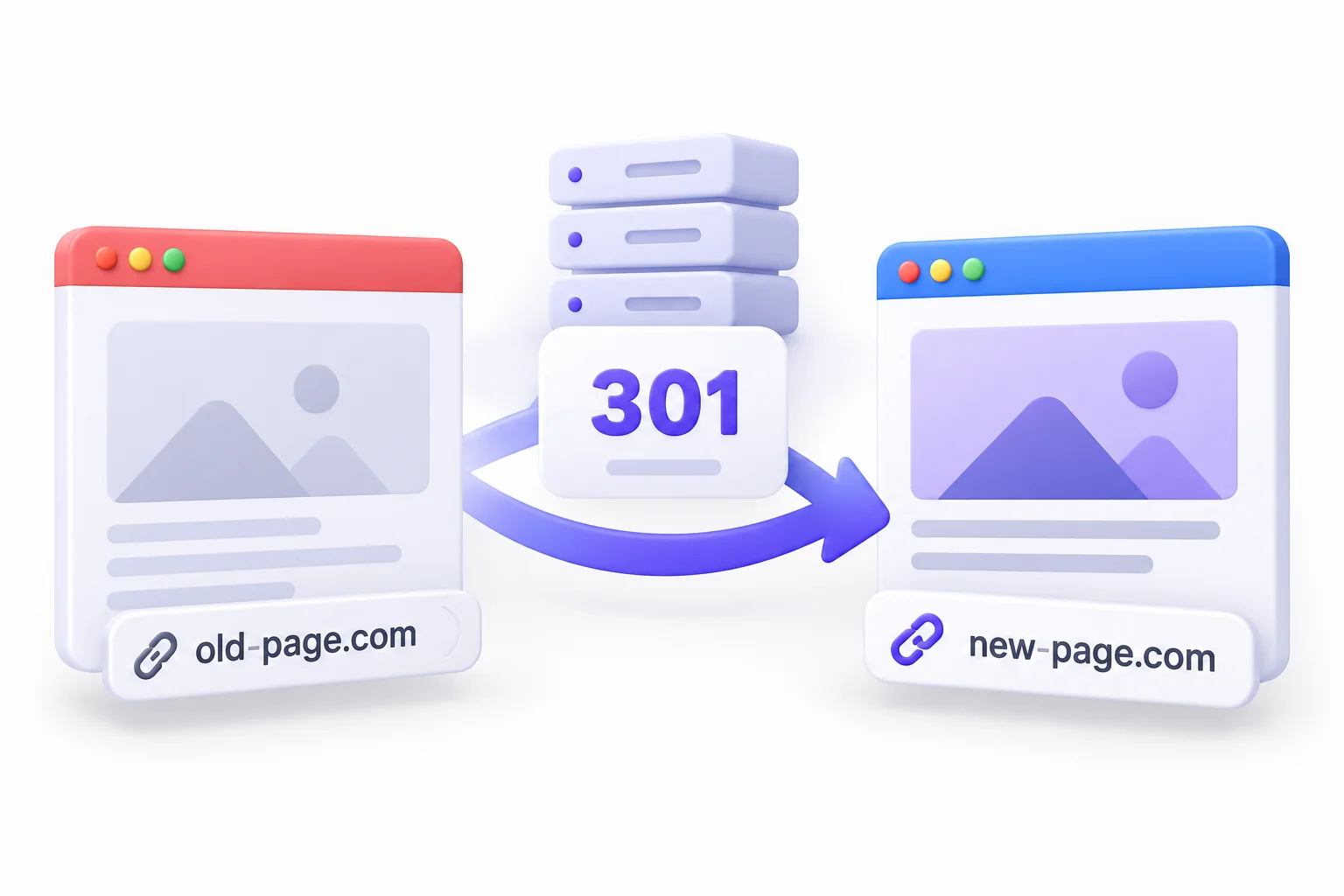
Before getting into permanent redirects specifically, it helps to understand what a redirect is in the first place, and the language servers use to talk to browsers. Skip this part if you already know your 200s from your 404s. If you don’t, stick around, because everything later in this guide builds on it.
What a URL Redirect Actually Does
A redirect is an instruction that automatically sends someone from the address they asked for to a different address. You type or click one URL, and you end up on another one without doing anything.
Think of it like moving house. You don’t call every friend, bank, and magazine subscription one by one. You fill out a change-of-address form at the post office, and any letter sent to your old place gets forwarded to the new one. The sender doesn’t have to know you moved. The letter still arrives.
A redirect does the same thing for web pages:
- Visitors who click an old link, open an old bookmark, or tap an old URL in an email land on the right page instead of an error.
- Search engines learn that the content now lives somewhere else and update their index over time.
- Links from other websites keep working, even though those sites never updated anything on their end.
That’s it. No magic. Just forwarding.
What Are HTTP Status Codes?
Every time your browser asks a server for a page, the server replies with a short three-digit number before it sends anything else. That number is the HTTP status code, and it tells the browser what kind of answer is coming.
Most of the time you never notice it. The page loads, and behind the scenes the server said “200 OK.” But when something’s off, like a missing page, the code changes, and the browser reacts to it.
Status codes are grouped into five families, and the first digit tells you which family you’re dealing with:
| Code range | Meaning | Everyday example |
|---|---|---|
| 1xx | Informational | The server got the request and is still processing it |
| 2xx | Success | 200 OK, the page loaded normally |
| 3xx | Redirection | 301, 302, the content is at a different address |
| 4xx | Client error | 404 Not Found, 410 Gone |
| 5xx | Server error | 500 Internal Server Error, 503 Service Unavailable |
For this guide, the 3xx family is the one that matters. Every redirect you’ll ever set up lives in it.
Where the 301 Fits in the 3xx Family
The 3xx family has several members, and each one means something slightly different. Some say “this moved for good.” Some say “this is somewhere else for now.” Some care about how the original request was made. We’ll compare all of them properly later.
The one that matters most for SEO is 301, officially named “Moved Permanently.” In plain terms, a 301 redirect is the server saying: this page doesn’t live here anymore, it lives over there, and that’s not going to change.
💡 Beginner Tip: You never see status codes on a normal visit. Your browser reads them silently and acts on them. That’s exactly why a broken redirect can go unnoticed for months, sitting there leaking traffic while everyone assumes the site is fine.
What Does “Moved Permanently” Mean?
The name sounds obvious, but “permanently” carries real weight. It changes how browsers store the redirect and how search engines decide which URL to show in results. Let’s break down what that word actually signals.
The Simple Definition
A 301 is a server response that says the requested content has moved to a new URL for good, and that the new URL should be used from now on.
Three things have to be true for a proper permanent redirect:
- There’s an old URL that someone or something requests.
- The server answers with the 301 status code instead of the page content.
- The server names the new URL so the browser knows where to go next.
If the move isn’t permanent, this isn’t the right code. Simple as that.
What “Permanent” Signals to Google
Here’s where it gets interesting for SEO. Google’s own documentation describes permanent redirects as a strong signal that the redirect target should become the canonical URL, meaning the version Google indexes and shows in search results.
So over time, when Google sees a permanent redirect, it does a few things:
- Swaps the old URL for the new one in its index.
- Shifts the ranking signals the old URL had built up, like links pointing at it, over to the new URL.
- Keeps crawling the old URL occasionally, just to check the redirect is still there.
A temporary redirect sends the opposite message. It tells Google that the original URL is still the “real” one and the redirect is just a detour. So Google tends to keep the old URL in its index. That difference is why picking the wrong type can cause real trouble, and we’ll dig into it in the comparison section.
Server-Side vs Client-Side Redirects
Not all redirects are created the same way. There are two broad camps:
- Server-side redirects happen before any page content loads. The browser asks for the URL, the server immediately answers with a 3xx code and the new address, and that’s it. A true 301 is always server-side.
- Client-side redirects happen in the browser after the page starts loading. The two common types are the meta refresh tag (a line of HTML telling the browser to jump to another URL) and JavaScript redirects (a script that changes the page location).
Server-side is what you want for SEO. It’s faster, it’s unambiguous, and every crawler understands it. Client-side redirects work, sort of, but they depend on the browser or crawler loading the page first. Google’s documentation recommends using JavaScript redirects only when server-side or meta refresh redirects aren’t possible.
How a Permanent Redirect Works Behind the Scenes
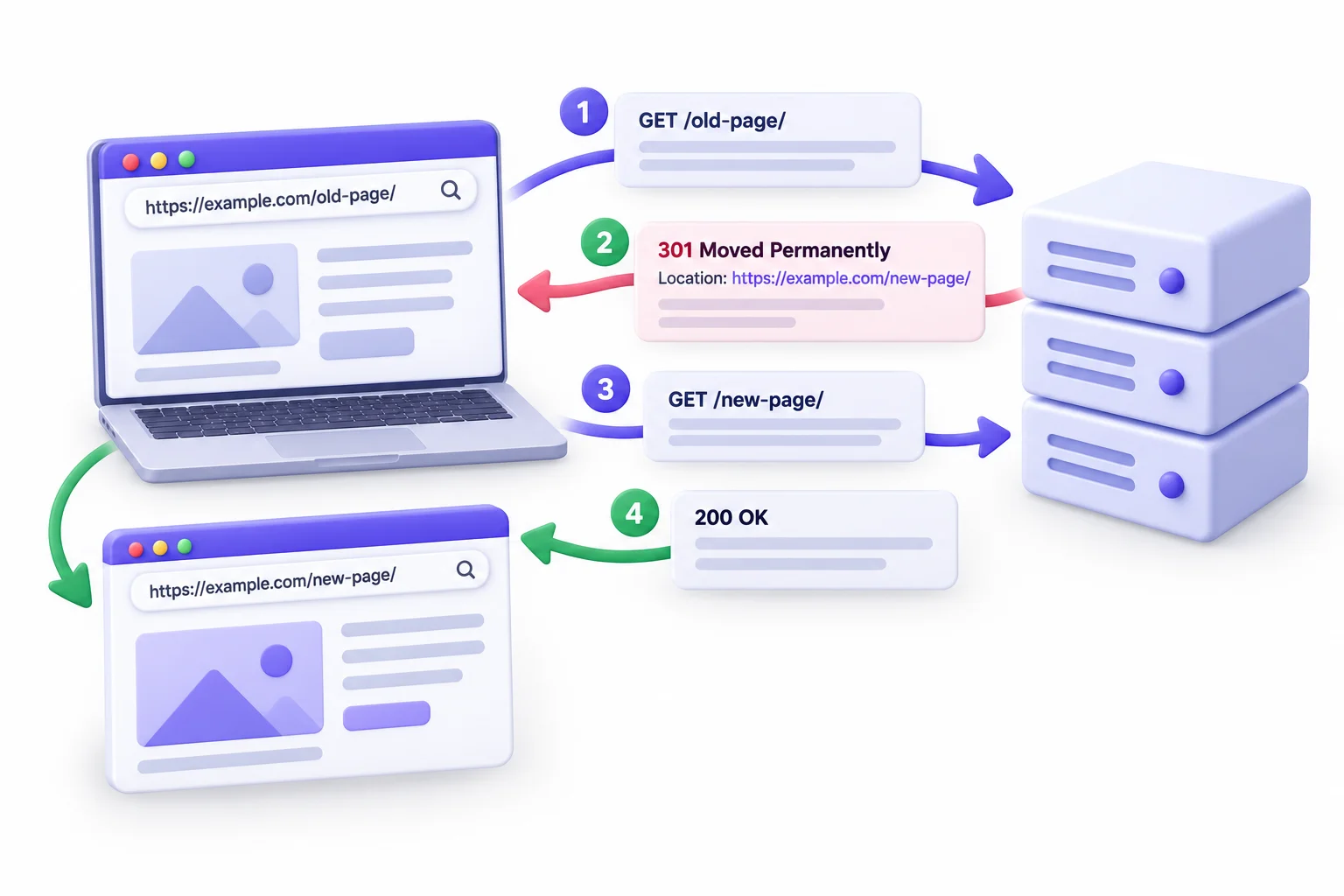
Most guides skip this, which is a shame. Once you see what happens between browser and server, a lot of redirect weirdness suddenly makes sense, like why testing shows old behaviour or why removing a redirect doesn’t instantly undo it.
The Request and Response Cycle, Step by Step
Say a visitor clicks a link to https://example.com/old-page/, but you moved that content to https://example.com/new-page/. Here’s what happens in that split second:
- The browser asks the server for
/old-page/. - The server checks its rules, sees a permanent redirect for that URL, and responds with status 301 plus the new address. No page content gets sent.
- The browser reads the response and immediately makes a second request, this time for
/new-page/. - The server responds with 200 OK and sends the actual page.
- The page loads. The address bar shows the new URL. The visitor probably never noticed a thing.
Here’s the same flow as a diagram:
Browser                         Server
   |                               |
   |---- GET /old-page/ ---------->|
   |                               |  (rule found: old-page -> new-page)
   |<--- 301 Moved Permanently ----|
   |     Location: /new-page/      |
   |                               |
   |---- GET /new-page/ ---------->|
   |                               |
   |<--- 200 OK + page content ----|
   |                               |
Two requests instead of one. Small for a single redirect. Stack three or four and you feel it.
The Location Header Explained
When the server sends that 301 response, how does the browser know where to go? Through something called the Location header. Headers are bits of information that travel alongside the status code, and the Location header holds the destination URL.
A raw permanent redirect response looks like this:
HTTP/1.1 301 Moved Permanently
Location: https://example.com/new-page/
That’s it. A status line and an address. Every plugin and config rule exists to produce these two lines.
Why Browsers Cache Permanent Redirects
Here’s the bit that confuses people. Because a 301 says “permanent,” browsers take it at its word. They remember the redirect, and the next time someone on that browser requests the old URL, the browser skips asking the server entirely and jumps straight to the new one.
Great for speed. Not great when you make a mistake. Accidentally redirect /pricing/ to /blog/, fix it an hour later, and every visitor from that hour still has the wrong redirect saved. Unless the server sent specific cache headers, that can stick around a long time. So be sure before you go permanent.
How Googlebot Handles the Redirect
Googlebot, the crawler Google uses to discover pages, follows redirects much like a browser does. It requests the old URL, sees the 301, follows it to the new URL, and processes that page.
A few things worth knowing:
- Google doesn’t swap the URLs instantly. It needs to recrawl the old URL, see the redirect again, and process it.
- There’s a hop limit. Google’s documentation says Googlebot follows up to 10 redirect hops. If it doesn’t reach actual content within those 10, Search Console reports a redirect error. You should never get anywhere near that number anyway, but it’s a hard ceiling.
- Google keeps checking the old URL from time to time, which is one reason you shouldn’t delete redirects soon after setting them up.
⚠️ Watch Out: Because browsers cache permanent redirects, testing a redirect you just changed can show you the old behaviour. Always test in a private or incognito window, or with a command-line tool like curl, so you’re seeing what the server actually says right now.
Why Permanent Redirects Matter for SEO
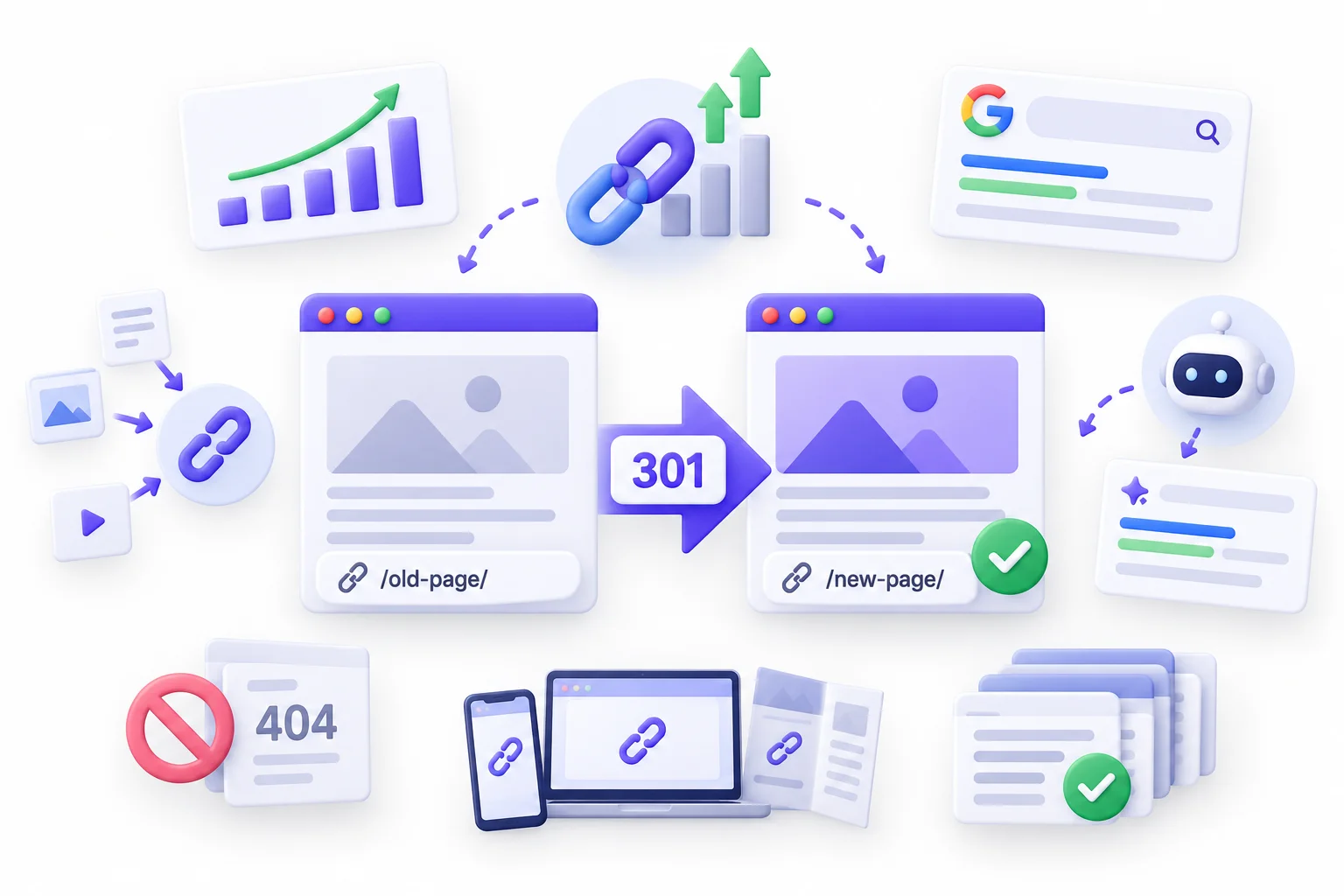
So far this has been mechanics. Now the part that actually affects traffic. A permanent redirect is what keeps years of SEO work attached to a page when its address changes. Without one, the new URL basically starts from zero. Let’s look at what’s at stake.
Preserving Link Equity and Backlinks
First, a quick definition. Link equity is the ranking value that flows from one page to another through links. When a respected site links to your page, it’s a vote of confidence, and Google factors those votes into rankings. People also call it “link juice” or talk about PageRank, which is Google’s original link-based ranking system.
Here’s the problem. Those links point to a specific URL. If you change the URL and don’t redirect, every backlink now points to a page that doesn’t exist. The votes go nowhere.
A permanent redirect fixes that. The link still points to the old URL, the old URL forwards to the new one, and Google consolidates those signals onto the new page.
Now, about the value lost along the way. For years the SEO world believed redirects “leaked” PageRank. That idea got a boost from a 2013 video where Google’s Matt Cutts explained that a 301 loses roughly the same amount of PageRank as a regular link. People turned that into rules of thumb and started avoiding redirects out of fear.
Then in 2016, Google’s Gary Illyes said plainly that 30x redirects don’t lose PageRank anymore. That covers 301s, 302s, all of them. So the fear is outdated. The real losses come from doing redirects badly: pointing them at irrelevant pages, building chains, or pulling them down too early.
Keeping Rankings Through URL Changes
When a 301 redirect is set up correctly, the new URL inherits the old one’s standing. Not instantly, though. Google has to recrawl and reprocess, and during that window you might see rankings wobble a bit. That’s normal.
Look at what actually happens in a typical URL change:
- Week one or so: Google recrawls the old URL, finds the redirect, starts indexing the new URL.
- The following weeks: Both URLs may appear in reports while Google sorts things out. Rankings can shift a few positions either way.
- After that: The new URL settles into roughly where the old one was, assuming the content is the same or better.
What you shouldn’t see is a permanent drop. If that happens, something’s wrong: the redirect points to a weaker page, the content changed a lot, or there’s a technical problem like a chain or a loop.
Protecting User Experience and Conversions
Forget Google for a second. Old URLs live in places you can’t edit:
- Bookmarks and old newsletters
- Social posts and paid ads nobody updated
- Printed material like brochures with a URL on them
- Other people’s blog posts that linked to you
Without a redirect, every one of those is a dead end. A visitor who hits a 404 rarely goes hunting through your menu. They hit back and go to a competitor, and you never even know it happened.
Consolidating Duplicate URL Versions
This one surprises beginners. Your homepage might be reachable at four or more different addresses:
http://example.comhttp://www.example.comhttps://example.comhttps://www.example.com
Add trailing slash and uppercase variations on inner pages and it gets messier:
https://example.com/About-Ushttps://example.com/about-ushttps://example.com/about-us/
To you, that’s one page. To a search engine, those can look like separate URLs with identical content. Links might point to different versions, which splits the signals across them instead of concentrating them on one.
The fix is picking one preferred version of every URL and permanently redirecting all the others to it. One page, one address, all the signals in one place.
How Redirects Affect AI Search Visibility
AI features like Google’s AI Overviews and chat assistants that browse the web pull from pages they can crawl. Clean redirects help the same way they do in regular search:
- Crawlers that follow redirects land on your current page, not an error.
- A permanent redirect plus a matching canonical on the destination makes the real URL obvious.
- Chains, loops, and dead links make it likelier a crawler grabs an outdated version or gives up.
Nothing exotic. Clean for Google means clean for AI crawlers too.
🧠 Myth vs Fact: Myth: “Every redirect bleeds a chunk of your SEO value, so avoid them.” Fact: Google’s Gary Illyes confirmed back in 2016 that 30x redirects don’t lose PageRank. What hurts SEO is redirecting to irrelevant pages, building long chains, or removing redirects too soon.
301 Redirect vs 302, 307, 308 and Other Redirect Types
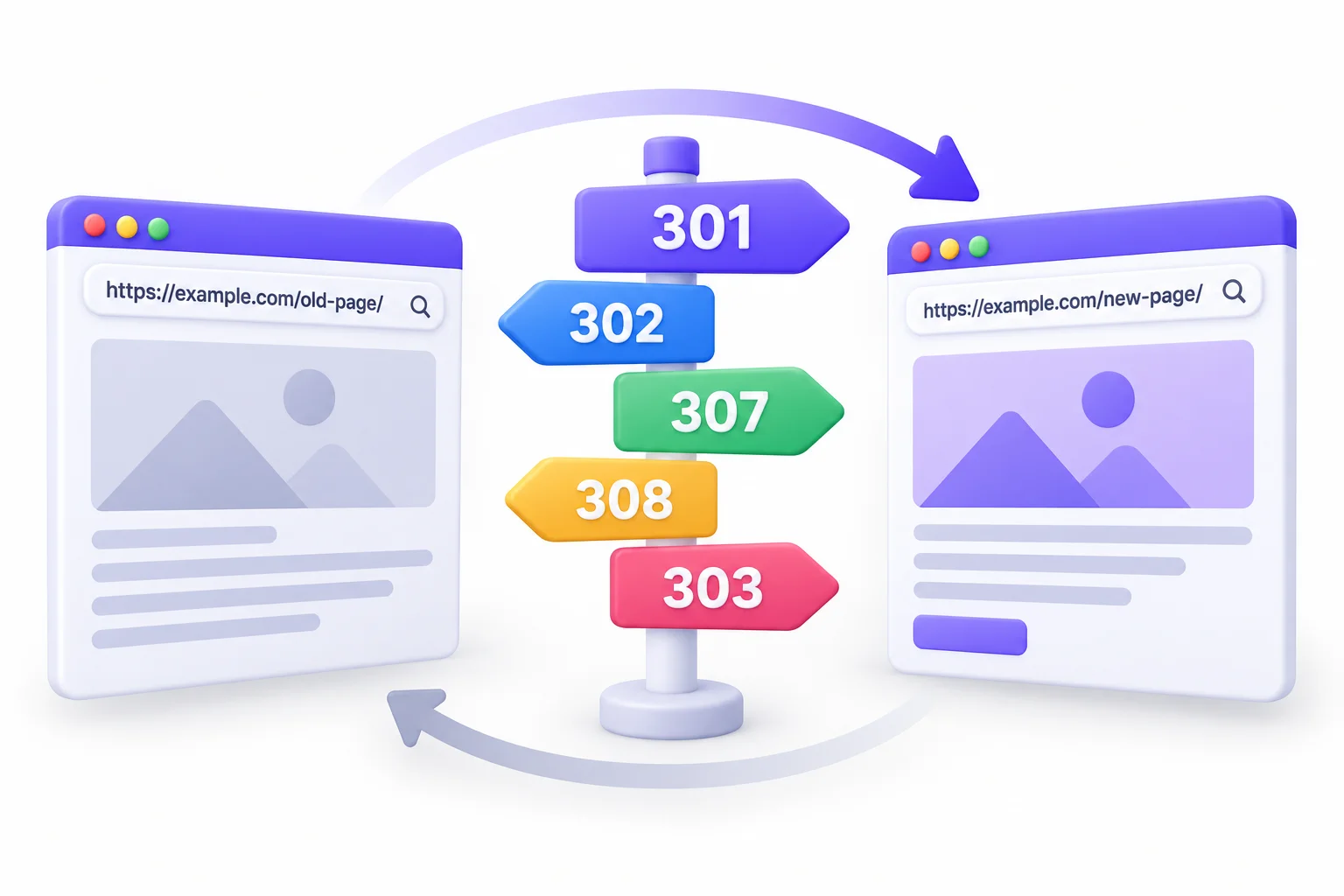
This is where most confusion lives. There are several redirect types, and they look similar on the surface. The differences come down to two questions: is the move permanent or temporary, and does the original request method need to stay the same? Get those two answers and you’ll always pick the right one.
The Temporary Redirect (302)
A 302, officially “Found,” tells browsers and search engines the content is temporarily at a different address. The original URL is still the real one, and you plan to bring it back.
Good uses for a 302:
- Site maintenance, where you send visitors to a holding page for a few hours
- Short promotions, like pointing
/offer/to a Diwali sale page for two weeks - Testing, where you briefly send traffic to an alternate version of a page
Because a 302 says “temporary,” Google generally keeps the original URL indexed and doesn’t treat the destination as the replacement.
But here’s a twist worth knowing. If a 302 sits there for a long time, Google may decide you really meant it to be permanent and start treating it that way. Google’s documentation says it reassesses redirects over time. So a 302 isn’t a disaster if you used it by mistake. It just slows everything down, because Google has to figure out what you meant instead of you telling it clearly.
307 and 308: The Modern HTTP Equivalents
These two are newer versions of 302 and 301, created to fix a technical quirk.
The quirk: with the original 301 and 302, browsers were allowed to change the request method when following the redirect. So if someone submitted a form (a POST request) to a URL that redirected, the browser might turn it into a plain page request (a GET), and the form data would get lost.
307 and 308 forbid that:
- 307 Temporary Redirect works like a 302 but keeps the request method exactly as it was.
- 308 Permanent Redirect works like a 301 but keeps the request method exactly as it was.
For SEO purposes, Google treats a 308 the same as a 301, and a 307 the same as a 302. So if your platform spits out a 308 for permanent redirects, relax. That’s fine.
And some do. Next.js, for example, returns a 308 when you mark a redirect as permanent: true. People see 308 in their testing tools and panic, thinking something’s broken. It isn’t.
303 See Other (Briefly)
A 303 tells the browser to fetch a different URL using a GET request, regardless of what method was used originally. It’s mostly used after someone submits a form, so the confirmation page can be refreshed without resubmitting the form.
For SEO, you’ll almost never think about it.
Meta Refresh and JavaScript Redirects
These are the client-side options we touched on earlier.
Meta refresh is an HTML tag placed in the page’s head section, like this:
<meta http-equiv="refresh" content="0; url=https://example.com/new-page/">
The 0 means “redirect immediately.” Google reads an instant meta refresh as permanent and a delayed one as temporary. It works, but the page has to start loading first.
JavaScript redirects use a script to change the page location:
<script>window.location.href = "https://example.com/new-page/";</script>
Google can follow these, but only after it renders the page, which can be delayed or fail. Google’s docs say to use them only when server-side or meta refresh redirects aren’t possible.
Honestly, if you have any access to the server or a hosting dashboard, skip both of these.
Here’s every type side by side:
| Type | Permanent or temporary | Preserves request method | Passes signals to destination | Indexes which URL | Best for |
|---|---|---|---|---|---|
| 301 | Permanent | Not guaranteed | Yes | New URL | URL changes, migrations |
| 302 | Temporary | Not guaranteed | Old URL stays primary | Old URL | Short promotions, maintenance |
| 303 | Temporary | Changes to GET | N/A | N/A | Pages shown after form submits |
| 307 | Temporary | Yes | Old URL stays primary | Old URL | Temporary moves, APIs |
| 308 | Permanent | Yes | Yes | New URL | Permanent moves, framework defaults |
| Meta refresh (0 sec) | Treated as permanent by Google | N/A | Usually | Usually new | When server access is impossible |
| JavaScript | Unreliable | N/A | Only if rendered | Varies | Last resort |
Quick Rule for Choosing the Right Redirect
Strip away all the technical detail and it comes down to this: if the old URL is never coming back, use a permanent redirect. If it is coming back, use a temporary one.
Sub-check: for forms or APIs where the request method matters, use 308 or 307. For normal pages, 301 and 302 are fine.
💡 Pro Tip: Unsure if a move is temporary? Ask one question: “Will this old URL ever show its original content again?” If the answer’s no, go permanent. If you hesitate, it’s probably still permanent. Truly temporary situations usually come with an end date.
When Should You Use a Permanent Redirect? 12 Real Scenarios
This is the heart of the question. Knowing what a redirect is means nothing if you don’t recognise the moments that call for one. Below are twelve situations where a 301 redirect is the right move, each with what to redirect and where to point it.
Changing a Page’s URL or Slug
The most basic case. You wrote a post at /blog/best-seo-tips-2024/ and now you want it to be evergreen at /blog/seo-tips/. Maybe the old slug had a year in it, maybe it was too long, maybe it had a typo.
- Redirect from: the old slug
- Redirect to: the new slug
- Watch for: internal links still pointing to the old slug. Update those too.
Yeah, tidying URLs is tempting. Only do it with a real reason, since every change triggers a reprocessing period.
Moving to a New Domain or Rebranding
Your company changes its name from Sunrise Interiors to Sunrise Studio, so the site moves from sunriseinteriors.com to sunrisestudio.com.
- Redirect from: every URL on the old domain
- Redirect to: the matching URL on the new domain, page to page
- Watch for: redirecting everything to the new homepage. That throws away the page-level relevance.
So sunriseinteriors.com/kitchen-design/ should go to sunrisestudio.com/kitchen-design/, not to sunrisestudio.com.
Switching from HTTP to HTTPS
If your site still loads on http://, you’re behind. Browsers flag non-secure pages, and Google has used HTTPS as a ranking signal since 2014.
- Redirect from: every
http://URL - Redirect to: the same URL on
https:// - Watch for: mixed content (images or scripts still loading over http) after the switch
Choosing Between www and Non-www
Neither is better for SEO. Pick one and stick to it.
- Redirect from: the version you didn’t pick
- Redirect to: the version you did pick
- Watch for: your canonical tags, sitemap, and internal links all using the same version
Fixing Trailing Slash and Uppercase Duplicates
If /services/ and /services both load the same page without redirecting, that’s two URLs for one piece of content. Same with /About and /about.
- Redirect from: the non-preferred format
- Redirect to: your chosen format, consistently across the site
- Watch for: rules that conflict with your HTTPS or www rules and create chains (more on that in the mistakes section)
Merging or Consolidating Similar Content
Say your blog has three thin posts: “What Is Email Marketing,” “Email Marketing Basics,” and “Email Marketing for Beginners.” They compete with each other for the same searches, a problem SEOs call keyword cannibalisation, and none of them ranks well.
The fix is combining them into one strong guide and permanently redirecting the other two to it.
- Redirect from: the weaker, merged posts
- Redirect to: the single consolidated page
- Watch for: making sure the new page actually covers what each old page covered. Otherwise the redirect feels irrelevant to users and to Google.
This is also how content pruning works on bigger sites: trim outdated or overlapping posts, fold the useful bits into stronger pages, redirect the rest.
Deleting a Page That Has a Close Replacement
You stop offering a service called “Basic Website Audit” and replace it with “Technical SEO Audit.” The old page has backlinks and some search traffic.
- Redirect from: the deleted page
- Redirect to: the closest replacement that serves the same need
- Watch for: the word “close.” If there’s no genuinely similar page, a redirect isn’t the answer. We’ll cover that soon.
Restructuring Categories, Folders or Site Architecture
Maybe your URLs look like /blog/category/seo/post-name/ and you want them flatter, like /blog/post-name/. Or you’re grouping services under a new parent folder.
- Redirect from: every URL under the old structure
- Redirect to: the matching URL in the new structure
- Watch for: pattern-based rules that accidentally catch URLs they shouldn’t
Merging Two Websites into One
A business acquires another, or a company decides its separate brand sites should live under one roof.
- Redirect from: each page on the site being shut down
- Redirect to: the most relevant matching page on the main site
- Watch for: pages with no equivalent. Some will need a category page as the destination, and some should just be allowed to 404.
Redesigning or Replatforming Your Site
Moving from WordPress to Shopify, from Wix to WordPress, or to a headless setup built with something like Next.js almost always changes URL formats. Shopify, for instance, forces product URLs to start with /products/ and collections with /collections/, so your old URLs basically can’t survive the move unchanged.
- Redirect from: every old URL format
- Redirect to: the new format on the new platform
- Watch for: this is a full migration, so treat it like one. There’s a whole section on that below.
Recovering Value from Broken Backlinks
Here’s one people miss. Over the years, pages get deleted, URLs get mistyped by other sites, old campaigns end. Some of those dead URLs still have backlinks pointing at them.
Backlink tools like Ahrefs, Semrush, or Moz can show you which of your 404 pages have links from other websites.
- Redirect from: the dead URL that still earns links
- Redirect to: the most relevant live page
- Watch for: relevance again. A link to a dead post about “Instagram Reels tips” should go to a current page about Reels or Instagram marketing, not your contact page.
Honestly one of the easiest SEO wins there is. You’re just reclaiming links you already earned.
Retiring Old Campaign or Landing Page URLs
Campaign pages pile up. /black-friday-2023/, /webinar-signup-march/, /free-audit-offer/. Once they’re done, they often still get traffic from old ads, emails, and social posts.
- Redirect from: the expired campaign page
- Redirect to: the current equivalent offer or the relevant service page
- Watch for: recurring campaigns. If Black Friday happens every year, consider keeping one evergreen URL like
/black-friday/and updating it, instead of creating new URLs and redirecting old ones every year.
Here’s a quick summary of all twelve:
| Scenario | Redirect from | Redirect to |
|---|---|---|
| Slug change | /blog/best-seo-tips-2024/ | /blog/seo-tips/ |
| Domain change | oldbrand.com/any-page/ | newbrand.com/any-page/ (page to page) |
| HTTPS | http://example.com/page/ | https://example.com/page/ |
| www preference | www.example.com/page/ | example.com/page/ (or the reverse) |
| Trailing slash or case | /About-Us | /about-us/ |
| Content merge | 3 thin email marketing posts | 1 complete email marketing guide |
| Deleted page with replacement | /basic-website-audit/ | /technical-seo-audit/ |
| Restructure | /blog/category/seo/post-name/ | /blog/post-name/ |
| Merging sites | acquiredbrand.com/service/ | mainbrand.com/matching-service/ |
| Replatforming | /shop/red-shoes/ | /products/red-shoes |
| Broken backlinks | /old-reels-tips/ (404 with links) | /instagram-reels-guide/ |
| Retired campaigns | /black-friday-2023/ | /black-friday/ |
When You Should NOT Use a Permanent Redirect
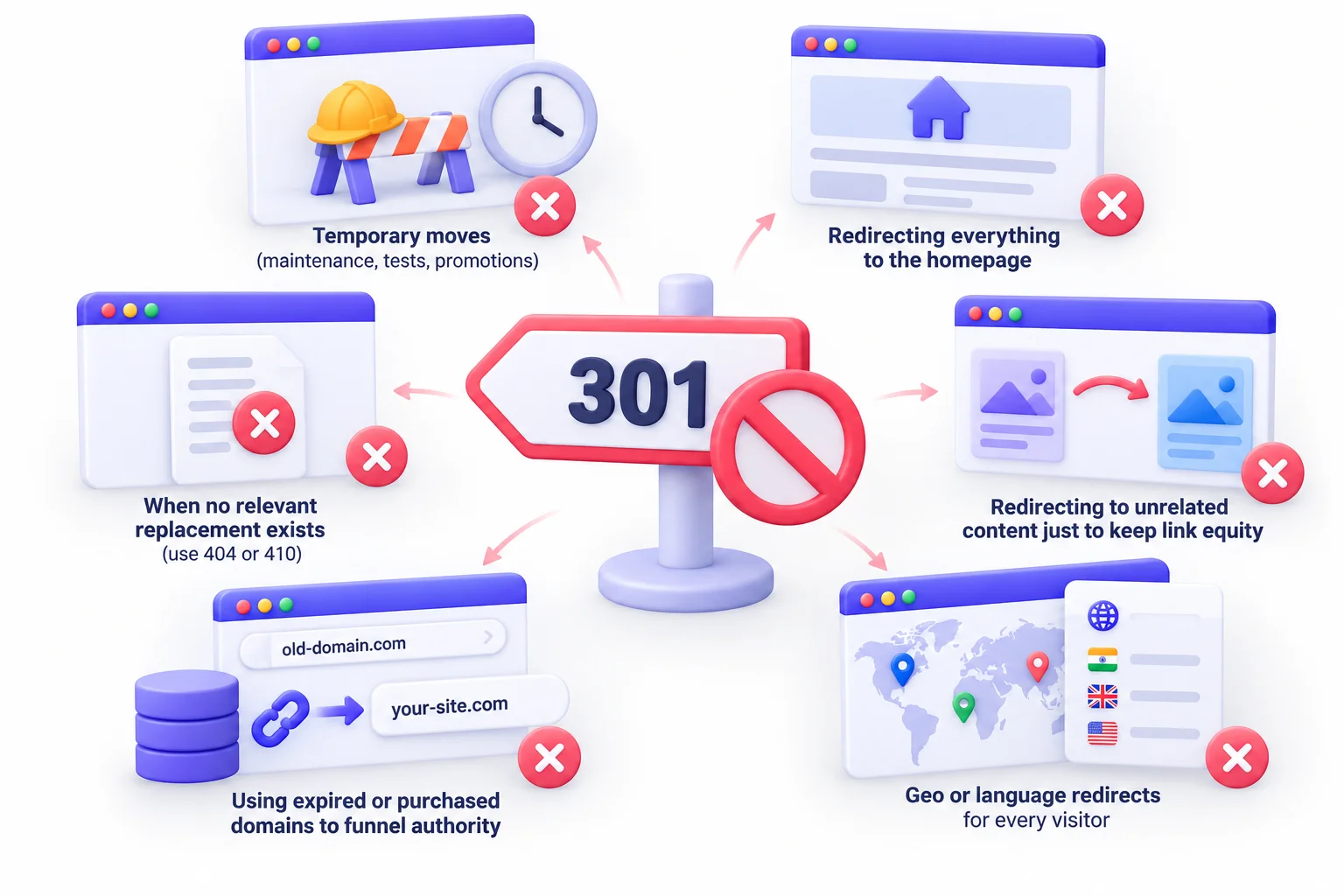
Knowing when to hold back matters just as much. A lot of redirect damage doesn’t come from forgetting to redirect. It comes from redirecting when you shouldn’t, usually because someone thinks redirects are a free way to keep link value. They aren’t. Here are the situations where a permanent redirect is the wrong call.
When the Move Is Temporary
If the original URL is coming back, don’t go permanent. This includes:
- Maintenance windows, where a 503 status (Service Unavailable) or a 302 to a holding page fits better
- A/B tests, where you’re splitting traffic between versions
- Short-term promotions that end on a fixed date
- Out-of-stock pages that will be restocked soon (more on this in the advanced section)
Using a 301 here tells Google to replace the original URL in its index. Then when you want the original back, Google has to undo all of that, and browsers that cached the redirect keep sending people to the wrong place.
Redirecting Everything to the Homepage
This is probably the most common bad habit on the web. A site deletes fifty old pages and someone sets up one rule: send them all to the homepage. Feels tidy. No 404s.
The problem is that Google doesn’t see it as tidy. If someone requests a page about “how to clean leather shoes” and lands on a homepage for a shoe store, that’s not a replacement. Google’s John Mueller has said multiple times that Google may treat these mass homepage redirects as soft 404s.
A soft 404 is when a URL technically returns a success or redirect code but Google decides the content is effectively “not found.” When that happens, the link signals from the old page aren’t consolidated onto the destination. So you lose the value anyway, and on top of that, users get confused landing somewhere that has nothing to do with what they clicked.
When No Relevant Replacement Exists
Sometimes a page is just gone. You stopped offering a product, deleted an old news post, or removed content that doesn’t fit your site anymore, and there’s nothing similar to send people to.
In that case, the honest answer is a 404 (Not Found) or 410 (Gone). That’s not a failure. 404s are a normal part of the web. Google’s documentation is clear that 404s on pages that shouldn’t exist don’t hurt the rest of your site.
What you can do is make your 404 page useful: a search bar, links to popular pages, a short friendly message. That helps users without pretending an unrelated page is a replacement.
Redirecting to Unrelated Content Just to Keep Link Equity
Close cousin of the homepage problem. A page about “Facebook ad targeting” got a bunch of links, then got deleted, and someone redirects it to a page about “web design services” because that’s what they want to rank.
Nope. Google looks at whether the destination is a reasonable replacement for the original. If it isn’t, the redirect is likely to be treated as a soft 404, and the equity doesn’t pass. You can’t launder relevance through a redirect.
Using Expired or Purchased Domains to Funnel Authority
There’s an old tactic: buy expired domains that have strong backlinks, then permanently redirect them to your site to “inherit” their authority.
Google explicitly calls this out. Its spam policies include a section on expired domain abuse, which covers buying expired domains and repurposing them mainly to manipulate rankings. Redirecting a domain about, say, a defunct children’s charity into a casino affiliate site is exactly the kind of thing that policy targets.
Buying a competitor’s business and merging their site with relevant page-to-page redirects is a normal business move. Buying a domain only for its backlinks is a real risk.
Geo or Language Redirects for Every Visitor
Some sites automatically send visitors to a country or language version based on their IP address. So someone in India gets sent to /in/, someone in the UK to /uk/.
The catch: Google’s documentation notes that Googlebot crawls mostly from US-based IP addresses. If you force-redirect based on location, Googlebot may only ever see the US version, and your other versions might not get crawled or indexed properly.
Better approach:
- Use hreflang tags to tell Google which version is meant for which language or region.
- Show a banner or popup suggesting the right version instead of forcing the redirect.
- Let users switch freely between versions.
And if you absolutely must redirect by location, make it a temporary redirect, not a permanent one, since the “right” destination depends on who’s asking.
⚠️ Common Mistake: Pointing every deleted page at the homepage feels safe, but to Google it often looks like a soft 404. A relevant category page or an honest 410 is usually the better call.
Redirect, Canonical, 404 or 410? Choosing the Right Fix
Redirects aren’t the only tool for dealing with old, duplicate, or removed pages. Canonical tags, 404s, and 410s all do related jobs, and beginners mix them up constantly. Picking the wrong one either wastes link value or confuses search engines. Here’s how they differ.
What a Canonical Tag Does Differently
A canonical tag is a line of HTML in a page’s head section that tells search engines which URL is the main version of that content:
<link rel="canonical" href="https://example.com/main-page/">
The key differences from a redirect:
- Both pages stay live. A visitor on the duplicate page stays on that page. Nobody gets sent anywhere.
- It’s a hint, not a command. Google’s documentation describes canonical tags as a strong signal, but Google can choose a different canonical if other signals disagree. A redirect is much harder to ignore.
- It’s for duplicates that need to exist. Like a product available in three colours with three URLs, or a page reachable with tracking parameters added to the end.
So if users still need the duplicate page, use a canonical. If users don’t need the old page at all, redirect.
When a 404 or 410 Is the Honest Answer
When a page is gone and there’s nothing relevant to replace it, return a 404 or 410:
- 404 Not Found means the server can’t find the page. It doesn’t say whether it’s gone forever.
- 410 Gone means the page was deliberately removed and isn’t coming back.
In theory, 410 is a stronger signal, and Google may drop a 410 page from its index a little faster. In practice, Google’s John Mueller has said the difference is small. Use 410 when you’re certain a page is gone for good and you want to be explicit. Use 404 otherwise. Either is fine.
Here’s the full decision table:
| Situation | Best option | Why |
|---|---|---|
| Page moved permanently | Permanent redirect | Users and signals go to the new URL |
| Two similar pages must both stay live | Canonical tag | Consolidates signals without removing a page |
| Page deleted, no replacement | 404 or 410 | Honest signal; 410 is a stronger “gone” |
| Page temporarily unavailable | 302/307 or 503 | Keeps the original URL indexed |
| Parameter or tracking URL duplicates | Canonical tag | Users still need the parameters to work |
And here’s the same logic as a flowchart you can follow for any URL:
Is the page's content gone from this URL?
│
├── NO → Is it a duplicate of another page that must stay live?
│         ├── YES → Use a canonical tag
│         └── NO  → Do nothing. Leave it alone.
│
└── YES → Is it coming back?
          ├── YES → Temporary redirect (302/307) or 503 for maintenance
          └── NO  → Is there a genuinely relevant replacement page?
                    ├── YES → Permanent redirect (301/308) to that page
                    └── NO  → Return 404 or 410
How to Set Up a 301 Redirect on Any Platform
Now the practical part. How you set up a redirect depends entirely on where your site lives. Some platforms give you a simple form. Others need a line of code in a config file. Below you’ll find the exact steps for the most common setups, each with one gotcha to watch for.
Before You Start: Back Up and Map Your URLs
Back up. If you’re editing server files like .htaccess or an Nginx config, download a copy first. One typo in .htaccess can take the whole site down with a 500 error. With a backup, you just put the old file back.
Map your URLs. List every old URL and its new destination in a spreadsheet, even for five redirects. It forces you to think about each one and gives you a test list later.
Apache (.htaccess)
Apache is still extremely common on shared hosting. Redirects go in a file called .htaccess, which sits in your site’s root folder. You may need to enable “show hidden files” in your file manager to see it.
Redirect a single page:
Redirect 301 /old-page/ https://example.com/new-page/
Redirect an entire domain to a new one, keeping the paths:
RewriteEngine On
RewriteCond %{HTTP_HOST} ^(www\.)?oldbrand\.com$ [NC]
RewriteRule ^(.*)$ https://newbrand.com/$1 [R=301,L]
Force HTTPS across the site:
RewriteEngine On
RewriteCond %{HTTPS} off
RewriteRule ^(.*)$ https://%{HTTP_HOST}/$1 [R=301,L]
Redirect a pattern with regex (for example, moving every post out of a /2023/ folder):
RedirectMatch 301 ^/blog/2023/(.*)$ https://example.com/blog/$1
Gotcha: order matters. Apache processes rules top to bottom, and the L flag means “stop here if this matches.” Put your most specific rules first, and keep HTTPS and www rules together so they don’t create chains.
Nginx
Nginx doesn’t use .htaccess. Redirects go in the server configuration file, usually somewhere like /etc/nginx/sites-available/. You’ll need server access, or your host’s support team.
Redirect a single page:
location = /old-page/ {
    return 301 https://example.com/new-page/;
}
Redirect an entire domain:
server {
    listen 80;
    server_name oldbrand.com www.oldbrand.com;
    return 301 https://newbrand.com$request_uri;
}
The $request_uri part carries over the path and any query string, so /kitchen-design/ on the old domain lands on /kitchen-design/ on the new one.
Gotcha: that example only catches http:// traffic on port 80. If the old domain also served HTTPS, you need a matching server block listening on port 443 with a valid SSL certificate for the old domain, otherwise visitors on https://oldbrand.com get a security warning before the redirect ever fires. Also, after any change, run nginx -t to test the config before reloading. It catches typos before they break the site.
WordPress (Plugin and Without a Plugin)
WordPress gives you a few routes.
With a plugin (easiest for most people):
- Redirection is a free, widely used plugin built specifically for this. Install it, go to Tools > Redirection, enter the source URL and target URL, and save. It also logs 404 errors, which helps you spot pages that need redirects.
- Rank Math includes a Redirections module. Enable it under Rank Math > Dashboard, then add redirects from its Redirections menu.
- Yoast SEO Premium has a redirect manager. The free version of Yoast doesn’t.
Most of these let you pick the redirect type from a dropdown. Make sure it says 301 (or “Permanent”) for permanent moves.
Without a plugin:
If your host runs Apache, you can add rules to .htaccess exactly as shown above. Put them above the # BEGIN WordPress block, because WordPress can overwrite anything inside that block.
Good to know: WordPress automatically redirects a changed post slug by storing the old one. Handy, but limited and easy to lose track of, so use a plugin for anything beyond that.
Gotcha: don’t run two redirect plugins at once. Rank Math’s redirects and the Redirection plugin can conflict and create loops.
Shopify
Shopify has redirects built in.
When changing a URL handle: edit a product, collection, page, or blog post, scroll to the search engine listing section, and change the URL handle. Shopify shows a checkbox to create a redirect from the old URL. Leave it ticked.
Adding redirects manually: go to Online Store > Navigation > URL Redirects (Shopify reorganises its admin now and then, so searching “URL redirects” in the admin search bar works too). Click “Create URL redirect,” enter the old path and the new destination, and save.
Bulk import: the same URL Redirects screen lets you import a CSV file with two columns, the old path and the new path. Useful for migrations.
Gotcha: Shopify redirects only fire if nothing currently exists at the old URL. If a live product still sits at that address, the redirect is ignored. Delete or rename the old item first.
Wix, Webflow and Squarespace
These site builders keep it simple, with no code needed.
- Wix: go to your dashboard, open the SEO settings, and find the URL Redirect Manager. Add the old URL and the new destination. You can also import redirects in bulk with a CSV.
- Webflow: go to Site Settings > Publishing and scroll to the redirects section. Enter the old path and the new path, save, then publish the site. Redirects don’t go live until you publish.
- Squarespace: go to Settings > Developer Tools > URL Mappings (the exact menu label has shifted over time, so search “URL mappings” if you can’t find it). Add one redirect per line in this format:
/old-page -> /new-page 301
Gotcha: on Webflow especially, people add redirects and forget to republish. Then they test, see a 404, and assume it’s broken.
Next.js and Other JavaScript Frameworks
If your site runs on Next.js, permanent redirects go in next.config.js:
module.exports = {
  async redirects() {
    return [
      {
        source: '/old-page',
        destination: '/new-page',
        permanent: true,
      },
      {
        source: '/blog/:slug',
        destination: '/articles/:slug',
        permanent: true,
      },
    ]
  },
}
That second entry uses a pattern. :slug matches whatever comes after /blog/ and carries it over, so /blog/seo-tips goes to /articles/seo-tips.
Remember, permanent: true returns a 308, not a 301. Google treats them the same, so that’s fine.
Gotcha: skip client-side redirects for SEO moves. Pushing users with the router inside a component happens after rendering, and crawlers may miss it. Same for Nuxt, Astro, and similar frameworks: use their server or config-level redirect option.
Cloudflare and CDN-Level Redirects
Behind Cloudflare? You can redirect before requests even reach your server, handy when you can’t edit server files or the old domain has no hosting.
- Redirect Rules (also called Single Redirects): found under Rules in your Cloudflare dashboard. Good for one-off redirects or pattern-based ones, like sending all of
http://tohttps://. - Bulk Redirects: for long lists of URL-to-URL redirects. You create a list, upload or paste your URL pairs, then turn on a rule that uses the list.
In both cases, select 301 as the status code for permanent moves.
Gotcha: if you also have redirects set up on your server or CMS, check they don’t overlap. A Cloudflare rule sending traffic to /new-page/ while your CMS sends /new-page/ somewhere else equals a chain, or worse, a loop.
cPanel and Hosting Dashboards
A lot of shared hosts give you cPanel or a similar dashboard with a redirect tool built in.
In cPanel:
- Go to Domains > Redirects.
- Choose Permanent (301) as the type.
- Select the domain and enter the old path.
- Enter the full destination URL.
- Choose whether to redirect with or without www.
- Click Add.
cPanel writes these into your .htaccess file behind the scenes.
Gotcha: fine for a handful of redirects, clunky for hundreds.
Bulk and Pattern-Based Redirects
When you’ve got hundreds or thousands of URLs to redirect, you have two broad options:
- One-to-one maps: every old URL gets its own line pointing to its exact new URL. More work upfront, but precise. Best when old and new URLs don’t follow a predictable pattern.
- Pattern rules (regex): a single rule catches a whole group of URLs. Like sending everything under
/blog/2023/to/blog/, keeping the post slug. Fast, but only works when the URL change follows a consistent pattern.
Most migrations mix both.
Gotcha: a loosely written rule meant for /shop/ can catch /shopping-guide/ too. Test patterns against real URLs before going live.
Here’s a quick reference across platforms:
| Platform | Where to set it | Code needed? | Bulk support |
|---|---|---|---|
| Apache | .htaccess file | Yes | Yes (regex) |
| Nginx | Server config file | Yes | Yes |
| WordPress | Redirection plugin or SEO plugin | No | Yes (CSV import) |
| Shopify | Online Store > Navigation > URL Redirects | No | Yes (CSV) |
| Wix | SEO settings > URL Redirect Manager | No | Yes (CSV) |
| Webflow | Site Settings > Publishing | No | Yes (CSV) |
| Squarespace | Developer Tools > URL Mappings | Simple text format | Yes (one per line) |
| Next.js | next.config.js | Yes | Yes (patterns) |
| Cloudflare | Rules > Redirect Rules | No | Yes (Bulk Redirects) |
| cPanel | Domains > Redirects | No | Limited |
💡 Pro Tip: After adding redirects, update your internal links so they point straight at the new URLs. A redirect is a safety net for links you can’t control, like other websites and old emails. Your own menus and blog posts should never rely on it.
Planning Redirects for a Site Migration
A site migration means moving a large part of your site, or all of it, to new URLs, a new domain, or a new platform. This is where redirect mistakes get expensive. One forgotten section can drop hundreds of pages out of search. Planning is what separates migrations that go smoothly from ones that tank traffic for months.
Build a Complete Inventory of Old URLs
You can’t redirect what you don’t know exists. No single source catches everything, so pull from several:
- A site crawler like Screaming Frog, Sitebulb, or a similar tool, which finds every URL reachable through links
- Your XML sitemap, which lists the URLs you’ve told search engines about
- Google Search Console, especially the Performance report and the Page Indexing report, which show URLs Google knows about, including some your crawler might miss
- Analytics landing pages from the past year, which catch URLs still getting visits
- Backlink tools like Ahrefs or Semrush, which reveal old URLs that other sites still link to, even ones that no longer appear anywhere on your site
Combine them all in one spreadsheet and remove duplicates. That’s your master list.
Create a One-to-One Redirect Map
Next, give every old URL a destination. This is the redirect map, and it becomes the single source of truth for the whole migration.
| Old URL | New URL | Redirect type | Priority (traffic/backlinks) | Status |
|---|---|---|---|---|
| /services/seo-company/ | /seo-services/ | 301 | High | Live |
| /blog/old-post/ | /blog/updated-post/ | 301 | Medium | Testing |
| /about-us.html | /about/ | 301 | Medium | Live |
| /promo-summer-2022/ | (none, return 410) | 410 | Low | Live |
A few rules for building the map:
- Match by meaning, not by convenience. Each old page should go to the page that best answers the same question.
- Avoid sending anything to a page that redirects again. Every destination in your map should be a final, live URL.
- Mark pages with no equivalent clearly, and decide whether they get a 404, a 410, or a broader category page.
Prioritise Pages with Traffic and Backlinks
Big sites have thousands of URLs, and they don’t all deserve equal attention. Sort your map by:
- Organic traffic from Search Console or analytics
- Number of linking domains from your backlink tool
- Conversions, if you track them per landing page
Hand-check the top pages one by one; that’s where most of your visibility lives. The low-traffic, no-link long tail can go to pattern rules, or 404 if it has no value.
Launch Day and the First 30 Days
When the migration goes live:
- Deploy the redirects at the same time the new site launches, not a day later.
- Test a sample right away, starting with your high-priority pages. Use the testing methods in the next section.
- Submit your new XML sitemap in Google Search Console, containing only the new final URLs.
- For domain changes, use Google’s Change of Address tool in Search Console. It tells Google directly that your site moved from one domain to another. You’ll need both the old and new domains verified in Search Console.
- Watch Search Console daily for the first couple of weeks. Look at crawl errors, redirect errors, and changes in clicks.
- Crawl the new site to find internal links still pointing at old URLs, and fix them.
Expect fluctuation. What you’re watching for is anything that doesn’t recover, which usually points to one broken section.
How Long to Keep Redirects in Place
Short answer: as long as you possibly can.
Google’s site move guidance says to keep redirects in place for as long as possible, and generally at least one year. That gives Google time to recrawl and transfer signals, even for pages it doesn’t visit often.
But backlinks, bookmarks, and old emails don’t disappear after a year. So the practical advice is:
- Keep redirects indefinitely wherever your setup allows it. They cost almost nothing to maintain.
- For domain moves, keep renewing the old domain. If you let it expire, the redirects stop working, and someone else could buy it.
How to Test and Monitor Your Redirects
Setting up a redirect is half the job. The other half is confirming it actually works the way you think, and keeps working. Plenty of redirects get set up wrong and nobody notices for months. A few quick checks catch almost every problem.
Check a Redirect in Your Browser (DevTools Network Tab)
Every modern browser has developer tools that show you exactly what the server returns.
In Chrome (other browsers are similar):
- Open a private/incognito window so cached redirects don’t fool you.
- Press F12 (or right-click and pick “Inspect”) to open DevTools.
- Click the Network tab.
- Tick “Preserve log” so the list doesn’t clear when the page changes.
- Type the old URL in the address bar and press Enter.
- Look at the first entry. The Status column should show 301, and clicking it shows the Location header with the destination.
- The next entry should be the new URL with a 200 status.
A 302 means the wrong type. Several 301s in a row means a chain.
Use curl or an Online Redirect Checker
curl is a command-line tool built into macOS, Linux, and recent versions of Windows. It asks the server for a URL and shows you the raw response, with no browser cache in the way.
curl -I https://example.com/old-page/
The -I means “only show me the headers.” A healthy permanent redirect returns something like:
HTTP/1.1 301 Moved Permanently
Location: https://example.com/new-page/
To follow the whole path and see every hop, add -L:
curl -IL https://example.com/old-page/
You want exactly two responses: one 301, then one 200. Anything more means a chain.
Not a command-line person? Free checkers like httpstatus.io do the same in a browser, showing every hop and status code, and many accept lists of URLs.
Crawl Your Site for Chains, Loops and Broken Redirects
Tools like Screaming Frog (free up to 500 URLs), Sitebulb, or the site audit features in Ahrefs and Semrush will crawl your site and flag:
- Redirect chains, with every hop listed
- Redirect loops, where URLs redirect in a circle
- Internal links pointing to redirected URLs, which you should update
- Redirects that end in a 404, meaning the destination itself is broken
Screaming Frog’s list mode also checks every old URL from your redirect map in one go, the fastest way to confirm a migration landed.
Monitor in Google Search Console
Search Console shows you how Google itself sees your redirects. Three areas matter:
- URL Inspection tool: paste any old URL and Google tells you what it found. For a working redirect, you’ll see the page isn’t indexed because it’s a page with redirect, and you can check which URL Google chose as canonical. Inspect the new URL too, to confirm it’s indexed.
- Page Indexing report: look for the “Page with redirect” status, which is normal for old URLs, and “Redirect error,” which isn’t. Redirect errors usually mean chains that are too long, loops, empty destination URLs, or a URL that exceeds the maximum length.
- Performance report: compare a date range before the change with a range after. You want to see clicks and impressions shifting from the old URLs to the new ones, not disappearing.
| Check | Tool | What a healthy result looks like |
|---|---|---|
| Correct status code | curl / DevTools | 301 then 200 |
| Single hop | Crawler | Old URL goes straight to the final URL |
| Indexed destination | GSC URL Inspection | New URL indexed, old URL shows as redirected |
| No redirect errors | GSC Page Indexing report | “Page with redirect” only, no “Redirect error” |
| No traffic loss | GSC Performance | Clicks shift to the new URL |
Common Redirect Mistakes (and How to Fix Them)
Most redirect problems come down to a handful of repeat offenders. Some slow your site down, some waste crawl budget, and some quietly stop link value from reaching the right page. Here’s each one: what it is, why it hurts, and how to fix it.
Redirect Chains
The problem: a URL redirects to another URL, which redirects again before reaching the final page.
Bad:  /old-name/ → 301 → /new-name/ → 301 → /final-name/
Good: /old-name/ → 301 → /final-name/
      /new-name/ → 301 → /final-name/
Chains build up naturally. Change a URL in 2021, change it again in 2023, and the original now has two hops.
Why it hurts: each hop slows the page, especially on mobile, wastes crawl time, and Googlebot gives up after 10.
The fix: point every old redirect straight at the final destination. Before adding a new one, check whether anything already redirects to the URL you’re moving.
Redirect Loops
The problem: URLs redirect in a circle. A goes to B, B goes back to A. The page never loads.
Visitors see an error like “This page isn’t working. example.com redirected you too many times.”
Why it hurts: the page is completely inaccessible. No users, no crawlers, no rankings.
The fix: trace the hops using curl with -IL or a redirect checker, find the two rules that contradict each other, and remove or correct one. Loops often come from two systems both managing redirects, like a plugin plus .htaccess, or a CMS plus Cloudflare.
Using a Temporary Redirect for a Permanent Move
The problem: someone sets up a 302 for a URL that’s never coming back. This happens a lot, because some plugins and platforms default to 302, and people don’t change the dropdown.
Why it hurts: Google keeps the old URL indexed. It may eventually work out you meant permanent, but meanwhile the new URL doesn’t get full credit.
The fix: switch it to 301 (or 308), then check your other redirects. If one was wrong, others probably are too.
Leaving Internal Links Pointing at Old URLs
The problem: you redirect /old-page/ to /new-page/, but your menu, footer, and twenty blog posts still link to /old-page/.
Why it hurts: every click takes an unnecessary hop, and your own site contradicts the redirect by linking to the old address.
The fix: crawl the site and update every internal link to the final URL. Most crawlers have a report for exactly this.
Conflicting HTTPS, www and Trailing Slash Rules
The problem: separate rules handle HTTPS, www, and trailing slashes, and they fire one after another.
http://example.com/page
  → 301 → https://example.com/page        (HTTPS rule)
  → 301 → https://www.example.com/page    (www rule)
  → 301 → https://www.example.com/page/   (trailing slash rule)
Three hops for one visit, and nobody notices because the page loads fine in the end.
Why it hurts: it’s a chain, potentially on every URL of your site.
The fix: combine the rules so any non-preferred version goes straight to the final preferred version in one hop. Test all variations: http with and without www, https with and without www, with and without trailing slash.
Redirecting to Irrelevant or Broken Pages
The problem: a redirect points somewhere that doesn’t match the original page, or to a page that itself returns a 404.
Why it hurts: irrelevant destinations risk soft 404 treatment; broken ones waste the redirect entirely.
The fix: confirm every destination returns 200 and genuinely matches the original. No match? Return a 404 or 410.
Removing Redirects Too Early
The problem: someone cleans up old redirects a few months after a migration, assuming the job is done.
Why it hurts: Google may not have finished processing them, and external links still point at the old URLs. Pull the redirects and that traffic hits 404s.
The fix: keep them at least a year, ideally forever. Already removed some? Check which old URLs still get traffic or links and restore those.
Forgetting the XML Sitemap and Canonicals
The problem: redirects are live, but the XML sitemap still lists old URLs, or canonical tags on the new pages point to the old addresses.
Why it hurts: the redirect says “use the new URL” while the sitemap or canonical says the opposite. Google has to settle the argument.
The fix: list only final, live URLs in the sitemap, and make every canonical point to the page’s own final URL.
| Mistake | Symptom | Fix |
|---|---|---|
| Redirect chain | Slow loads, crawl waste | Point every old URL straight to the final destination |
| Redirect loop | “Redirected too many times” error | Find and remove the conflicting rule |
| Temporary redirect for permanent move | Old URL stays indexed | Change the type to 301 or 308 |
| Old internal links | Extra hops on every click | Update links to the final URL |
| Stacked HTTPS/www/slash rules | Two or three hops on every URL | Combine rules into a single hop |
| Irrelevant or broken destination | Soft 404s, lost link value | Redirect to a relevant live page, or return 404/410 |
| Redirects removed too early | Old links start returning 404s | Keep redirects for at least a year, ideally forever |
| Outdated sitemap or canonicals | Mixed signals to Google | List only final URLs; self-referencing canonicals |
Advanced Scenarios Beginners Eventually Run Into
Once the basics click, a few trickier situations show up. No one-size-fits-all answers, but there’s a sensible way to think through each.
Out-of-Stock, Discontinued and Seasonal Products
Ecommerce sites deal with this constantly, and the right answer depends on what’s actually happening with the product.
- Temporarily out of stock: keep the page live, returning 200. Show a clear “out of stock” message, an option to get notified when it’s back, and links to similar products. No redirect. The product is coming back, so the URL should stay indexed.
- Permanently discontinued, with a direct replacement: permanently redirect to the new model. If the “Classic Runner 2” replaces the “Classic Runner,” the old page should go to the new one.
- Permanently discontinued, no replacement but a relevant category: redirect to the closest category page if it genuinely helps shoppers find something similar. If the category is too broad to be useful, return a 410.
- Discontinued and nothing related: return a 404 or 410.
- Seasonal products: keep the URL live year-round. A page for “Diwali gift hampers” that disappears in January and comes back in October has to rebuild its rankings every year. Leave it up with a note about when the collection returns.
Redirecting URLs with Parameters and Query Strings
Query strings are the bits after a question mark in a URL, like ?utm_source=newsletter or ?color=red.
A few things to know:
- Many redirect setups pass query strings along automatically. Apache’s
Redirectdirective appends the original query string to the destination. Nginx’s$request_uriincludes it too. That’s usually what you want, because it keeps tracking parameters working. - Sometimes you want to drop them. If an old URL with a parameter should go to a clean URL, you need to strip the query string. In Apache with mod_rewrite, the
QSDflag discards it. - Redirecting based on a specific parameter (say,
?id=42should go to/product/blue-mug/) requires a rewrite rule that checks the query string. In Apache, that’sRewriteCond %{QUERY_STRING}. Most CMS redirect tools also have an option for matching or ignoring query parameters.
For tracking parameters and filters users still need, don’t redirect. Use canonical tags.
Redirects on Multilingual and Multi-Regional Sites
Sites with language or country versions need extra care:
- Don’t force-redirect based on IP or browser language. As covered earlier, Googlebot crawls mostly from the US, so forced redirects can hide your other versions from Google. Use hreflang tags and let users choose.
- When moving a language version, say from
/en-in/to/in/, redirect each page to its exact equivalent in the new structure, and update the hreflang tags on every version so they reference the new URLs. - If you use a redirect on a language-selector URL, like the root domain sending users to a language version, make it temporary, since the destination depends on the visitor. Google’s documentation also recommends using
x-defaultin hreflang for that kind of selector page.
Can You Undo a Permanent Redirect?
Yes. But it’s slower and messier than people expect.
Server-side, deleting the rule takes effect immediately. The problem is everywhere else:
- Browsers that cached the 301 keep redirecting returning visitors until their cache clears.
- Google has already started treating the new URL as the main one, and it needs to recrawl and reprocess to swap back.
If you need to reverse one, here’s the cleanest way:
- Remove or change the redirect rule on the server.
- If the original page should come back, restore its content at the original URL and, if needed, redirect the other URL back to it.
- Update internal links, the sitemap, and canonical tags to the URL you now want indexed.
- Request indexing for the restored URL in Search Console’s URL Inspection tool.
- Be patient. Cached browsers and Google’s index will catch up over time.
Which is why, again, you want to be sure before going permanent.
Conclusion
URL changes aren’t rare events. Sites get redesigned, brands get renamed, old posts get merged into better ones, platforms get swapped out every few years. Every one of those moments is a chance to either carry your search visibility forward or quietly lose it. The difference usually comes down to whether someone took a little care with redirects.
And the core of it isn’t complicated. Use a 301 redirect when a page has moved for good. Point it at a page that actually replaces the old one. Make it one hop, not three. Then leave it alone for a long, long time. Most redirect disasters break at least one of those rules, and most smooth migrations follow all of them.
So here’s a useful next step. Run a crawl of your own site this week and look at two things: redirect chains and internal links pointing at redirected URLs. Odds are you’ll find a few of each, especially if the site has been around for a while. Fixing them takes an afternoon, and it cleans up exactly the kind of mess that builds up silently over the years.
Frequently Asked Questions
Does a permanent redirect hurt SEO?
Not when it’s done right. A permanent redirect to a relevant page passes ranking signals to the new URL, and Google has said 30x redirects don’t lose PageRank. Some short-term ranking movement is normal. The damage comes from irrelevant destinations, chains, the wrong redirect type, or pulling redirects too early.
How long does Google take to process a redirect?
It depends on how often Google crawls the page. A popular page might be processed within days. A rarely visited one can take weeks, because Google has to recrawl the old URL to see the redirect. Full migrations take longer still. An updated sitemap and the URL Inspection tool can nudge important pages along.
How long should redirects stay in place?
Google’s site move guidance says as long as possible, generally at least one year. Practically, keep them forever if you can, since backlinks and bookmarks keep pointing at old URLs for years. For domain changes, keep renewing the old domain too.
Is a 308 better than a 301?
For SEO, no. Google treats them exactly the same. The only difference is technical: a 308 guarantees the browser keeps the original request method, which matters for form submissions and APIs. For regular web pages, either works. If your platform uses 308 by default, like Next.js does for permanent redirects, there’s nothing to fix.
Can too many redirects slow down a website?
The number of rules isn’t really the issue. What slows things down is the number of hops in a single visit. Each hop is an extra round trip. One is barely noticeable; three or four stacked in a chain add up, especially on mobile. Keep every redirect to a single hop.
Should deleted pages always be redirected?
No. Only when there’s a genuinely relevant replacement. Otherwise return a 404 or 410. Homepage or unrelated redirects can get treated as soft 404s, so the link value doesn’t pass anyway.
Do redirects pass backlink value?
Yes, permanent redirects pass the value of backlinks pointing at the old URL to the new one, as long as the new page is a relevant replacement. That’s one of the main reasons to use them. If the destination isn’t relevant, Google may not pass that value.
Can I redirect one domain to another without losing rankings?
Yes, if you do it carefully. Redirect page to page (not everything to the homepage), keep content similar, use the Change of Address tool in Search Console, update internal links and sitemaps, and keep the redirects live for at least a year. Expect some wobble while Google processes the move.