


An SEO plugin flags “missing structured data” in yellow. An audit report says “add schema.” A freelancer on a forum swears that FAQ schema doubled their clicks. So you copy a block of code from some tutorial, paste it into your site, and then sit there wondering if it’s doing anything at all. Or if it broke something.
That’s where most people start with schema. Not with understanding, just with a nagging warning and a pasted snippet.
Here’s the actual problem schema solves. Search engines read your page as text. A person looks at “$24.00” next to a bag of coffee and instantly knows it’s a price. A crawler sees characters and has to guess. Schema markup removes the guessing by labelling your content in a format machines already understand. This guide covers schema markup for beginners from zero: what it is, the vocabulary behind it, how to write a JSON-LD block line by line, how to add it to WordPress, Shopify, Wix, Webflow or a custom site, and how to check that it actually works.
One warning before we get into it. A lot of schema advice online is stale. Tutorials still promise FAQ dropdowns and HowTo steps in Google results, and neither of those shows up anymore. Everything below is based on how Google handles structured data in 2026.
Quick Answer: Schema markup is code that labels your page content (products, prices, authors, addresses) using the Schema.org vocabulary so search engines understand it. Write it in JSON-LD, which Google recommends, check it with the Rich Results Test, and only mark up content that’s actually visible on the page.
What Is Schema Markup?
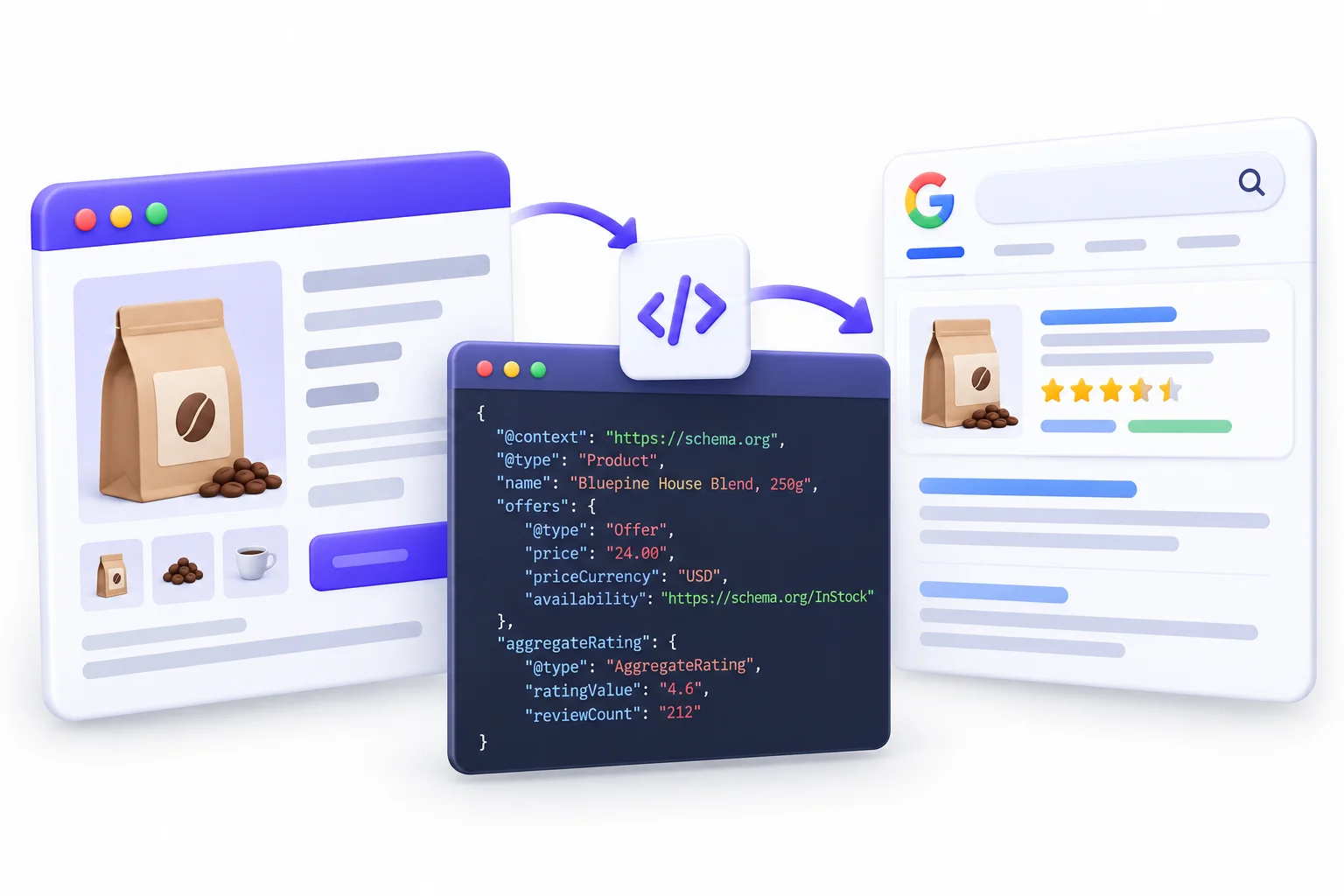
Before touching any code, it helps to understand what schema actually does. Most people get confused because they see the code first and the concept never clicks. So we’ll go the other way round.
A Simple Definition
Schema markup is extra code you add to a web page that tells search engines what the content on that page means, not just what it says.
The labels come from Schema.org, a shared vocabulary that Google, Bing and Yahoo launched together in 2011. Yandex joined later that same year. These search engines usually compete with each other, so agreeing on one common vocabulary was a big deal. It means you write your markup once, and every major search engine reads it the same way.
So when you hear “add schema,” it really means: add labels from the Schema.org vocabulary to your page.
A Real-World Analogy
🧠 Think of It Like: A nutrition label on a food packet. The food inside doesn’t change. But the label lays out calories, protein and sugar in a standard format that anyone can scan in two seconds, whatever brand made it.
Schema does the same thing for web pages. Your content stays exactly as it is. The markup sits alongside it and says “this number is the price,” “this name is the author,” “this date is when the article was published.” Visitors never see it. Search engines read it.
Before and After: What Search Engines See
Look at what a crawler gets from a plain product page:
<h1>Bluepine House Blend, 250g</h1>
<p>$24.00</p>
<p>In stock</p>
<p>4.6 out of 5 (212 reviews)</p>
A human understands all of it right away. A crawler sees four lines of text and has to work out which number is a price, which is a weight and which is a rating. It’s usually right. Not always.
Now the same page with schema added:
<script type="application/ld+json">
{
  "@context": "https://schema.org",
  "@type": "Product",
  "name": "Bluepine House Blend, 250g",
  "offers": {
    "@type": "Offer",
    "price": "24.00",
    "priceCurrency": "USD",
    "availability": "https://schema.org/InStock"
  },
  "aggregateRating": {
    "@type": "AggregateRating",
    "ratingValue": "4.6",
    "reviewCount": "212"
  }
}
</script>
No guessing left. The price is labelled as a price, in a specific currency. Availability is a defined value. The rating has a score and a review count. That’s the whole idea of schema markup for beginners in one example: you take facts that are already on the page and spell them out for machines.
Schema vs Structured Data vs Rich Results: Key Terms Decoded
Half the confusion around schema comes from people using four or five terms as if they mean the same thing. They overlap, but they aren’t the same. And one distinction here, between a schema type and a rich result, explains almost every “Google killed my schema” panic you’ll read about.
The Terminology Cheat Sheet
| Term | What It Means | Example |
|---|---|---|
| Structured data | Any data organised in a standard, predictable format | A JSON-LD block on your page |
| Schema.org | The vocabulary (the dictionary) of types and properties | Product, price, author |
| Schema markup | Schema.org vocabulary applied to your actual page | Your Product JSON-LD |
| Rich result | The enhanced search listing Google may show | Stars, price, breadcrumb trail |
| Rich snippet | The older name for rich results | Same thing, older term |
| Knowledge panel | The entity information box in search results | A brand panel on the right side |
A few quick clarifications:
- Structured data is the broad idea. Schema markup is the specific version. In everyday SEO talk, people use them interchangeably, and that’s fine.
- Rich results are Google’s decision, not yours. You can make a page eligible. Google decides whether to show the enhanced version.
- Knowledge panels aren’t something schema switches on. Organization markup can help Google understand your brand details, but nobody can mark up their way into a knowledge panel.
📌 2026 Update: A schema type and a rich result are two separate things. Google can retire the visual feature while the markup stays perfectly valid Schema.org. That’s exactly what happened with FAQPage. On May 7, 2026, FAQ rich results stopped appearing in Google Search, but FAQPage is still a valid type in the vocabulary.
Keep this one in your head. When someone says “FAQ schema is dead,” what they really mean is “the FAQ dropdown in Google is gone.” The vocabulary is still there.
How Search Engines Use Structured Data
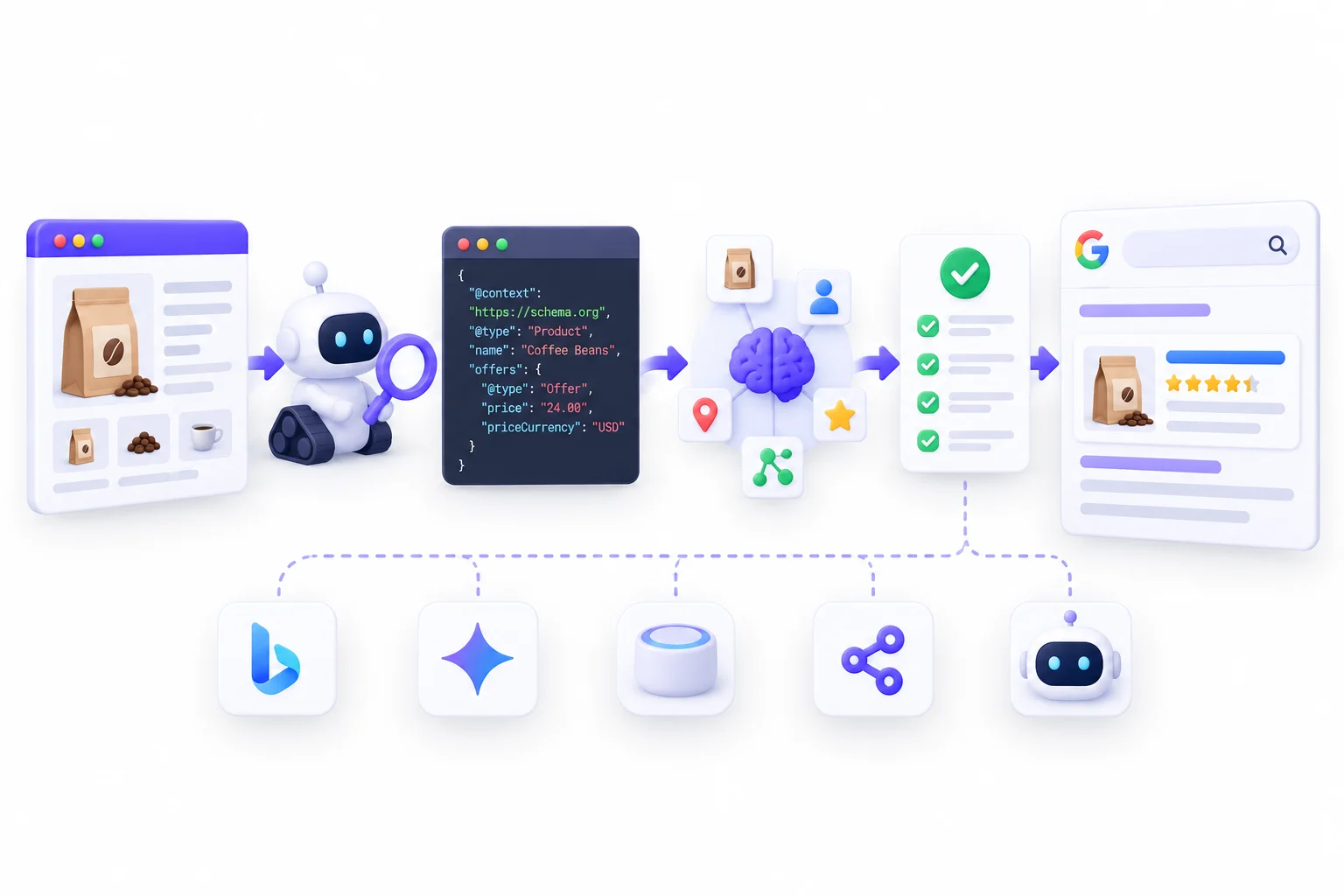
So you’ve added markup. What happens next? This part matters because beginners usually expect instant results, or assume that valid code guarantees stars in search. Nope. Adding markup makes a page eligible. That’s it. Everything after that is Google’s call.
From Crawl to Rich Result: The 5-Stage Process
Here’s roughly what happens to your structured data:
[1. Crawl] → [2. Parse markup] → [3. Understand entities] → [4. Check eligibility] → [5. Google decides to display (or not)]
- Crawl: Googlebot fetches your page, same as always.
- Parse: It finds your JSON-LD (or Microdata or RDFa) and reads it. If the code is broken, it stops right here.
- Understand: It connects the labels to things it knows. This is a Product. This Person wrote this Article. This Organization runs this website.
- Check eligibility: For each rich result type, Google has a list of required properties and content guidelines. Miss a required property and you’re out.
- Display decision: Even eligible pages don’t always get a rich result. Google decides based on the query, the device and what it thinks the searcher needs.
Why Valid Markup Doesn’t Always Show a Rich Result
This one frustrates people constantly. The Rich Results Test shows a green tick and still no stars appear. Common reasons:
- Google simply chose not to show it. Google says plainly in its documentation that valid markup doesn’t guarantee a rich result.
- The search query doesn’t call for it. Review stars might appear for “best french press coffee” but not for your brand name search.
- Required properties are missing. Valid syntax and complete markup aren’t the same thing. More on this in the vocabulary section.
- Guideline problems. Marking up content that isn’t visible, or reviews that break Google’s review rules, can make a page ineligible even when the code is technically perfect.
- The page itself is weak. Google applies quality judgement to rich results, not just syntax checks.
- The rich result no longer exists. If you’re waiting on FAQ or HowTo dropdowns, they’re not coming.
Beyond Google: Bing, AI Assistants and Other Consumers
Google gets most of the attention, but it isn’t the only reader. Bing reads Schema.org markup too and supports JSON-LD. Social platforms, voice assistants and plenty of tools that pull data from the web also parse structured data. AI systems are part of that picture now, and we’ll come back to how much that actually matters in the AI search section later. For now, just know that your markup gets read by more than one search engine.
Does Schema Markup Help SEO? Benefits and Honest Limits
Okay, the big question. Every beginner asks it, and the internet gives two equally wrong answers: “schema is a ranking hack” and “schema is pointless now.” The truth sits in the middle and it’s pretty boring. Schema helps machines understand you and can make your listings more clickable. It doesn’t push you up the rankings by itself.
Getting this right early saves you from wasted effort. Any guide on schema markup for beginners that promises ranking jumps from markup alone is selling something.
What Schema Does vs Doesn’t Do
| Schema Markup DOES | Schema Markup DOES NOT |
|---|---|
| Make pages eligible for rich results | Directly boost your rankings |
| Help search engines understand entities and relationships | Guarantee a rich result |
| Improve how your listing looks, which can lift clicks | Fix thin or low-quality content |
| Clarify facts like price, author and address for machines | Force AI tools to cite you |
| Keep your brand details consistent and machine-readable | Replace solid on-page SEO |
Google has said many times that structured data isn’t a general ranking factor. What it does is change how your result can look, and that changes how many people click.
The Click-Through Rate Case
So does a richer listing actually get more clicks? Google has published case studies on this in its own structured data documentation, and they’re worth knowing because they’re real numbers from real sites:
- Rotten Tomatoes added structured data to 100,000 pages and measured a 25% higher click-through rate on those pages compared to pages without it.
- Food Network converted 80% of its pages to support search features and saw a 35% increase in visits.
Honestly, those numbers come from big brands with strong content, and your results will depend on your niche and your pages. But they show the actual mechanism. Schema doesn’t move your position. It makes the result in that position more attractive to click.
Entity Understanding and Brand Clarity
This benefit is quieter but it matters more over time. Organization, Person and the sameAs property help search engines connect your website to your brand, your logo, your founders and your social profiles. When your brand name matches something else (a common word, another company, a place), clear entity markup tells Google which one you are.
It won’t show up as a shiny feature in search. It just reduces confusion about who you are, and confusion is never good for visibility.
When Schema Is (and Isn’t) Worth Your Time
Some sites get a lot out of schema. Others get very little. Here’s a realistic split:
- High value: E-commerce stores (Product, Offer, ratings), local businesses (LocalBusiness), recipe sites, event organisers, publishers, video creators and job boards. These map directly to rich results that still exist.
- Medium value: Service businesses and B2B sites. Organization, Service, Article and BreadcrumbList help with clarity, even if the visual payoff is smaller.
- Lower priority: A five-page brochure site. Still add Organization and BreadcrumbList (it takes ten minutes), but don’t spend days on it.
Schema Markup for Beginners: The Core Vocabulary You Need
This is the section most guides skip, and it’s the reason so many people can copy schema but can’t fix it. Once you understand how Schema.org is organised, you can read any type page on schema.org, tweak any template and actually know what you’re changing. It’s a bit like learning the grammar instead of memorising phrases.
Types: The “What” of Your Content
A type tells search engines what kind of thing you’re describing. In code, it’s the @type value.
Articleis a piece of writing.Productis something for sale.Personis a human being.Organizationis a company, brand or institution.Eventis something happening at a specific time and place.
Schema.org has more than 800 types. Sounds scary, right? It isn’t. Most websites need four to six of them. Nobody is marking up TaxiReservation or DefenceEstablishment on a coffee blog.
Properties: The Details That Describe a Type
A property is a detail about a type. If the type is the noun, properties are the facts about it.
- A
Producthas properties likename,image,description,offersandaggregateRating. - An
Articlehasheadline,author,datePublishedandimage. - A
LocalBusinesshasaddress,telephoneandopeningHoursSpecification.
Each property expects a certain kind of value. A date property wants a date. A URL property wants a full URL. Put the wrong kind of value in and validators will complain.
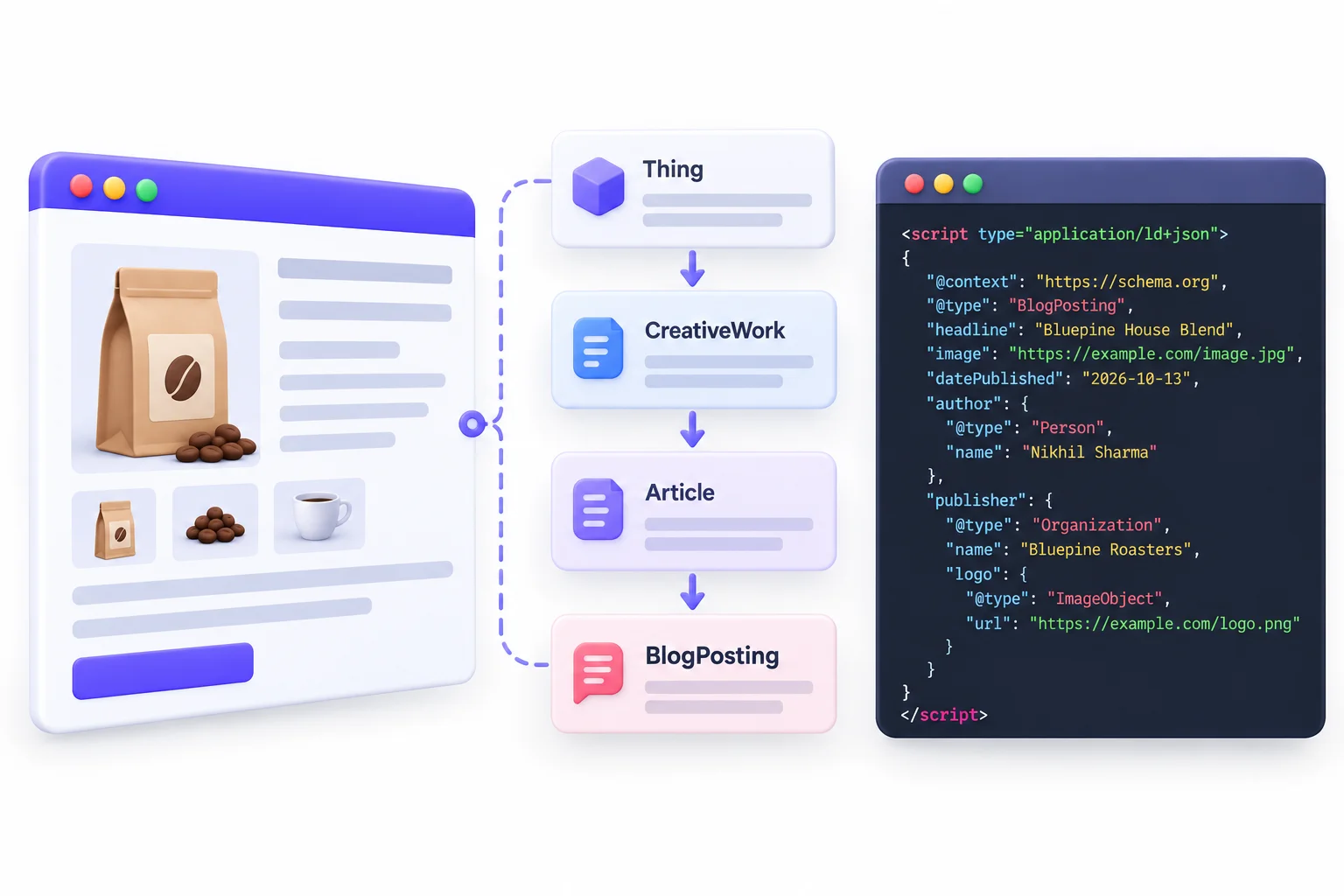
The Schema.org Hierarchy (Thing → CreativeWork → Article → BlogPosting)
This is the bit that makes everything else click. Schema.org types are arranged in a family tree. Every type sits under a more general parent type and inherits all of its parent’s properties.
Thing
 └── CreativeWork
      └── Article
           └── BlogPosting
- Thing is the top of the tree. It has basic properties like
name,description,imageandurl. - CreativeWork adds things like
author,datePublishedandheadline. - Article adds article-specific properties like
articleBodyandwordCount. - BlogPosting is a more specific kind of Article.
So a BlogPosting can use every property from Article, CreativeWork and Thing. That’s why you can give a blog post a name even though name isn’t defined on BlogPosting itself. It comes all the way down from Thing.
🧠 Think of It Like: A family tree. A BlogPosting is a kind of Article, which is a kind of CreativeWork, which is a kind of Thing. Kids inherit traits from their parents and grandparents. Schema types work the same way.
Practical tip: pick the most specific type that’s accurate. If it’s a blog post, BlogPosting is more precise than Article. If it’s a coffee shop, CafeOrCoffeeShop (a child of LocalBusiness) is more precise than just LocalBusiness.
Common Value Types
Every property expects a specific kind of value. Here are the ones you’ll use constantly:
| Expected Value | Example | Format Note |
|---|---|---|
| Text | "Bluepine Roasters" |
Inside straight double quotes |
| URL | "https://example.com/logo.png" |
Full absolute URL, including https:// |
| Date | "2026-10-13" |
ISO 8601 format (year-month-day) |
| Number | 4.6 or "24.00" |
No currency symbols or commas |
| Another type | "author": {"@type": "Person", "name": "..."} |
A nested object in curly braces |
Dates trip people up a lot. “13/10/2026” or “Oct 13, 2026” won’t validate. Use 2026-10-13. If you need a time too, add it with a T: 2026-10-13T09:30:00+00:00.
Required vs Recommended Properties (Schema.org vs Google)
Here’s something that confuses even people who’ve been doing SEO for years. Schema.org itself has no required properties. The vocabulary just defines what’s possible.
Google is a different story. For each rich result it supports, Google publishes its own list of required and recommended properties.
- Required: Leave one out and the page isn’t eligible for that rich result. Full stop. For example, Google’s Product snippet needs a
nameplus at least one ofreview,aggregateRatingoroffers. - Recommended: Leave one out and you can still be eligible, but you might get a less detailed result. You’ll see these as warnings in the Rich Results Test.
- Some types have no required properties at all. Google’s Article documentation, for example, lists only recommended properties like
headline,image,authoranddatePublished.
That’s why “it validated on schema.org” and “it qualifies for a Google rich result” are two different checks.
💡 Beginner Tip: Before writing markup for any type, open Google’s Search Central documentation page for that specific type. The required and recommended property tables there are the actual rules Google checks against.
How to Read a Schema.org Type Page
Every type on schema.org has its own page (for example, schema.org/Product). It looks like a wall of text at first, but it’s laid out in a predictable way:
- The hierarchy at the top shows where the type sits in the tree, like Thing > Product.
- The property table has three columns: Property (the name you use in code), Expected Type (what kind of value it wants) and Description (what it means).
- Grouped sections show which properties come from which parent type, like “Properties from Thing.”
- Examples at the bottom show working markup in JSON-LD, Microdata and RDFa.
JSON-LD vs Microdata vs RDFa: Which Format Should You Use?
There are three ways to write structured data. This decision takes about four seconds: use JSON-LD. Google recommends it, it’s the easiest to write and maintain, and every major SEO plugin outputs it. Still, it’s worth seeing why, because you’ll come across the other two on older sites.
Format Comparison
| Format | Where It Lives | Ease for Beginners | Google’s Stance | Verdict |
|---|---|---|---|---|
| JSON-LD | A separate <script> block |
Easiest | Recommended | Use this |
| Microdata | Attributes inside your HTML tags | Moderate | Supported | Legacy sites only |
| RDFa | Attributes inside your HTML tags | Harder | Supported | Rarely needed |
The big difference: JSON-LD sits in its own block, separate from your visible HTML. Microdata and RDFa get woven into your HTML tags. So with those two, every time a designer changes the layout, the markup can break. JSON-LD doesn’t care what your layout looks like.
The Same Markup in All Three Formats
Here’s one simple Organization written three ways. Look at how much messier the second and third get.
JSON-LD:
<script type="application/ld+json">
{
  "@context": "https://schema.org",
  "@type": "Organization",
  "name": "Bluepine Roasters",
  "url": "https://www.bluepineroasters.com",
  "logo": "https://www.bluepineroasters.com/logo.png"
}
</script>
Microdata:
<div itemscope itemtype="https://schema.org/Organization">
  <a itemprop="url" href="https://www.bluepineroasters.com">
    <span itemprop="name">Bluepine Roasters</span>
  </a>
  <img itemprop="logo" src="https://www.bluepineroasters.com/logo.png" alt="Bluepine Roasters logo">
</div>
RDFa:
<div vocab="https://schema.org/" typeof="Organization">
  <a property="url" href="https://www.bluepineroasters.com">
    <span property="name">Bluepine Roasters</span>
  </a>
  <img property="logo" src="https://www.bluepineroasters.com/logo.png" alt="Bluepine Roasters logo">
</div>
With JSON-LD, the data lives in one tidy block you can copy, edit or generate from a template. With the other two, the data is spread through your page structure. That’s why the rest of this guide uses JSON-LD only.
Anatomy of a JSON-LD Block: Line by Line
Time to actually read code. Even if you never plan to write schema by hand, understanding each line means you can spot problems in what your plugin outputs, fix a generator’s mistakes and adapt templates without breaking them. Learning schema markup for beginners really comes down to this one skill: reading a block and knowing what every piece does.
The Full Example
Here’s a complete, working Article block for a blog post:
<script type="application/ld+json">
{
  "@context": "https://schema.org",
  "@type": "BlogPosting",
  "headline": "How to Brew Pour-Over Coffee at Home",
  "image": "https://www.bluepineroasters.com/images/pour-over-guide.jpg",
  "author": {
    "@type": "Person",
    "name": "Maya Fernandes",
    "url": "https://www.bluepineroasters.com/authors/maya-fernandes"
  },
  "publisher": {
    "@type": "Organization",
    "name": "Bluepine Roasters",
    "logo": {
      "@type": "ImageObject",
      "url": "https://www.bluepineroasters.com/logo.png"
    }
  },
  "datePublished": "2026-09-02",
  "dateModified": "2026-10-10"
}
</script>
Line-by-Line Breakdown
| Code Part | What It Does |
|---|---|
<script type="application/ld+json"> |
Tells the browser this block is structured data, not JavaScript to run |
"@context": "https://schema.org" |
Declares which vocabulary you’re using. It’s always Schema.org for SEO |
"@type": "BlogPosting" |
Declares what the thing is |
"headline": "..." |
A property (headline) and its value (the title) |
"image": "..." |
A property whose value is a full image URL |
"author": { ... } |
A property whose value is another type, a Person, nested inside curly braces |
"publisher": { ... } |
Another nested type, an Organization, which has its own nested logo |
"datePublished" / "dateModified" |
Dates in ISO 8601 format |
</script> |
Closes the block |
Notice the pattern. Every block follows the same shape: context, type, then properties. Some properties hold simple values like text or dates. Some hold whole other types. That’s really all JSON-LD is.
JSON Syntax Rules Every Beginner Must Know
Most broken schema isn’t broken because someone picked the wrong type. It’s broken because of punctuation. JSON is strict, and one wrong character kills the whole block.
- Keys and text values go in straight double quotes.
"name": "Bluepine Roasters"works. Single quotes don’t. - Every property needs a comma after it, except the last one in its group. A trailing comma before a closing brace is a classic error.
- Curly braces
{ }wrap objects. Each type (the main one and every nested one) lives inside its own pair. - Square brackets
[ ]wrap lists. Use them when a property has several values, like multiple images or social profiles. - Numbers can go without quotes, but quoted numbers like
"24.00"are fine too and common for prices. - Watch out for smart quotes. Word, Google Docs and some note apps turn
"into curly“ ”quotes automatically. JSON can’t read curly quotes. This one catches a lot of people.
⚠️ Watch Out: One missing or extra comma invalidates the entire block, not just that line. Always paste your code into the Rich Results Test or Schema Markup Validator before it goes anywhere near a live page.
Where to Place the Script (Head or Body)
Google reads JSON-LD in either the <head> or the <body> of the page. Both work. The head is the cleaner convention and it’s where most plugins put it, so go with the head when you have the choice. If your CMS only lets you add code to the body, that’s fine too.
Types of Schema Markup That Still Matter in 2026
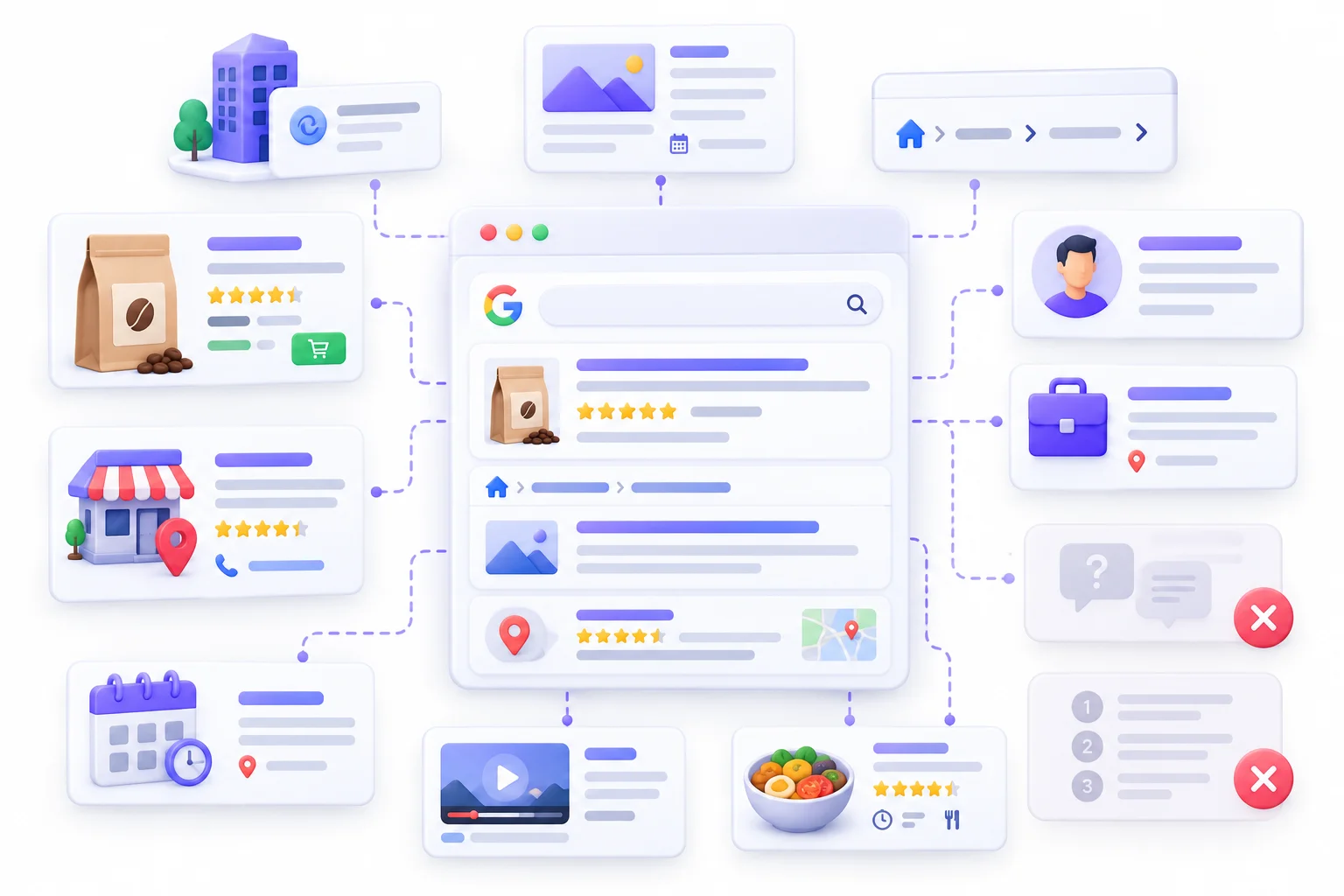
This is the section to bookmark. It’s also where most older guides get things wrong, because Google has retired a bunch of rich results over the last few years and plenty of articles never got updated. So here’s the current picture, plus a timeline of what disappeared and when.
Schema Type Status (Google Search, 2026)
| Schema Type | Best For | Possible Rich Result | Status |
|---|---|---|---|
| Organization | Company identity, logo, profiles | Helps Google understand your logo and brand details | Active |
| Article / BlogPosting | Blogs, news, guides | Better title, image and date display | Active |
| BreadcrumbList | Site hierarchy | Breadcrumb trail instead of a raw URL (desktop) | Active |
| Product (+ Offer, AggregateRating) | E-commerce | Price, availability, review stars | Active |
| Review / AggregateRating | Products, recipes, software and similar | Review stars | Active (rules apply) |
| LocalBusiness | Physical businesses | Supports business details like hours and address | Active |
| Event | Concerts, webinars, workshops | Event listings | Active |
| VideoObject | Video content | Video thumbnail, key moments | Active |
| Recipe | Food blogs | Image, cook time, ratings | Active |
| JobPosting | Careers pages | Job listings in Google’s job search experience | Active |
| Person / ProfilePage | Authors, creators | Profile and creator information | Active |
| FAQPage | Q&A sections | None | Rich result retired (May 2026) |
| HowTo | Step-by-step guides | None | Rich result retired (2023) |
A few notes on the active ones:
- BreadcrumbList got a small change in January 2025: Google stopped showing breadcrumbs in mobile results and now shows only the domain there. Desktop still shows the breadcrumb trail. It’s still worth adding, because it’s easy and it describes your site structure clearly.
- Product is probably the highest-value type for anyone selling online. Price, stock status and stars in the listing make a visible difference.
- Review stars come with strict rules. You can’t mark up reviews about your own business on your own website and expect stars. More on that in the guidelines section.
- VideoObject is still fully supported, even though the separate “Learning Video” feature got retired. Basic video markup continues to work.
Deprecation Timeline: What Google Retired and When
Google has a clear habit of retiring structured data features that don’t get used much or don’t help searchers enough. Here’s the recent history:
| Date | Change |
|---|---|
| Aug to Sep 2023 | HowTo rich results removed (mobile first, then desktop). FAQ rich results limited to well-known, authoritative government and health sites |
| June 2025 | Seven types retired: Book Actions, Course Info, Claim Review, Estimated Salary, Learning Video, Special Announcement and Vehicle Listing |
| Nov 2025 | Practice Problem structured data deprecated |
| May 7, 2026 | FAQ rich results stop appearing in Google Search |
| June 2026 | FAQ support removed from the Rich Results Test and Search Console rich result reports |
| Aug 2026 | FAQ data removed from the Search Console API |
Look at the pattern. Features built around SERP decoration keep getting cut. Features tied to real things people search for (products, local businesses, events, jobs, recipes, videos) are still around.
Should You Remove Old FAQ and HowTo Markup?
Short answer: no rush.
- Google says unused structured data doesn’t cause problems for Search. Leaving valid FAQPage markup on your pages won’t hurt anything.
- Your rankings weren’t affected by the FAQ change. It was a change to how results look, not to how pages rank.
- Stop adding it purely to chase dropdowns. That’s the only real change in behaviour. If you were putting FAQ schema on every new post to grab extra SERP space, that tactic is done.
- Keep the FAQ sections themselves if readers find them useful. Good questions and answers still help people. They just don’t earn a special result anymore.
📌 2026 Update: If a tutorial promises you FAQ dropdowns or HowTo steps in Google, it was written before these changes. Check the publish date on any schema advice before following it.
How to Choose the Right Schema for Each Page
Knowing the types is one thing. Knowing which one goes on your homepage, your blog posts and your service pages is where beginners usually get stuck. So here’s a straight mapping you can work from.
Page Type to Schema Mapping
| Page Type | Primary Schema | Supporting Schema |
|---|---|---|
| Homepage | Organization (or LocalBusiness) | WebSite |
| About page | AboutPage + Organization | Person (founders, team) |
| Blog post | BlogPosting / Article | BreadcrumbList, Person (author) |
| Author page | ProfilePage + Person | sameAs links to profiles |
| Product page | Product + Offer | AggregateRating, Review, BreadcrumbList |
| Service page | Service | Organization (as provider), BreadcrumbList |
| Location page | LocalBusiness | PostalAddress, OpeningHoursSpecification |
| Event page | Event | Place, Offer |
| Video page | VideoObject | Article (if the video sits inside a post) |
| Contact page | ContactPage | Organization with contactPoint |
A few things to notice. Not every type in this table produces a visible rich result. Service, AboutPage and ContactPage don’t get special treatment in Google. They still help describe your site accurately, and they cost almost nothing to add if your plugin supports them.
The “Describe the Main Thing” Rule
This is the simplest rule in schema, and it’s the one people break most often. Mark up the main subject of the page, not everything mentioned on it.
So a blog post reviewing three grinders is an Article. It isn’t three Product pages. A category page listing 40 products isn’t 40 full Product snippets. A service page that mentions your office address isn’t a LocalBusiness page. Ask yourself: “What is this page actually about?” Mark up that.
When people try to cram every possible type onto every page, they end up with messy, misleading markup. And misleading markup is exactly what Google’s guidelines warn against.
A Simple Priority Order for Beginners
You don’t have to do everything at once. Here’s a sensible order:
- Organization on the homepage (or LocalBusiness if you have a physical location customers visit).
- BreadcrumbList across the whole site.
- Article or BlogPosting on every blog post.
- Product on product pages, if you sell anything.
- LocalBusiness on location pages, if you have more than one.
- Event, VideoObject, Recipe or JobPosting only if you actually publish that kind of content.
✅ Quick Win: Organization on the homepage, BreadcrumbList sitewide and Article on blog posts covers the basics for most sites. On WordPress, a good SEO plugin handles all three in about ten minutes of setup.
How to Add Schema Markup to Your Website (Step by Step)
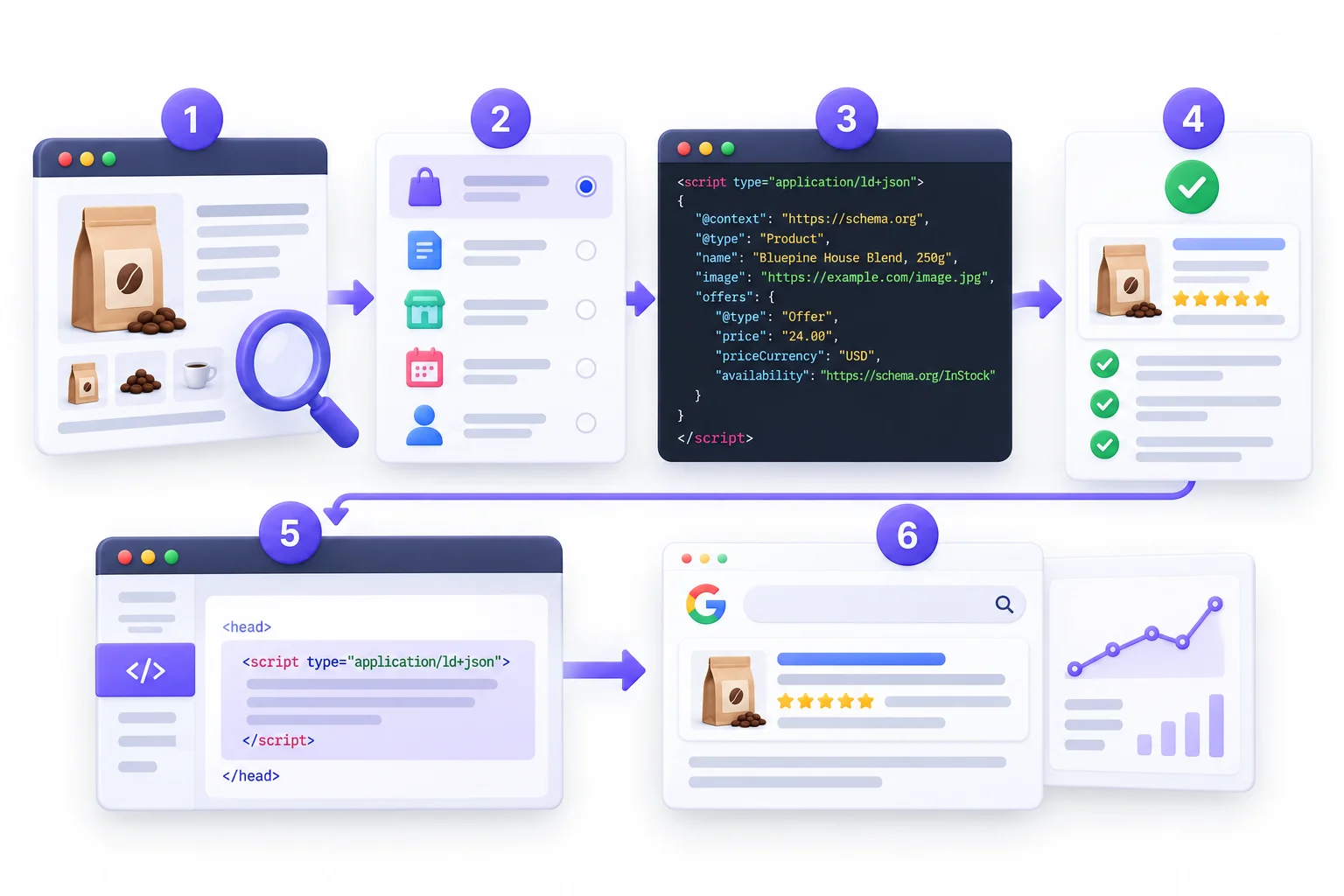
Now the part you came for. There are plenty of ways to add structured data, and the right one depends on your platform and how comfortable you are with code. But the underlying process is the same everywhere. So we’ll start with a universal workflow, then go through each platform. This is the practical core of schema markup for beginners, so take it slow.
The Universal 6-Step Workflow
Whatever platform you’re on, adding structured data follows these steps:
- Identify the page type and its main subject. Is it a product, a blog post, a location? Use the mapping table above.
- Pick the schema type and check Google’s required properties. Open Google’s documentation for that type and note what’s required and what’s recommended.
- Generate or write the JSON-LD. Use a plugin, a generator or write it yourself from a template.
- Test the code before publishing. Paste it into the Rich Results Test’s code option. Fix every error.
- Add the code to the page. Through your plugin, platform settings, theme template or custom code field.
- Test the live URL and monitor it. Run the live page through the Rich Results Test, then keep an eye on Search Console over the following weeks.
That’s the whole thing. Every method below is just a different way of doing steps 3 and 5.
Method 1: WordPress SEO Plugins (Rank Math, Yoast, Schema Pro)
If you’re on WordPress, you probably don’t need to write code at all for the basics. The major SEO plugins generate schema automatically.
Rank Math
- Outputs core schema sitewide once you finish the setup wizard: WebSite, WebPage, Organization or Person, and Article for posts.
- The Schema tab in the post editor lets you change the type per post (Article, Product, Recipe, Event, and more) and fill in properties through a form.
- Breadcrumb schema comes through when you turn on Rank Math’s breadcrumbs.
- Start in the setup wizard’s “Your Site” step (you can change it later under Titles & Meta > Local SEO). Pick whether the site belongs to an organisation or a person, and add the name and logo. That powers your sitewide identity markup.
Yoast SEO
- Builds a connected schema graph for every page automatically: Organization or Person, WebSite, WebPage, Article and Breadcrumb, all linked together using
@id(covered in the section on connecting schema). - In the site representation settings, choose organisation or person, add your logo and social profiles, and Yoast handles the rest.
- Per-post, you can set the page type and article type in the Schema tab of the Yoast sidebar.
Schema Pro
- A dedicated schema plugin rather than a full SEO plugin.
- Useful when you need types your SEO plugin doesn’t cover well, and you want to apply them to many pages at once using rules (for example, “apply Service schema to every page under /services/”).
One thing to check: if your theme also outputs schema, you can end up with two Organization blocks or two Article blocks on the same page. Test a few pages after setup to make sure only one source is producing each type.
Method 2: Shopify, Wix, Squarespace and Webflow
Hosted platforms each handle schema a bit differently.
Shopify
- Most modern themes, including Shopify’s free Dawn theme, already output Product schema with name, price, availability and images.
- Apps for reviews or SEO often add their own schema on top.
- For custom markup, you edit theme files (usually in the
theme.liquidlayout or a product section) through Online Store > Themes > Edit code.
Wix
- Wix adds basic schema automatically for some page types, like products and blog posts.
- You can add your own JSON-LD per page through the page’s SEO settings, in the Advanced SEO tab under structured data markup.
Squarespace
- Adds some structured data automatically for things like blog posts and products.
- Custom JSON-LD goes in through Code Injection (sitewide or per page), which is available on paid plans that support code.
Webflow
- Doesn’t add much schema on its own.
- Add JSON-LD in Page Settings > Custom Code in the head section. For CMS collection pages, you can insert CMS fields into the JSON-LD so each item gets its own values automatically.
⚠️ Watch Out: On Shopify especially, it’s common to end up with Product schema from the theme, another set from a reviews app and a third set someone added manually. Three conflicting Product blocks with different prices is a mess. Test a product page, see what’s there, and keep one clean source.
Method 3: Manual JSON-LD in Your HTML or CMS Template
If you have access to your site’s code, you can add JSON-LD directly. Two common approaches:
- Sitewide in the header template. Good for things that don’t change page to page, like Organization and WebSite markup. Add it once to your header file and it appears everywhere.
- Per page through custom fields. For things that change per page, like product prices or article dates, you don’t want to hand-type JSON for every page. Instead, build the JSON-LD into your page template and pull the values from your CMS fields.
On WordPress, for example, you can use Advanced Custom Fields (ACF) to store values like event dates or service names, then output them inside a JSON-LD block in your template file. That way the markup always matches the page, because it’s reading from the same data the page shows.
This approach takes more setup but it’s the most reliable long term. Values update automatically, and you’re never stuck with a price in your schema that’s three months out of date.
Method 4: Custom Code and Headless Sites (Next.js, React)
Headless and JavaScript-framework sites have one extra thing to think about: when the JSON-LD appears in the page.
- Render JSON-LD on the server. In Next.js, for example, the official documentation recommends adding JSON-LD as a
<script type="application/ld+json">tag inside your page or layout component, so it’s part of the HTML the server sends. - Pull values from the same data as the page. If your product data comes from an API or headless CMS, build the JSON-LD from that same data object.
- Avoid client-only injection where you can. If the schema only appears after JavaScript runs in the browser, you’re relying on every crawler running that JavaScript.
Why does that last point matter? Google can render JavaScript and read structured data that’s added by scripts. Other crawlers often can’t. In late 2024, Vercel published an analysis of AI crawler behaviour showing that major AI crawlers like OpenAI’s GPTBot and Anthropic’s ClaudeBot fetched JavaScript files but didn’t execute them. So schema that only exists after JavaScript runs is invisible to those bots. Server-rendered markup gets read by everyone.
Method 5: Google Tag Manager (and Its Limitations)
Some people add schema through Google Tag Manager, using a Custom HTML tag that injects the JSON-LD when the page loads. It’s popular with marketers who don’t have developer access.
It works for Google, mostly. Google renders JavaScript and can pick up schema injected this way. But there are real downsides:
- It depends on JavaScript rendering, which Google handles but plenty of other crawlers and AI bots don’t.
- It can be slower for Google to process, since rendering happens after the initial crawl.
- It’s easy to lose track of. Schema hidden in a tag manager container is the first thing everyone forgets about during a site migration.
- Values can drift from the page, unless you build variables that read from the page’s actual content.
Honestly, treat GTM as a temporary fix until you can get the markup into the page’s HTML properly.
Method 6: Schema Generators and AI Tools
If you don’t want to write JSON-LD from scratch, generators fill in the structure for you.
- Google’s Structured Data Markup Helper lets you highlight parts of a page and tag them, then produces markup.
- The Schema Markup Generator on TechnicalSEO.com (originally built by Merkle) has forms for common types like Article, Product, LocalBusiness, Event and Organization.
- AI assistants can draft JSON-LD from a description of your page in seconds.
All three are useful. None of them is the final step. Generators sometimes use outdated property names, and AI tools sometimes invent values or use properties that don’t exist on that type.
💡 Beginner Tip: Treat generated code as a first draft. Check every value against what’s actually on the page, then validate it before publishing. Ten seconds of checking beats a week of wondering why nothing shows up.
Which Method Should You Use?
| Your Situation | Best Method |
|---|---|
| WordPress blog or business site | SEO plugin, plus manual JSON-LD for special types |
| Shopify or WooCommerce store | Native product schema, then verify and extend it |
| Wix, Squarespace or Webflow | Built-in settings plus custom code blocks |
| Custom or headless build | Server-rendered JSON-LD in your templates |
| No developer access at all | GTM as a temporary option |
Build Your First Schema Markup: A Hands-On Walkthrough
Reading about schema is fine. Writing one block yourself teaches you more than ten articles. So let’s do it. You’ll build Organization markup for a homepage, test it, publish it, then add BreadcrumbList as a second block. Should take about 15 minutes.
We’ll use our example coffee company, Bluepine Roasters. Swap in your own details as you go.
Step 1: Gather Your Business Details
Before writing anything, collect the facts. Everything you add must match what’s publicly shown on your site.
- Your organisation’s name, exactly as it appears on the site
- Your homepage URL
- A direct URL to your logo image (right-click your logo, copy image address)
- Your official social and business profile URLs (LinkedIn, Instagram, YouTube, and similar)
- A customer contact phone number or email, if you show one publicly
Step 2: Fill In the Template
Here’s an Organization template. Replace the values with your own. Keep the structure, quotes and commas exactly as they are.
<script type="application/ld+json">
{
  "@context": "https://schema.org",
  "@type": "Organization",
  "name": "Bluepine Roasters",
  "url": "https://www.bluepineroasters.com",
  "logo": "https://www.bluepineroasters.com/images/logo.png",
  "sameAs": [
    "https://www.linkedin.com/company/bluepine-roasters",
    "https://www.instagram.com/bluepineroasters",
    "https://www.youtube.com/@bluepineroasters"
  ],
  "contactPoint": {
    "@type": "ContactPoint",
    "telephone": "+1-555-010-2040",
    "contactType": "customer service",
    "email": "hello@bluepineroasters.com"
  }
}
</script>
What each field does:
- name: your organisation’s name.
- url: your homepage address.
- logo: a full URL pointing directly to your logo image file.
- sameAs: a list (notice the square brackets) of your official profiles elsewhere on the web. This connects your website to those profiles.
- contactPoint: a nested ContactPoint type with your customer service details. Only add this if the same details are visible on your site.
Step 3: Validate the Code Snippet
Go to Google’s Rich Results Test and switch to the Code option instead of URL. Paste your entire block, including the script tags, and run the test. Then do the same at validator.schema.org.
- Red errors? Usually a missing comma, an extra comma before a closing brace, or curly quotes. Fix and re-test.
- No errors? You’re good to publish.
Step 4: Publish and Test the Live URL
Add the block to your homepage using whichever method fits your site from the previous section. Then run the Rich Results Test again, this time using the URL option with your live homepage address.
Why test twice? Because things change between your code editor and the live page. A plugin might output its own Organization block too. A theme might strip script tags. Testing the live URL shows you what Google actually sees.
Step 5: Add BreadcrumbList as Your Second Schema
Now repeat the pattern with something slightly different. BreadcrumbList describes where a page sits in your site’s structure. Here’s an example for a blog post:
<script type="application/ld+json">
{
  "@context": "https://schema.org",
  "@type": "BreadcrumbList",
  "itemListElement": [
    {
      "@type": "ListItem",
      "position": 1,
      "name": "Home",
      "item": "https://www.bluepineroasters.com/"
    },
    {
      "@type": "ListItem",
      "position": 2,
      "name": "Brewing Guides",
      "item": "https://www.bluepineroasters.com/brewing-guides/"
    },
    {
      "@type": "ListItem",
      "position": 3,
      "name": "How to Brew Pour-Over Coffee at Home"
    }
  ]
}
</script>
Notice what’s new here. itemListElement holds a list (square brackets) of ListItem objects, each with a position number. The last item, the current page, doesn’t need an item URL. Same shape as before, though: context, type, properties.
Validate it the same way. Once you’ve done these two, you’ve basically got the method for every other type.
Connecting Your Schema: Nesting, @id, @graph and sameAs
If you’ve ever opened your page source on a Yoast or Rank Math site, you’ve probably seen a big block with @graph and lots of @id values and thought “what is all this?” This section explains it. It’s a gentle introduction to linking entities together, which is how search engines understand that the author, the publisher and the website are all related.
Nesting: Putting One Type Inside Another
You’ve already done nesting without calling it that. When you put a Person inside the author property of an Article, that’s nesting. Same with an Offer inside a Product, or a PostalAddress inside a LocalBusiness.
"author": {
  "@type": "Person",
  "name": "Maya Fernandes"
}
Nesting says “this thing belongs to that thing.” It’s the simplest way to connect entities and it works great for small amounts of markup.
@id: Giving Each Entity a Unique Name Tag
Nesting gets repetitive fast. If your Organization appears as the publisher on every article, you’d be re-describing it in full on every page. @id fixes that. It gives an entity a unique identifier (usually a URL with a fragment like #organization), so you can refer to it elsewhere without repeating every detail.
"publisher": {
  "@id": "https://www.bluepineroasters.com/#organization"
}
That one line points to the full Organization entity defined elsewhere with the same @id.
🧠 Think of It Like: An employee ID badge. Once everyone knows that ID 4471 is Maya from marketing, you don’t need to describe her height and hair colour every time. You just say “4471.”
The @id value isn’t a page anyone visits. It’s just a stable label. Using your homepage URL plus a fragment like #organization or #website is the common convention.
@graph: Bundling Multiple Types in One Block
@graph lets you put several entities in one JSON-LD block and link them with @id. Here’s a trimmed example:
<script type="application/ld+json">
{
  "@context": "https://schema.org",
  "@graph": [
    {
      "@type": "Organization",
      "@id": "https://www.bluepineroasters.com/#organization",
      "name": "Bluepine Roasters",
      "url": "https://www.bluepineroasters.com/"
    },
    {
      "@type": "WebSite",
      "@id": "https://www.bluepineroasters.com/#website",
      "url": "https://www.bluepineroasters.com/",
      "name": "Bluepine Roasters",
      "publisher": { "@id": "https://www.bluepineroasters.com/#organization" }
    },
    {
      "@type": "WebPage",
      "@id": "https://www.bluepineroasters.com/brewing-guides/pour-over/#webpage",
      "url": "https://www.bluepineroasters.com/brewing-guides/pour-over/",
      "isPartOf": { "@id": "https://www.bluepineroasters.com/#website" }
    }
  ]
}
</script>
Read it like a sentence: this WebPage is part of this WebSite, which is published by this Organization. That’s exactly what Yoast and Rank Math build for you behind the scenes. Now when you see it in your page source, you’ll know what you’re looking at.
It also explains why duplicate schema causes trouble. If your theme outputs a second Organization with a different name or logo, and no @id connecting it, search engines now see two organisations claiming to run the same site.
sameAs: Linking Your Brand to Its Profiles
sameAs tells search engines that your entity is the same one found at other URLs. You used it in the Organization walkthrough.
- Use your official profiles only: LinkedIn, Instagram, YouTube, X, Facebook, Crunchbase and similar.
- Add Wikipedia or Wikidata if you genuinely have an entry. These are strong identity signals, but don’t create entries just for schema.
- Use it on Person markup too. For authors, link to their LinkedIn, their author pages elsewhere, or their professional profiles.
It’s a small property, but it does a lot to make sure search engines connect the right brand to the right website.
How to Test and Validate Your Structured Data
You’ve added markup. Now you need to know if it works. Running a tool isn’t the hard part. Reading what the tool tells you is. A green tick doesn’t always mean “done,” and a yellow warning doesn’t always mean “broken.” Here’s how to make sense of it all.
Testing Tools Compared
| Tool | What It Checks | When to Use |
|---|---|---|
| Rich Results Test | Google rich result eligibility, plus a preview | Before and after publishing |
| Schema Markup Validator (validator.schema.org) | Syntax against the full Schema.org vocabulary | Any type, including ones Google doesn’t use for rich results |
| Search Console URL Inspection | How Googlebot sees your live page | After publishing |
| Search Console enhancement reports | Sitewide errors and valid items over time | Ongoing monitoring |
| Crawlers and extensions (Screaming Frog, browser extensions) | Bulk extraction and validation across many pages | Site audits |
The two main tools do different jobs. The Rich Results Test only cares about Google’s supported rich results. If you test a Service page, it’ll probably say no rich results detected, and that’s normal because Google doesn’t have a Service rich result. The Schema Markup Validator checks whether your markup is valid Schema.org, regardless of Google’s features. Use both.
Errors vs Warnings: What to Fix First
The Rich Results Test splits problems into two kinds:
- Errors (red): Something required is missing or broken. The page isn’t eligible for that rich result until you fix it. Always fix these first.
- Warnings (yellow): A recommended property is missing. The page can still be eligible. Add the property if you actually have that information on the page. Don’t invent data just to clear a warning.
Here are the errors beginners hit most often:
| Error Message (or Similar) | What It Usually Means | Fix |
|---|---|---|
| Missing field “X” | A required property isn’t there | Add the property with a real value from the page |
| Invalid value type for field “X” | Wrong kind of value, like text where a number or URL is expected | Match the expected type shown on the schema.org page |
| Parsing error: Missing ‘,’ or ‘}’ | Broken JSON punctuation | Check commas, braces and quotes around that line |
| Invalid date format | Date not in ISO 8601 | Use YYYY-MM-DD |
| Invalid URL in field “X” | Relative or malformed URL | Use a full URL starting with https:// |
With schema markup for beginners, nine out of ten errors come down to the third row. It’s almost always a comma.
Testing a Code Snippet vs a Live URL
The Rich Results Test lets you test either a code snippet or a live URL, and each has its moment.
- Code snippet: Use it while you’re writing or editing markup, before anything goes live. It’s fast and you can fix things without touching your site.
- Live URL: Use it after publishing. It shows the final page as Google renders it, including schema from plugins, themes, apps and anything injected by JavaScript. This is where you catch duplicates and conflicts.
Testing the snippet tells you your code is right. Testing the URL tells you your page is right. They’re not the same thing.
Measuring Schema Performance in Google Search Console
Most people add schema, see a green tick and never check again. Then six months later a theme update quietly breaks everything and nobody notices. Search Console is how you close that loop: it shows you whether Google is reading your markup across the whole site, and whether it’s making any difference to clicks.
Reading the Enhancements Reports
In Search Console, look for the reports for structured data types Google found on your site. Depending on your markup, you might see reports like Breadcrumbs, Product snippets, Merchant listings, Videos, Events or Review snippets.
Each report sorts your pages into groups:
- Valid: Markup is fine and eligible.
- Valid with warnings: Eligible, but missing recommended properties.
- Invalid: Errors that make those pages ineligible.
Click into any issue to see which pages have it. Once you’ve fixed the problem, hit Validate Fix and Google will recheck those pages over the following days.
Using the Search Appearance Filter
The Performance report has a Search appearance filter. It shows clicks, impressions and click-through rate for results that appeared with specific features, like review snippets, product results or videos.
This is where you see whether rich results are actually earning clicks. Compare the CTR of pages showing a rich result against your average CTR for similar pages. If your product pages with review stars get noticeably more clicks than those without, that’s your answer.
A Simple Before/After CTR Check
Want to see if a schema change made a difference? Keep it simple:
- Write down the date you published the change. A note in a spreadsheet is fine.
- Wait for Google to recrawl and process it. Usually a few weeks, sometimes longer for smaller sites.
- Compare two equal periods, like 28 days before and 28 days after, for the pages you changed.
- Look at CTR, not just clicks. Clicks move with demand. CTR tells you more about how your listing performs.
- Account for seasonality. A coffee brand’s traffic in December isn’t comparable to March for reasons that have nothing to do with schema.
It won’t be a lab-grade experiment. But it beats going on a gut feeling that things got better after the change.
Google’s Structured Data Guidelines (and How to Avoid Penalties)
Yeah, schema can get you in trouble. Google has a set of structured data guidelines and spam policies, and breaking them can cost you every rich result on your site. The rules aren’t complicated though. Most boil down to “don’t lie to the search engine.”
The Golden Rule: Mark Up Only What’s Visible
Your structured data has to describe content that users can actually see on the page. That’s the core guideline.
- Don’t mark up ratings that aren’t shown on the page. If there’s no visible rating, there’s no AggregateRating.
- Don’t mark up prices you don’t display.
- Don’t invent reviews or authors.
- Don’t describe content that’s hidden from users, like text tucked away in code that never appears.
- Make sure values match. If the page says $24 and the schema says $19, that’s a mismatch.
⚠️ Watch Out: Fake ratings, invisible prices or made-up reviews break Google’s spam policies. The result can be a manual action that removes rich results across your entire site, not just the page with the problem.
The Self-Serving Review Rule
This one surprises a lot of business owners. Since September 2019, Google doesn’t show review stars for LocalBusiness or Organization markup when the business is reviewing itself. That means reviews you collect and display on your own website about your own business, with markup added to your own pages.
So if a dental clinic shows testimonials on its homepage and wraps them in AggregateRating markup, those stars won’t appear in Google. The markup isn’t against the rules as such. It just isn’t eligible for review stars.
Review stars still work for things like products, recipes, books, software and other items where the reviews are about the thing on the page, not about the business doing the reviewing.
What a Structured Data Manual Action Looks Like and How to Recover
If a Google reviewer decides your markup breaks the guidelines, you’ll find a notice in Search Console under Security & Manual Actions > Manual actions, usually labelled as a structured data issue.
Here’s what happens and how to fix it:
- What it does: Your pages lose eligibility for rich results. It may cover specific pages or the whole site.
- Find the cause: The notice explains the general problem. Usually it’s markup that doesn’t match visible content, misleading reviews or markup that breaks a feature’s specific rules.
- Fix every instance, not just the examples Google lists. Remove or correct the misleading markup across the site.
- Submit a reconsideration request from the manual actions report. Explain what was wrong, what you changed and how you’ll prevent it happening again.
- Wait. Reviews can take anywhere from days to a few weeks. Rich results return once the action is lifted, assuming everything else is in order.
Common Schema Markup Mistakes Beginners Make
Most schema problems aren’t clever technical issues. They’re the same handful of mistakes, over and over. Here they are in one place, each with its fix.
| Mistake | Why It Hurts | Fix |
|---|---|---|
| Broken JSON (commas, smart quotes) | The whole block gets ignored | Validate before every publish |
| Duplicate schema (theme + plugin + app) | Conflicting signals about the same thing | Keep one source per type |
| Wrong type for the page | Misleading and usually ineligible | Mark up the main subject only |
| Missing required properties | Not eligible for that rich result | Check Google’s docs for each type |
| Marking up hidden content | Breaks Google’s guidelines | Only mark up visible content |
| Values that don’t match the page | Trust and eligibility problems | Pull values dynamically from page data |
| Chasing retired rich results (FAQ, HowTo) | Wasted effort for features that no longer show | Focus on active types |
| Set-and-forget | Stale prices, dates and deprecated types | Audit at least every quarter |
| Relative URLs for images and logos | Values that can’t be resolved properly | Use full absolute URLs |
If you only remember two from this table, make it these: validate everything, and never let your markup say something the page doesn’t. Those two habits prevent most of the problems above.
Schema Markup and AI Search: What Actually Matters
Since AI Overviews and chatbots took off, schema has picked up two loud camps. One says structured data is the secret to getting cited by AI. The other says AI made schema pointless. Both are overselling. Here’s what’s actually known.
What Google Says About Structured Data and AI Overviews
Google has published guidance on how its AI features (AI Overviews and AI Mode) relate to websites. Two points matter here:
- There’s no special schema needed to appear in AI features. No secret markup type gets you into AI Overviews.
- If you use structured data, it must match the visible content on the page. Same golden rule as everywhere else.
So, according to Google, the requirements for AI features are the same as for normal search. There’s no separate AI schema checklist.
Where Schema Still Helps in AI-Driven Search
That doesn’t make schema useless for AI-era search. It does a few real things:
- Clear entity facts. Who wrote this, which company published it, what the product costs, where the business is. Structured data spells these out without ambiguity for any system that reads it.
- Consistent brand data. Organization and sameAs markup help connect your brand to its official profiles across the web.
- Machine-readable context. Plenty of tools and systems parse structured data when they pull information from pages. Clean markup makes your facts easier to pick up correctly.
- Server-rendered markup reaches more readers. As covered earlier, many AI crawlers don’t execute JavaScript, so markup in your HTML is the version they can actually see.
Why Your Visible Content Matters More
Here’s the honest bottom line. AI systems answer questions using content. If your page has a clear, accurate, well-organised answer to what someone is asking, that’s what gets used. Schema can clarify the facts around that answer. It can’t stand in for it.
So write the answer well first. Then use schema to make sure the facts around it (author, date, price, brand) are labelled clearly. That order matters.
Schema Maintenance Checklist
Schema isn’t a one-time job. Prices change, authors change, plugins update, and Google keeps retiring features. A short routine keeps everything accurate without taking much time.
| When | What to Do |
|---|---|
| After every redesign, theme change or plugin update | Re-test your key templates (homepage, a blog post, a product page) with the Rich Results Test |
| Monthly | Check Search Console’s structured data reports for new errors |
| Quarterly | Review Google’s structured data documentation and Search Gallery for added, changed or retired features |
| Whenever prices, hours or authors change | Confirm the markup updated too (it should, if it pulls from page data) |
| Yearly | Run a full schema audit with a crawler like Screaming Frog |
Fifteen minutes a month is enough for most sites. The real risk isn’t getting schema wrong once. It’s getting it right, forgetting about it, and letting it slowly drift away from what the page says.
Conclusion
You’ve now covered the whole path. Schema labels what’s already on your page so machines don’t have to guess. Underneath it is a vocabulary of types and properties arranged in a family tree. JSON-LD is the format to write it in. And testing, honest markup and a bit of maintenance keep it working over time. None of that needs a developer for the basics, and none of it is as complicated as the code first looks.
So here’s the one thing to do today. Add Organization markup to your homepage and make sure BreadcrumbList is running sitewide, then test both live pages in the Rich Results Test. After that, work through your site page by page using the mapping table, starting with whichever page type earns you money. And keep it in perspective: schema doesn’t replace good content. It just makes sure search engines read your good content the way you meant it.
Frequently Asked Questions
What is schema markup in simple words?
Schema markup is code that labels the content on your web page so search engines understand what it means. It tells them that a number is a price, a name is an author, or a date is when something was published. It uses a shared vocabulary from Schema.org, and visitors never see it on the page.
Is schema markup a ranking factor?
No, not directly. Google has said structured data isn’t a general ranking factor. What it does is make your pages eligible for rich results, like review stars or prices in search listings, which can make people more likely to click. It also helps search engines understand your content and brand more clearly.
Do you need to know coding to add schema markup?
Not for the basics. WordPress plugins like Rank Math and Yoast add core schema automatically, and platforms like Shopify and Wix add some on their own. Learning to read a JSON-LD block does help, though, because it lets you spot problems, fix generator mistakes and add types your tools don’t cover. That’s the real goal of learning schema markup for beginners.
What is the best schema markup format for SEO?
JSON-LD. Google recommends it, it sits in a separate script block instead of being mixed into your HTML, and it’s the easiest format to write, edit and generate. Microdata and RDFa are still supported, but there’s very little reason to choose them for a new site.
Which schema should every website have?
Most sites should start with Organization (or LocalBusiness for a physical business) on the homepage, BreadcrumbList across the site and Article or BlogPosting on blog posts. Then add Product, Event, Recipe, VideoObject or JobPosting only if you actually publish that type of content.
How long does it take for rich results to appear after adding schema?
There’s no fixed timeline. Google has to recrawl the page and process the markup first, which can take days or several weeks depending on how often your site gets crawled. Even then, valid markup only makes you eligible. Google decides whether to show a rich result for each search.
Is FAQ schema still worth using in 2026?
Not for rich results. Google stopped showing FAQ rich results on May 7, 2026. FAQPage is still valid Schema.org, and Google says unused structured data doesn’t cause problems, so existing markup can stay. Just don’t add it to new pages expecting dropdowns in search.
Can schema markup hurt my website?
Only if it’s misleading. Marking up content that isn’t visible, fake reviews or prices that don’t match the page breaks Google’s guidelines and can lead to a manual action that removes rich results. Accurate markup that describes what’s really on the page won’t hurt your site.