

A local gym runs a Facebook ad for a 30-day trial. The photo is decent, the offer is good, and the headline sits in a thin script font at about 14 pixels on top of a busy image. Nobody can read it on a phone. The owner blames the algorithm, doubles the budget, and gets the same nothing at twice the price.
That story plays out every day, and the culprit is almost never targeting. It’s graphic design mistakes. Small ones. A font that’s too light, a button that blends into the background, a logo squeezed into a shape it was never built for. Each one takes a little attention away from your message, and attention is the only thing an ad, a landing page or an email really has to work with.
Here’s the uncomfortable part. Most marketers now make their own creatives. Canva, Figma and a dozen AI tools put design in everyone’s hands, but nobody handed over the training that goes with it. So people copy what looks nice, stack effects until it feels “designed”, and ship. The result is content that looks fine to the person who made it and confusing to everyone else.
This guide walks through the graphic design mistakes that show up again and again in real marketing work, from typography and color to layout, brand consistency and the messy process side of things. Each mistake comes with the reason it hurts and a fix you can apply today, even if you have never opened a design tool before.
What You Will Learn in This Guide
- How to spot the typography errors that make ads and emails hard to read
- Which color and contrast choices quietly cut your click-through rate
- How layout, hierarchy and white space decide where people look first
- Why an inconsistent brand costs trust, and how to lock it down in Canva or Figma
- How to fix the process problems behind bad design: vague briefs, endless feedback, wrong file formats
- Exact sizes, ratios and settings for the platforms marketers use most
- A set of FAQs covering the questions beginners keep asking
Graphic Design Mistakes in Typography That Quietly Kill Your Message
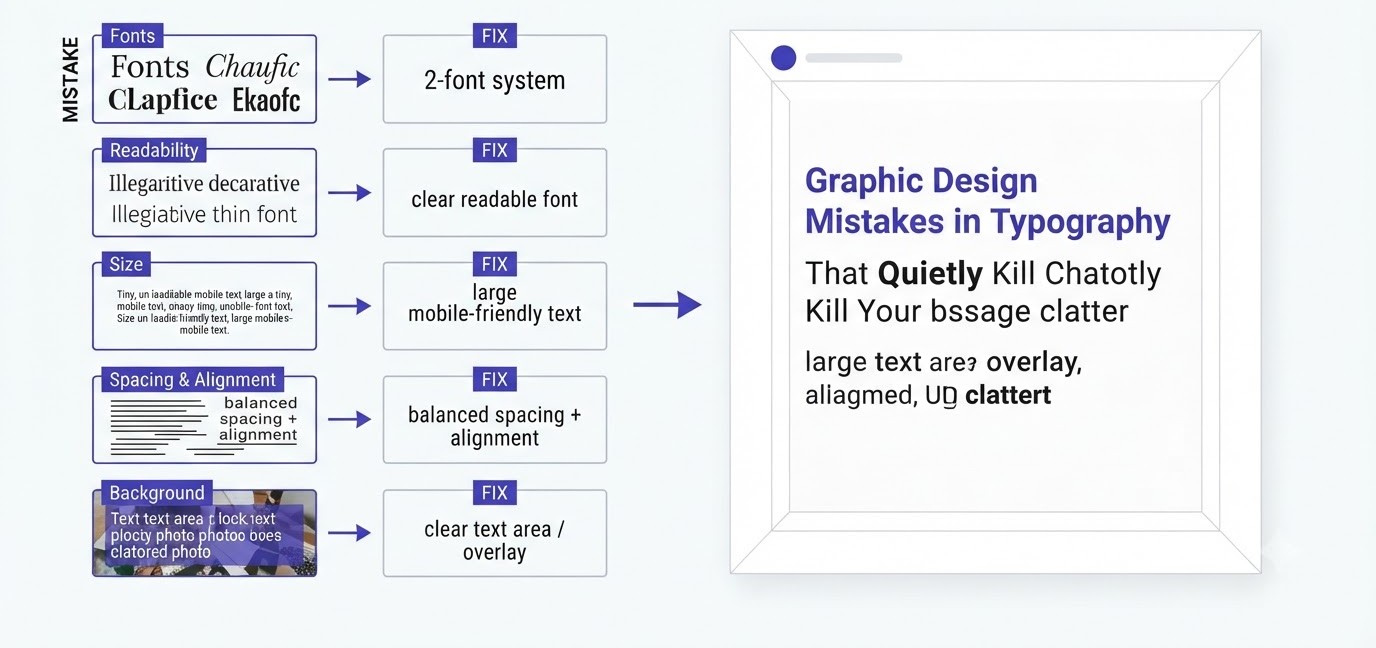
Typography is where most beginner work goes wrong first, because text looks easy. It isn’t. Font choice, size, spacing and alignment decide whether a headline gets read or scrolled past, and the errors here are subtle enough that the person who made the design often can’t see them.
Using Too Many Fonts in One Design
Every extra font adds noise. A flyer with a script headline, a bold sans subheading, a serif body and a rounded font for the price looks like four different companies fighting for space. The reader can’t tell what matters, so the eye bounces around and leaves.
The fix is dull but works. Pick two fonts, sometimes one family with several weights. A common pairing is Montserrat for headlines with Open Sans for body text, both free on Google Fonts. Use the bold weight for emphasis instead of a new typeface. If a design still feels flat, change the size or weight before you reach for another font. Most professional brand guidelines allow exactly two typefaces, and that restraint is a big reason their work looks calm and confident.
Choosing Fonts That Look Nice but Read Badly
Script fonts, ultra-thin weights and heavily decorated display fonts look great in a preview box. Put them on a phone screen at 1080 pixels wide, viewed for a second and a half, and they fall apart. Letters blur, thin strokes vanish against photos, and people simply skip the line.
Test readability the honest way. Export the design, open it on your phone, hold it at arm’s length and see whether the headline still reads. If you squint, change it. Reserve decorative fonts for a single short word, like a name or a tagline, never for offers, prices or calls to action. Comic Sans gets mocked for a reason, but Papyrus does just as much damage, ask anyone who remembers the Avatar movie logo jokes. Fancy is fine. Illegible is expensive.
Setting Text Too Small for Mobile
Most people see your creatives on a phone, yet plenty of designs get built on a 27-inch monitor where 16-pixel text looks huge. On a phone it’s a smudge. Small text is one of the fastest ways to lose an audience, especially on Instagram, where an image is shown at roughly 400 pixels wide on screen.
As a rough guide, body text on a 1080 by 1350 social post should sit around 36 to 44 pixels, and headlines at 80 pixels or above. Email body copy works well at 16 pixels minimum. Legal fine print is the one exception, but even that should be readable. If you find yourself shrinking text to make everything fit, the real problem is too much copy. Cut words instead of pixels.
Ignoring Line Spacing, Letter Spacing and Alignment
Default spacing in most tools is fine for body text and awful for headlines. Tight lines that collide, wide gaps between words, and text that’s centered across six lines all make reading harder without anyone knowing why. It just feels off.
A few habits fix most of it. Set line height to about 1.4 to 1.5 times the font size for paragraphs and closer to 1.1 for big headlines. Left-align anything longer than two lines, because centered paragraphs make the eye hunt for the start of each line. Add a little letter spacing to all-caps text, around 2 to 5 percent, since capital letters look cramped by default. In Canva, the Spacing button on the top toolbar controls both letter and line spacing, so there’s no excuse to leave it untouched.
Putting Text Straight on a Busy Photo
You have a great photo of a smiling customer and a headline to add. So the text goes right across her face and the shelves behind her. Now the words fight the background, and both lose. This is one of the most common graphic design mistakes in social ads and thumbnails.
Give the text somewhere calm to sit. Place it over an area of the image that’s plain, such as sky, a wall or a blurred background. If the photo is busy everywhere, add a semi-transparent dark overlay at about 40 to 60 percent opacity, or put the text in a solid block. YouTube thumbnails do this constantly for a reason: bold outlined text on a clear background still reads at 168 pixels wide in the sidebar.
Graphic Design Mistakes With Color, Contrast and Images
Color is the most emotional part of a design and also the easiest to get wrong. Images add another layer of risk because a blurry, stretched or generic photo can undo a good layout in an instant. This section covers the color and imagery errors that hurt marketing results most.
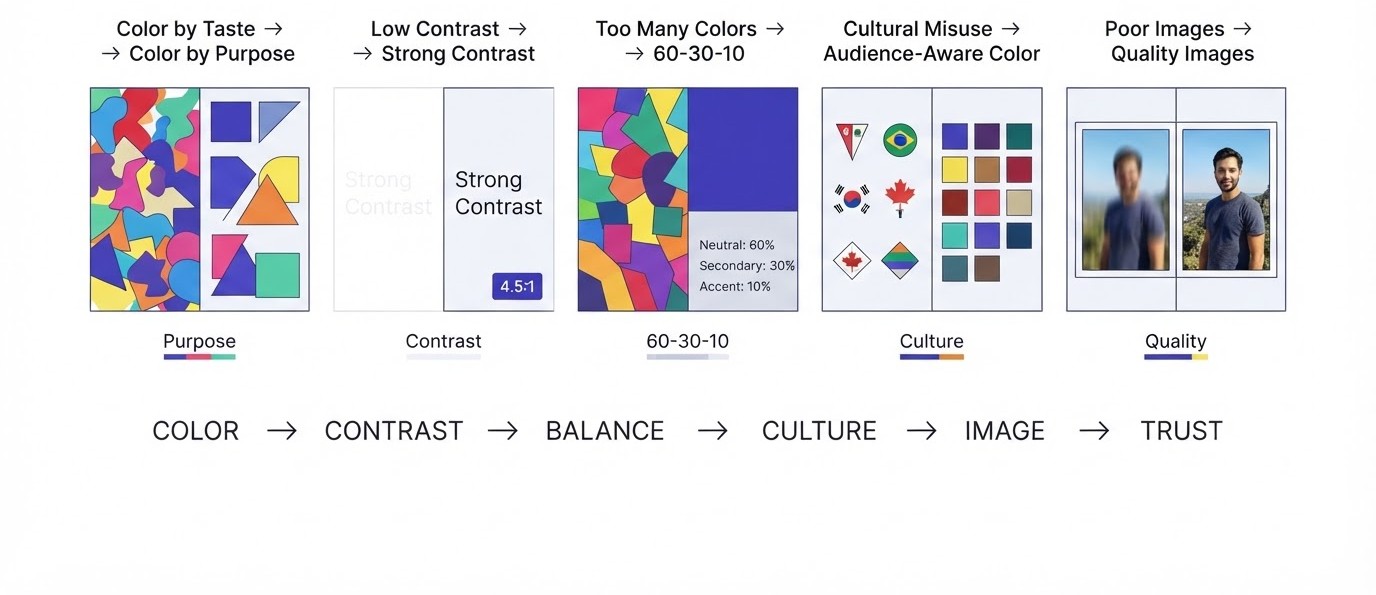
Picking Colors by Taste Instead of Purpose
Someone likes purple, so the whole brand goes purple. Someone else saw a teal and orange palette on Pinterest and copied it. Nobody asked what the colors need to do. Color choices made purely on taste tend to clash with the audience’s expectations and with each other.
Start with a job for each color. One primary color for the brand identity, one secondary for support, and one accent reserved for buttons and key actions. Finance and healthcare brands lean blue because it signals calm and trust. Food brands often use red and yellow because they push appetite and urgency. None of that is a rule, but breaking it should be a choice. Use Coolors or Adobe Color to build a palette, then lock it in a Canva Brand Kit so it never drifts.
Low Contrast Between Text and Background
Light gray text on white. Yellow text on a pastel banner. Dark blue text on a black photo. All of these look elegant on a big monitor and are unreadable outdoors on a phone at half brightness. Low contrast is also an accessibility failure, since millions of people have some form of color vision deficiency.
The accepted standard is the WCAG guideline: at least 4.5 to 1 contrast ratio for normal text and 3 to 1 for large text. You don’t need to calculate anything. Paste your two hex codes into WebAIM’s Contrast Checker and it tells you pass or fail in a second. A quick trick without any tool is to turn your design grayscale. If the text disappears, the contrast is too weak.
Using Too Many Colors at Once
A banner with five bright colors gives the eye no place to rest. Every element screams, so nothing stands out. This usually happens when a designer wants to make every part “pop”, and it ends up flattening the whole design.
Follow the 60-30-10 rule. About 60 percent of the space in your neutral base color, 30 percent in your secondary, and 10 percent in the accent. The accent should be the one thing you want the person to notice, usually the button. Amazon’s orange Add to Cart button on a mostly white and gray page is a good study. One loud color in a quiet space is how attention gets directed on purpose.
Ignoring What Colors Mean to Your Audience
Colors carry different meanings in different places. White signals purity and weddings in many Western markets, while in parts of East Asia it’s tied to mourning. Red means luck and celebration in India and China, but warning or loss in other contexts. A campaign running across countries can trip over this without anybody noticing until the comments roll in.
Do a quick check before a campaign goes wide. Look at what local competitors and popular brands use in the target region, and ask someone who lives there. For a campaign aimed at Indian festival shoppers, for example, saturated reds, oranges and golds feel natural around Diwali, while a cold gray and blue design can feel flat. Colors are cultural, so treat them like a language you might be speaking wrong.
Using Blurry, Stretched or Generic Stock Images
Pixelated photos look cheap, and people judge a brand in seconds. The usual causes are pulling a small image from Google and blowing it up, stretching a photo to fit a frame, or using the same stock handshake photo that every insurance site has used since 2010.
Keep your images at a resolution that fits the final size. A full-width website banner should be at least 1920 pixels wide, and an Instagram post about 1080 pixels. When resizing, always hold Shift or lock the aspect ratio so faces don’t squash. For sourcing, Unsplash and Pexels are free and better than most paid libraries, but real photos of your own product, team and customers beat any of them. People spot fake smiles quickly, and it costs trust.
Graphic Design Mistakes in Layout, Hierarchy and White Space
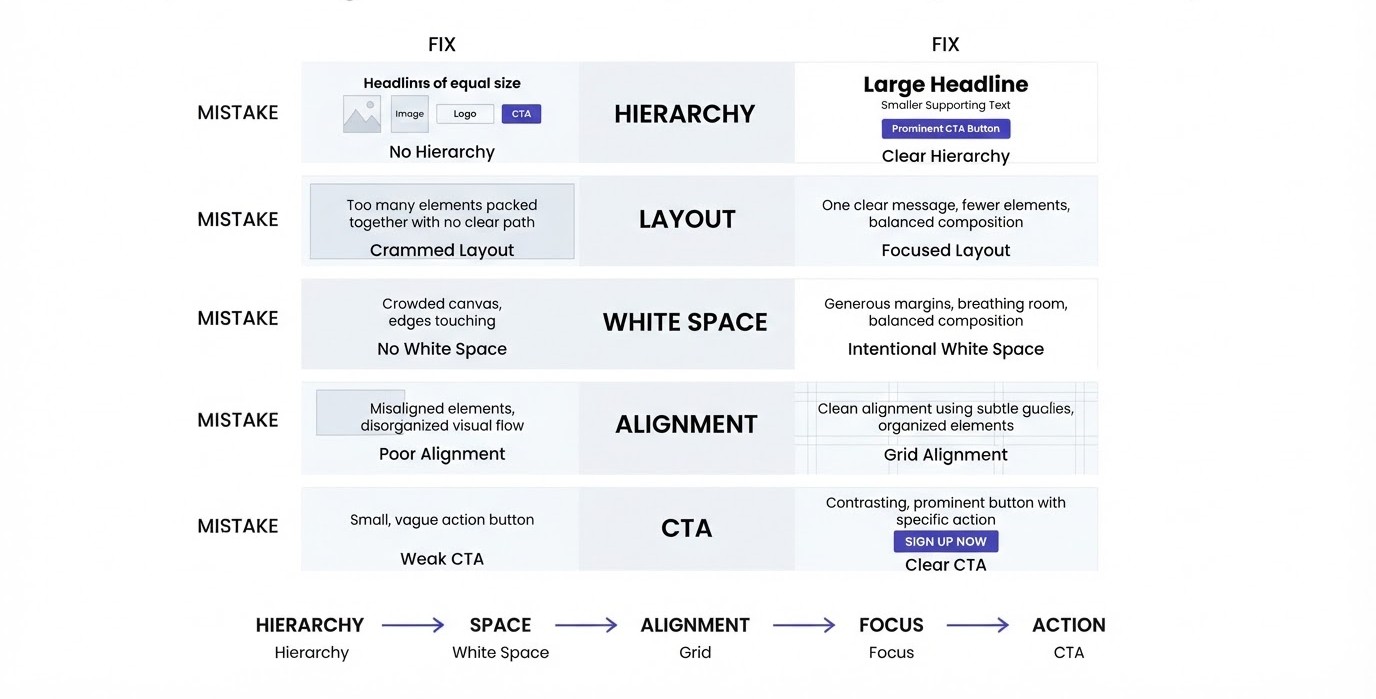
A good layout tells the viewer where to look first, second and third. Bad layouts do the opposite, and the viewer gives up. These graphic design mistakes are less visible than a wrong font, but they decide whether a design works or simply exists.
No Clear Visual Hierarchy
Visual hierarchy means arranging elements so the most important one gets noticed first. When headline, image, offer, logo and button are all the same size and weight, nothing leads. The viewer has to work out what matters, and most won’t bother.
Rank your elements before designing anything. Ask what the one thing is that a person must see, and make that the biggest or boldest. Then a second level, like the supporting line, and a third, like the small print. Size, weight, color and position all create hierarchy. A useful test is the squint test: blur your eyes at the design and see what still stands out. If the wrong thing survives, rebalance the sizes until the right one wins.
Cramming Everything Into One Space
There’s a habit among marketers to fill every inch. Ten bullet points, three offers, a QR code, four logos and a paragraph of text on one flyer. The thinking is that more information means more chances to convert. Reality goes the other way.
Every extra element makes each other element weaker. Pick one message per creative. If there are three offers, make three creatives. A 1080 by 1080 social post should hold a headline, a visual and maybe a short line, and that’s it. Landing pages can hold more, but each section still needs a single purpose. Apple’s product pages are famous for showing one idea per screen, and that discipline is a big part of why they feel so easy to read.
Fearing White Space
White space, sometimes called negative space, is the empty area around and between elements. It isn’t wasted room. It gives text room to breathe and guides the eye from one item to the next. Beginners often see empty space and think it needs filling.
Try the opposite. Increase the margins to at least 8 to 10 percent of the canvas width, and add space between the headline and the body text. Watch how the design suddenly looks more expensive. Luxury brands use enormous white space for this exact reason. On a landing page, adding 40 to 60 extra pixels of padding between sections often improves readability more than any font tweak. Empty space is a design element, and skilled designers use it deliberately.
Ignoring Alignment and Grid Systems
Elements placed by eye, a few pixels off from each other, create a sloppy feeling even when viewers can’t say why. A logo that sits 12 pixels left of the text below it, or buttons that aren’t centered under the headline, all add up to an unfinished look.
Use the tools already in your software. Canva and Figma both show pink or red smart guides when objects align. Turn on a grid or layout guides, for example a 12-column grid for web layouts or simple margin guides for social posts. Snap every element to those guides. Align to the left edge or the center consistently instead of mixing both. Clean alignment is invisible when it’s right, and glaringly obvious when it’s wrong.
Skipping a Clear Call to Action
A beautiful creative that doesn’t tell the viewer what to do next is just a pretty picture. Plenty of designs bury the action in tiny text at the bottom, or use vague words like “Click here” or “Learn more” that offer no reason to act.
Make the call to action a button-like shape with a contrasting color, place it where the eye naturally ends, and write it as a specific action: “Get my free checklist” beats “Submit” every time. Keep it to one primary action per design. If an email has five different buttons, clicks scatter and conversions drop. Test two versions, one with a bold orange button and one with a muted one, and the difference is usually obvious within a few hundred views.
Graphic Design Mistakes That Break Your Brand Across Channels
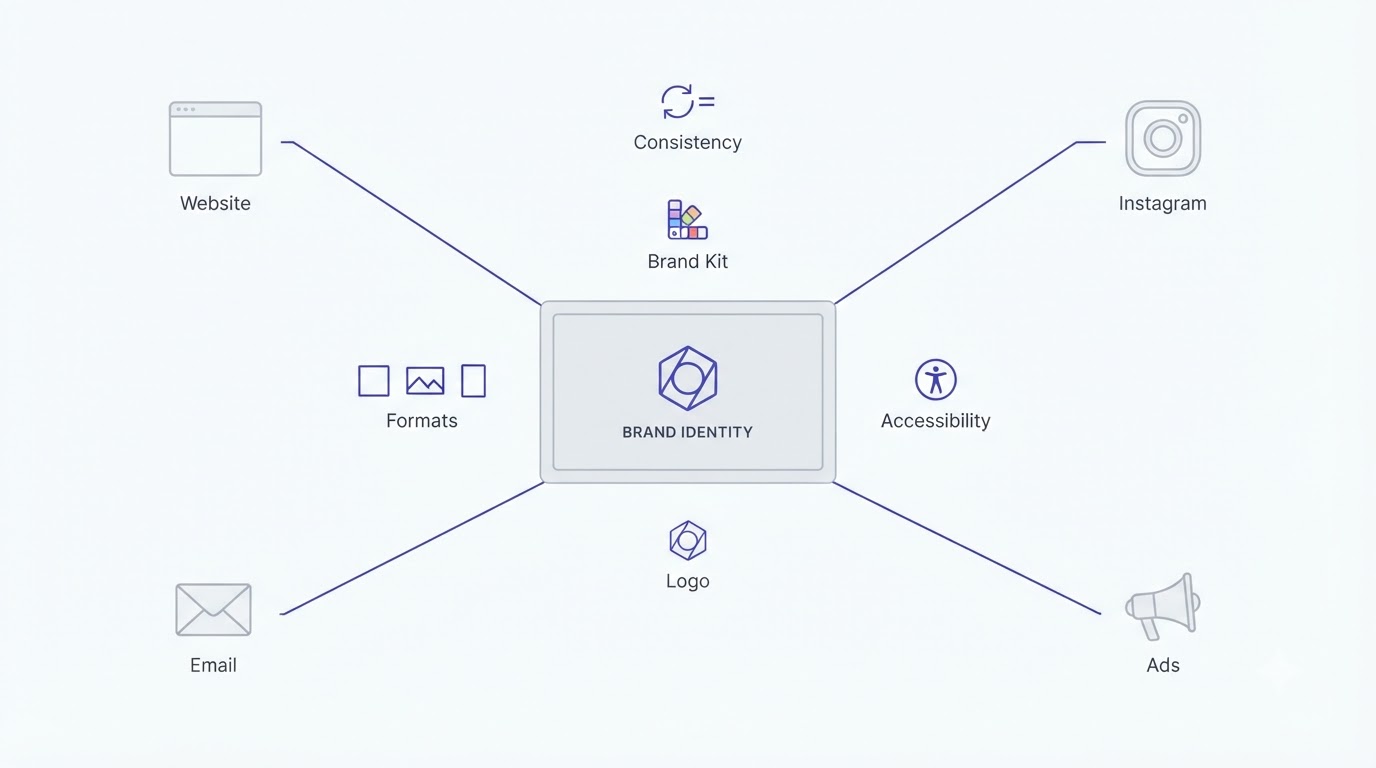
A brand is what people remember after they’ve scrolled away. When your Instagram, website, emails and ads each look slightly different, people don’t connect them to one company. These graphic design mistakes chip away at recognition and trust, and they usually creep in slowly over months.
Inconsistent Logos, Colors and Fonts Across Platforms
The logo on the website is a slightly different blue than the one on Instagram. The email header uses a font nobody recognizes. The LinkedIn banner still shows the brand from two years ago. Each piece is small, but together they tell customers the company is disorganized.
Build a simple brand kit and treat it as law. In Canva, the Brand Kit feature stores your logo files, exact hex color codes and fonts so every team member starts from the same place. In Figma, a shared library does the same job. Write down the hex codes, for example #1F3A5F for primary and #F26B21 for accent. Audit every profile and template every quarter and fix the ones that drifted. Consistent branding, according to a widely repeated Lucidpress study, can lift revenue by around 23 percent, though the exact number matters less than the pattern.
Stretching, Recoloring or Squeezing the Logo
Somebody needs the logo to fit a narrow banner, so they stretch it horizontally. Someone else recolors it to match a campaign. A third person places it on a photo where it disappears. All three are common, and all three damage recognition.
Never distort a logo. Scale it proportionally, with the aspect ratio locked. Ask your designer or brand owner for alternate versions: a horizontal lockup, a stacked version, an icon-only mark, and one-color versions in white and black. Give the logo clear space around it, often equal to the height of one letter from the logo itself. The Gap logo redesign in 2010 is a famous lesson in brand tampering. The new logo lasted about a week before the company reverted to the old one after a public backlash.
Following Trends That Don’t Fit the Brand
Gradients, glassmorphism, neon effects, 3D blobs, hand-drawn doodles. Every year a new style takes over social feeds, and marketers rush to copy it. The problem is that a trend used on the wrong brand looks forced, and it dates quickly.
Ask whether a trend serves the audience before adopting it. A law firm doesn’t need neon gradients, and a gaming brand doesn’t need a plain corporate look. Borrow ideas in small doses, such as one trendy element inside a stable brand style, and drop it easily when it fades. Tropicana’s 2009 carton redesign, which swapped the orange-with-a-straw image for a minimalist look, reportedly cost the brand around 30 million dollars in sales before it was reversed. People couldn’t recognize their own juice on the shelf.
Using the Wrong Sizes and Formats for Each Platform
A landscape image posted to Instagram gets cropped awkwardly. A square graphic on a website banner leaves empty gaps. A YouTube thumbnail with important text in the bottom right corner gets covered by the timestamp. Platforms each have their own dimensions and safe zones.
Keep a cheat sheet handy. Instagram feed posts work best at 1080 by 1350 pixels (4:5), Stories and Reels at 1080 by 1920, Facebook and LinkedIn link images around 1200 by 628, and YouTube thumbnails at 1280 by 720. Email headers should stay around 600 pixels wide so they render properly in Gmail and Outlook. Each platform changes specs now and then, so check before big campaigns. Anyone building social content regularly will find the graphic design resources on ADM useful for keeping formats straight.
Forgetting Accessibility in Brand Design
Accessibility gets treated as an extra, and that’s a mistake both ethically and commercially. Designs without alt text, videos without captions, and color-only signals such as red for error and green for success exclude a real part of your audience.
Small fixes go a long way. Add alt text to every image on your website and social posts, so screen readers can describe them. Use captions on video, which also helps the huge number of viewers who watch with sound off. Don’t rely on color alone to communicate meaning, add an icon or label. Keep text at readable sizes and contrast levels. These steps don’t cost much, and they widen your reach at the same time.
Graphic Design Mistakes in Process, Feedback and File Handling
Not every design problem is visual. A lot of them come from how the work gets requested, reviewed and delivered. Weak briefs, chaotic feedback and wrong file settings create graphic design mistakes that no amount of talent can fix, and they waste more time than any other kind.
Working Without a Clear Design Brief
“Make me a banner for the sale” is not a brief. The designer, whether a freelancer or your own team, has to guess the audience, the goal, the tone, the size and the offer. Guesses lead to revisions, and revisions lead to frustration on both sides.
Write a one-page brief every time. Include the goal (for example, 500 signups for a webinar), the audience, the single message, the mandatory elements like logo and legal lines, the sizes needed, the deadline and two or three reference examples the team likes. Add what to avoid too. A good brief takes 15 minutes to write and can save days of back-and-forth. It also protects the designer from vague reactions like “make it pop” that mean different things to different people.
Giving Vague or Conflicting Feedback
“Can you make it feel more premium?” “I don’t love it, try something else.” “My wife thinks the blue is weird.” Feedback like this is common, and it grinds projects to a halt because there’s nothing concrete to act on.
Give feedback about the problem, not the solution, and tie it to the goal. Say “the headline is hard to read on mobile, can we increase the size or contrast?” instead of “change the font.” Collect all comments from all stakeholders into one list before passing it on, so the designer doesn’t receive contradicting notes over three days. Limit rounds to two or three. Tools like Figma comments, Frame.io for video or even a simple shared Google Doc keep everything in one place.
Skipping Testing Before Launch
A design looks fine on the designer’s laptop and falls apart everywhere else. Text gets cut off in Gmail’s mobile app, colors look washed out on a cheap Android screen, and a button too close to the edge is hard to tap. Nobody sees it until the campaign is live.
Do a quick checklist before publishing. View the creative on at least one iPhone and one Android phone, in both light and dark mode. Send email tests through tools like Mailchimp Preview or Litmus. Check landing pages on Chrome, Safari and mobile at slow speeds. And run A/B tests on the real audience: two headlines or two button colors, with at least a few hundred views each, will tell you more than a week of debate.
Exporting the Wrong File Type or Resolution
A PNG that’s 8 megabytes slows down a landing page so much that visitors leave before it loads. A JPEG logo comes with a white box around it on a colored background. A print flyer built in RGB comes out dull because the printer uses CMYK. These are basic file mistakes, and they show up constantly.
Learn the basics. Use JPEG for photos, PNG for graphics needing transparency, SVG for logos and icons that must stay sharp at any size, and WebP where supported to keep web files light. Aim to keep web images under 200 kilobytes when you can, with a tool like TinyPNG or Squoosh. For print, work at 300 DPI and export in CMYK with bleed added, usually 3 mm. Also compress email images so mail loads quickly, since a heavy email is often what pushes readers to close it.
Relying Only on Templates and AI Tools
Canva templates and AI generators save time, and there’s nothing wrong with using them. The problem starts when the template becomes the whole strategy. Your competitor picked the same template, and now both brands look identical. AI images also bring odd hands, warped text and a generic shiny look that people are getting quicker at recognizing.
Use templates as a starting point, then adapt them fully: swap in brand colors and fonts, rewrite the copy, replace stock images with real ones. Always proofread AI-generated text inside images, since it often contains gibberish letters. Put a human eye on everything before it goes out. Marketers building their own creative workflow can also try the free tools at ADM to speed up sizing, checking and planning without depending on templates alone.
Conclusion
Most graphic design mistakes come down to the same few habits: too many fonts, too many colors, too much text, too little contrast and no plan. None of them need a design degree to fix. They need a bit of discipline and a willingness to look at your own work the way a stranger would, on a phone, in two seconds, without context.
Start small. Pick your last three creatives and check them against this guide. Are the fonts limited to two, does the text pass a contrast check, is there a single call to action? Fix what fails, save your colors and fonts in a Brand Kit, and write a brief before the next project. If structured learning would help more than trial and error, the Alpha Marketer Foundation Program covers design basics as part of a full digital marketing path.
Frequently Asked Questions
What are the most common graphic design mistakes marketers make?
The most common ones are using too many fonts, choosing low-contrast colors, filling the layout with too much text, ignoring visual hierarchy and using inconsistent branding across platforms. Blurry images and vague calls to action also appear constantly. These errors are easy to fix once you know to look for them, and most only need a few minutes of adjustment.
How many fonts should I use in a marketing design?
Two fonts is the safest number: one for headlines and one for body text. You can use different weights and sizes inside those two families to create variety. Adding a third font is only worth it for a very specific purpose, like a logo wordmark. More than three usually makes a design look messy and unprofessional.
What is the best color contrast ratio for text?
The WCAG accessibility guideline recommends at least 4.5 to 1 for normal text and 3 to 1 for large text, meaning roughly 18 points or 14 points bold and above. You can check any color pair for free with the WebAIM Contrast Checker. Meeting these numbers also makes your design easier to read for everyone, not just people with visual impairments.
Why does my Canva design look amateur even with a good template?
Usually it’s because of small details: unedited default fonts, inconsistent spacing, low-quality photos, too many colors or text placed on busy backgrounds. Templates give you structure, but they don’t fix weak choices. Lock in brand colors and fonts, add generous white space, use your own images and keep the message to one main idea.
Is white space really important in graphic design?
Yes. White space gives the eye a place to rest and helps people move from one element to the next. Crowded designs feel stressful and are harder to scan. Adding more margin and spacing around your headline, image and button usually makes a design look cleaner and more professional without changing anything else.
What size should social media images be in 2026?
For Instagram feed posts, 1080 by 1350 pixels (4:5) works best, while Stories and Reels use 1080 by 1920. Facebook and LinkedIn link images sit around 1200 by 628, and YouTube thumbnails use 1280 by 720. Platforms adjust their specs from time to time, so check the official help pages before a major campaign.
How do I keep my branding consistent across all platforms?
Create a brand kit with your logo versions, exact hex color codes, approved fonts and a few sample layouts. Store it in Canva Brand Kit or a shared Figma library so every team member uses the same assets. Review all profiles, templates and ad accounts every quarter to catch anything that drifted from the standard.
Can I use free stock photos for marketing?
Yes, sites like Unsplash and Pexels offer free images that can be used commercially under their licenses. Read the license terms for each platform, and avoid photos with recognizable brands or people if you need exclusivity. Because many brands use the same free photos, original images of your own product or team usually perform better.
What file format is best for logos and web graphics?
SVG is best for logos and icons because it stays sharp at any size and has a tiny file size. PNG works for graphics that need transparent backgrounds, and JPEG suits photographs. WebP offers smaller files for web use where browsers support it. For print, export a high-resolution PDF in CMYK instead.
How do I give better feedback to a designer?
Describe the problem and connect it to the goal, instead of dictating the fix. For example, say “the offer gets lost on mobile” rather than “make the text red.” Combine feedback from all stakeholders into one list, limit revision rounds and share a clear brief at the start. Specific notes save time and lead to better results.
Should marketers use AI tools for graphic design?
AI tools are useful for drafts, background removal, resizing and idea generation. They can also produce distorted details, garbled text and a generic look, so every output needs human review. Use them to speed up routine work, then apply your brand colors, fonts and judgment before publishing anything.
How do I test if my design is working?
Start with a squint test and a mobile preview to check hierarchy and readability. Then run A/B tests on real audiences, changing one element at a time, such as the headline, image or button color. Track click-through rate and conversions in Meta Ads Manager, Google Analytics or your email platform, and keep the version that performs better.