

You spent nine hours on the video. Scripting, shooting, cutting, fixing the audio. Then the thumbnail took four minutes: a paused frame, some white Arial text, done. The video got 212 views and you blamed the algorithm. It happens all the time, and it’s the reason “how to create YouTube thumbnails” keeps showing up in the search bars of new creators.
Look at it from the viewer’s side. Nobody sees your video first. They see a small rectangle next to a title, sitting between ten other rectangles, on a phone, while half-listening to someone talking in the next room. That rectangle has about a second to say “this one is for you.” If it doesn’t, they scroll, and your nine hours never get a chance.
YouTube has said in its Creator Insider updates that most channels land somewhere between 2 and 10 percent impression click-through rate. Do the math on a video shown to 10,000 people. At 3 percent, you get 300 clicks. At 7 percent, you get 700. Same video, same title, same topic, 400 extra viewers, and all of it came from one 1280 by 720 image. That’s why thumbnails deserve real effort.
This guide walks through how to create YouTube thumbnails from scratch, even if you’ve never opened Photoshop. You’ll see why people click in the first place, the exact step-by-step process, the design rules for faces, colors, and text, the tools worth using (a lot of them are free), and how to test and fix a thumbnail after it goes live. No design degree needed.
Quick warning before you start. Most thumbnail advice online is either “just make it pop” with zero explanation, or a 40-step Photoshop tutorial that only makes sense to designers. This guide sits in the middle. Every rule comes with a reason, and every step names the tool or setting, so you can copy it today. Expect about 30 minutes for your first thumbnail and under 15 once you’ve done a few.
What You Will Learn in This Guide
This guide is built so you can read it once and then actually use it. Each section gives you a rule, the reason it works, and a specific thing to do. Here is what you’ll walk away with after reading, so you know exactly what’s coming and can jump to the part you need most right now.
- Why people click some thumbnails and scroll past others
- How to create YouTube thumbnails step by step, from idea to upload
- The exact size, format and file limits YouTube expects
- How to use faces, emotion, color and contrast without overdoing it
- Which fonts and text rules keep a thumbnail readable on a phone
- The best free and paid tools, including Canva and Photopea
- How to read CTR in YouTube Studio and run Test & Compare
- The mistakes that quietly kill clicks, and how to fix them
How to Create YouTube Thumbnails Starts With Knowing Why People Click
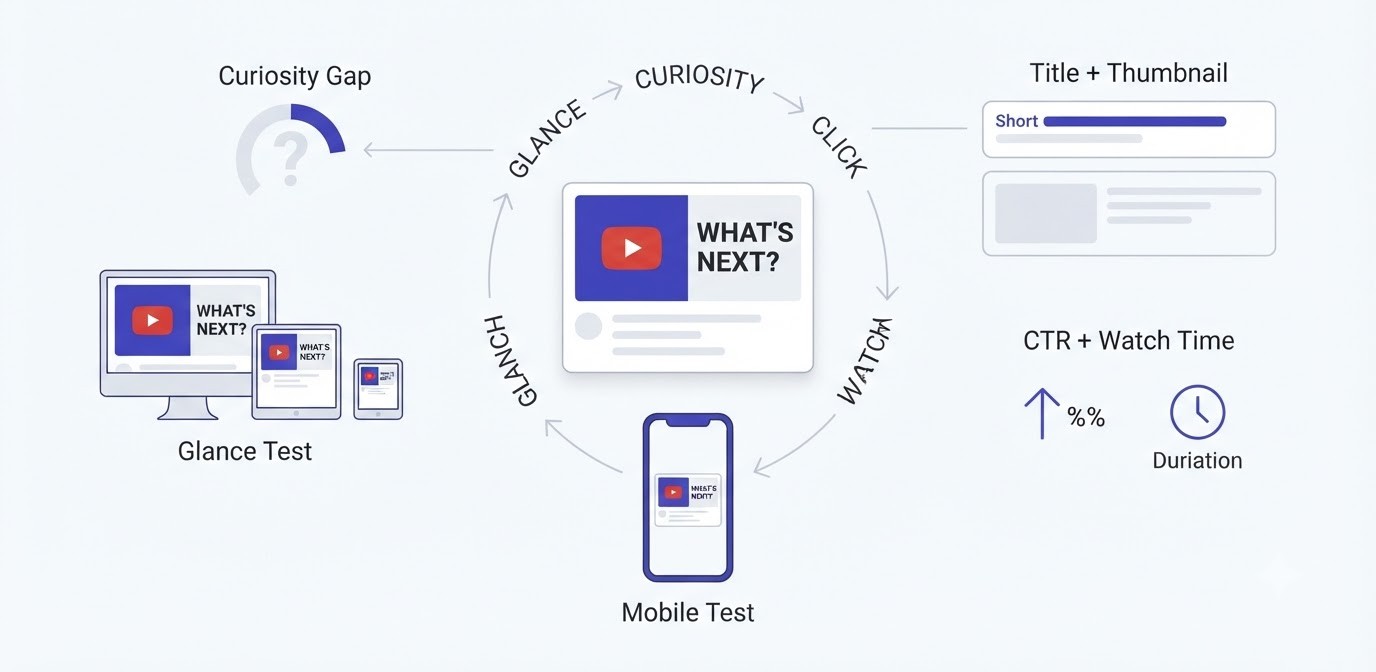
Before touching any tool, you need to understand what’s going on in a viewer’s head when they see your thumbnail. Design rules make sense only after that. This section covers the split-second decision, the curiosity gap, how the title fits in, what YouTube measures, and why phones change everything.
The Click Happens in Under a Second
Viewers don’t study thumbnails, they glance. Watch anyone scroll YouTube on a phone and you’ll see their thumb flick every second or two. In that flick, the brain picks up three things in order: a face or big shape, strong color contrast, and only then any text. If the first two don’t grab attention, the text never gets read.
That means a thumbnail has to pass what could be called the glance test. Shrink it down to the size of a postage stamp, or squint at it from arm’s length. Can you still tell what the image is about? If you can’t, neither can a stranger scrolling at speed.
The most common mistake here is cramming. A face, a logo, two products, a big arrow, a timer, and a sentence of text. Each extra element competes with the others, and none of them wins. Try this instead: show the thumbnail to a friend for exactly one second, then hide it and ask what they saw. If they can name one thing, you’re in good shape. If they shrug, cut elements until they can.
Curiosity Beats Explanation
A thumbnail is not a summary of your video. It’s a question the viewer can’t answer without clicking. Explaining everything in the image removes the reason to watch, which is why the strongest thumbnails show a gap between what the viewer sees and what they want to know.
Take a fitness video. A thumbnail reading “Full Leg Day Workout” with a guy holding a barbell tells the viewer everything, so there’s nothing to be curious about. Now picture the same video with a close-up of someone grimacing, a red circle around their knees, and the text “STOP SQUATTING WRONG”. Suddenly the viewer wonders whether they’re the one squatting wrong. That’s a curiosity gap.
Here’s the catch, and it matters. The video has to pay off the promise. If the thumbnail hints at a shocking result and the video never delivers, viewers leave in 20 seconds, and YouTube notices. A high click rate with terrible watch time is worse than a modest click rate with people who stay. Curiosity is the hook. Honesty keeps the viewer.
Your Thumbnail and Title Work as One Message
Most beginners write the title, then build a thumbnail that repeats it. Title says “How I Saved 10,000 Dollars in 6 Months” and the thumbnail says “SAVED 10,000 DOLLARS”. That wastes half your space. Viewers read both at once, so the two should split the job instead of saying the same thing.
A better split: the title carries the context and the thumbnail carries the emotion or the twist. Title: “I Quit My 9 to 5 to Do YouTube Full Time”. Thumbnail: a worried face and the single word “BROKE?” Together they tell a story neither tells alone.
Creators like MrBeast have said in interviews that the thumbnail idea gets decided before filming even starts, because if the concept can’t be shown in one image, the video probably isn’t clear enough either. Steal that habit. Before you record anything, write the title and sketch the thumbnail on paper. If the two don’t fit together in about a minute of sketching, fix the idea now, not after 9 hours of editing.
What YouTube Actually Reads: CTR and Watch Time
Two numbers matter here. Impression click-through rate (CTR) is the percentage of people who clicked after seeing your thumbnail. Average view duration is how long they watched after clicking. YouTube tests a new video on a small group first. If people click and stay, it shows the video to more people. If they don’t, distribution stalls.
To see your own CTR, open YouTube Studio, go to Analytics, then the Reach tab, and look at Impressions click-through rate. Compare it to your channel’s usual number, not to some viral creator’s. A 4 percent CTR might be great for a finance channel and weak for a gaming channel.
The important thing is the relationship between the two. High CTR with high watch time means your packaging and content both work. High CTR with low watch time means the thumbnail over-promised. Low CTR with strong watch time means the video is good and the thumbnail is hiding it. That last case is the most fixable, and it’s why thumbnail work pays off so well on videos that already perform for the people who find them.
The Mobile Reality Check
Most YouTube viewing happens on phones, and on a phone feed a thumbnail is often smaller than a matchbox. In the suggested videos column on desktop, it shrinks to roughly 170 pixels wide. Design at full size on a big monitor and everything looks great. View it at real size and the text turns into gray smudge.
So build with the smallest version in mind. Every element should still read at 200 pixels wide. In Canva, zoom out until the canvas is tiny. In Photoshop, set the view to 25 percent. Or export a test file and send it to your own phone.
Small text is the number one thing that fails this test, closely followed by thin details like fine lines, small logos and busy backgrounds. A rough rule: if you can’t read the text while holding your phone at arm’s length, make it bigger or cut words. Fixing this one habit will improve your thumbnails more than any fancy effect.
How to Create YouTube Thumbnails Step by Step: From Idea to Upload
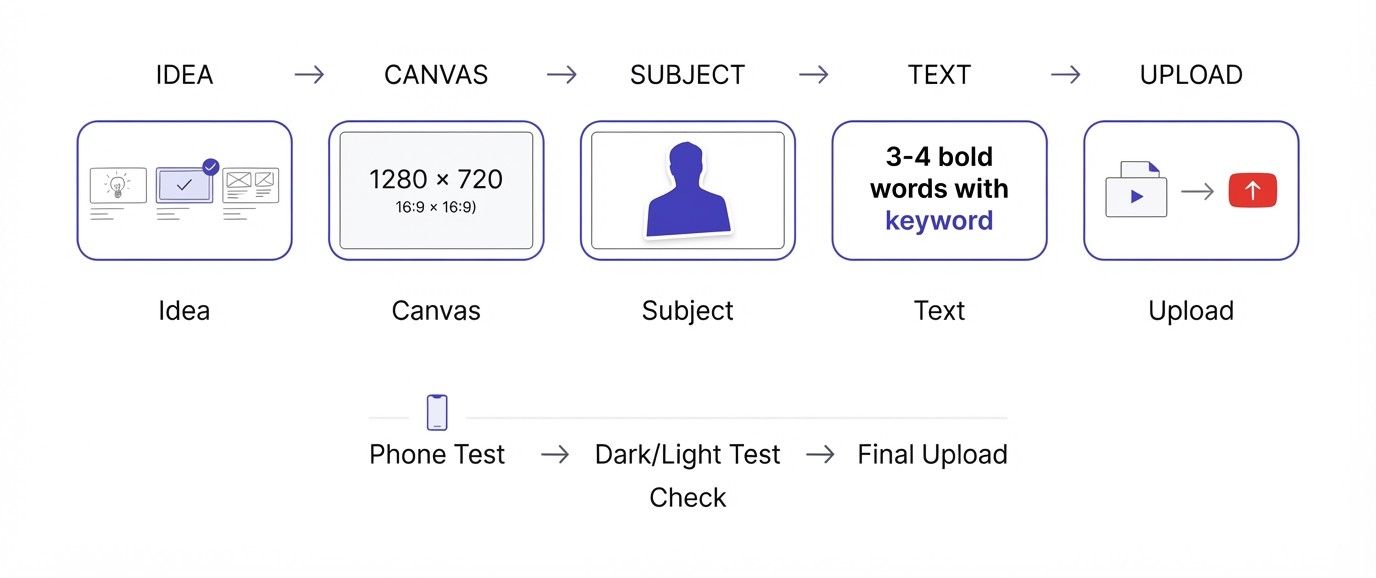
This is the practical part. Follow these five steps in order and you’ll finish with a thumbnail that’s correctly sized, cleanly built, and ready to publish. Each step explains what to do, why it matters, and the mistake people usually make at that point.
Step 1: Decide the One Promise Your Video Makes
Start with a single sentence: “This video shows the viewer ___.” If you can’t finish it in ten words, the thumbnail will be confusing too. Examples: “how to edit a video in CapCut in 10 minutes”, “why my sourdough never rises”, “what happened when I ran every day for 30 days.”
Next, sketch three rough thumbnails on paper or a notes app, one minute each. Stick figures are fine. Try one with a face and emotion, one with an object or before and after, and one with a bold question. Sketching is faster than opening Canva and staring at a blank canvas, and it kills bad ideas before they cost you time.
Pick the sketch that a stranger would understand fastest. Most people pick the prettiest one, which is a mistake. The clearest one wins. Once chosen, write down the three to four words of text and the main image you’ll need, whether that’s a photo of you, a product shot, or a screenshot. Now you have a plan and can build in minutes.
Step 2: Set Up Your Canvas at 1280 x 720
YouTube’s recommended thumbnail size is 1280 by 720 pixels, a 16:9 ratio, with a minimum width of 640 pixels. The file must be under 2 MB and in JPG, PNG or GIF format. Get any of that wrong and the image gets cropped, blurry or rejected.
In Canva, choose Create a design, then Custom size, and type 1280 and 720 pixels. Canva also has a YouTube Thumbnail preset that uses the same dimensions. In Photoshop, go to File, New, and set 1280 x 720 pixels, 72 ppi, RGB color. In Photopea, it’s the same File, New menu.
One more thing to check before designing: your channel must be verified to upload custom thumbnails. If YouTube says the feature isn’t available, go to youtube.com/verify and confirm your phone number. It takes two minutes. Also drop guides or a rough grid on your canvas, marking the bottom-right corner where the video timestamp will sit, so you don’t put anything important there. That tiny setup habit saves you from redoing work later.
Step 3: Build Around One Subject
Every strong thumbnail has one obvious subject. Usually that’s a face. Sometimes it’s a product, an object, or a striking before and after. Put your subject on the left or right third of the frame, not dead center, and use the other side for a supporting element or text.
If you’re using yourself, shoot a fresh photo instead of pausing the video. Paused frames usually have motion blur and awkward mid-blink expressions. Stand near a window, face the light, and put your phone at eye level. Take at least ten shots with big, slightly exaggerated expressions: surprised, worried, confident, confused.
Then cut the subject out from the background. In Canva, the Background Remover (a Pro feature) does it in one click. In Photoshop, use Select Subject and refine the edge. In Photopea, the Magic Wand and Quick Selection tools work. Drop the cutout onto a simple background, such as a blurred version of the scene or a solid gradient. Busy backgrounds fight your subject, so keep them calm.
Step 4: Add Text That Adds Something New
Now the words. Keep them to three or four words, five at the very most. Text should add information the image doesn’t already give, like a twist, a number, or a question. “STOP DOING THIS” works. “How to Edit Video Faster in 2026” doesn’t, because that’s a title, and titles already sit right below.
Use a heavy, bold font. Anton, Bebas Neue and Montserrat ExtraBold are free Google Fonts and all read well when small. Set the letters big enough that the capital letters are at least 100 pixels tall on a 1280 x 720 canvas. Add an outline of 6 to 10 pixels and a soft shadow so text stays readable on any background.
Highlight one word with a different color, the key word, so the eye lands there first. Keep the text away from the bottom-right corner, since the timestamp covers it. And read it out loud. If it sounds like something a person would actually say to a friend, it’s probably good. If it sounds like a slogan, rewrite it.
Step 5: Export, Check and Upload Correctly
Export as JPG for most thumbnails, because file sizes stay small. Use PNG only if you need sharp text edges and the file stays under 2 MB. In Canva, click Share, Download, pick JPG, and check the file size afterward. If it’s over 2 MB, lower the quality slightly or re-export as JPG.
Before uploading, run three checks. First, shrink it to phone size and confirm you can read everything. Second, view it on both a white background and a dark one, since YouTube has light and dark modes and pale edges vanish on white. Third, ask someone else what they think the video is about.
To upload, open YouTube Studio, click Content, choose your video, and under Thumbnail click Upload file. Then look at the video on your own phone in the YouTube app, in the feed, next to other videos. Comparing yours against real competitors in a real feed tells you more than staring at the file on your editing screen ever will.
How to Create YouTube Thumbnails That Stand Out: Faces, Colors, Fonts and Layout
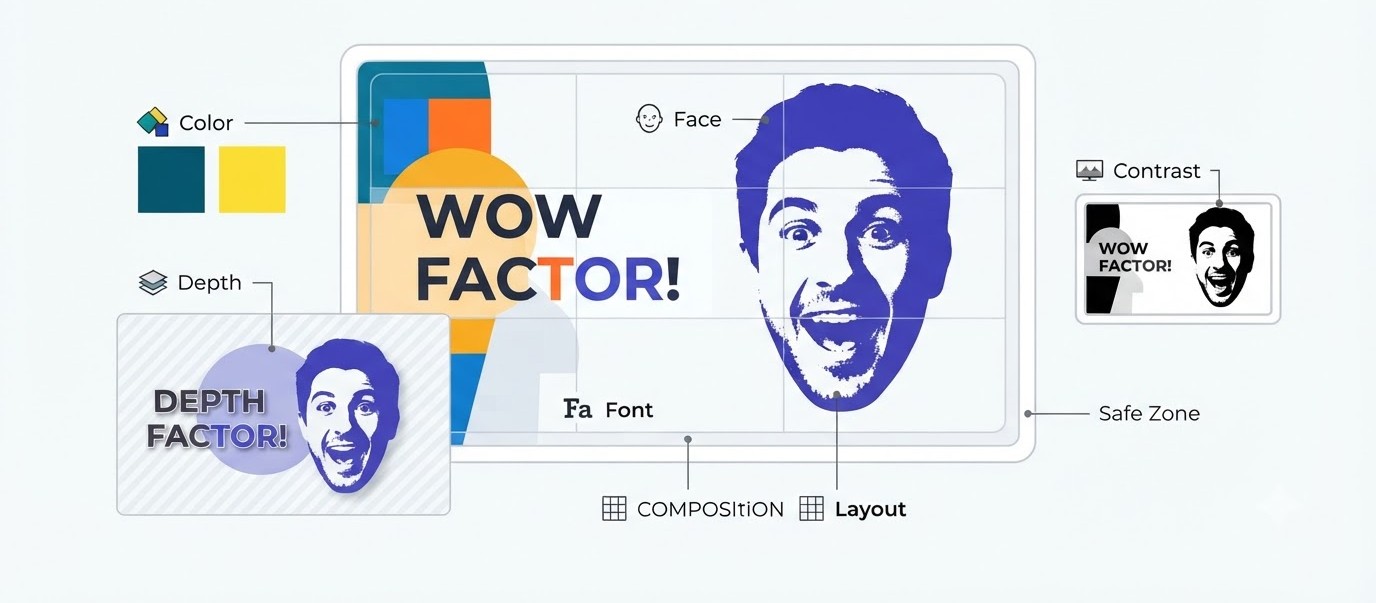
Knowing the steps gets you a finished thumbnail. Knowing the design rules makes it a good one. These five areas, faces, color, fonts, composition and depth, cover almost everything that separates a thumbnail people click from one they scroll past without noticing.
Faces and Emotion
Faces work because humans are wired to notice them. A close-up with a clear emotion gets attention faster than almost any object. The trick is making the emotion readable at a tiny size, which means exaggerating it about 30 percent beyond what feels natural. Eyes wide, mouth open, eyebrows up or clearly furrowed.
Crop tight. The face should take up roughly a third of the frame or more, not a small figure standing in the corner. Show both eyes clearly, so skip sunglasses unless they’re part of the joke. If the person in the image looks at an object or at the text, the viewer’s eyes tend to follow, which is a cheap way to steer attention.
Not every video needs a face, though. Marques Brownlee’s thumbnails usually feature a clean shot of the product, with almost nothing else, and it works because his audience clicks for the product. If your channel is about products, tools, or software, a strong object shot can beat a face. Use faces when emotion, opinion or personality sells the video. Skip them when the item itself is the star.
Color and Contrast
Color is the fastest way to stand out in a feed that’s mostly white or near black. Pick two or three colors, not six. Bright, saturated tones grab attention, and complementary pairs like blue and orange, yellow and purple, or red and teal create natural contrast that pops at small sizes.
Watch out for colors that blend into YouTube itself. White and light gray edges disappear on light mode. Very dark thumbnails vanish in dark mode. A thin colored border or a slightly brighter background at the edges helps the image hold its shape either way.
Here’s a simple check: turn the thumbnail black and white. In Canva, drop the saturation to zero in Adjust. In Photoshop, use Image, Adjustments, Desaturate. If the subject and text still separate clearly from the background in grayscale, the contrast is solid. If everything melts into gray, fix your brightness differences before touching color. Finally, nudge saturation and contrast up 10 to 20 percent on your photo. More than that and skin starts looking orange and fake.
Fonts and Text Placement
Stick to one font, two at the very most. Thick sans-serif fonts win on thumbnails: Anton, Bebas Neue, Montserrat ExtraBold, or the old classic Impact. Thin or decorative fonts look elegant on a poster and unreadable on a phone feed.
Use all caps for short phrases, tight line spacing, and text placed on a calm part of the image. If the background is busy behind the words, add a dark shape or blur behind them, or increase the outline width. Text should never fight a face for the same spot. Put words on one side and the subject on the other.
Color the text with intent. White with a black outline is safe and readable on almost anything. Yellow works well on dark or blue backgrounds. One word in a contrasting color, say the word “NEVER” in red inside a white sentence, gives the eye a landing spot. Avoid gradients on text, glows that muddy the edges, and any text smaller than what you can read at arm’s length. When in doubt, cut a word and make the rest bigger.
Composition and Safe Zones
Good composition means the viewer’s eye knows where to go. Use the rule of thirds: imagine the frame split into a 3 x 3 grid and place your subject on one of the vertical lines. Leave breathing room around it. A thumbnail with one strong focal point and some empty space looks more confident than one filled edge to edge.
Know the safe zones. The video timestamp sits in the bottom-right corner and covers roughly the last 15 percent of the width and height. On desktop, hovering over a thumbnail shows small Watch Later and Add to Queue icons in the top-right corner. Keep text and key details out of both spots.
Layouts that work over and over include a face on one side with an object or text on the other, a split screen showing before and after, a close-up of a single object with a circle or arrow pointing at the interesting part, and a simple versus layout for comparisons. Arrows and circles work because they say “look here” without words. Use one, not five.
Background Cleanup and Depth
Flat thumbnails look amateur. Depth comes from layers: a background, a mid-layer such as a prop or shape, the main subject, then text on top. Blur the background slightly so the subject pops forward. A dark vignette around the edges pulls the eye toward the middle.
Add a thin outline around your cutout subject, usually white and 8 to 12 pixels wide. It separates the person from the background cleanly and makes the image look deliberate. In Canva, use the Edit Image panel and add an outline or shadow. In Photoshop, right-click the layer, choose Blending Options, then Stroke.
Clean up clutter too. Remove distracting objects behind you, trim messy hair edges from cutouts, and fix harsh color casts. And don’t over-edit. Glows on everything, fake lens flares, and stacked effects make a thumbnail look noisy. If you can tell a lot of effects are on it, there are probably too many. The goal is clean and punchy, not busy.
Best Tools for How to Create YouTube Thumbnails (Free and Paid Options)
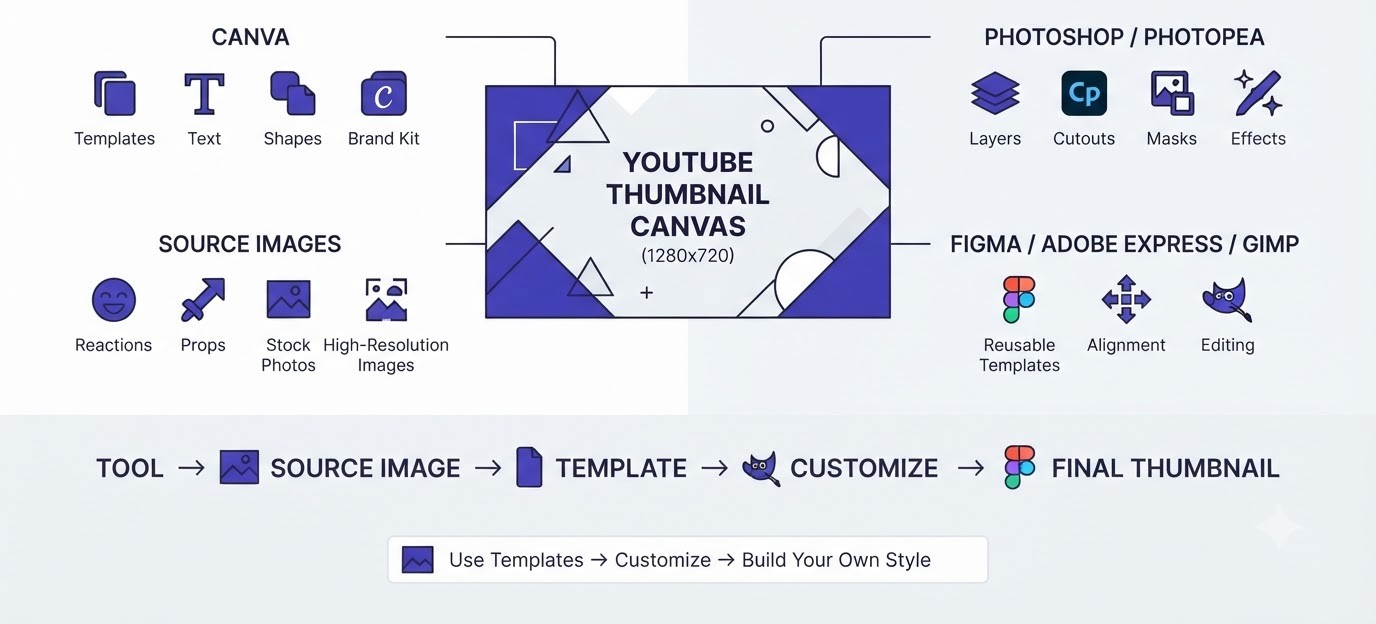
You don’t need expensive software. Thumbnails are simple images, and free tools handle them fine. Here are the tools worth knowing, where each one shines, and how to get good source images so even a basic tool gives professional-looking results.
Canva: The Easiest Place to Start
Canva is where most beginners should start. It runs in a browser, has a YouTube Thumbnail preset at 1280 x 720, and includes thousands of templates. The free plan covers most needs: text, shapes, uploads, basic effects and downloads in JPG or PNG.
Paid Canva Pro adds the one-click Background Remover, Brand Kit, and Magic Resize. The Brand Kit is worth setting up early. Save your two main colors, one accent, and your chosen font, so every thumbnail uses the same palette without any thinking. If you want to build stronger design instincts beyond thumbnails, the graphic design basics covering hierarchy, color and layout carry over directly to this.
The one trap with Canva is leaning on templates too heavily. Popular templates get used by thousands of creators, and viewers start to notice. Treat a template as a rough layout, then change the colors, swap the arrangement, and adjust the text. Ten minutes of tweaking makes it yours.
Photoshop and Photopea
Photoshop is the professional standard and worth it if you plan to make lots of thumbnails. Its Select Subject and Object Selection tools cut out people fast, and layers give you full control over glow, shadow, color grading and fine detail. It runs on a monthly subscription.
Photopea is a free browser-based editor that looks and works a lot like Photoshop. It even opens PSD files. For most creators, it handles cutouts, layers, text, strokes and exports perfectly well. If you’re not sure you’ll stick with thumbnails, start here and pay for nothing.
The learning curve is steeper than Canva, since layers, masks and blending modes take a few sessions to click. Honestly, though, basic layering is a skill worth having. Once you understand how to stack a background, a subject and text, and mask an edge, you can fix problems Canva can’t. Spend one afternoon following a beginner tutorial and you’ll save hours over the next year.
Figma, Adobe Express and Other Options
Figma has a generous free plan and works well for thumbnails, especially if you like precise alignment, reusable components and templates you can duplicate in seconds. It’s popular with creators who batch-produce thumbnails, because one master file can spin out dozens of variants.
Adobe Express is a Canva-style tool with a free tier, decent templates, and access to some Adobe fonts. GIMP is a free desktop editor with Photoshop-style features. On a phone, apps like Snapseed help polish a photo before it goes into a bigger design.
AI features can help with small jobs, like Photoshop’s Generative Fill for extending a background or removing a stray object. Be careful using AI for faces or anything that needs to look real, since viewers spot uncanny results quickly and it can hurt trust. If you’re comparing what’s out there, the design and creator tools collection is a good place to browse. Pick one tool, stick with it for a month, and get fast before hopping to another.
Getting Good Source Images
The best editing tool can’t fix a bad photo. If you use your own face, shoot a dedicated photo. Stand facing a window, use a plain wall behind you, and wear a solid color that contrasts with your background. Shoot ten or more expressions in one sitting. Save the best five in a folder called “reactions” so you can reuse them.
If you pull a frame from your video, export it from your editing timeline at full resolution instead of screenshotting. Choose a moment with no motion blur, open eyes, and clean expression. Even so, a dedicated photo nearly always looks sharper.
For props and objects, photograph them yourself against a plain background. Stock sites like Pexels and Unsplash are free, but the photos feel generic and thousands of other thumbnails might use them. Never grab random images from Google, since copyright claims on YouTube are real. And skip blurry, upscaled pictures. Anything under about 800 pixels wide will look soft once stretched, so check resolution before you commit to it.
Templates: Use Them, But Make Your Own
A template saves time, but a template you build yourself saves even more. Once a thumbnail style works for your channel, save it as a master file. Keep the same font, the same text placement, and a consistent color scheme. Returning viewers start recognizing your videos in the feed before reading a single word.
Marques Brownlee is a good example. His covers share a clean, minimal look, so regular viewers know a new video is his at a glance. That kind of consistency is a big advantage over time, and it works on any platform. The same logic drives a consistent look across your social media content, where a recognizable style builds trust faster than random experimenting.
Don’t get stuck in a rut though. Keep two or three template layouts and rotate them, so the feed doesn’t get stale. And change things when the topic changes. A serious video about money mistakes shouldn’t wear the same goofy expression as a funny reaction video. The template gives you speed. You still have to think about each video.
How to Create YouTube Thumbnails That Keep Getting Better: Testing, Fixes and Mistakes
A thumbnail isn’t done when you upload it. The best creators check results, test versions and adjust. This section covers reading your numbers, using YouTube’s Test & Compare feature, deciding when to change an old thumbnail, the mistakes to avoid, and how to build a routine that improves your work.
Reading Your Thumbnail Numbers in YouTube Studio
Open YouTube Studio, click Analytics, choose a single video, and go to the Reach tab. You’ll see impressions, impression click-through rate, and where people found the video. Compare the CTR to your channel average and to your recent videos in the same format, not to a random number from a forum.
Give the numbers time. In the first few hours, CTR is usually high because YouTube shows the video to your most loyal viewers first. As it reaches wider, colder audiences, CTR naturally drops. Judging a thumbnail after 200 impressions is guesswork. Wait until you have at least a couple of thousand impressions, or at least 48 hours, before making a call.
Also look at the traffic source. CTR from your subscribers on the Browse features is often much higher than CTR from Suggested videos, where strangers see your thumbnail next to competitors. A thumbnail can perform well with fans and flop with strangers. If your CTR is fine on Browse but weak on Suggested, the image likely isn’t clear enough for people who don’t know you.
Using Test & Compare in YouTube Studio
YouTube has a built-in feature called Test & Compare. It lets you upload up to three thumbnails for one video, and YouTube shows each version to a share of viewers. It’s found in the thumbnail area of your video details in YouTube Studio on desktop, though menus move around, so check YouTube’s help page if it looks different.
One detail surprises people: the winner is picked by watch time share, not just clicks. That’s actually good. It rewards thumbnails that bring in viewers who stay, which pushes you toward honest packaging. Tests can take a few days up to two weeks, depending on your traffic, and results are weaker on small channels with few impressions.
To get useful results, change something meaningful between versions. Test a face against no face, a different color scheme, or three words against one word. Don’t test two nearly identical images, because the difference will be noise. If you want another option, paid extensions like TubeBuddy offer A/B testing too. Either way, run one test at a time and write down what you learned.
When to Change an Old Thumbnail
Don’t change thumbnails on impulse. Use the pattern in your numbers. If average view duration is strong but CTR is low, the video is good and the packaging is hiding it. That’s the best candidate for a new thumbnail. If CTR is high but viewers leave fast, the thumbnail over-promises, and swapping it for a more honest one might lower CTR but raise watch time.
Picture a channel with a cooking video getting 2.1 percent CTR and 60 percent average retention. Great video, weak click rate. Swap the plain thumbnail of a finished dish for a tight close-up of the dish with the text “NO OVEN” in bold yellow. If CTR rises to 4 percent over the next two weeks, that single image change doubled the number of viewers.
Change one thing at a time so you know what caused the difference. Give each version at least a few days. Don’t swap on videos that are already climbing, since interrupting momentum can backfire. And keep a record of old versions in a folder so you can go back if the new one performs worse. That folder becomes a personal library of what your audience responds to.
Common Thumbnail Mistakes to Avoid
Too much text is mistake number one. Anything past four or five words gets ignored on mobile. Right behind it is low contrast: gray text on a gray background, or a subject that blends into the scene. Fix both by cutting words and using outlines or dark shapes behind text.
Tiny faces come next. A small person in the corner of a wide shot gives the eye nothing to lock onto. Crop tight. After that comes clutter, where five things fight for attention, and misleading images, where the thumbnail promises something the video never shows. Misleading thumbnails can spike CTR once, then damage your watch time and trust for every video after.
A few quieter problems: ignoring the timestamp corner, using blurry or stretched images, changing your style every video so nobody recognizes you, and copying a competitor’s thumbnail almost exactly. Borrow the principles, like big face, short text and contrast, but never the layout. Also, over-editing kills more thumbnails than under-editing. Heavy glows, extra saturation, and stacked effects look loud rather than good. When a thumbnail feels almost done, remove one thing instead of adding one.
Build a Swipe File and a Repeatable Routine
The fastest way to improve is studying thumbnails that work. Create a folder, call it a swipe file, and save any thumbnail that made you click. Aim for 50. Then look for patterns: where the face sits, how many words appear, which colors show up, how much empty space there is. You’ll see the same choices repeating.
For your own niche, search YouTube for your topic and sort by view count, then look at which videos got far more views than the channel’s usual. Those outliers often owe part of their success to their packaging. Study the thumbnails, then apply the principles to your own images without copying them.
Then turn it into a routine. Before filming, write the title and sketch three thumbnail ideas. After filming, shoot a fresh photo. Build the thumbnail in 15 minutes, check it at phone size, upload it, and review CTR after 48 hours. That loop is the same mindset behind any digital marketing work: make something, measure it, adjust, repeat. Creators who do this steadily beat talented creators who guess.
Conclusion
Knowing how to create YouTube thumbnails comes down to a few habits: one clear subject, a face with real emotion when it fits, short bold text, strong contrast, and a check at phone size before you publish. None of it needs expensive software. Canva or Photopea plus a decent phone photo is enough to beat most of what’s in your feed.
Here is your action for today. Open your last video, the one that underperformed but had decent watch time, and build three new thumbnails for it using the steps above. Upload them to Test & Compare and check the result in a week. That single experiment will teach you more than another hour of reading.
Frequently Asked Questions
What size should a YouTube thumbnail be?
The recommended size is 1280 x 720 pixels with a 16:9 aspect ratio. The minimum width is 640 pixels, and the file must be under 2 MB. YouTube accepts JPG, PNG and GIF files. Designing at exactly this size keeps the image sharp and stops YouTube from cropping it awkwardly.
How do I create YouTube thumbnails for free?
Use Canva’s free plan or Photopea, which runs in your browser. In Canva, choose the YouTube Thumbnail template, upload a photo, add bold text, and download as JPG. Google Fonts like Anton and Bebas Neue are free too. You can make a professional-looking thumbnail without paying for anything.
Do I need Photoshop to make good thumbnails?
No. Photoshop offers more control, but Canva, Photopea and Figma handle everything most creators need, including cutouts, text, outlines and exports. Design skill matters more than software. A clear idea, strong contrast and readable text in Canva will beat a messy Photoshop file every time.
Should I put my face in every thumbnail?
Not necessarily. Faces work well when emotion, opinion or personality drives the video. For tutorials, product reviews or software videos, a clean shot of the product or screen can perform better. Test both on your own channel, since audiences in different niches respond differently.
How many words should a YouTube thumbnail have?
Three to four words is the sweet spot, and five is the practical maximum. Anything longer becomes unreadable on a phone. The text should add something the title doesn’t already say, such as a question, a number or a twist, rather than repeating the title.
What is a good CTR for YouTube thumbnails?
YouTube has said most channels see impression click-through rates between about 2 and 10 percent. What counts as good depends on your niche, your audience size and where the impressions come from. Compare each video to your own channel average, and remember that CTR usually falls as a video reaches broader audiences.
Can I change a thumbnail after the video is published?
Yes, at any time. Go to YouTube Studio, open Content, select the video and upload a new thumbnail. Changing it is a smart move when watch time is strong but CTR is weak. Wait for enough impressions before deciding, and change one element at a time so you know what worked.
What is YouTube’s Test & Compare feature?
Test & Compare lets you upload up to three thumbnails for one video and shows each to a share of viewers. YouTube picks the winner based on watch time share rather than clicks alone. It works best on videos with steady traffic, and tests can take from a few days to about two weeks.
Why can’t I upload a custom thumbnail?
Custom thumbnails require a verified YouTube account. Go to youtube.com/verify and confirm your phone number, and the option normally unlocks quickly. If it still doesn’t appear, check that your channel has no active policy strikes, since those can limit features.
Should thumbnails be JPG or PNG?
JPG is the safer choice for most thumbnails because the files stay small and easily fit under the 2 MB limit. PNG keeps text edges slightly sharper but often creates larger files. If your PNG is over 2 MB, export it as JPG at high quality instead.
Is a clickbait thumbnail always bad?
Curiosity is good. Deception is not. A thumbnail that raises a real question the video answers is smart packaging. One that promises something the video never delivers hurts watch time, and YouTube’s system notices when viewers leave quickly. The rule is simple: make the thumbnail exciting, then make the video deliver.
What are the best fonts for YouTube thumbnails?
Heavy sans-serif fonts read best at small sizes. Anton, Bebas Neue, Montserrat ExtraBold and Impact are all popular choices, and the first three are free on Google Fonts. Stick to one font, use all caps for short phrases, and add an outline or shadow so the text stays readable on any background.
How do thumbnails for YouTube Shorts work?
Shorts are mostly discovered in a vertical feed, where the video itself plays automatically, so the thumbnail matters less than for long videos. It still shows on your channel page and in some search results. Choose a clear frame or upload a custom image if the option is available in your Studio.
How long should it take to make a thumbnail?
Your first one might take 30 to 45 minutes, and that’s normal. With a saved template, a folder of reaction photos and a clear idea, most creators get it down to 10 to 15 minutes. Spending the time before you open the design tool, on the concept and sketch, is what speeds everything up.