


I still remember the first time I opened Google Keyword Planner and had absolutely no idea what I was looking at. Rows of numbers, a column labeled “Competition,” a “Bid” range that made no sense for someone who wasn’t even running ads yet. I closed the tab, went back to guessing keywords out of thin air, and wrote three blog posts that got maybe forty visitors combined in a month. That’s the honest starting point for most people, and if that’s you right now, good, you’re in the right place.
Here’s the thing about Google Keyword Planner: it’s free, it’s built by Google itself, and it’s still one of the most underused tools in a beginner’s toolkit. Most people either skip it because it looks intimidating, or they open it once, get confused by the vague search volume ranges, and never come back. Both reactions are understandable. The interface hasn’t changed much in years, and Google built it primarily for advertisers, not content writers or SEOs, so a lot of what you see on screen needs translating before it’s actually useful.
This guide is that translation. I’m going to walk you through Google Keyword Planner the way I wish someone had walked me through it when I started, not with vague advice like “just find good keywords,” but with the actual clicks, the actual filters, and the actual judgment calls you need to make once the data is in front of you. By the end, you’ll know how to set the tool up, pull keyword ideas that match what people are actually searching for, read the metrics without getting misled by them, and avoid the mistakes that waste beginners weeks of effort.
And look, I get why people avoid it. There are prettier tools out there with cleaner dashboards and one-click difficulty scores that spit out a neat number telling you exactly how hard a keyword is to rank for. Google Keyword Planner doesn’t hold your hand like that. It gives you raw data and expects you to know what to do with it, which is honestly closer to how real keyword research works anyway. The polished tools are built on top of assumptions and modeling. This one comes straight from the source, ranges and all, and once you know how to read it, that raw quality becomes an advantage instead of a wall you have to climb over.
What You Will Learn in This Guide
- How Google Keyword Planner actually works and why its data looks different from tools like Ahrefs or Semrush
- The exact steps to set up free access without spending a rupee on ads
- How to pull keyword ideas using seed words and competitor URLs
- How to read search volume ranges, competition scores, and bid data without being misled by them
- The specific mistakes that make beginners waste weeks chasing the wrong keywords
- When Google Keyword Planner is the right tool and when you genuinely need something else
One more thing before we get into it. I’m not going to tell you Google Keyword Planner is the only tool you’ll ever need, because that wouldn’t be honest. What I am going to tell you is that if you skip understanding this tool properly and jump straight to a paid alternative, you’ll misread that paid tool’s data too, because the underlying concepts, search intent, volume ranges, competition signals, are the same across every keyword tool on the market. Learn them here first, on the free version, and everything else you touch later gets easier.
What Is Google Keyword Planner and Why Marketers Still Use It
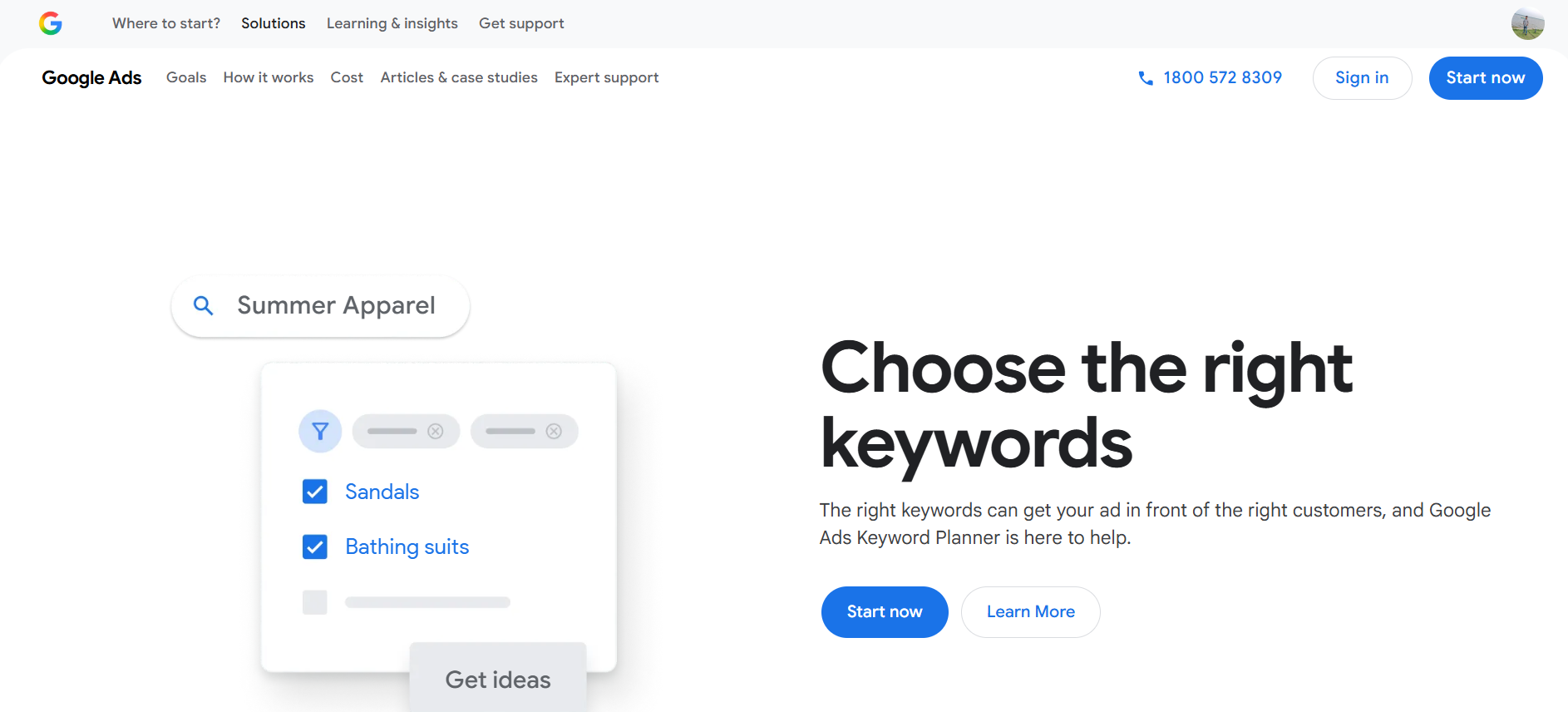
Google Keyword Planner is a free keyword research tool built into Google Ads that shows you what people type into Google, roughly how often they type it, and how competitive that term is for advertisers bidding on it. It was designed for people running paid search campaigns, but content writers, SEOs, and students learning digital marketing use it constantly because the data comes straight from Google’s own search index, not a third-party estimate.
That last part matters more than it sounds like it does. Every other keyword tool on the market, the big-name ones you’ve probably heard of, builds its search volume numbers by scraping and modeling data from various sources and then estimating what Google’s actual numbers might be. Google Keyword Planner doesn’t estimate. It pulls from the same system that decides what ad to show you when you search “best running shoes under 3000.” That’s a meaningfully different level of accuracy, even if Google intentionally makes the free version a little blurry around the edges.
When I train new hires at Tattvam Media, this is always the first tool I put in front of them, before any paid subscription, before any fancy dashboard. Not because it’s the most powerful tool available, it isn’t, but because understanding where keyword data actually comes from changes how you interpret every other tool you’ll use after it. Once you’ve sat with Google’s own numbers and seen how they behave, you stop treating any keyword tool’s output as gospel and start treating it as one input among several, which is honestly the mindset shift that separates people who do keyword research well from people who just copy numbers into a spreadsheet.
What Google Keyword Planner Actually Does Inside Google Ads
Functionally, the tool does two things: it generates keyword ideas from a seed word, a phrase, or a website URL you give it, and it forecasts performance data for keywords you already have in mind. The first function is called “Discover new keywords,” and it’s what most beginners use it for. You type in something like “protein powder,” and Google spits back hundreds of related terms people search alongside or instead of your seed phrase.
The second function, “Get search volume and forecasts,” is for when you already have a list of keywords, maybe from a competitor’s blog, maybe from your own brainstorming, and you want Google’s actual data attached to each one instead of a guess. I use this one constantly when a client hands me a spreadsheet of “keywords we think matter” and I need to separate the ones worth writing about from the ones nobody is actually searching for.
Both functions live inside the same dashboard, and switching between them takes one click once you know where to look. The confusing part for beginners isn’t finding these features, it’s understanding what the numbers next to each keyword actually mean, which I’ll get into properly in a later section because it deserves more than a passing mention.
Here’s a small example to make this concrete. Say you’re planning a blog around home workout equipment. Feed “resistance bands” into “Discover new keywords” and you’ll get back a mix of terms: some clearly informational like “how to use resistance bands,” some transactional like “buy resistance bands set online,” and some comparison-driven like “resistance bands vs dumbbells.” That single seed word branches into an entire content calendar’s worth of angles, and you’d never brainstorm that full spread sitting at your desk guessing on your own. That’s really the whole value of the discovery function, it surfaces the phrasing real people use, not the phrasing that sounds natural to you as the person writing about the topic.
Why Google Keyword Planner Data Looks Different From Other Tools
If you’ve ever run the same keyword through Google Keyword Planner and a paid tool side by side, you’ve probably noticed the numbers don’t match. Sometimes they’re close. Sometimes they’re wildly different. This trips up almost every beginner, and honestly a lot of working professionals too, because it looks like one tool is “wrong.”
Neither tool is wrong exactly, they’re just measuring and rounding differently. Google Keyword Planner groups search volume into wide ranges, something like “1K to 10K,” instead of giving you a precise number, unless you’re actively spending a meaningful amount on ads in your account. That range can hide a keyword that gets 1,200 searches a month right next to one that gets 9,800, and treat them as identical on the surface. Third-party tools give you a specific number, but that number is a statistical estimate, not a direct pull from Google’s system, so it comes with its own margin of error in the other direction.
My honest take: I use Google Keyword Planner to validate whether a keyword has real demand at all, and I use a paid tool when I need to rank and prioritize a long list of keywords against each other. Neither one alone tells the full story. If you’re a student or a small business owner and a paid subscription isn’t in the budget yet, Keyword Planner alone is still enough to build a solid content plan, you just need to interpret the ranges with some judgment instead of taking them as gospel.
I’ve had this exact conversation with junior writers on my team more times than I can count. Someone pulls up a keyword in two tools, sees “2,900” in one and “1K to 10K” in the other, and asks which one to trust. My answer is always the same: trust the direction, not the decimal point. If both tools agree the keyword has meaningful search demand and isn’t a ghost term nobody actually searches, that’s the signal that matters. Arguing over whether the real number is 2,900 or 4,100 rarely changes what you’d actually do with that keyword.
Who Should Be Using Google Keyword Planner
Three types of people end up in this tool regularly, and each one uses it slightly differently. Advertisers use it to build out ad groups and estimate what a campaign will cost before they spend a single rupee, which is genuinely its original purpose. SEOs and content writers use it to find topics worth writing about and to understand how people phrase their questions, even though the tool wasn’t built with organic search in mind. Students learning digital marketing use it because it’s free, it’s from Google directly, and understanding it is basically a prerequisite for any serious SEO or PPC role.
If you fall into the second or third group, you’ll notice the tool occasionally nudges you toward “high value” or “high volume” keywords that happen to be expensive for advertisers to bid on. That’s not a coincidence, Google built this for ad spend, not content strategy, so keep that bias in mind as you go through the rest of this guide. It doesn’t make the tool useless for organic work, it just means you need to filter its suggestions through your own judgment about search intent, something we’ll cover properly a bit further down.
Small business owners specifically tend to underuse this tool because they assume it’s only for people already running ad campaigns. Nope, that’s not true at all. Even if you never spend a single rupee on Google Ads, sitting down with Keyword Planner for thirty minutes before you write your website copy or plan your first few blog posts will tell you more about how your actual customers search than any amount of guessing based on how you’d phrase it yourself. I’ve had shop owners tell me they were writing “affordable tailoring services,” when Keyword Planner showed their local customers were actually searching “cheap tailor near me” in far higher volume. Small wording differences like that change what shows up in search entirely.
[Screenshot: Google Ads Keyword Planner homepage showing the “Discover new keywords” and “Get search volume and forecasts” options]
How to Set Up Google Keyword Planner Step by Step
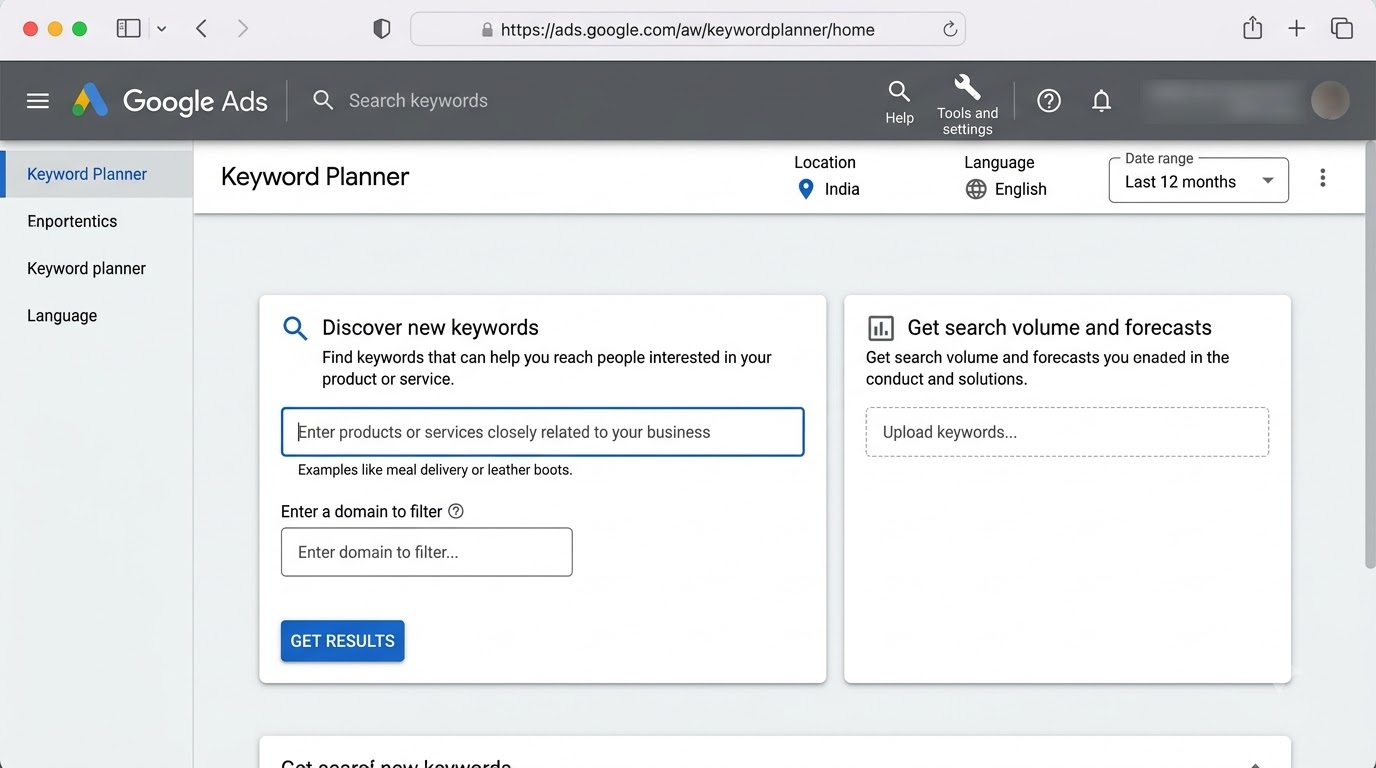
Getting into Google Keyword Planner without accidentally launching a live ad campaign trips up almost everyone the first time. Google’s onboarding flow nudges you toward “creating a campaign,” and it’s easy to click through screens without realizing you’re one step away from putting a card on file and spending money you didn’t mean to spend. Here’s the actual path to free access.
Creating a Free Google Ads Account Without Running Ads
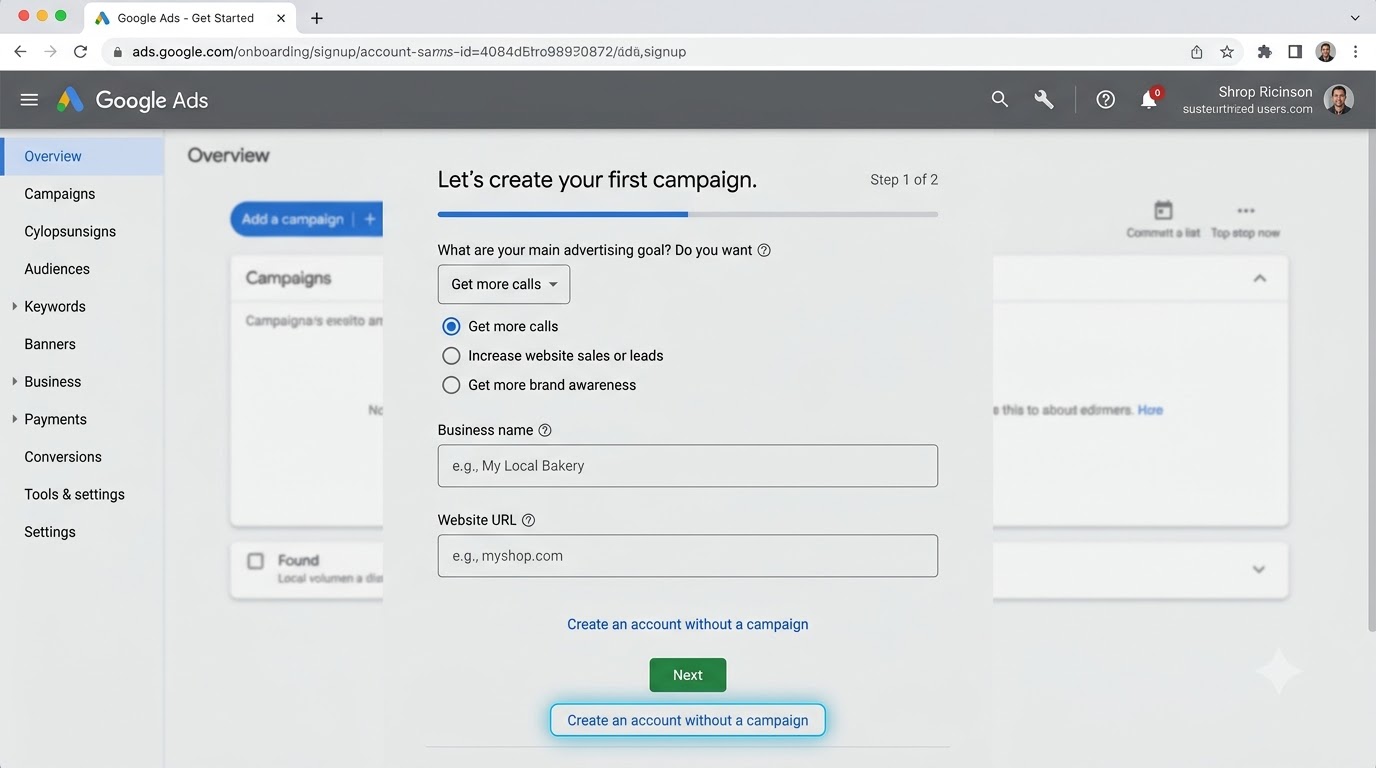
Go to ads.google.com and click “Start now.” Google will walk you through a setup wizard that assumes you want to launch a campaign immediately, complete with a suggested daily budget and a payment method screen. Do not fill in the campaign details it prompts you for. Instead, look for a small link, usually phrased as “Switch to Expert Mode” or “Create an account without a campaign,” tucked below the main flow. Google moves this link around during redesigns, so if you don’t see it immediately, look near the bottom of the campaign creation screen rather than assuming it’s gone.
Once you’re in Expert Mode, you can skip past the campaign setup entirely and land directly in your Google Ads dashboard with zero ads running and zero money spent. This is the account state you want. You’ll still need to add basic business information, your name, your business or personal details, and a time zone, but none of that requires a payment method until you actually decide to run a campaign later. The mistake most beginners make here is rushing through screens and accidentally confirming a campaign launch because the “skip” option wasn’t obvious. Read each screen before clicking next, it takes an extra thirty seconds and saves you an awkward refund request.
I’ve personally walked three different students through this exact flow after they messaged me confused about why Google was asking for a card number when they “just wanted to check keywords.” Every single time, it turned out they’d clicked straight through the default campaign wizard instead of hunting for the Expert Mode link. It’s a small UI detail, but it trips up enough beginners that I think Google could label it more clearly. Until they do, just know the link exists, usually as plain text rather than a button, so it’s easy to miss if you’re scrolling fast.
Finding Google Keyword Planner Inside the Google Ads Dashboard
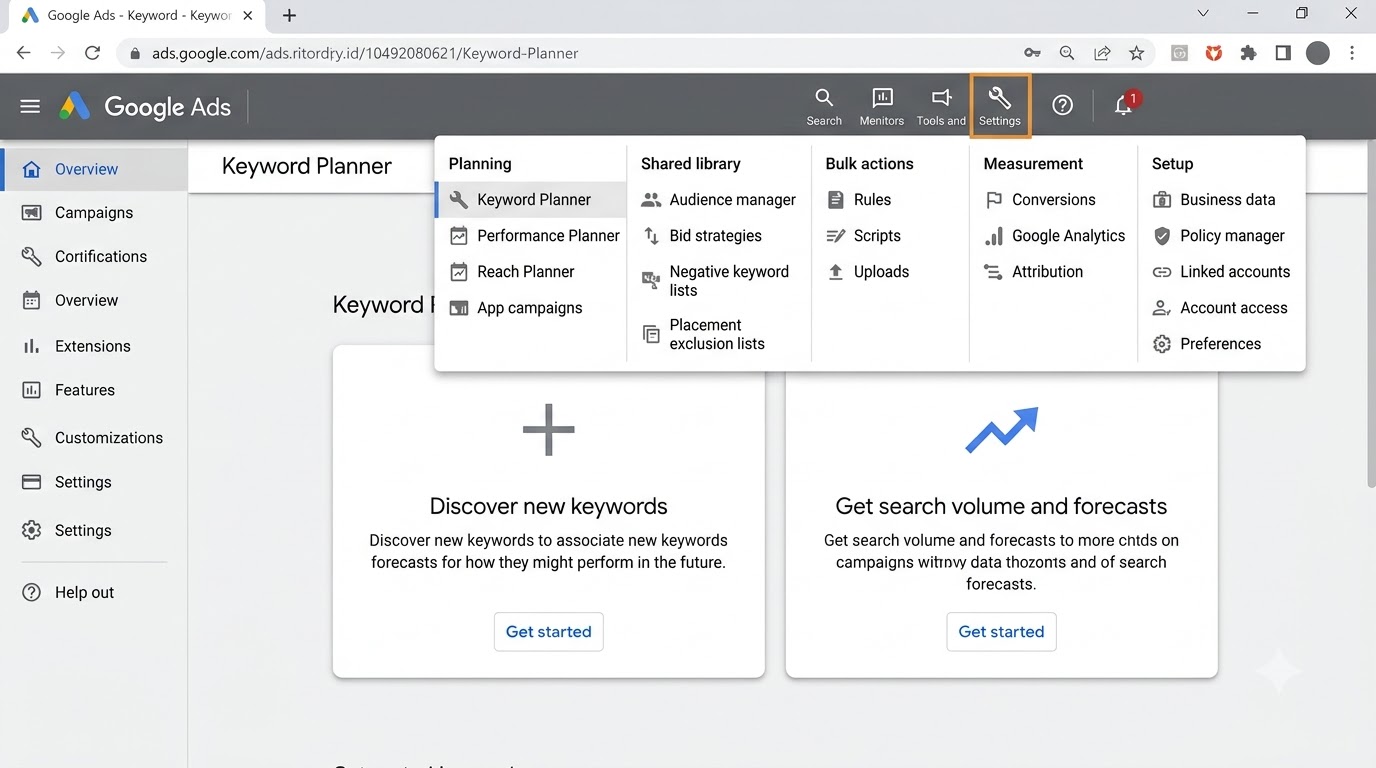
Once you’re inside your account, click the wrench icon in the top right corner, labeled “Tools and Settings.” Under the “Planning” column, you’ll see “Keyword Planner” listed as its own tool. Click it, and you’ll land on a screen with exactly two options: “Discover new keywords” and “Get search volume and forecasts.” That’s the entire tool, at its core. Everything else you do inside Keyword Planner branches off from one of those two starting points.
I’d recommend bookmarking this exact page once you find it, because Google occasionally reshuffles menu items during interface updates, and hunting for the tool every single time you want to use it wastes time you don’t need to waste. If the wrench icon isn’t visible, your account might still be mid-setup, go back and finish the business information step before trying again.
One thing worth knowing upfront: the interface you land on will look slightly different depending on whether Google has rolled out its newer Google Ads layout to your account yet. Some accounts still show the older side navigation with “Tools” listed as a menu item rather than a wrench icon. Don’t panic if what you see doesn’t match a screenshot from a two-year-old tutorial exactly, the underlying features haven’t changed, just the visual wrapper around them. Look for the words “Keyword Planner” specifically, that label has stayed consistent across every redesign I’ve seen so far.
Setting Your Location, Language, and Date Range Filters
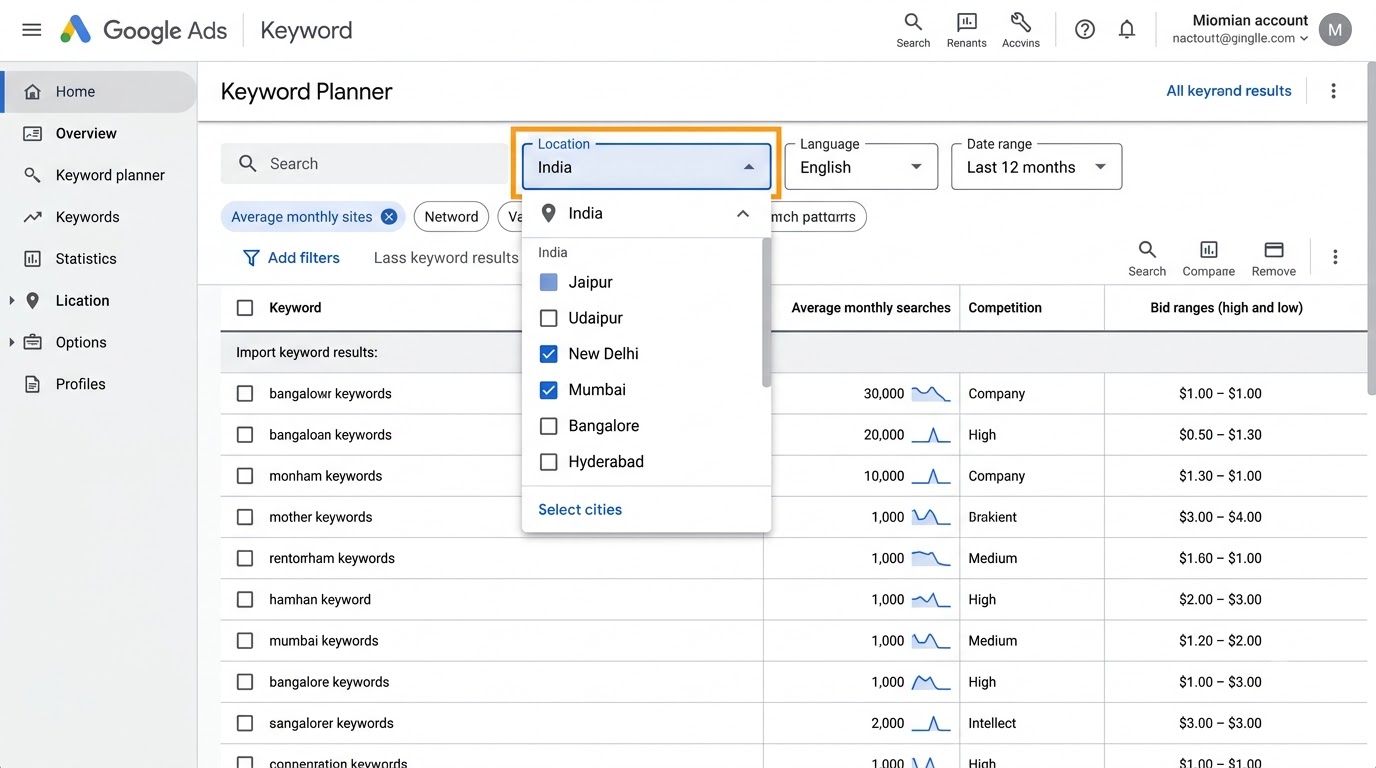
This is the step beginners skip most often, and it’s the one that quietly ruins their data. By default, Google Keyword Planner often shows results for the United States and English, regardless of who your actual audience is. If you’re writing for an Indian audience, or targeting a specific city, and you don’t change these filters, you’ll get search volume numbers that mean almost nothing for your actual market.
Click the location filter near the top of the results screen and set it to your target country, or narrow it down to a specific state or city if your business serves a local audience. Do the same with the language filter, set it to match the language your audience actually searches in, not just the language you’re writing in. There’s also a date range filter that defaults to the last twelve months, which is fine for most evergreen topics, but worth adjusting if you’re researching something seasonal, like exam results or festival shopping trends, where you’d want to see the same period across multiple years to spot a real pattern instead of a one-off spike.
I once reviewed a content plan built entirely on default US, English settings for a client selling handicrafts to buyers in Jaipur and Udaipur. Every keyword number in that plan was inflated and slightly off in phrasing, because the research was pulling global English search patterns instead of the specific regional behavior of the actual target buyers. We redid the entire research pass after switching the location filter to the correct cities, and honestly, half the “high volume” keywords from the first pass barely registered once the filter was corrected. That one setting change is small to click but massive in what it does to your data’s accuracy.
How to Use Google Keyword Planner to Discover New Keyword Ideas
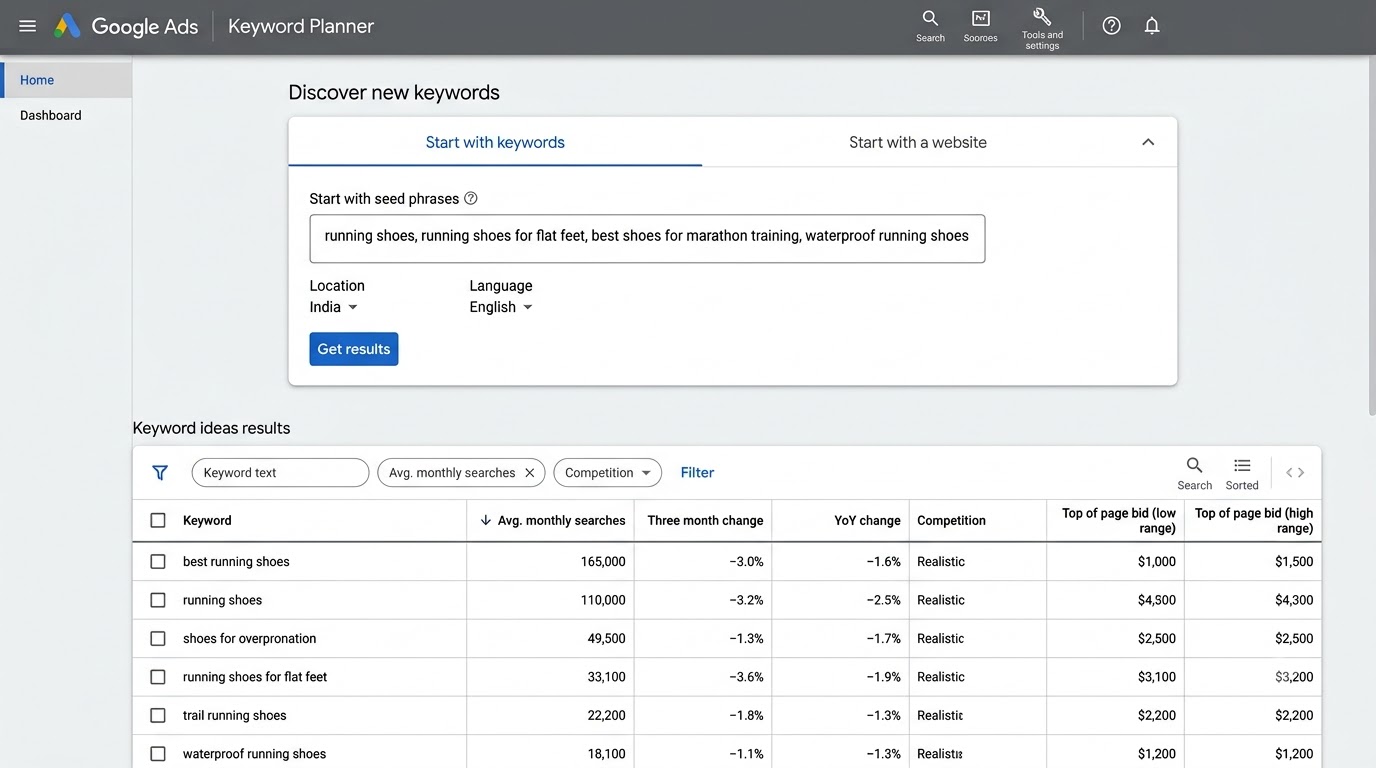
This is the part of the tool people actually come for, and it’s genuinely useful once you know how to feed it the right inputs. The quality of what you get out of “Discover new keywords” depends almost entirely on the quality of what you put in, so let’s go through the two main input methods properly.
Using “Discover New Keywords” With Seed Words
Type in one to ten seed phrases related to your topic, and Google Keyword Planner returns related keyword ideas, along with their volume ranges and competition scores. Here’s what most beginners get wrong: they type in one broad word, like “shoes,” and expect useful results. You’ll get results, but they’ll be so broad they’re barely actionable. A better approach is entering three to five specific phrases that already reflect how your actual audience talks, something like “running shoes for flat feet,” “best shoes for marathon training,” and “waterproof running shoes,” fed in together.
When you enter multiple seed phrases at once, Google Keyword Planner cross-references them and surfaces ideas that relate to the overlap between your terms, not just each one individually. This is where you start seeing keyword ideas you genuinely wouldn’t have thought of yourself, things like “shoes for overpronation” or “trail running shoes vs road running shoes,” phrases a real customer types but that don’t occur to you sitting at your desk trying to brainstorm from scratch.
There’s a rhythm to feeding seed words well. Start broad enough that Google has room to branch out, but specific enough that you’re not drowning in irrelevant results. “Shoes” alone returns thousands of ideas covering everything from sandals to formal wear, way too broad to act on. “Best running shoes for flat feet under 5000 rupees” is too narrow, Google will barely find related terms because you’ve packed too many qualifiers into one phrase. The sweet spot sits in between, two or three words that describe a real sub-category, which is exactly why I gave the three-to-five phrase recommendation earlier. Run a few test batches, look at what comes back, and adjust your seed phrases based on what you’re actually seeing rather than guessing the perfect input on your first try.
Using “Discover New Keywords” With a Competitor URL
The second input method is arguably more powerful and criminally underused. Instead of typing seed words, you can paste a competitor’s URL, either their homepage or a specific landing page, and Google Keyword Planner will generate keyword ideas based on the content it detects on that page. This is basically free competitive research: you’re asking Google to tell you what keywords it associates with a page that’s presumably already ranking or running ads successfully.
I do this constantly when I’m researching a new niche I don’t know well. Find the two or three sites already dominating search results for your general topic, paste each URL into this field one at a time, and compare the keyword ideas each one generates. You’ll usually spot overlapping themes across all of them, which tells you what the “table stakes” keywords are for that niche, plus a few unique suggestions per competitor that hint at an angle they’re covering that you might be missing entirely. Pair this with a proper look at their content structure and you’ve got a solid head start on a content plan before you’ve written a single word.
You can also paste a specific blog post URL instead of a homepage, which narrows the keyword ideas to that exact page’s content rather than the entire site’s general theme. I use this trick when a competitor has one standout article ranking well and I want to understand precisely which phrases Google associates with it. It’s not a perfect science, Google’s association here is based on its own crawling and understanding of the page, not a guarantee that page ranks for every term it returns, but it’s a genuinely fast way to reverse-engineer what a successful piece of content is actually built around instead of guessing from the outside.
Filtering and Sorting Results That Actually Matter
Once you’ve got a results list, and it can easily run into the hundreds of keywords, the built-in filters are what separate a useful research session from an overwhelming spreadsheet dump. Filter by average monthly searches first to cut out anything with negligible volume for your market size. Then filter by competition level, keeping in mind this competition score reflects ad auction competitiveness, not organic ranking difficulty, a distinction I’ll unpack properly in the next section.
There’s also a filter for “keyword text” that lets you exclude or include specific words, genuinely useful when your seed word has an unrelated meaning in another context and you’re getting flooded with irrelevant results. And don’t ignore the sort function on the “Avg. monthly searches” column, sorting high to low gives you a quick read on which sub-topics within your niche actually have search demand behind them versus which ones just sound like good ideas in your head. Export the filtered list to a spreadsheet before you start writing anything, because you’ll want to cross-reference it later against search intent, which raw volume numbers never tell you on their own.
One filtering habit that saves real time: add a negative keyword filter to strip out brand names that aren’t yours, especially if you’re in a niche crowded with big competitors. If you’re researching “CRM software” and a huge chunk of your results are variations of a specific competitor’s brand name, exclude that brand term early so it stops cluttering every export you pull going forward. It’s a small step, but doing it once at the filtering stage saves you from manually deleting the same dozen irrelevant rows every time you re-run a similar search later.
[Screenshot: Google Keyword Planner results table with competition and average monthly searches columns sorted high to low]
How to Read Google Keyword Planner Metrics Without Getting Fooled
This is where most beginners go wrong, not in finding keywords, but in misreading what the numbers next to those keywords actually mean. Get this part wrong and you’ll build an entire content calendar around keywords that either don’t exist in meaningful volume or are impossible to rank for organically despite what the tool implies.
Understanding Average Monthly Searches and Volume Ranges
The “Avg. monthly searches” column shows a twelve-month average, not last month’s number, which matters for anything seasonal. A keyword like “diwali gift ideas” might show a healthy average search volume, but that number is smoothing out one enormous spike in October and near-zero searches the rest of the year. If you don’t check the monthly search trend graph, which appears when you click into an individual keyword, you’ll misjudge when to actually publish content targeting that term.
You’ll also notice most keywords display as a range rather than an exact figure, something like “1K to 10K,” unless you’re spending a reasonable amount through active ad campaigns in that account. This is intentional on Google’s part, they reserve precise numbers as a benefit of ad spend. For beginners without a budget for ads, treat these ranges as directional, useful for comparing keywords against each other, not as precise numbers you’d report to a client or boss as fact. If you need exact figures for a proposal or report, that’s genuinely one of the moments where a paid tool or a small ad spend to unlock precise data earns its cost.
Click into any individual keyword and you’ll see a bar graph showing that twelve month trend broken down month by month, which honestly tells you more than the single averaged number does. I always check this graph before committing content resources to a keyword. A flat, consistent line across all twelve months means steady, reliable demand you can plan around anytime. A graph with one or two tall spikes and near-zero bars everywhere else means you’re looking at a seasonal term, and publishing content for it in the wrong month is basically wasted effort until that window rolls around again.
What Competition and Bid Ranges Really Tell You
Here’s the single biggest misunderstanding beginners carry into their first few months of SEO work: the “Competition” column in Google Keyword Planner measures how many advertisers are bidding on that keyword in the Google Ads auction. It has nothing to do with how hard that keyword is to rank for organically. A keyword can show “Low” competition in Keyword Planner and still be brutally competitive to rank for in organic search results, and the reverse happens just as often.
I’ve watched beginners build entire content strategies around “low competition” keywords pulled straight from this column, only to get outranked instantly by five established sites with strong domain authority that simply aren’t running ads on that term. If organic ranking difficulty is what you actually care about, and for most content and SEO work it is, you need a separate tool that measures keyword difficulty based on the actual sites currently ranking, not ad auction data. Use Keyword Planner’s competition column for what it’s built for: understanding paid search competitiveness, and cost, if you’re planning to run ads. For organic difficulty, look at who’s actually ranking on page one and judge for yourself how realistic it is to compete with them.
The “Top of page bid” range tells you roughly what advertisers pay per click for that keyword, low and high estimates. Even if you’re not running ads, this number is a useful signal of commercial intent. Keywords with high bid ranges usually mean businesses are making real money off people who search that term, which often correlates with buying intent even in organic traffic. A high bid range next to a keyword like “best CRM software for small business” tells you something different than a high bid range next to “what is a CRM,” even though both might show similar search volume.
I actually use bid range as a quick filter when I’m choosing which blog topics to prioritize for a client focused on lead generation rather than pure traffic. If two keywords show similar search volume but one has a bid range three or four times higher than the other, that gap is the market telling you which topic sits closer to an actual purchase decision. It’s not a perfect signal on its own, but stacked next to search intent, it’s one of the fastest ways to sort a long keyword list by commercial value instead of treating every keyword as equally worth your writing time.
There’s a nuance worth flagging too. A high bid range doesn’t automatically mean you should chase that keyword for organic content, sometimes it means the paid competition is so fierce that ranking organically won’t move the needle much anyway, because most of the visible real estate on that search results page gets eaten up by ads before your organic listing even shows. Check the actual search results page for your top candidate keywords, not just the bid number in isolation, and you’ll get a truer read on whether that demand is actually reachable through content or whether it’s a term better left to a paid campaign instead.
Why Search Volume Alone Should Never Drive Your Content Plan
Here’s the thing most guides skip entirely: a keyword with high search volume and low competition looks perfect on paper, but volume alone tells you nothing about whether that traffic actually converts into readers, subscribers, or customers who matter to your goal. I’ve seen beginners chase a 10,000 monthly search keyword, rank for it eventually, get a genuine traffic spike, and then wonder why none of it turned into email signups or sales.
The missing piece is search intent, what the person actually wants when they type that phrase. “How keyword planner works” is informational, someone wants to understand a concept. “Google keyword planner alternative” is comparison intent, someone’s already evaluating options. “Buy keyword research tool subscription” is transactional, someone’s ready to spend money. Google Keyword Planner doesn’t label intent for you, it just gives you volume and competition data. You have to actually read the keyword phrase and, ideally, glance at what’s currently ranking for it on Google to judge what kind of content that search actually deserves. Skip this step and you’ll write technically accurate content that nobody who reads it actually wanted.
My rule of thumb, and I tell every student I mentor this exact thing: before you write a single word, google the keyword yourself and look at what’s already ranking on page one. If every top result is a comparison table or a “vs” article, that keyword wants comparison content, and writing a plain definition post won’t rank no matter how well you optimize it. If the top results are all long how-to guides, that’s your format cue. Keyword Planner tells you demand exists. Google’s actual search results tell you what shape that demand expects the answer to take. Both steps matter, and skipping the second one is exactly where a lot of otherwise solid keyword research falls apart.
Google Keyword Planner Mistakes and How to Avoid Them
I’ve made every mistake in this section myself at some point, usually in my first year doing this work, so consider this the shortcut past the lessons I learned the slow way.
What’s interesting is these mistakes rarely announce themselves. Nobody realizes they’ve misread a competition score or ignored search intent in the moment, it usually shows up weeks later as “why isn’t this content performing” or “why are we spending so much on keywords that don’t convert.” By the time the mistake is visible in your analytics, you’ve already sunk the writing time, the editing time, sometimes ad spend too. Catching these patterns early, before you commit resources, is worth far more than fixing them after the fact, which is really the whole point of walking through them here in detail rather than just listing them as a quick bullet point recap.
Trusting the Broad Volume Ranges Too Literally
I already touched on this, but it deserves its own space because of how often it derails beginner strategy. Treating “1K to 10K” as a fixed number instead of a wide range leads to bad prioritization decisions. Two keywords can both show that exact same range while one gets 1,100 searches and the other gets 9,500, a nearly tenfold difference hiding behind identical-looking data. When you’re choosing between similarly ranged keywords, look for additional signals: check the monthly trend graph for consistency, glance at how many results Google shows for that exact phrase, and consider running a small handful of your top candidate keywords through a free trial of a paid tool if you need sharper numbers before committing serious content budget to one direction over another.
Another trick that works well when a budget for paid tools genuinely isn’t an option: type the exact keyword phrase into Google search itself with quotation marks around it, and look at the “About X results” figure that appears. That’s not a search volume number, it’s a page count, but comparing that figure across a handful of keywords in the same range gives you a rough secondary signal for which ones have more content and presumably more search interest built up around them over time. It’s not scientific, but it’s free, and it’s better than picking blind between two identically ranged keywords.
Ignoring Search Intent While Chasing High Volume Keywords
This one deserves repeating with a concrete example because it’s the mistake I see most often in students just starting out. Someone researching “digital marketing” as a broad seed word gets flooded with high-volume keywords like “digital marketing,” “what is digital marketing,” and “digital marketing course,” all showing strong search volume. If your actual business goal is selling a course, “digital marketing course” and “best digital marketing course for beginners” deserve your attention far more than the generic “what is digital marketing” term, even if the generic term shows a higher volume number.
That informational keyword might bring more total visitors, sure, but a much smaller percentage of them are anywhere close to ready to enroll in anything. Match your keyword choice to your actual business goal for that specific piece of content, not just to whichever number in the spreadsheet looks biggest. This is also exactly the kind of judgment call that separates someone who’s memorized a tool’s interface from someone who actually understands strategy, which is a big part of what a structured program like the Alpha Marketer Foundation Program is built to teach beyond just tool mechanics.
A quick way to sort a big keyword export by likely intent before you even open each result individually: scan for words like “what,” “how,” and “why,” which almost always signal informational intent. Scan for “vs,” “best,” and “top,” which usually signal comparison intent, someone weighing options. Scan for “buy,” “price,” “near me,” and “course,” which lean transactional, someone close to a decision. Tag your spreadsheet with these buckets as a first pass, and suddenly a list of two hundred keywords stops looking like an undifferentiated wall of numbers and starts looking like an actual content plan with a clear next step for each row.
Skipping Keyword Planner During Active Ad Campaigns
If you’re already running Google Ads campaigns, and plenty of small business owners reading this eventually will be, don’t treat Keyword Planner as a one-time research tool you use before launch and then abandon. Revisit it every few months. Search behavior shifts, new competitor terms emerge, and seasonal patterns you missed the first time around become visible once you’ve got a full year of your own campaign data feeding back into your account. I check Keyword Planner data for active client accounts roughly every quarter, sometimes monthly for fast-moving niches like consumer electronics or seasonal fashion, precisely because the “set it and forget it” approach leaves genuine opportunity sitting on the table.
Also worth noting: once you’re spending a decent amount through an active campaign, Google unlocks those precise search volume numbers instead of the broad ranges free accounts see. That alone is a good reason to keep at least a small ongoing campaign running if keyword accuracy matters to your work, even a modest daily budget is often enough to unlock sharper data across your whole account.
I’d also gently push back on the instinct to pause a campaign entirely the moment results feel “good enough.” Pausing ads doesn’t just stop new clicks, it quietly downgrades the precision of your Keyword Planner data back to broad ranges the next time you check it. If keyword accuracy genuinely matters for ongoing decisions, factor a small always-on budget into your plan specifically to keep that data sharp, separate from whatever budget you’re allocating toward actual conversions and sales.
Google Keyword Planner vs Other Keyword Research Tools
People ask me this constantly, usually right after they’ve hit the “1K to 10K” range wall for the fifth time in a row: should I just skip Google Keyword Planner entirely and pay for something else? Honestly, no, and the answer isn’t really “one or the other” once you understand what each type of tool is actually good at.
I’ve sat in enough strategy meetings where someone proposes ditching the free tool the moment budget allows, and I get the instinct, a paid dashboard feels more “professional.” But professional isn’t the same as better suited to the task in front of you. The right question isn’t which tool looks more impressive on a client report, it’s which tool answers the specific question you’re asking right now. Sometimes that’s Keyword Planner, sometimes it’s not, and knowing the difference is worth more than defaulting to whichever tool has the nicer logo.
Google Keyword Planner vs Ahrefs and Semrush
Ahrefs and Semrush both build their own keyword databases using clickstream data and independent crawling, which lets them show exact search volume numbers instead of Google’s broad ranges, plus a proper keyword difficulty score based on who’s actually ranking organically for that term. That difficulty score is something Google Keyword Planner simply doesn’t offer, since its competition metric is tied to ad auctions, not organic search results. If your work leans heavily toward SEO content strategy, that difficulty score alone often justifies the subscription cost once you’re working at any real scale.
What these paid tools don’t have is a direct pipeline into Google’s own ad system. Their numbers are excellent estimates, refined over years and generally reliable, but they’re still estimates built from a different data source than Google itself uses internally. I’ve seen cases where a paid tool shows solid volume for a keyword that, when you actually run it through Keyword Planner, barely registers, usually because that keyword’s real search behavior shifted recently and the third-party tool’s model hasn’t fully caught up yet. Neither tool is lying to you in these moments, they’re just built differently, and knowing that difference stops you from blindly trusting whichever number happens to be higher.
When Free Data Is Enough and When You Need to Pay
If you’re a student, a freelancer just starting out, or a small business owner testing whether content marketing is even worth investing in yet, Google Keyword Planner alone is genuinely enough to build a solid first content plan. You won’t get a slick difficulty score, but you’ll get real search demand data straight from Google, and with the intent-checking process I walked through earlier, that’s enough to make smart decisions about what to write.
The moment I’d tell someone to start paying is when they’re managing multiple sites or clients at once and need to compare and prioritize hundreds of keywords quickly, or when organic ranking difficulty specifically, not ad competition, becomes the deciding factor in what to target next. At that point, the time saved by an instant difficulty score and precise volume numbers pays for the subscription pretty fast, especially once you’re billing client work against those hours.
Using Keyword Planner Alongside a Paid Tool the Right Way
My actual workflow, the one I use on client accounts every week, blends both. I start keyword discovery in Google Keyword Planner because the seed word and competitor URL discovery features are genuinely excellent and free. Once I’ve got a shortlist of fifty to a hundred promising keywords, I run that exact list through a paid tool’s difficulty checker to prioritize which ones are realistically winnable given the site’s current authority. Discovery from Google, prioritization from the paid layer. That combination has consistently outperformed relying on either tool alone in every account I’ve managed, and it’s a workflow anyone can replicate even on a tight budget, since the discovery phase, the part that takes the most volume of searches, doesn’t cost anything at all.
Conclusion
Google Keyword Planner isn’t a complicated tool once you understand what it was actually built for and where its data comes from directly versus where a third-party tool is estimating on your behalf. Set it up properly without accidentally launching a campaign, feed it specific seed words or competitor URLs instead of vague single terms, and read the competition and volume columns for what they measure, ad auction data, not organic ranking difficulty. Do that consistently and Google Keyword Planner earns its place as a permanent part of your research process, free version or not.
None of this is complicated once it clicks, but almost everyone I’ve trained needed to actually sit inside the tool for a real session before it clicked. Reading about filters is not the same as watching a keyword’s volume shift when you change the location setting yourself, and no amount of guides, this one included, replaces that. The mistakes I listed above aren’t hypothetical either, I’ve watched real content plans get built around them, and I’ve watched the same plans improve dramatically once someone caught the error and corrected course.
If you’re just starting out, open the tool today and run three seed keywords related to something you’re already working on. Don’t overthink the first session, just get comfortable clicking through the filters and reading the results honestly. That hands-on time is worth more than reading ten more guides about it. Once you’ve got a feel for the raw data, you’ll find every other keyword tool you touch after this one makes a lot more sense too, because you’ll finally know what “good” data is actually supposed to look like underneath the polish.
Frequently Asked Questions
What is Google Keyword Planner used for?
Google Keyword Planner is a free tool inside Google Ads that generates keyword ideas and shows estimated search volume, competition level, and bid ranges for those terms. Advertisers use it to plan ad campaigns, while SEOs and content writers use it to find topics worth writing about based on real search demand.
Is Google Keyword Planner free to use?
Yes, Google Keyword Planner is completely free to access as long as you have a Google Ads account, even one with no active campaigns or ad spend. You will see broader search volume ranges instead of exact numbers until you begin spending a reasonable amount on ads through that account.
Do I need to run ads to use Google Keyword Planner?
No, you can access the tool by creating a Google Ads account and switching to Expert Mode during setup, which skips the campaign creation flow entirely. You will need to provide basic business details, but no payment method is required until you actually choose to launch a campaign.
Why does Google Keyword Planner show search volume as a range instead of an exact number?
Google intentionally shows broad ranges, such as “1K to 10K,” to free accounts that aren’t actively spending on ads. Once your account spends a meaningful amount through live campaigns, Google unlocks more precise search volume figures as a benefit tied to ad spend.
Is Google Keyword Planner good for SEO or only for paid ads?
It’s genuinely useful for SEO keyword research despite being built primarily for paid advertisers. The search volume data comes directly from Google, which makes it valuable for finding topics people actually search for, though the “Competition” metric reflects ad auction demand, not organic ranking difficulty.
What does the competition score in Google Keyword Planner actually mean?
The competition score measures how many advertisers are bidding on a keyword in the Google Ads auction system. It does not measure how difficult that keyword is to rank for in organic Google search results, which is a common misunderstanding among beginners.
How accurate is Google Keyword Planner’s search volume data?
The data comes directly from Google’s own search system, making it more accurate as a data source than third-party tools that estimate volume through modeling. However, free accounts see it rounded into wide ranges rather than exact figures, which limits precision unless you’re running active ad campaigns.
Can I use Google Keyword Planner without a Gmail account?
You need a Google account to access Google Ads and, by extension, Keyword Planner, and Gmail is the most common way people already have one. If you don’t have a Google account yet, you can create one for free directly through the Google Ads signup flow before setting up Keyword Planner.
What is the difference between Google Keyword Planner and tools like Ahrefs or Semrush?
Google Keyword Planner pulls search volume directly from Google’s own data, while third-party tools estimate volume using their own crawling and modeling methods, which can produce different numbers for the same keyword. Paid tools generally offer sharper keyword difficulty scores for organic ranking, clickstream data, and competitor analysis features that Keyword Planner doesn’t include.
How do I find low competition keywords using Google Keyword Planner?
Filter your results by the “Competition” column and sort for “Low,” but remember this reflects ad auction competitiveness, not organic ranking difficulty. To judge actual organic competition, manually check who currently ranks on page one for that keyword and assess whether you can realistically compete with those specific sites.
Can beginners with no marketing background use Google Keyword Planner effectively?
Yes, the tool itself only requires understanding two main features, discovering new keywords and checking search volume forecasts, both of which are straightforward once you know where they live in the dashboard. The harder skill to develop is interpreting the data correctly, especially search intent and competition context, which comes with practice and exposure to real keyword research work.
How often should I use Google Keyword Planner for my content strategy?
Revisit it regularly rather than treating it as a one-time research task, ideally every few months for most niches and more frequently for fast-changing industries like fashion, electronics, or anything seasonal. Search behavior shifts over time, and new keyword opportunities or emerging phrases won’t show up if you only ever check once.
Does Google Keyword Planner show keyword difficulty for organic search?
No, Google Keyword Planner does not include a keyword difficulty metric for organic search rankings. Its competition data reflects paid advertising demand only, so for organic difficulty assessment you need to manually evaluate the sites currently ranking or use a dedicated SEO tool built for that purpose.
What should I do if Google Keyword Planner shows very few keyword ideas for my topic?
Try broadening or rephrasing your seed keywords, and add a competitor URL as a second input source to generate additional related ideas. Also double check your location and language filters, since overly narrow targeting settings can significantly shrink the number of results the tool returns.